


Email Problems

Originally, when I clicked on he Thunderbird icon on my desktop, a box came up saying "File Not Found". Now I am getting in my email but the box still flashes just before my email comes on the screen. But now when I open my list of emails, the email comes up but thee is a red dot box surrounding the email. If I click on the email I get a Blue Box that says, "Link Location. Enter a web page location, or a local file, or select a Named Anchor or Heading from the field's context menu:" Then it list an "http.//" address and below that it says, "Choose a File", then "Attach the source of this link to the message." And a box the says, Advanced Edit...", and a box that says "OK" and one that says, "Cancel." I don't know what all that means. Also, on the "FROM" line of the email it has my name and my email address as if I sent it. My name and email address is also on the "TO" line. At the very bottom of the email, there is a yellow message that says, "A unique identity matching the From address was not found. The message will be sent using the current From field and settings from identity Wayne Haver <whaver@mynewroads.com> It doesn't do any good to send me an email
Все ответы (1)
Sounds like you are trying to read an email you received, but it's opening and looking like an email you are trying to compose.
When you click on a link it opens up the edit box for a link - which is the same as you would see if you were creating an email.
This looks like you have got a wrong 'flag' setting. Maybe the Inbox has got a 'drafts' or 'templates' flag setting.
You need to download and install an addon extension called 'folderFlags'.
Please use this addon:
How to install addon:
There are two ways to install an addon, so I've offered instructions for both below.
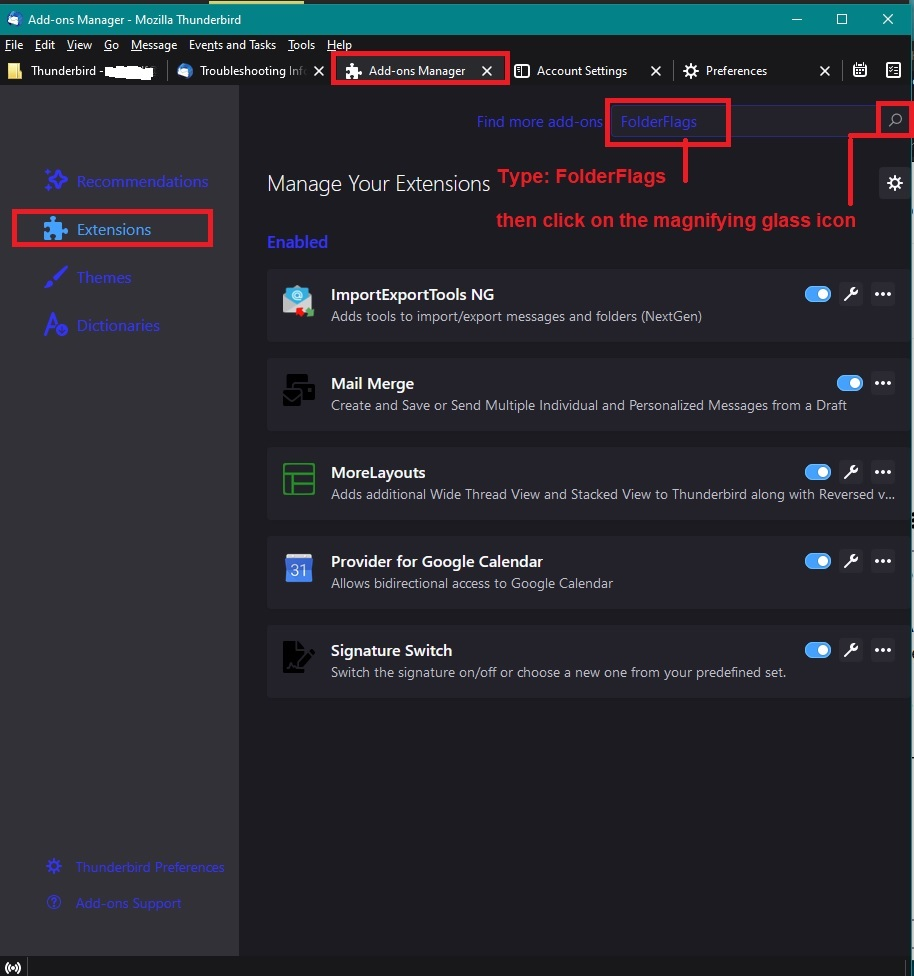
To do the method as shown in images:
- Menu icon > Addons and Themes
- Select 'Extensions' which has a jigsaw puzzle icon
- In top search type: folderFlags and press 'Enter' key
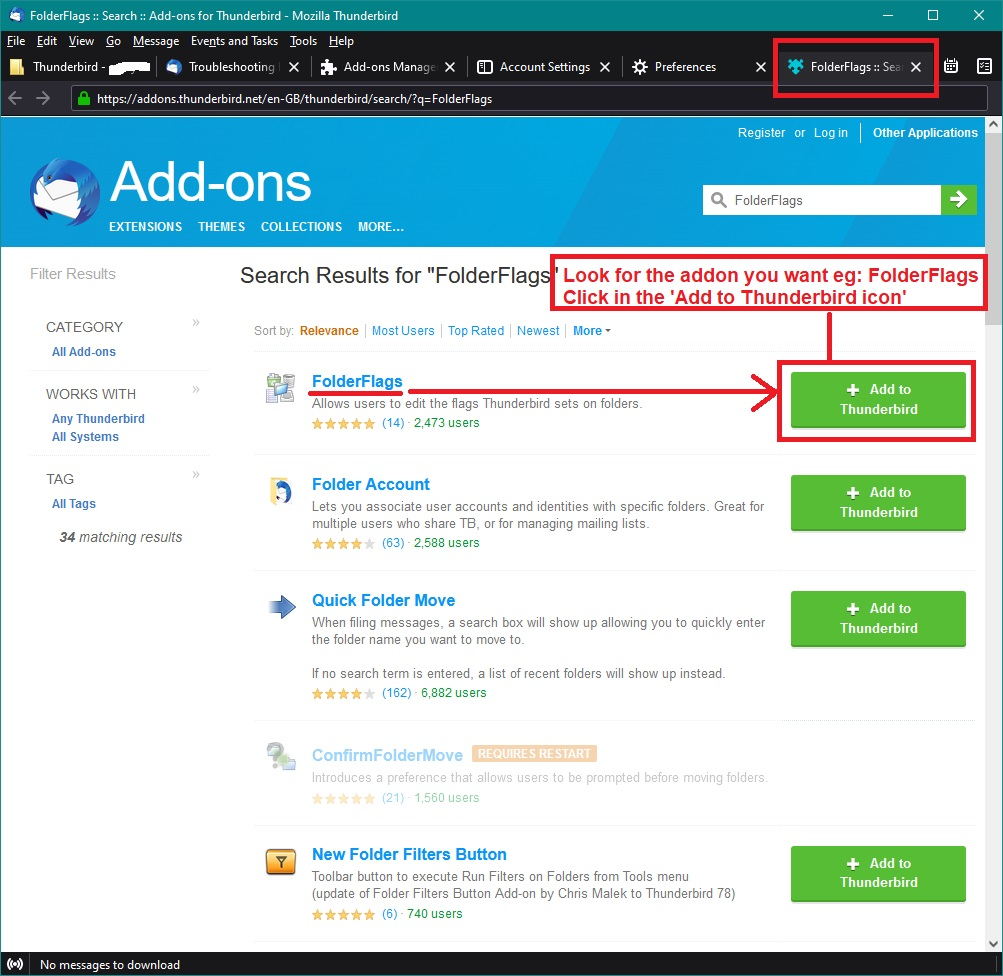
A new tab opens showing a list and you will find 'FolderFlags' is probably top of the list.
- Click on 'Add to Thunderbird'
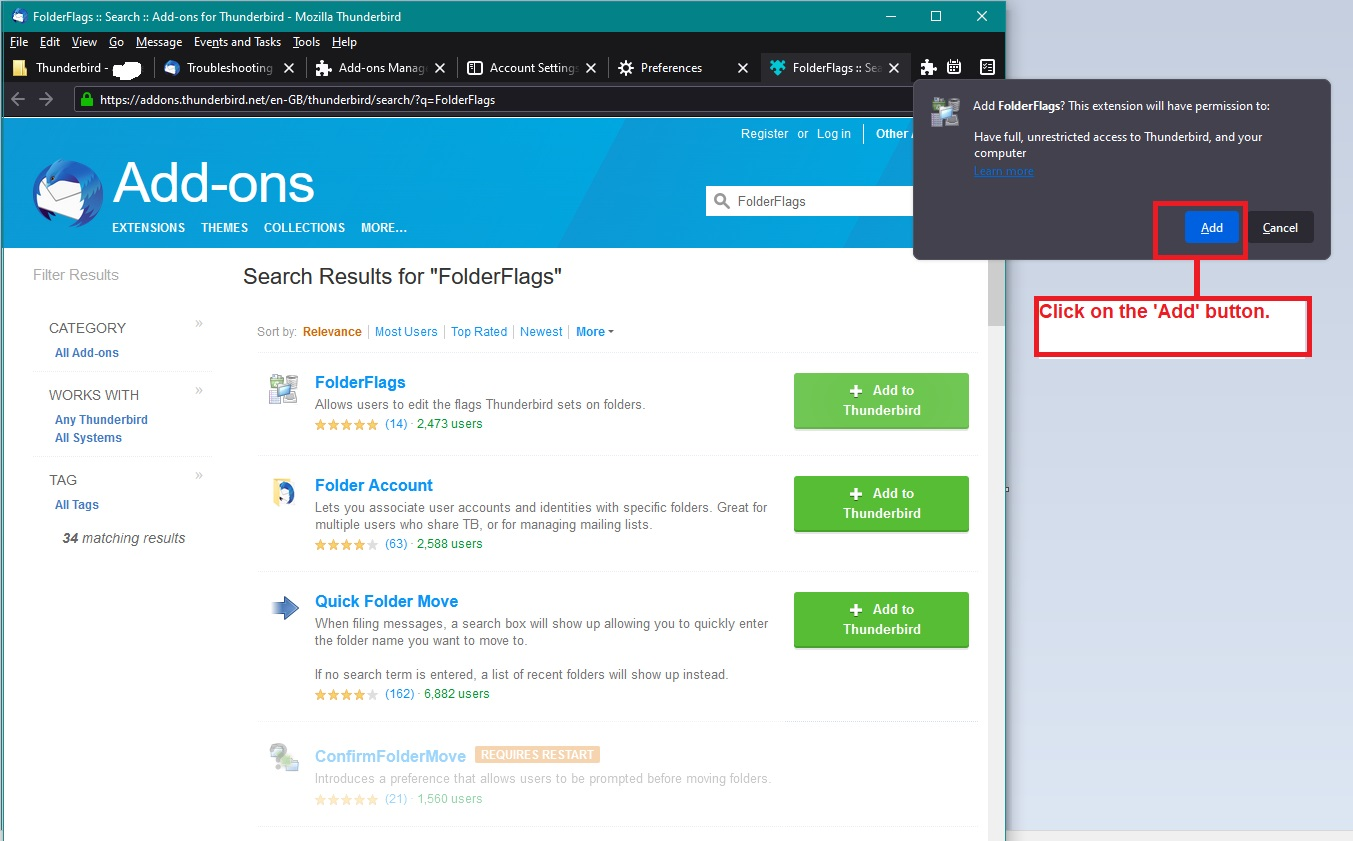
- You will get a pop up which asks you to add it, so click on 'Add'
- It will then show another popup to say it is added, click on 'OK'
Now you can use it.
Alternative Method: You may have used this method... Go to this link and it opens in browser:
- https://addons.thunderbird.net/en-us/thunderbird/addon/folderflags/
- Click on 'Download Now'
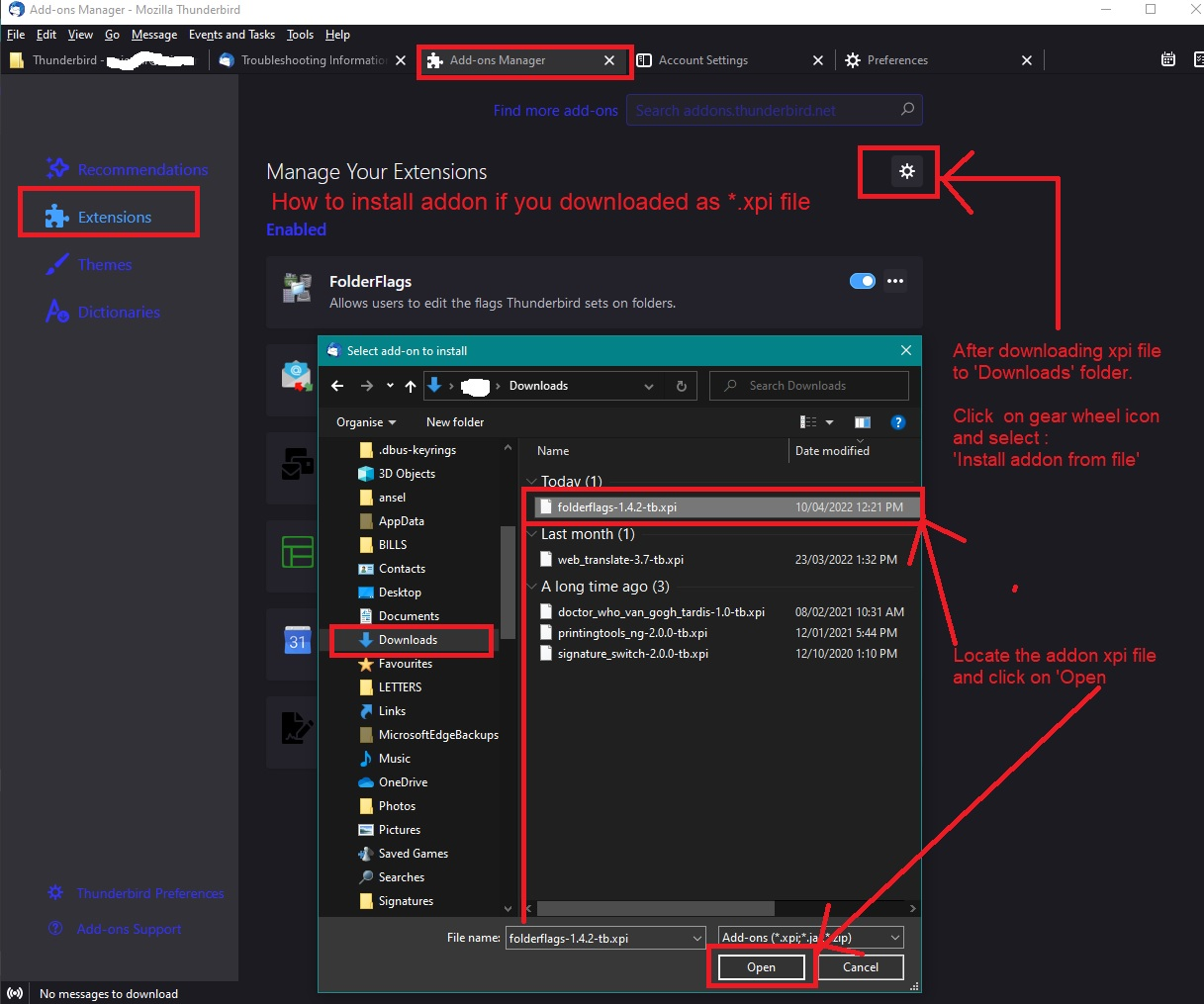
It downloads to your computer and is usually auto put into the 'Downloads' folder as an .xpi file In Thunderbird:
- Menu icon > Addons and Themes
- Select 'Extensions' which has a jigsaw puzzle icon
- Top right is a gear wheel icon - click on it to see drop down options.
- Click on 'Install Addon from file'
It will open a new window - see image below
- Locate the 'Downloads' folder to see the 'folderflags-1.5.1-tb.xpi' file you downloaded.
- Select the file so it shows in the 'Filename' at bottom of window and click on 'Open'
- A pop up appears asking you to click on 'Add'
- then another pop up says it was added and you click on 'OK'
I have included a bunch of images as a guide.
The first image will help if you used the alternative method and downloaded the xpi file.
The 2nd, 3rd and 4th help if you use the first method to locate and install via Thunderbird.
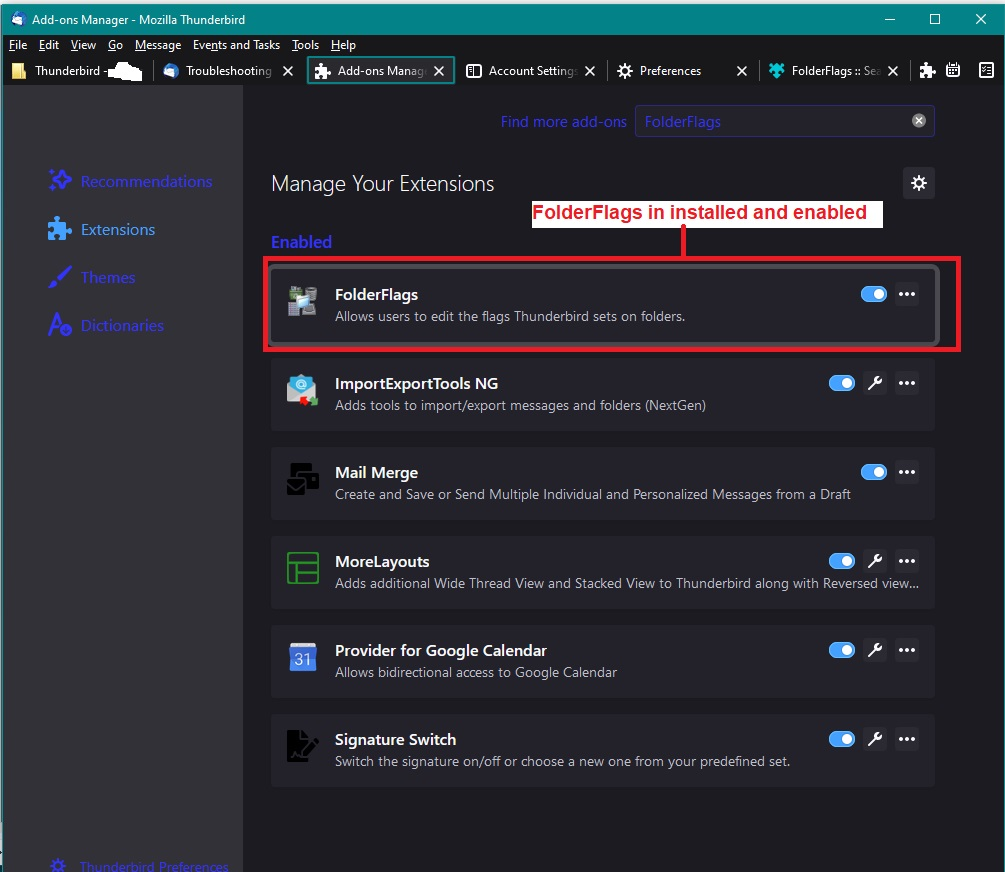
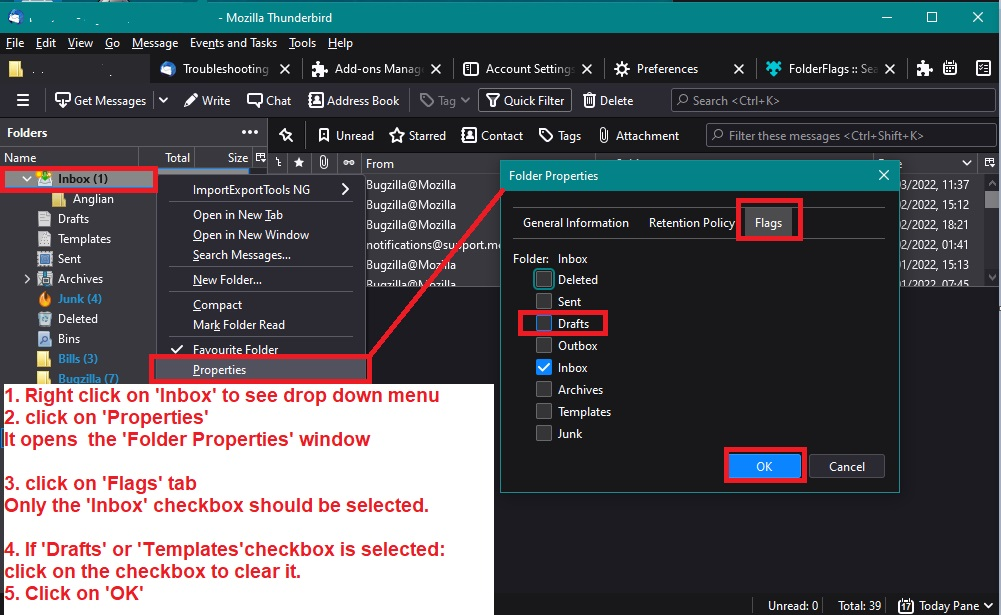
The last two images will help regardless of method as it shows info that A) addon is installed and B) the last one shows what to select in Folder Pane to remove incorect flags.
Once addon extension is installed and is visible in:
'Menu app icon > Addons and Themes' > Extensions
In Folder Pane
- Right click on effected 'Inbox' folder and select 'Properties'
- Select the 'Flags' tab
- uncheck any 'Draft' or 'Templates' flag that has been set, let me know what flags were set.
- click on OK
Изменено Toad-Hall