


Facebook opens, but doesn't want to load up additional posts in my feed.

When opened, everything looks just fine but after I scroll down to the bottom of the page additional posts in my feed won't load in any amount of time. What's more everything works just fine on Google Chrome or Internet Explorer. I tried clearing my Cache and Cookies but it didn't change anything.
Toate răspunsurile (5)
Screen shot of the error?
T4sker said
When opened, everything looks just fine but after I scroll down to the bottom of the page additional posts in my feed won't load in any amount of time. What's more everything works just fine on Google Chrome or Internet Explorer. I tried clearing my Cache and Cookies but it didn't change anything.
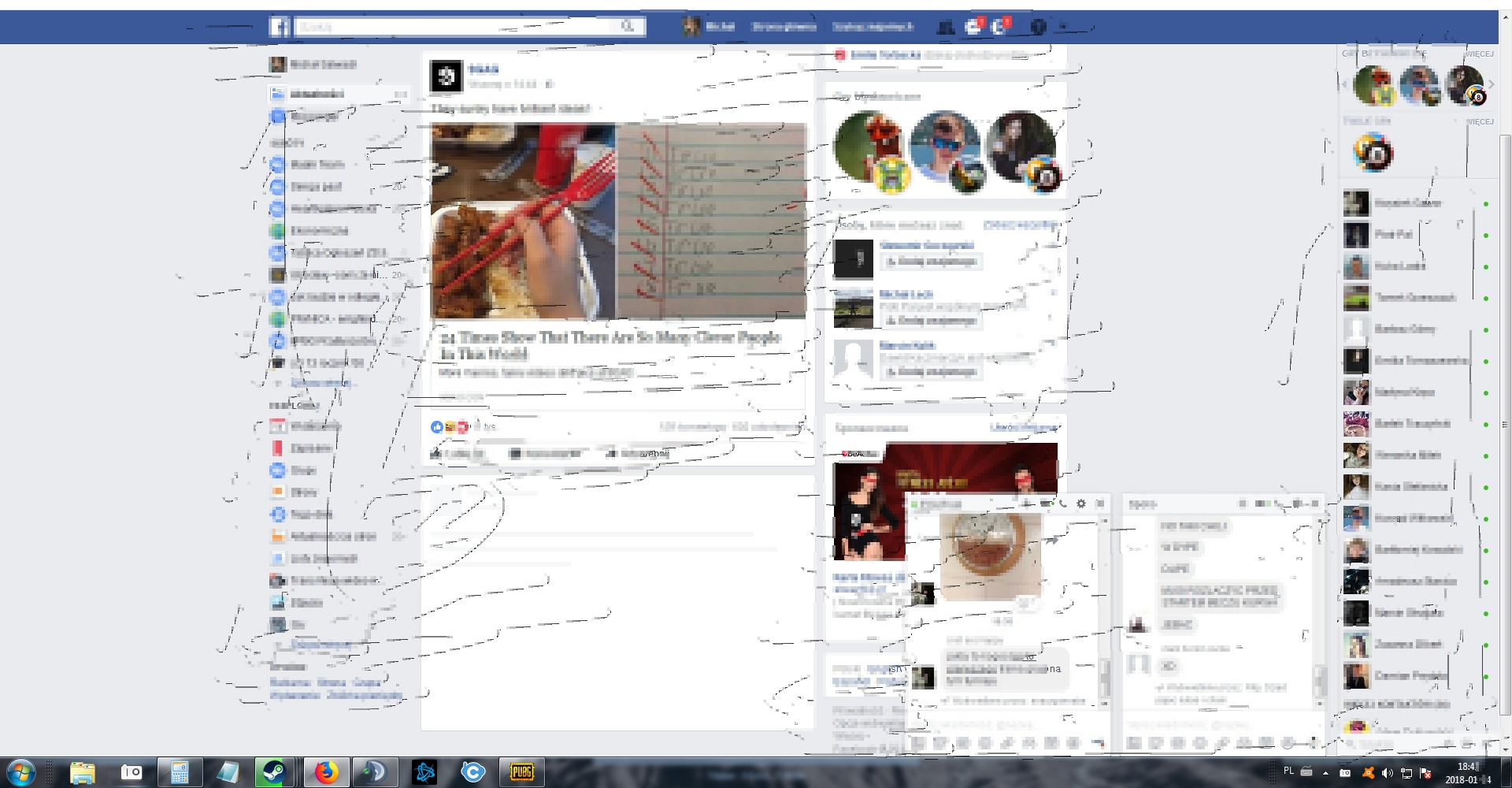
Nvm sorry, quality of the picture is quite bad but the point is this "post" appears and keeps loading and never actually does.
the screenshot
You can try these steps in case of issues with web pages:
You can reload web page(s) and bypass the cache to refresh possibly outdated or corrupted files.
- hold down the Shift key and left-click the Reload button
- press "Ctrl + F5" or press "Ctrl + Shift + R" (Windows,Linux)
- press "Command + Shift + R" (Mac)
Clear the cache and remove the cookies from websites that cause problems via the "3-bar" Firefox menu button (Options/Preferences).
"Clear the cache:
- Options/Preferences -> Privacy & Security -> Cached Web Content: "Clear Now"
"Remove the cookies" from websites that cause problems.
- Options/Preferences -> Privacy & Security -> "Use custom settings for history" -> Cookies: "Show Cookies"
Start Firefox in Safe Mode to check if one of the extensions ("3-bar" menu button or Tools -> Add-ons -> Extensions) or if hardware acceleration is causing the problem.
- switch to the DEFAULT theme: "3-bar" menu button or Tools -> Add-ons -> Appearance
- do NOT click the "Refresh Firefox" button on the Safe Mode start window