


I was recently updated by Mozilla to v42.0. Although my other websites are still fine, Marketwatch.com is now a complete mess.Tracking Protection=Off

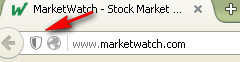
I am running Firefox on Windows 10. I thought that Tracking Protection might have something to do with it ("With Tracking Protection turned on, certain sites might look broken—like pieces are missing or haven't loaded. To reverse the effects, simply open the new Control Center (accessible via that shield icon), and tap "Disable protection for this session.") but I have no Shield icon in upper left hand corner of browser. I have been using Firebox with marketwatch.com for years with only minor glitches. The ones I get now are major.
Solução escolhida
You can try these steps in case of issues with web pages:
You can reload web page(s) and bypass the cache to refresh possibly outdated or corrupted files.
- Hold down the Shift key and left-click the Reload button
- Press "Ctrl + F5" or press "Ctrl + Shift + R" (Windows,Linux)
- Press "Command + Shift + R" (Mac)
Clear the cache and remove cookies only from websites that cause problems.
"Clear the Cache":
- Firefox/Tools > Options > Advanced > Network > Cached Web Content: "Clear Now"
"Remove Cookies" from sites causing problems:
- Firefox/Tools > Options > Privacy > "Use custom settings for history" > Cookies: "Show Cookies"
Start Firefox in Safe Mode to check if one of the extensions (Firefox menu button/Tools > Add-ons > Extensions) or if hardware acceleration is causing the problem.
- Switch to the DEFAULT theme: Firefox menu button/Tools > Add-ons > Appearance
- Do NOT click the Reset button on the Safe Mode start window
- https://support.mozilla.org/kb/Safe+Mode
- https://support.mozilla.org/kb/Troubleshooting+extensions+and+themes
Todas as respostas (2)
Hello jjcp, strange.....can you attach a screenshot ?
thank you
Solução escolhida
You can try these steps in case of issues with web pages:
You can reload web page(s) and bypass the cache to refresh possibly outdated or corrupted files.
- Hold down the Shift key and left-click the Reload button
- Press "Ctrl + F5" or press "Ctrl + Shift + R" (Windows,Linux)
- Press "Command + Shift + R" (Mac)
Clear the cache and remove cookies only from websites that cause problems.
"Clear the Cache":
- Firefox/Tools > Options > Advanced > Network > Cached Web Content: "Clear Now"
"Remove Cookies" from sites causing problems:
- Firefox/Tools > Options > Privacy > "Use custom settings for history" > Cookies: "Show Cookies"
Start Firefox in Safe Mode to check if one of the extensions (Firefox menu button/Tools > Add-ons > Extensions) or if hardware acceleration is causing the problem.
- Switch to the DEFAULT theme: Firefox menu button/Tools > Add-ons > Appearance
- Do NOT click the Reset button on the Safe Mode start window