


How to select multiple bookmarks?

Using Firefox ESR 115.30 in Windows 7 Ultimate, I routinely open multiple tabs, then, at the end of the day or session I'll bookmark them all into a new folder and close them all.
Later, I might return to that folder and choose to open say, 5 of the group. Is there a way to select all 5 (without opening any) and once I've finished selecting them, have all 5 open at once? Rather than just one at a time? So far it seems that I have to open them one by one.
Wszystkie odpowiedzi (2)

Go to Manage Bookmarks -> the specific folder you want to open bookmarks from -> click on the first bookmark, hold Shift, click on the last bookmark (this will highlight all selected bookmarks) > right click and click on "Open All Bookmarks".
Yes, ideally there would be a more convenient way to do this.
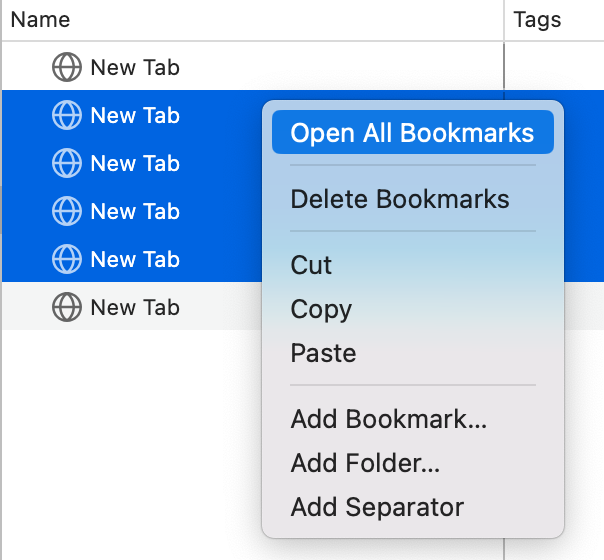
Thanks, but SHIFT didn't work for me. These two methods did:
1) Best... Open a new Firefox page with Ctrl\N Go to Manage Bookmarks, click (folder name) in left column. At right see the contents of that folder. Hold Ctrl and click only the ones you want to open. Right click and select 'Open All Bookmarks'. Your new selection will contain only the selected bookmarks plus the empty Firefox page.
2) Alternative Bookmarks > Manage Bookmarks. At left, scroll down and click (folder name). Hold Ctrl and select a group. Copy them into Notepad and they'll become links. Copy them. In Firefox, Ctrl + N to open a new tab. Select the entire group of Notepad links and click once to open the lot. HTH :-)
Zmodyfikowany przez wonklertoo w dniu