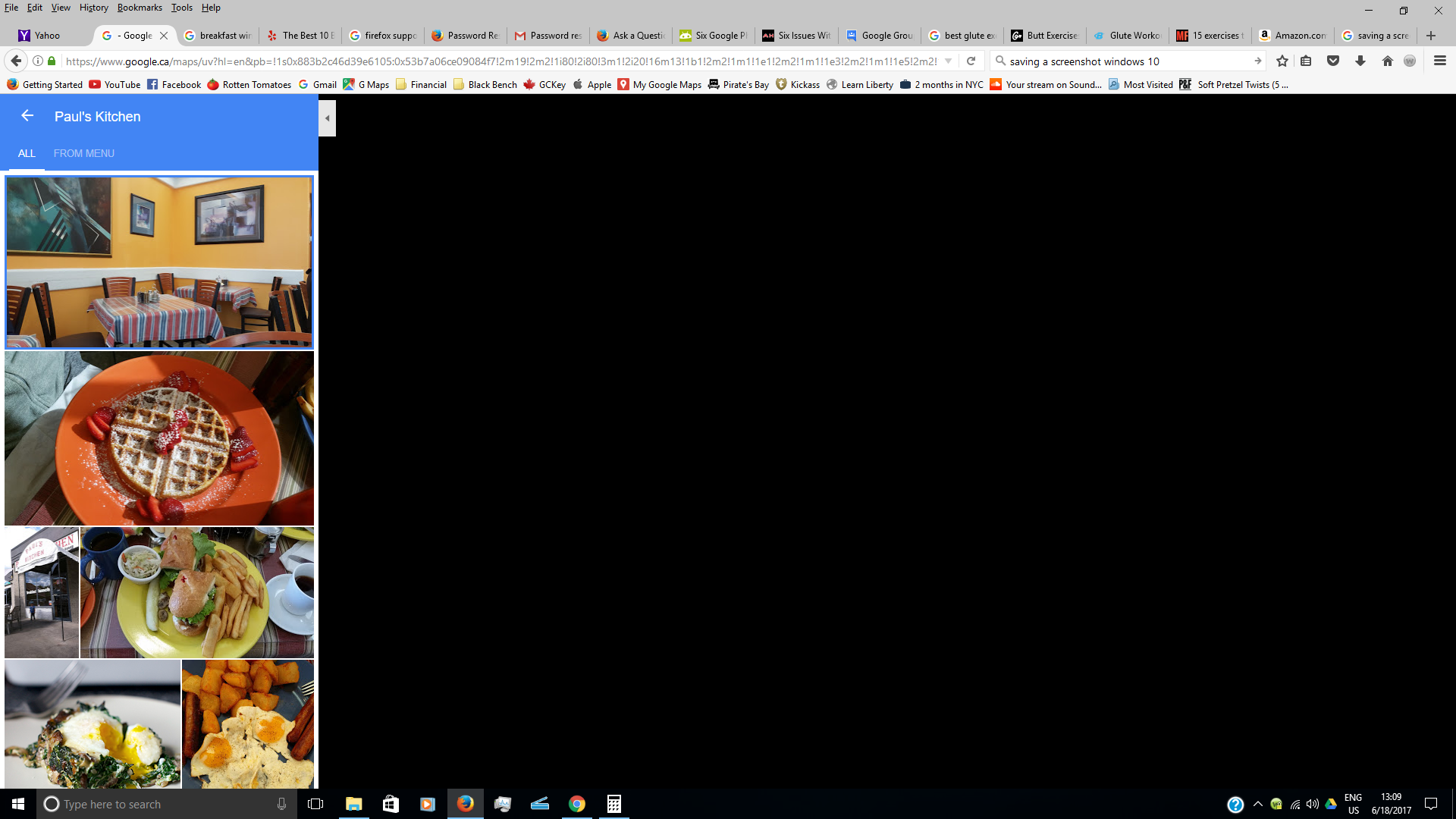
Google search photos (using Firefox) when searching for place, i.e restaurants, displays the photos in the sidebar but not the main window

Google search photos (using Firefox) when searching for place, i.e restaurants, displays the photos in the sidebar but not the main window
Wszystkie odpowiedzi (2)
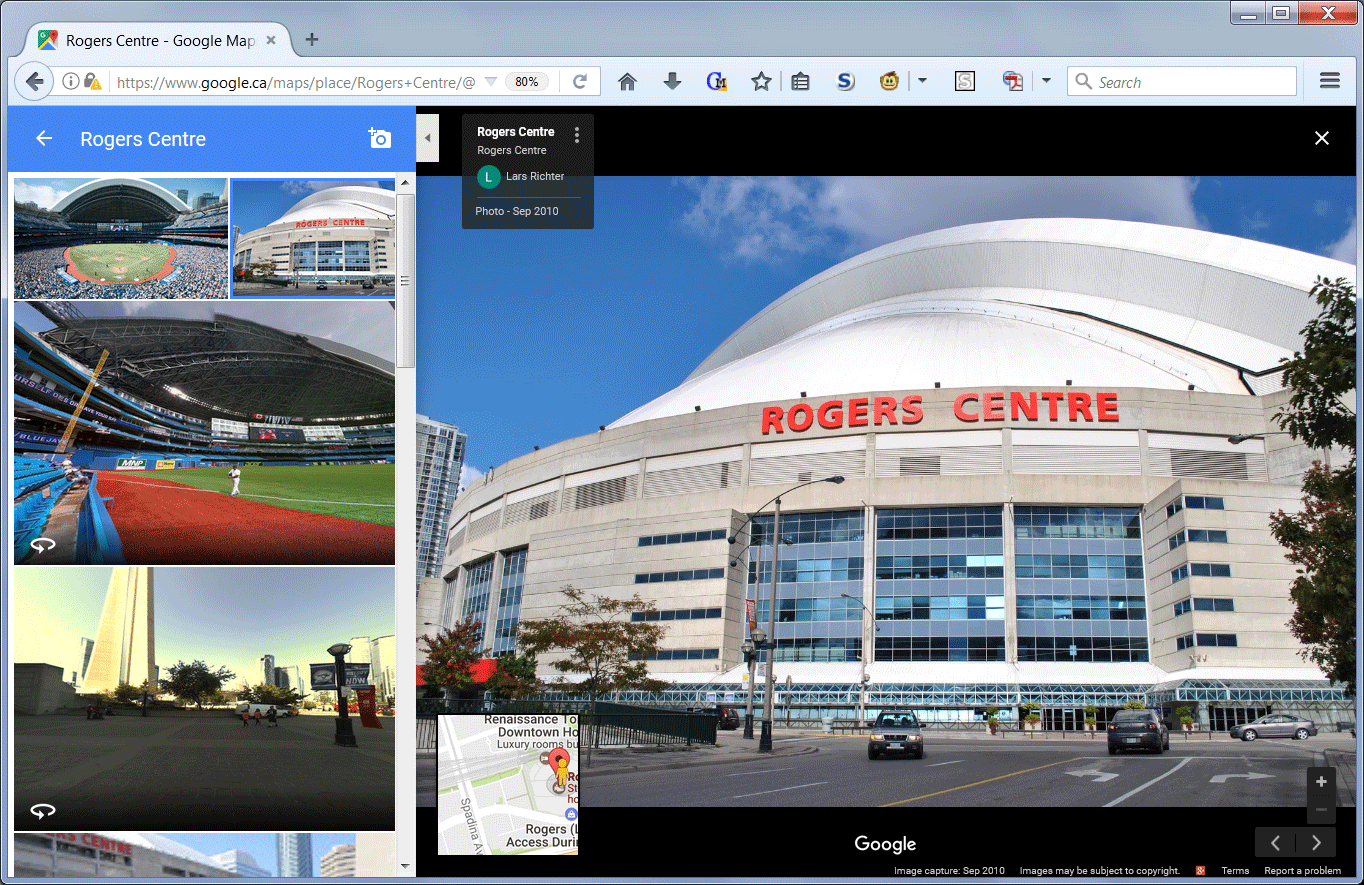
Hmm, yes, a larger version of the photo should appear on the right corresponding to the currently selected thumbnail on the left. Your Firefox only has the black background. A sample screenshot is attached of what I think you normally would see.
When a site is generally known to work in Firefox, these are general suggestions to try when it stops working:
Cache and Cookies: When you have a problem with one particular site, a good "first thing to try" is clearing your Firefox cache and deleting your saved cookies for the site.
(1) Clear Firefox's Cache
See: How to clear the Firefox cache
If you have a large hard drive, this might take a few minutes. If you do not see the number going down on the page, you can reload it using Ctrl+r to check progress.
(2) Remove the site's cookies (save any pending work first). While viewing a page on the site, try either:
- right-click (on Mac Ctrl+click) a blank area of the page and choose View Page Info > Security > "View Cookies"
- (menu bar) Tools > Page Info > Security > "View Cookies"
- click the padlock or "i" icon in the address bar, then the ">" button, then More Information, and finally the "View Cookies" button
In the dialog that opens, the current site should be pre-filled in the search box at the top of the dialog so you can remove that site's cookies individually.
Then try reloading the page. Does that help?
Testing in Firefox's Safe Mode: In Safe Mode, Firefox temporarily deactivates extensions, hardware acceleration, and some other advanced features to help you assess whether these are causing the problem.
If Firefox is not running: Hold down the Shift key when starting Firefox.
If Firefox is running: You can restart Firefox in Safe Mode using either:
- "3-bar" menu button > "?" button > Restart with Add-ons Disabled
- Help menu > Restart with Add-ons Disabled
and OK the restart.
Both scenarios: A small dialog should appear. Click "Start in Safe Mode" (not Refresh).
Any improvement? (More info: Use Troubleshoot Mode in Firefox)
My sample image was too large to upload, so here's a reduced version.