


Firefox 4: the drop down menus in the top menu bar will not appear in Google pages.
Firefox 4: the drop down menus in the top menu bar will not appear in Google pages. For example, when I click "more" it is like clicking a dead link. Nothing happens. When I click the "tools" icon or try to click my email address to log out, same thing.
Alle antwoorden (5)

Try running Firefox in Use Troubleshoot Mode in Firefox. If it functions properly in that configuration, then one of your add-ons is the culprit.
Safe mode start has no effect. Still have the problem. Thanks for responding, though!
Can you take a look at this article please: Address bar autocomplete suggestions in Firefox
Did so but fiddling with the awesome bar has not effect either. A couple of additional notes: (1) Google Maps directions won't work either. It allows me to input the addresses but then doesn't change when I click for directions; (2) The drop down menus work before the google page fully loads -- I can reload a page and quickly mouse over to the "more" dropdown and it will come up but freezes once the whole page is finished loading.
Could you do the following please.
In the location bar at the top, type about:config and hit Enter
In the filter at the top, copy/paste the following setting: browser.urlbar.maxRichResults
If the figure on the right is a single number, or a minus figure i.e. -1, right click it, choose Modify, remove the current setting and replace it with the figure "12".
Then close Firefox and restart it again.
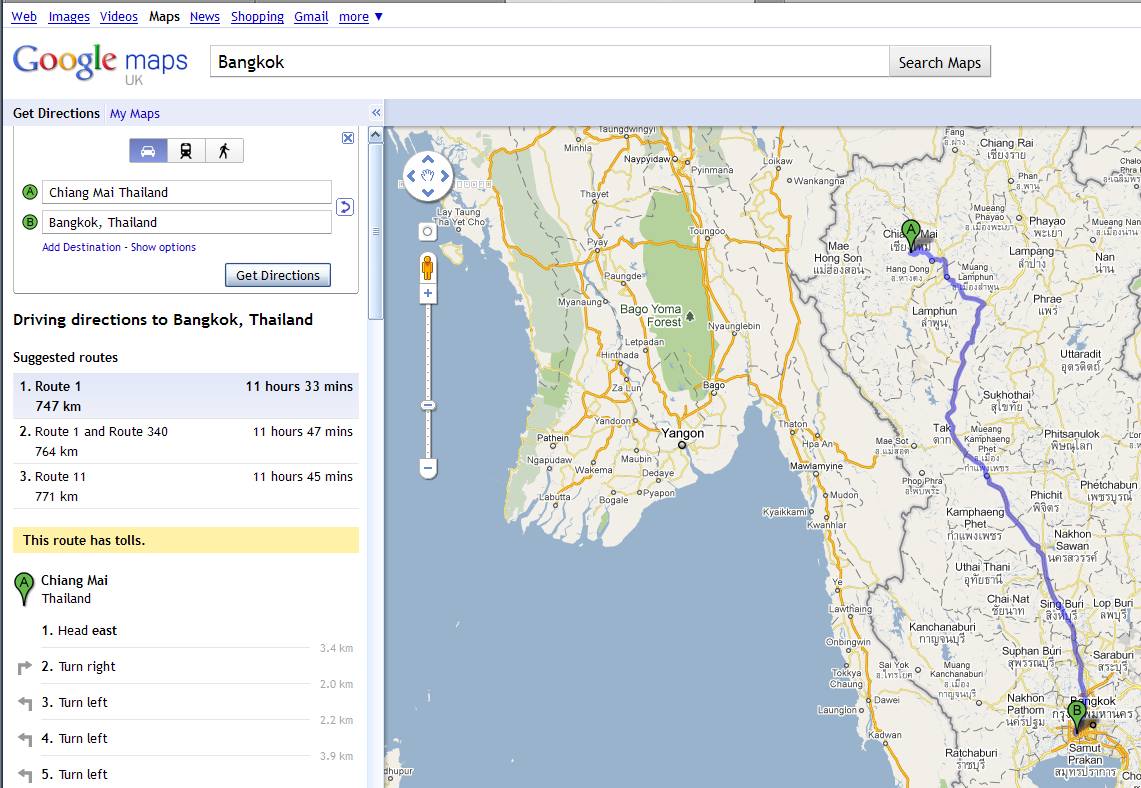
I went to Google Maps, but as you can see from the screenshot, directions appear to be working.
You could also try creating a new Profile. See Profile Manager - Create, remove or switch Firefox profiles
Bewerkt door Xircal op