


Bookmarks Tool Bar

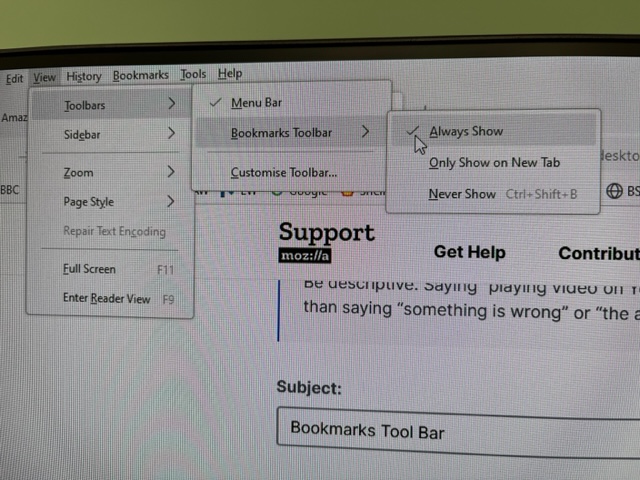
Hi, my bookmarks toolbar doesn’t show when I launch Firefox. They always use to. When I click on View>Toolbar>Bookmarks Toolbar>Always Show - the Bar shows. When I click on any bookmark the bar disappears. If (in new window) I click on View>Toolbar>Bookmarks Toolbar>Always Show - the bar appears, when I then open new tab it does not show on new tab and when I click back to previous tab bookmarks are gone.
I have restarted W10 PC, no change.
Hope you can help, many thanks, David
Gekozen oplossing
Change browser.toolbars.bookmarks.showInPrivateBrowsing to true in about:config.
Alle antwoorden (6)
Wanted to add After restart and open FF bookmark displays and then disappears in less than a second.
Thanks
Bewerkt door davidmedcalf1 op
Try to rename/remove xulstore.json in the Firefox profile folder with Firefox closed.
You can use the button on the "Help -> More Troubleshooting Information" (about:support) page to go to the current Firefox profile folder or use the about:profiles page (Root directory).
- Help -> More Troubleshooting Information -> Profile Folder/Directory:
Windows: Open Folder; Linux: Open Directory; Mac: Show in Finder - https://support.mozilla.org/en-US/kb/profiles-where-firefox-stores-user-data
Does it still happen in Troubleshoot Mode?
Thanks for your replys. Tried renaming the file and troubleshoot, no difference.
Gekozen oplossing
Change browser.toolbars.bookmarks.showInPrivateBrowsing to true in about:config.
Thanks for that, it works fine now. I am most greatful to you all, David