


Is there a way to stop alert dialog from showing up without completely disabling JavaScript through about:config?

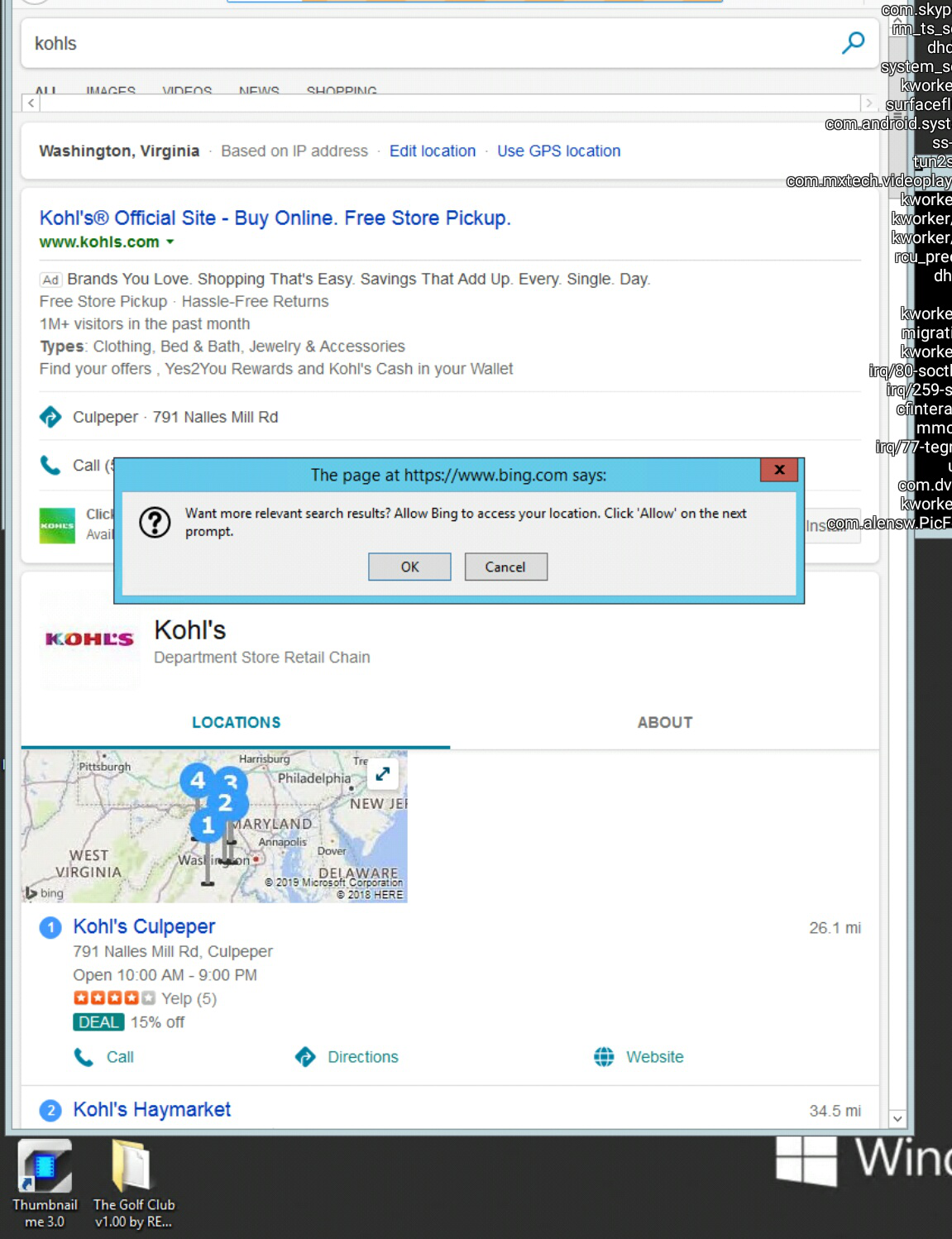
Hi there My question is
=
Is there a way to stop alert dialog from showing up without completely disabling JavaScript through about:config?
We think alert boxes are pure JavaScript and not considered pop-up.
Thank you!
Alle antwoorden (5)

See if this helps: https://support.mozilla.org/en-US/kb/push-notifications-firefox
There isn't a built-in preference to block the window.alert() function. I think it can be suppressed by injecting a script into a page that replace it with a "no-op" (do nothing) function, but I haven't searched for an extension or user script for that.
Maybe you do not get this alert if you block access to the location in "Tools -> Page Info -> Permissions".
cor-el said
Maybe you do not get this alert if you block access to the location in "Tools -> Page Info -> Permissions".
Yeah .. we already blocked most stuff under Firefox options Still No good..
sh2dc said
we already blocked most stuff under Firefox options
Still No good..
Just to make sure ...... Does this mean that you went to Privacy & Security => Permissions => Location, then clicked on 'Settings', found www.bing.com listed there, checked the box saying : 'Block new requests asking to access your location', clicked 'Save Changes' and then closed and restarted Firefox ?
In addition you could go to Page Info, as suggested by cor-el, and under the Permissions tab scroll down to 'Access Your Location', uncheck 'Use Default' and check 'Block' (worth a try .....).