


whenever I open a new tab, there is avg secure search

Hey guys, so recently, I open up firefox, open a new tab to view all my thumbnails, and instead, I just see AVG secure search. I hate it. I tried everything. I tried restarting firefox, I Deleted and uninstalled everything remotely related to AVG, and I also dont have any extensions to AVG, I deleted the AVG toolbar but the secure search is still there!!! PLEASE HELP!!!!!!! I really want those thumbnails back!!!! By the way I have windows 8.1
Chosen solution
Do a clean reinstall and delete the Firefox program folder before (re)installing a fresh copy of the current Firefox release.
Download a fresh Firefox copy and save the file to the desktop.
- Firefox 26: http://www.mozilla.org/en-US/firefox/all.html
if possible uninstall your current Firefox version to cleanup the Windows registry and settings in security software.
- Do NOT remove personal data when you uninstall your current Firefox version, because all profile folders will be removed and you lose personal data like bookmarks and passwords from profiles of other Firefox versions.
Remove the Firefox program folder before installing that newly downloaded copy of the Firefox installer.
- (32 bit Windows) "C:\Program Files\Mozilla Firefox\"
- (64 bit Windows) "C:\Program Files (x86)\Mozilla Firefox\"
- It is important to delete the Firefox program folder to remove all the files and make sure that there are no problems with files that were leftover after uninstalling.
- http://kb.mozillazine.org/Uninstalling_Firefox
Your bookmarks and other personal data are stored in the Firefox profile folder and won't be affected by an uninstall and (re)install, but make sure that "remove personal data" is NOT selected when you uninstall Firefox.
If you keep having problems then also create a new profile.
Read this answer in context 👍 7
All Replies (11)
Hello,
Go to about:config page, search for "browser.newtab.url" change its value to "about:newtab"
Its already at about:newtab
Does anything come up when you search the about:config page for the website that comes up?
Start Firefox in Safe Mode to check if one of the extensions (Firefox/Tools > Add-ons > Extensions) or if hardware acceleration is causing the problem (switch to the DEFAULT theme: Firefox/Tools > Add-ons > Appearance).
- Do NOT click the Reset button on the Safe Mode start window.
- https://support.mozilla.org/kb/Safe+Mode
- https://support.mozilla.org/kb/Troubleshooting+extensions+and+themes
If you do not keep changes after a restart or otherwise have problems with preferences, see:
That honestly didnt do anything
Hi yahmes227, what extensions do you have? Maybe this is a side effect of a different one. You can extract the list from the Troubleshooting Information page. Either:
- Help > Troubleshooting Information
- type or paste about:support in the address bar and press Enter
In the upper left corner, click the "Copy text to clipboard" button. When pasting into a reply, you can scroll down to the "Important Modified Preferences" section and delete from there to the end if none of the preferences seem relevant.
what do you mean by "into a reply?" Like posting it into this?
Application Basics
------------------
Name: Firefox
Version: 26.0
User Agent: Mozilla/5.0 (Windows NT 6.3; WOW64; rv:26.0) Gecko/20100101 Firefox/26.0
Extensions
----------
Name: Skype Click to Call
Version: 6.13.0.13771
Enabled: false
ID: {82AF8DCA-6DE9-405D-BD5E-43525BDAD38A}
Important Modified Preferences
------------------------------
browser.cache.disk.capacity: 358400
browser.cache.disk.smart_size.first_run: false
browser.cache.disk.smart_size.use_old_max: false
browser.cache.disk.smart_size_cached_value: 358400
browser.places.smartBookmarksVersion: 4
browser.sessionstore.upgradeBackup.latestBuildID: 20131205075310
browser.startup.homepage_override.buildID: 20131205075310
browser.startup.homepage_override.mstone: 26.0
dom.mozApps.used: true
extensions.lastAppVersion: 26.0
gfx.direct3d.last_used_feature_level_idx: 0
network.cookie.prefsMigrated: true
places.database.lastMaintenance: 1390264083
places.history.expiration.transient_current_max_pages: 103948
plugin.disable_full_page_plugin_for_types: application/pdf
plugin.importedState: true
privacy.sanitize.migrateFx3Prefs: true
storage.vacuum.last.index: 0
storage.vacuum.last.places.sqlite: 1390264083
Graphics
--------
Adapter Description: Intel(R) HD Graphics 4000
Adapter Drivers: igdumdim64 igd10iumd64 igd10iumd64 igdumdim32 igd10iumd32 igd10iumd32
Adapter RAM: Unknown
Device ID: 0x0166
Direct2D Enabled: true
DirectWrite Enabled: true (6.3.9600.16384)
Driver Date: 10-1-2013
Driver Version: 10.18.10.3316
GPU #2 Active: false
GPU Accelerated Windows: 1/1 Direct3D 10
Vendor ID: 0x8086
WebGL Renderer: Google Inc. -- ANGLE (Intel(R) HD Graphics 4000 Direct3D9Ex vs_3_0 ps_3_0)
windowLayerManagerRemote: false
AzureCanvasBackend: direct2d
AzureContentBackend: direct2d
AzureFallbackCanvasBackend: cairo
AzureSkiaAccelerated: 0
JavaScript
----------
Incremental GC: true
Accessibility
-------------
Activated: false
Prevent Accessibility: 0
Library Versions
----------------
NSPR
Expected minimum version: 4.10.2
Version in use: 4.10.2
NSS
Expected minimum version: 3.15.3.1 Basic ECC
Version in use: 3.15.3.1 Basic ECC
NSSSMIME
Expected minimum version: 3.15.3.1 Basic ECC
Version in use: 3.15.3.1 Basic ECC
NSSSSL
Expected minimum version: 3.15.3.1 Basic ECC
Version in use: 3.15.3.1 Basic ECC
NSSUTIL
Expected minimum version: 3.15.3.1
Version in use: 3.15.3.1
Modified by cor-el
Did I do that right?

Hi yahmes227,
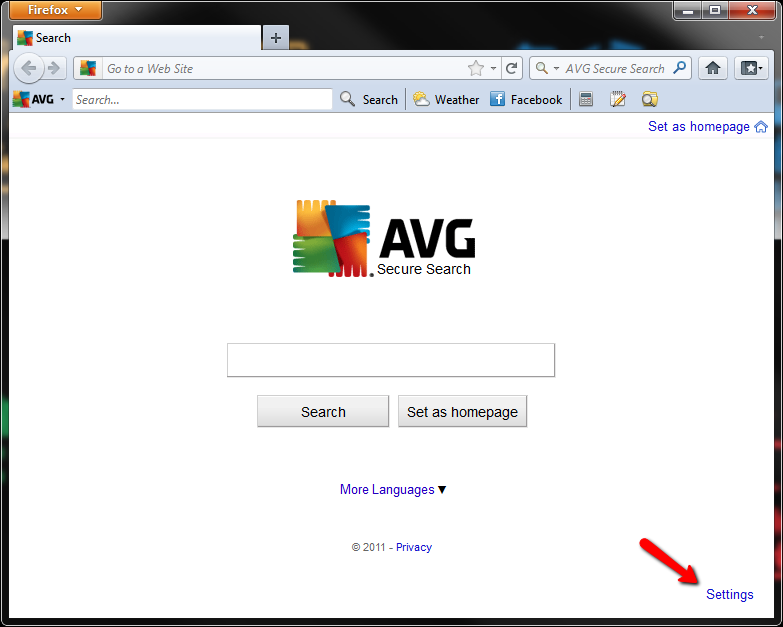
When you open a new tab, does it look like this?
If so, click the Settings link pointed by the arrow, change the Show AVG Secure Search Box as you see fit and click Save to confirm the configuration.
Close Firefox down, then open it up and see if it still appears.
Let us know if it works or not.
P.S. The below are alternatives you can try AFTER trying the steps above.
In regards to the question asked by jscher2000 and you provided the answer, you only have Skype click to call installed, so that shouldn't be affecting anything.
Firefox has an add-on that can reset your homepage, new tab. Install the Search Reset Tool. This will remove the rest of the traces of this program from your Firefox.
Also, you may want to consider creating a new profile.
Modified by M B
Yes, it does look exactly like, that, except on firefox, and the firefox add on didnt do anything unfortunately. There was no settings button either
Chosen Solution
Do a clean reinstall and delete the Firefox program folder before (re)installing a fresh copy of the current Firefox release.
Download a fresh Firefox copy and save the file to the desktop.
- Firefox 26: http://www.mozilla.org/en-US/firefox/all.html
if possible uninstall your current Firefox version to cleanup the Windows registry and settings in security software.
- Do NOT remove personal data when you uninstall your current Firefox version, because all profile folders will be removed and you lose personal data like bookmarks and passwords from profiles of other Firefox versions.
Remove the Firefox program folder before installing that newly downloaded copy of the Firefox installer.
- (32 bit Windows) "C:\Program Files\Mozilla Firefox\"
- (64 bit Windows) "C:\Program Files (x86)\Mozilla Firefox\"
- It is important to delete the Firefox program folder to remove all the files and make sure that there are no problems with files that were leftover after uninstalling.
- http://kb.mozillazine.org/Uninstalling_Firefox
Your bookmarks and other personal data are stored in the Firefox profile folder and won't be affected by an uninstall and (re)install, but make sure that "remove personal data" is NOT selected when you uninstall Firefox.
If you keep having problems then also create a new profile.
Thanks man!!! I cant believe I never thought of that!!! That was exactly what I needed to do! And I never lost anything!!!