


Little box stays on screen after opening Preferences.

Whenever I open then close Preferences, a small box stays up in the corner. How do I get rid of that without restarting?
Chosen Solution
I understand you frustration and am sorry for any inconvenience that this issue has caused.
Try disabling graphics hardware acceleration. Since this feature was added to Firefox, it has gradually improved, but there still are a few glitches.
You might need to restart Firefox in order for this to take effect, so save all work first (e.g., mail you are composing, online documents you're editing, etc.).
Then perform these steps:
- Click the orange Firefox button at the top left, then select the "Options" button, or, if there is no Firefox button at the top, go to Tools > Options.
- In the Firefox options window click the Advanced tab, then select "General".
- In the settings list, you should find the Use hardware acceleration when available checkbox. Uncheck this checkbox.
- Now, restart Firefox and see if the problems persist.
Additionally, please check for updates for your graphics driver by following the steps mentioned in the following Knowledge base articles:
Did this fix your problems? Please report back soon.
All Replies (7)
In order to better assist you with your issue please provide us with a screenshot. If you need help to create a screenshot, please see How do I create a screenshot of my problem?
Once you've done this, attach the saved screenshot file to your forum post by clicking the Browse... button below the Post your reply box. This will help us to visualize the problem.
Thank you!
Try Firefox Safe Mode to see if the problem goes away. Safe Mode is a troubleshooting mode, which disables most add-ons.
(If you're not using it, switch to the Default theme.)
- On Windows you can open Firefox 4.0+ in Safe Mode by holding the Shift key when you open the Firefox desktop or Start menu shortcut.
- On Mac you can open Firefox 4.0+ in Safe Mode by holding the option key while starting Firefox.
- On Linux you can open Firefox 4.0+ in Safe Mode by quitting Firefox and then going to your Terminal and running: firefox -safe-mode (you may need to specify the Firefox installation path e.g. /usr/lib/firefox)
- Or open the Help menu and click on the Restart with Add-ons Disabled... menu item while Firefox is running.
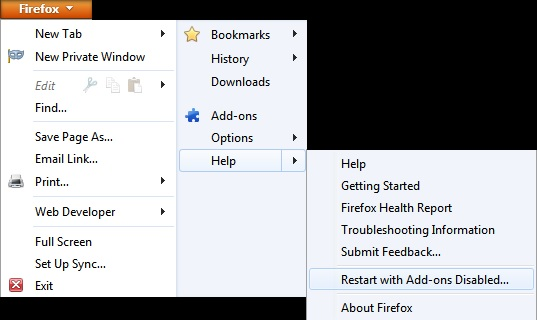
Once you get the pop-up, just select "'Start in Safe Mode"
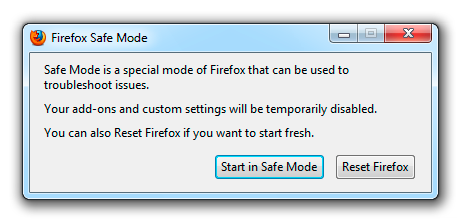
If the issue is not present in Firefox Safe Mode, your problem is probably caused by an extension, and you need to figure out which one. Please follow the Troubleshoot extensions, themes and hardware acceleration issues to solve common Firefox problems article for that.
To exit the Firefox Safe Mode, just close Firefox and wait a few seconds before opening Firefox for normal use again.
Please report back soon.
Here's my screen shot, I'll try Safe Mode next.
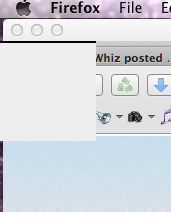
OK, little box still there after starting in Safe Mode. This has been going on for quite some time, I've just been waiting to see if any updates would change it. I suppose I just got tired of it, and finally sent in the question.
Ok.
Thanks for the screenshot.
Please report back after you try save mode.
Chosen Solution
I understand you frustration and am sorry for any inconvenience that this issue has caused.
Try disabling graphics hardware acceleration. Since this feature was added to Firefox, it has gradually improved, but there still are a few glitches.
You might need to restart Firefox in order for this to take effect, so save all work first (e.g., mail you are composing, online documents you're editing, etc.).
Then perform these steps:
- Click the orange Firefox button at the top left, then select the "Options" button, or, if there is no Firefox button at the top, go to Tools > Options.
- In the Firefox options window click the Advanced tab, then select "General".
- In the settings list, you should find the Use hardware acceleration when available checkbox. Uncheck this checkbox.
- Now, restart Firefox and see if the problems persist.
Additionally, please check for updates for your graphics driver by following the steps mentioned in the following Knowledge base articles:
Did this fix your problems? Please report back soon.
Through the process of elimination, I found that the "Truste privacy plug-in v2.0" was the cause for me. Now I'm using Ghostery instead.