


TB for Mac - lost connection to all my email accounts and all my email records

I had to restart my Mac. When TB restarted during relaunch of the Mac, it was like TB starting fresh. It didn't display my email accounts, or my folders with saved emails, etc.
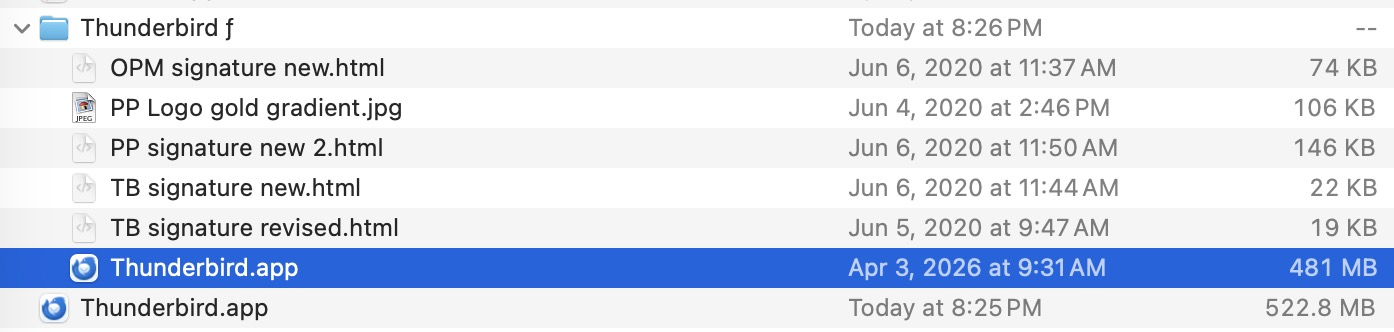
I quit TB and looked for it in my Applications folder - and I found two versions of TB. Inside the Thunderbird folder was version 140.9.0esr. Outside the Thunderbird folder was version 150.0. See attached screen grab.
I thought I should try launching the newer version (which was outside the folder). So I moved the 140.9.0 version to the trash, then launched the newer version – and it had the same problem. It looked like I was starting TB from scratch.
Next I quit TB (the newer version) and moved the older version out of the trash and back into the TB folder and double-clicked on it. A dialog box popped up saying that the file is damaged and can't be launched.
So I tried launching the newer version again, and it still looks like starting from scratch.
I really hope somebody can help me solve this. I can't access any of my email accounts or any of my stored emails. I use email for work (as most of us do), so this is crippling me.
Thanks in advance for any help.
All Replies (5)
Maybe on the Thunderbird (TB) restart after rebooting your Mac the prefs.js file in the Thunderbird profile got damaged and was replaced by a new virgin pref.js file which doesn't contain any account settings. Which would explain that TB on startup prompts to "set up your existing email address". It is rather difficult to understand the follow-up of your mishaps. I am also intrigued by your screen shot showing a "Thunderbird f" folder in Applications. I guess that actually when you launch the Thunderbird 150 version it tries to open the profile folder which had been used with the version 140.9.0esr. This doesn't work since each TB version can run only with its dedicated profile https://support.mozilla.org/en-US/kb/dedicated-profile-thunderbird-installation
To be able to help you I need some screen shots to have an idea about your actuel profile mismatch. Verify that Thunderbird is completely closed (⌘ + Q) To begin with I want you to open a Finder window and select your "Home" folder in the left pane. Then display your - normally hidden - "User Library" in this Finder window as described here https://support.native-instruments.com/hc/en-us/articles/360020012418-Accessing-the-Hidden-User-Library-macOS You'll see a Finder window similar to mine in my added image. Please make a screen shot of the contents of the "Profiles" folder. Then open the file "profiles.ini" with TextEdit.app and make a screen shot of its contents.
If there are several profile folders in "Profiles" open each one and look for any prefs-1.js, prefs-2.js .... prefs-x.js or invalidprefs.js files.
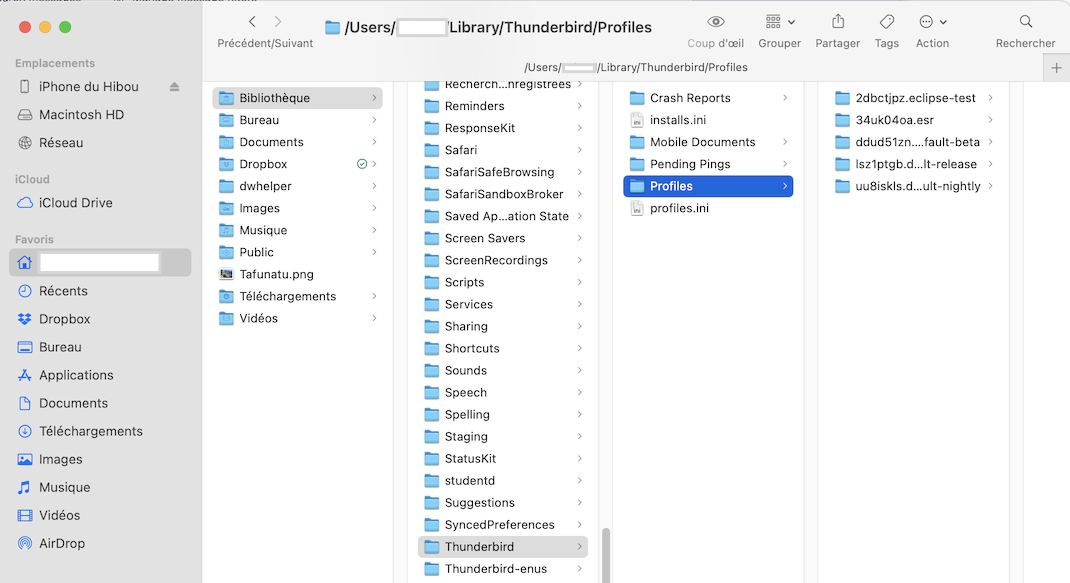
Modified by Mapenzi
Hi Mapenzi,
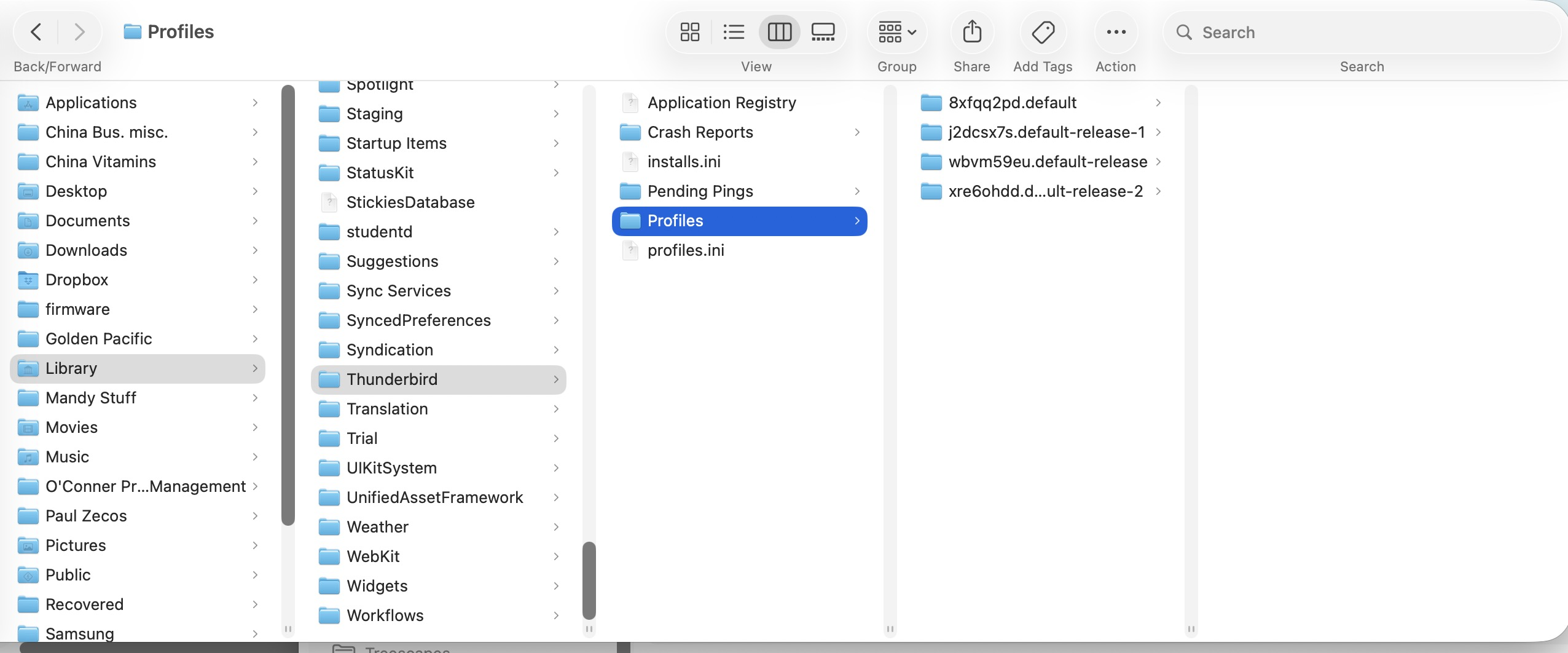
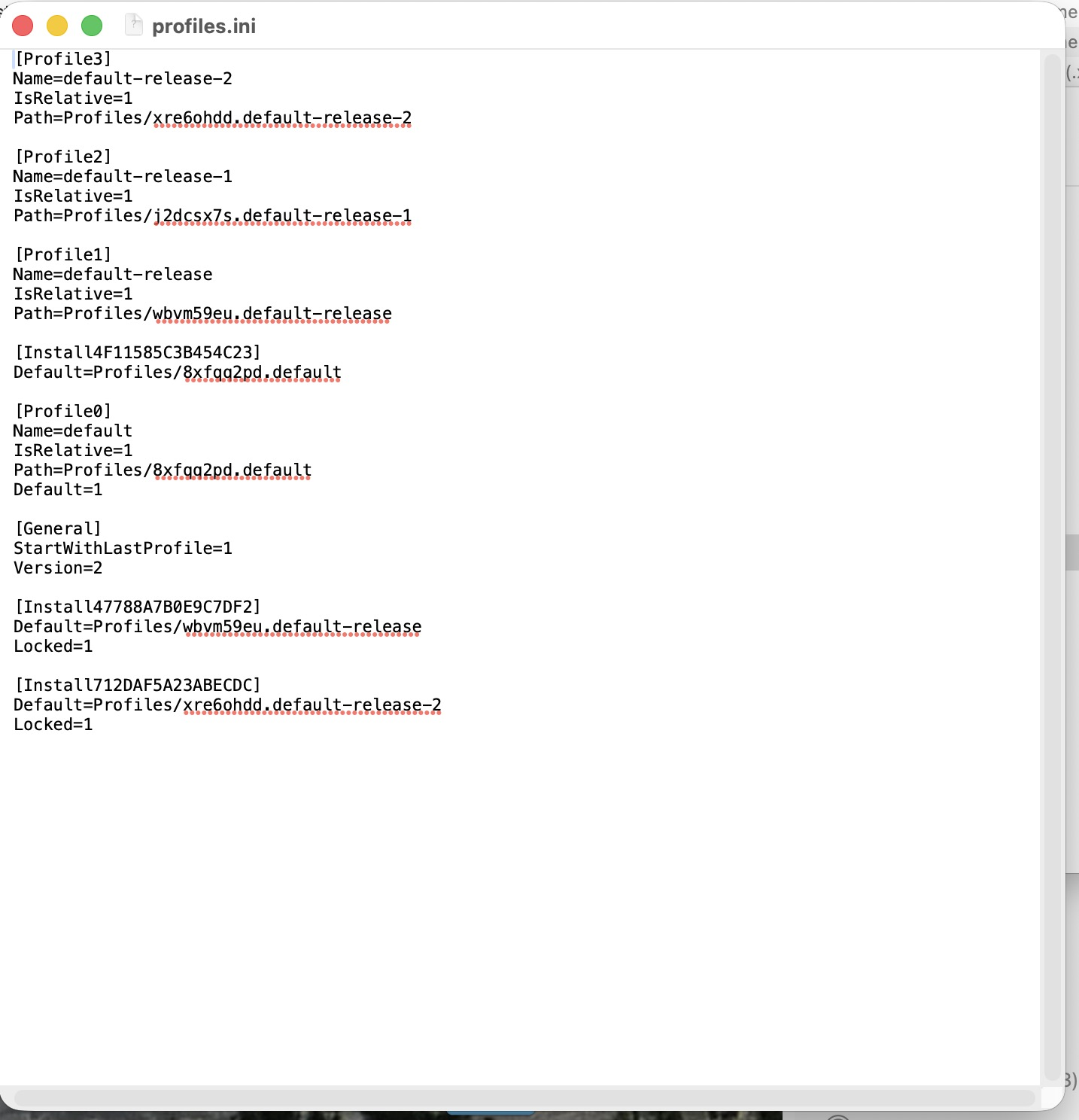
Thanks for your reply. I did what you said. I attached screenshots of the two images that you requested.
Does this give you any information that will help me re-connect TB to all my email accounts and storage?
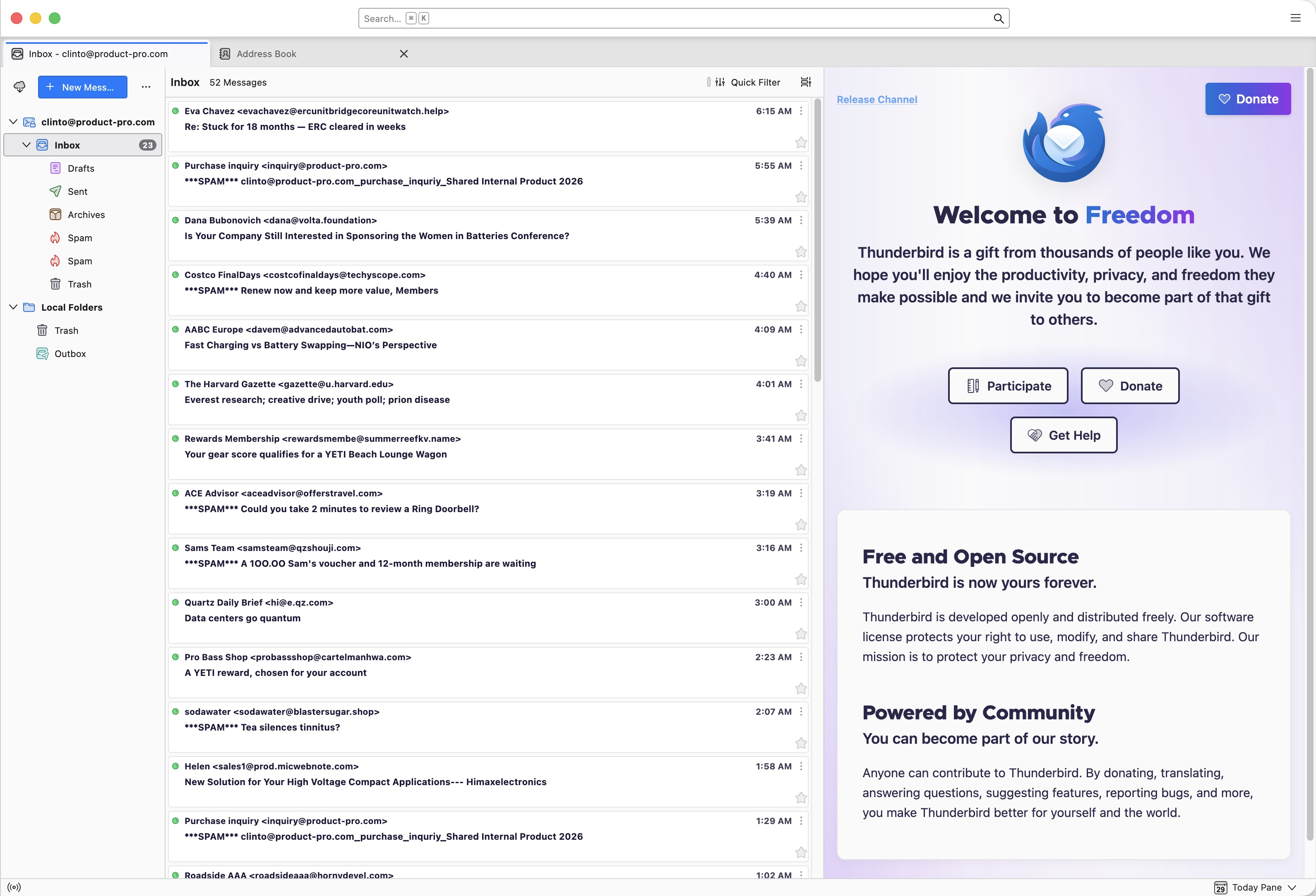
BTW, when I launch TB, it doesn't ask me to set up new mail accounts. I attached a screenshot of what I see when I launch TB. It shows the oldest email account that I have, but not the other three that I use. And none of the folders that store email history are present.
Modified by clintoconner2
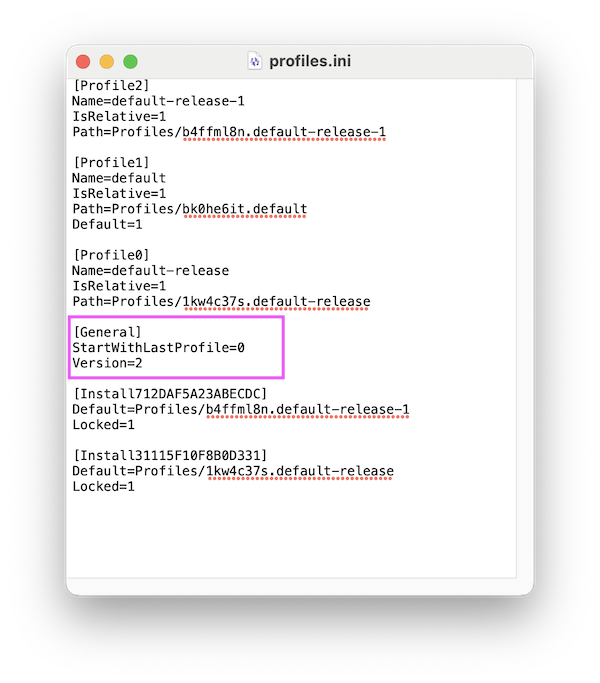
Thanks for the pictures. I think that your original profile is in the 8xfqq2pd.default folder, but actually Thunderbird on startup automatically opens one of the other profiles. To open Thunderbird in another profile we'll start the TB profile manager with the following workaround: Quit Thunderbird with the ⌘ + Q shortcut. • Open the user library as described above, go to Thunderbird and open the profiles.ini file in TextEdit. • In the line StartWithLastProfile=1 replace the number 1 with a 0 (zero) and save the modification (image). • Now when you start Thunderbird it will open a small window containing the profile manager (2nd image) • select the "default" profile and hit Start Thunderbird • Thunderbird will open the profile "default", verify if all your email accounts are displayed.
If this is not your old profile, quit TB again. Then restart and choose the profile default-release in the profile manager.
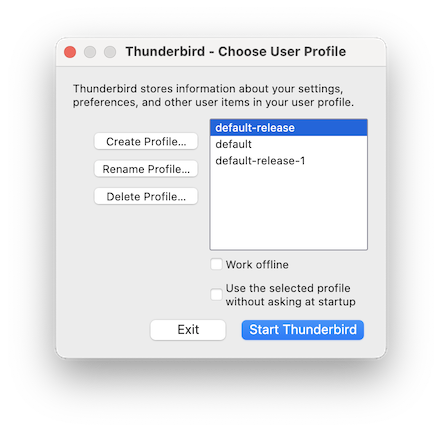

So the "default" profile really is your old working profile and all your accounts and messages are back? Now the next time you start TB and the profile manager opens you can set a check-mark before "Use the selected profile without asking at startup". This way TB will automatically open your default profile without first open the profile manager window.