


Can you help me with changing my firefox to the previous look

I have firefox 11 installed and everything was okay until this morning. This Morning my firefox changed and the new look disappeared. Now its the old one like this one ( http://4.bp.blogspot.com/-V1nKs3DJXV8/TYjln3ECuGI/AAAAAAAAAG0/S1RWMnO2mgc/s1600/F2.png ) I tried uninstall it and I installed it again but it didnt change. I don't know how to fix it.
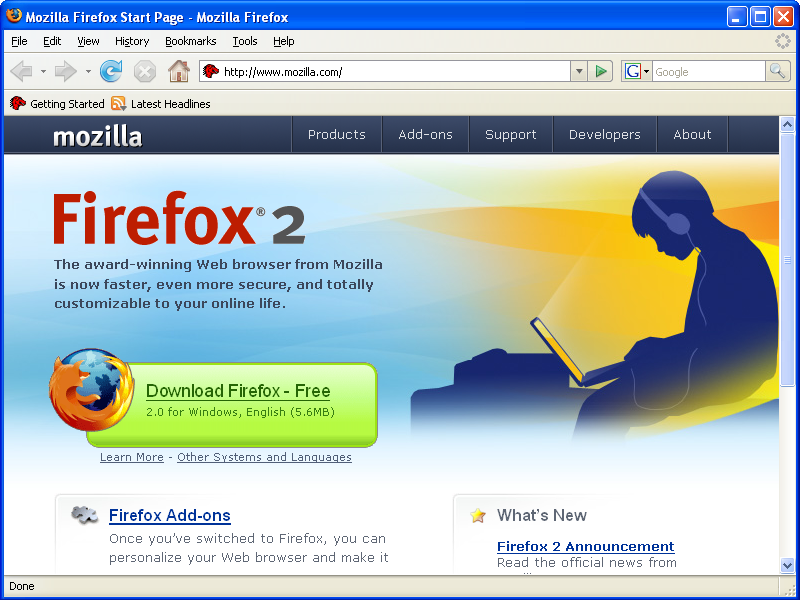
Also there is one more problem, I have installed US language pack and every time I didn't spell something correctly it would be red, but now it doesn't seem to work.
この投稿は cor-el により に変更されました
選ばれた解決策
To restore the new style interface, in the View menu select Toolbars, the option "Tabs on Top" should be selected, if it is not click on that entry to select it. Next, in the View menu select Toolbars then de-select the "Menu Bar" entry, that will then hide the menu bar and it should now have the new look.
For the spell checker, open the Options dialog, then go to the Advanced panel and select the General tab. Make sure the setting "Check my spelling as I type" is selected. If the spell checking is still not working, right click on a text area then select the Languages entry, it should show the installed dictionaries. If none are listed select the "Add Dictionaries" entry. For more details and some screen shots to make it clearer, click the following link - How do I use the Firefox spell checker?
この回答をすべて読む 👍 1すべての返信 (3)
選ばれた解決策
To restore the new style interface, in the View menu select Toolbars, the option "Tabs on Top" should be selected, if it is not click on that entry to select it. Next, in the View menu select Toolbars then de-select the "Menu Bar" entry, that will then hide the menu bar and it should now have the new look.
For the spell checker, open the Options dialog, then go to the Advanced panel and select the General tab. Make sure the setting "Check my spelling as I type" is selected. If the spell checking is still not working, right click on a text area then select the Languages entry, it should show the installed dictionaries. If none are listed select the "Add Dictionaries" entry. For more details and some screen shots to make it clearer, click the following link - How do I use the Firefox spell checker?
I think there is more to that Firefox window than that. The throbber is in the menu bar, and in Firefox 3 it was no longer there by default. There is a status bar, which was removed in Firefox 4. There are 5 default toolbar buttons (very large ones), and somtime after Firefox 4, the stop and reload buttons were merged and moved, along with the home button. The larger buttons were downsized also. In fact, it looks more like a Firefox 2 window. If all that was done by tweaking things, how did you do that inadvertently? Or is that Firefox 2 with an altered user-agent?
Thank you so much :D I solved it.