


Cannot import contacts from outlook 2016

Using the Import function in TBird doesn't work for me - I'm not clued up enough to edit the columns and I don't have all the same columns in my Outlook contacts. The import function says it's done and TBird shows 1972 entries, but nothing is visible. when I looked at the pdf version of the import, I could see the mess of the columns and gave up. PLEASE is there some simple way to do this. I'm trying to let go of Outlook because it doesn't download my gmail anymore. Thank you for any help.
すべての返信 (4)
enter one good email address with fields you normally use into thunderbird's addressbook
- click the three dots to the right of addressbook name and export in csv format. This will be your template
- open that export into a spreadsheet program
- note the top row. this shows the columns as thunderbird expects them to be
- open your exported outlook csv into spreadsheet and adjust columns to match, including the top row.
- save as csv
- import into thunderbird
OR
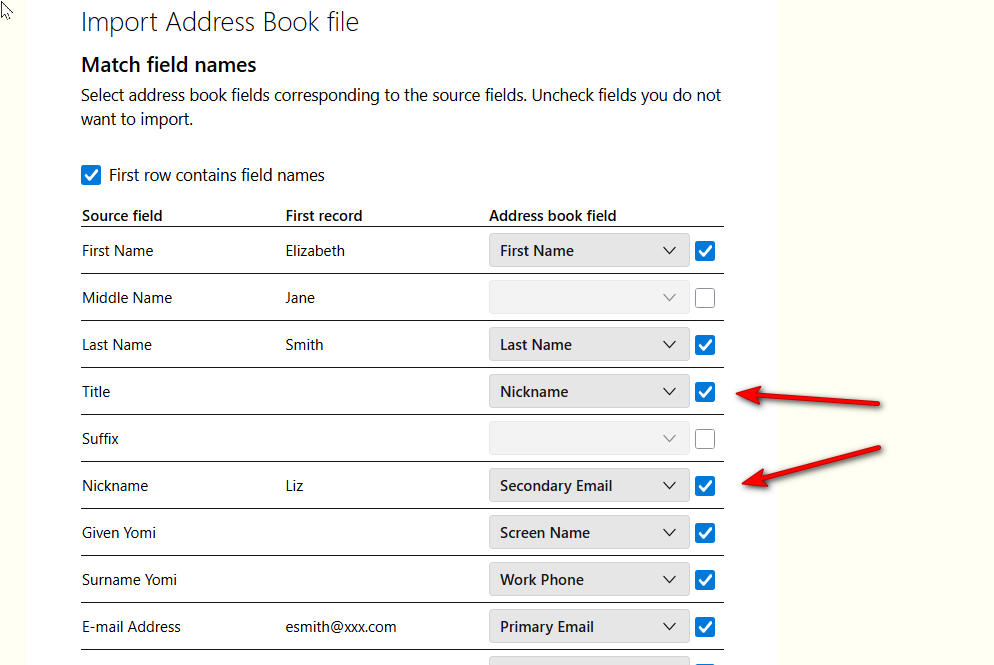
Use the Thunderbird import for CSV at tools>import>import from a file if a screen opens to show selected fields for the import, this happens because Thunderbird senses that mapping is needed. (see attached)
- untick the fields that are either incorrect or not desired for the import
- next, use the drop-down menu on each desired incorrect mapping and select the appropriate entry. For example, in the attached screenshot, the Nickname is incorrectly assigned to Title, and the true nickname is assigned as Secondary Email. Resolving this is a simple as clicking the drop-down menu and selecting the Nickname option.
Hi David! I'm afraid I have hundreds of contacts to import and this will no doubt work, but not within my time frame. Thank you for taking the time to respond - it's a good feeling to know that others care! Allan
The first option works rather easily, as it is just to realign the columns. Good luck. :)
Thanks again, David!