


menu backgrounds

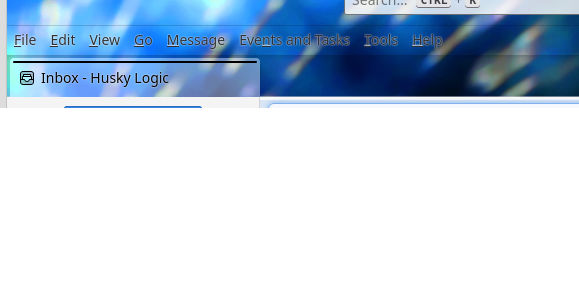
I have set a custom theme on my Thunderbird on Linux. As you can see by the attached image though, the menu bar is hard to read when you get to the right side. Dark background and dark text doesn't really go together. Is there a way to make the background of the menu bars a solid color or something less see-through so the text can be read? I want a light theme, but I need to be able to read the menu.
すべての返信 (2)

選ばれた解決策
CSS can fix that. This will make the letters black.
Put this code into your userChrome.css file:
   #mail-menubar {
     color: Black !important;
   }

   #mail-menubar > menu:hover {
     color: Black !important;
   }
---
If you're not familiar with how to set up for using CSS, follow these instructions.
First do this:
- go to TB menu > Settings > General
- scroll all the way down and click the 'Config editor' button on the right
- click the 'Accept the risk and continue' button if that appears
- search for: toolkit.legacyUserProfileCustomizations.stylesheets
- click the double arrow on the right to toggle the value to 'true'
Then:
- go to the Setup section of the FirefoxCSS subreddit [tutorial](https://www.reddit.com/r/FirefoxCSS/wiki/index/tutorials/#wiki_setup)
- follow the instructions under '1. Enable userChrome customization in about:config' if you haven't done that
- follow the instructions under '2. Locate and open your profile folder..' Note: for TB, the menu choice is Help > Troubleshooting Information
- follow the instructions under '3. Create the folder and its files' (make sure userChrome.css doesn't end with .txt - Windows must be set not to hide extensions for known file types)
- once userChrome.css is created, open it and enter the code I mentioned above
- save the file > ignore the rest of the instructions > restart TB
この投稿は Ed により に変更されました
Thanks, this was exactly what I needed.
Ed said
CSS can fix that. This will make the letters black. Put this code into your userChrome.css file: #mail-menubar { color: Black !important; } #mail-menubar > menu:hover { color: Black !important; } --- If you're not familiar with how to set up for using CSS, follow these instructions. First do this: - go to TB menu > Settings > General - scroll all the way down and click the 'Config editor' button on the right - click the 'Accept the risk and continue' button if that appears - search for: toolkit.legacyUserProfileCustomizations.stylesheets - click the double arrow on the right to toggle the value to 'true' Then: - go to the Setup section of the FirefoxCSS subreddit [tutorial](https://www.reddit.com/r/FirefoxCSS/wiki/index/tutorials/#wiki_setup) - follow the instructions under '1. Enable userChrome customization in about:config' if you haven't done that - follow the instructions under '2. Locate and open your profile folder..' Note: for TB, the menu choice is Help > Troubleshooting Information - follow the instructions under '3. Create the folder and its files' (make sure userChrome.css doesn't end with .txt - Windows must be set not to hide extensions for known file types) - once userChrome.css is created, open it and enter the code I mentioned above - save the file > ignore the rest of the instructions > restart TB