


How do I transfer Thunderbird from my PC to my Mac?

I have been using Thunderbird on my PC for years and when I got my last PC, I found a article to help me move my files. I am now looking for instructions on how to move my Thunderbird files from the PC to the Mac so I can continue using it as I have been.
すべての返信 (38)
I am not frustrated. Just trying to understand and help.
Thanks for the information.
Where on the PC did you get the Thunderbird folder?
Why are you creating a new profile instead of using the one that you transferred?
What is not working? Please provide some details.
View options has an option for showing the library.
You’re doing fine.
I got the Thunderbird folder on the PC by going into Thunderbird then into troubleshooting then clicking Open Folder by Profile Folder. I then went up three levels two I could see the Thunderbird folder. It's in Users'/mkdeu/AppData/Roaming on the PC. Windows put all my files on OneDrive, much to my unhappiness. That Thunderbird folder is the one that got moved to the Mac.
I am trying to use the profile that I transferred. After I replaced the Mac Thunderbird folder with the PC Thunderbird folder, when I opened Thunderbird (which was already installed) it did not show any of my info from the PC. I thought you said I had to go in About:Profiles and create a new one with the file name of the one from the PC. I tried to do that but it didn't work. That was the screenshot I sent. I think all the correct files are in the correct location on the Mac. Thunderbird just isn't finding them. So I haven't done something right.
Ack! I never saw that option to view Library. Got it now!
After I installed Thunderbird on the Mac, I opened it. Was that a mistake?
Thanks for the information. You fetched the Thunderbird folder from the right location.
I did not say anything about creating a new profile. The purpose of this operation is to transfer your old profile (and some other Thunderbird files) to your Mac so you can use your old profile on your Mac. You don't need a new profile.
I still do not know what you mean when you say that creating a new profile "did not work", so I do not know the current state of your profile(s).
So let us go back a step and try again.
- On your PC: Help > Troubleshooting information > about:profiles. What is the name of your Thunderbird profile? If you have more than one profile, note all their names. If the application menu is not showing, either press the <alt> key to make it visible or use the Help menu under the ≡ button at top right of the Thunderbird window.
- Close Thunderbird on your Mac.
- Delete the ~/Library/Thunderbird folder on your Mac.
- Copy the Thunderbird folder from your PC into ~/Library on your Mac.
- Confirm that ~/Library/Thunderbird exists.
- Open Thunderbird.
- On your Mac: Help > Troubleshooting information > about:profiles. Do the profiles that you noted on your PC in the first step appear?
- If they do, make sure that the profile that you want to use is set as the default. If it was not set as the default, set it as the default and re-start Thunderbird.
- Take a screen image of your Thunderbird window, redact private information, and share it here.
OK. This seems very clear. The file name from the PC is: C:\Users\mkdeu\AppData\Roaming\Thunderbird\Profiles\pbriuywl.default-release
I followed your instructions exactly, deleting the Thunderbird folder from the Marj library on the Mac. Then I copied the Thunderbird folder from the PC to the Marj library folder. It is there. I opened Thunderbird and went to about:profiles and the screenshot attached is what I see. I don't recognize either of those file names under root directory. How can I make it see the profile file that is listed above? It is there.
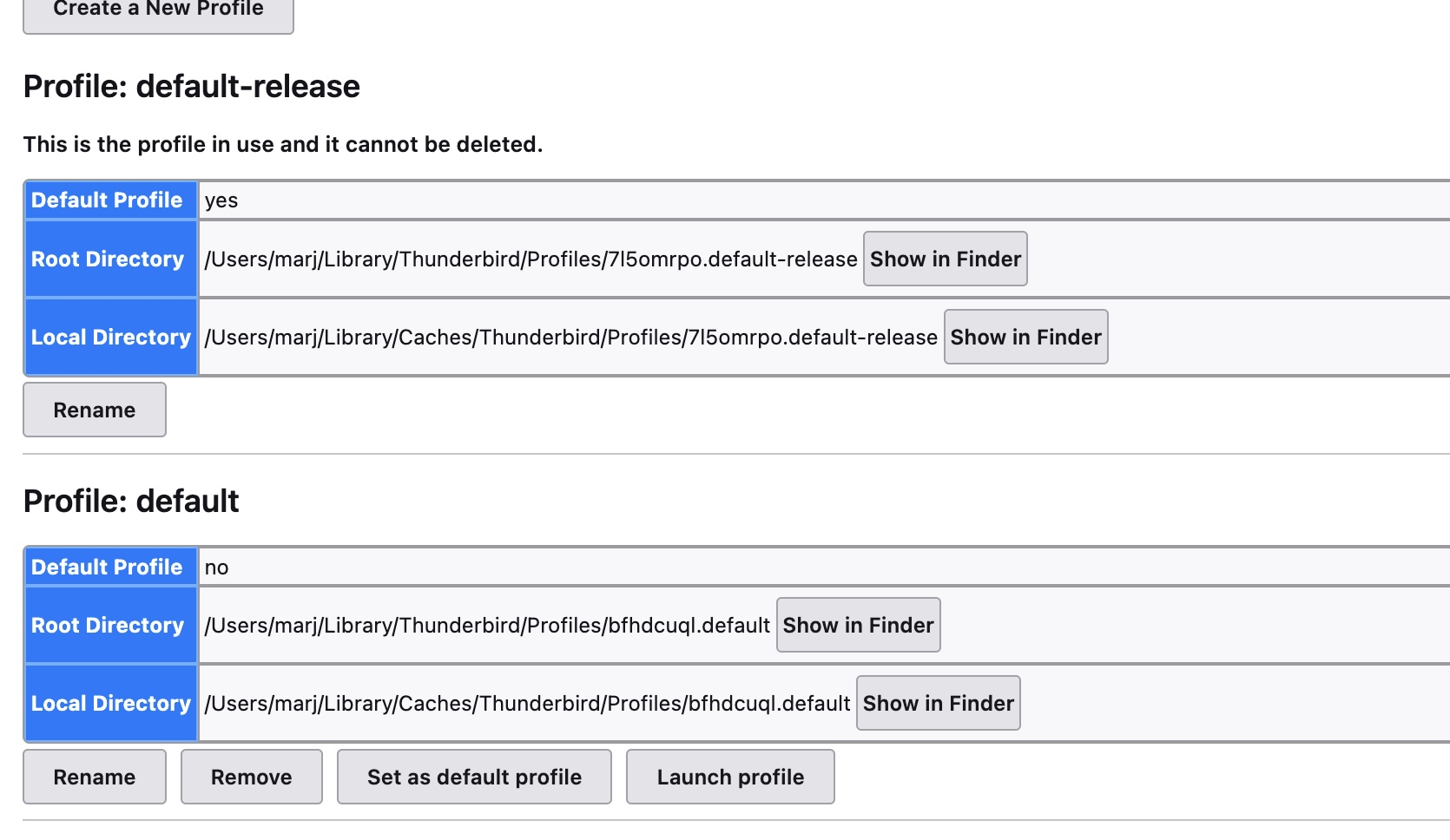
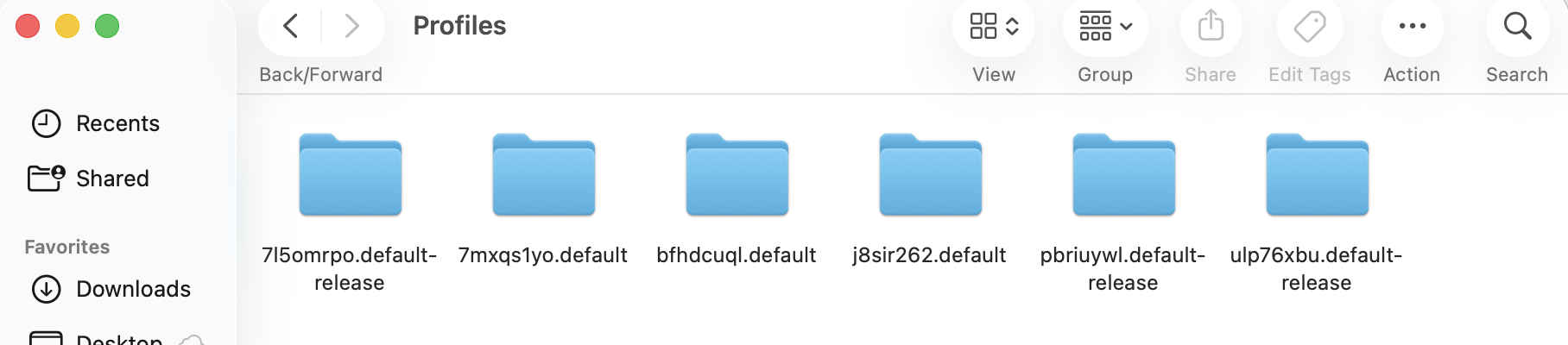
Open ~/Library/Thunderbird/Profiles.ini in TextEdit. (Right-click on the file, select "Open with", etc.)
Copy the contents of the file.
Paste them into a message here.
[General] StartWithLastProfile=1 Version=2
[Profile0] Name=default-release IsRelative=1 Path=Profiles/7l5omrpo.default-release
[Install61962B2951C4A90E] Default=Profiles/7l5omrpo.default-release Locked=1
[Profile1] Name=default IsRelative=1 Path=Profiles/bfhdcuql.default Default=1
Sorry to make you repeat steps, but at least I'm more confident about what has happened now and what the status is.
You have indeed made progress and you should be close to the end. I'm sorry that I cannot guide you confidently at this point. In my first message to you, I said that we may have to tell Thunderbird which profile to use. I was hoping that we could do that through about:profiles and wondered if we would have to edit the profiles.ini file. I now believe that we must edit the profiles.ini file.
I have very little experience editing the profiles.ini file. Some things are obvious, but I don't want you to think that I am giving you expert advice now. I am not.
Options for you:
- Make a copy of your ~/Thunderbird/profiles.ini file in case you need to restore it, and use my suggestions (below) or your own understanding of the file (AI can tell you how to interpret the contents) to edit it.
- Wait for me to enlist someone in a different time zone who is very good with profiles.ini.
- Wait to see if someone else responds to this discussion.
If you want to edit the profiles.ini file, close Thunderbird, make a copy of ~/Thunderbird/profiles.ini on your desktop or somewhere else, open ~/Thunderbird/profiles.ini in TextEdit, edit it or use my suggestions below, save the file, and re-start Thunderbird.
I believe that the profiles.ini file below is safe to try and will work. If it doesn't, you can close Thunderbird, replace profiles.ini with your back-up copy, and wait for reinforcements to arrive.
If this works, you might want to delete the extraneous profiles so that they do not cause confusion in the future. 7l5omrpo.default-release should be deleted through about:profiles. The rest can be deleted in the file system. But wait until everything is working. Maybe someone else can confirm this suggestion before you act.
[Install61962B2951C4A90E] Default=Profiles/7l5omrpo.default-release Locked=1
[General] StartWithLastProfile=1 Version=2
[Profile0] Name=default-release IsRelative=1 Path=Profiles/7l5omrpo.default-release
[Profile1] Name=pbriuywl.default-release IsRelative=1 Path=Profiles/pbriuywl.default-release Default=1
Well, phooey, I really thought this was going to do it. I copied your text into profiles.ini file. I did make a copy first. When I started Thunderbird it asked me to chose a profile and I chose the "pbriuywl.default-release" one. Then it asked for an email address and I knew I was in trouble. It went thru those couple of steps for that email address then that was all that was there. Nothing from the PC was there. When I go into about:profiles, it shows the pbriuywl.default-release as the default profile. So it should be working but it's not. I appreciate all you have tried to do to help.
Darn. I'm sorry. I have asked someone else to join the discussion.
Thank you. I shall await further instructions.
One logical explanation for the results that you are seeing is that the profile in use on your Mac does not have any accounts set up yet. Would you please do three things? —
- Launch Thunderbird on your PC and use about:profiles to check which profile is in use. Is it pbriuywl.default-release?
- Open ~/Library/Thunderbird/Profiles/pbriuywl.default-release/ImapMail on your Mac. Expand the folders. Take a screen image and post it here.
- Open ~/Library/Thunderbird/Profiles/pbriuywl.default-release/Mail on your Mac. Expand the folders. Take a screen image and post it here.
Hi Marj, I am Antony and a mac user, as well as being a PC user previously. I will see if I can help get you going with TB on your mac.
Whereabouts are you in the world, from a timezone perspective? I am in the UK
I wonder if we can connect live and walk you through. Something like Whatsapp or even zoom.
この投稿は Antony-Fox により に変更されました
as a starting point - i would copy your current profile as a backup, into the same folder and rename one of them to something simple, I use my first name Next, make sure you have an email account setup in TB (guess done this already), the next trick is to setup a new profile (ignore what you have already) and this will ask you for a name, you can do this 2 ways, get it to set up a default or use the renamed one. TB can be a bit odd, so try the 2nd way first, but remember that you renamed the folder and this is what you should use. This should load your current live profile. If not then go for the 1st way, set up a default which will then establish your profile.ini. Then its just a case of renaming the default in the profile to your own named folder. Shut down TB and restart and it will then load your real profile. We can make sure its going to load the right one as the install.ini will show latest in stall and this is reflected in the profile.ini file under which you will see the profile name you are going to load
as an extra help, once you have the Thunderbird folder showing in Finder you can drag a copy to the sidebar. This way you have direct access to the Folder
Thanks for helping, Antony!
I posted a reply to Rick's 7:10 am post but it's not here. Not the first time a response has disappeared.
I am on the US west coast. I have a daughter who lives in the UK so am familiar with the 8 hour time difference. After Rick's 7:10 am post, I verified that I have the correct profile file from the pc. Then I started poking around in the Thunderbird folder on the Mac (the original copy) and found that as I went down levels in my profile folder, there were files missing that were in the equivalent folder in the PC profile folder. The Thunderbird folder on the Mac and the one on the PC should be identical. I moved the Thunderbird folder by downloading it from my PC's OneDrive to my downloads folder on the Mac. OneDrive zips folders/files any time you download more than one. So I unzipped it once I had it on the Mac. I'm suspicious that something did not work correctly in that process. I am going to go back and copy the PC Thunderbird folder to a USB. I will have to locate my little dohicky that will let me read it into the Mac. Once I do that, I will go through the steps on the Mac and see if things work. I will report back but it will be later in the day.
I am a fan of zoom. If the above doesn't work, I think that would be the way to go, THANK YOU BOTH!! I just want my emails.
I should have asked earlier: you used OneDrive only as an intermediate storage location for copying the folder, right?