


Bookmarks gone after update.

Hello Mozilla Team,
I'll directly jump into - 12 years of Bookmarks and history are gone after the last update. No warning or anything. Can you help me restore? That's unbelievable.
すべての返信 (3)
602 bookmarks guys. What's that? A campaign to make us give up on Firefox?
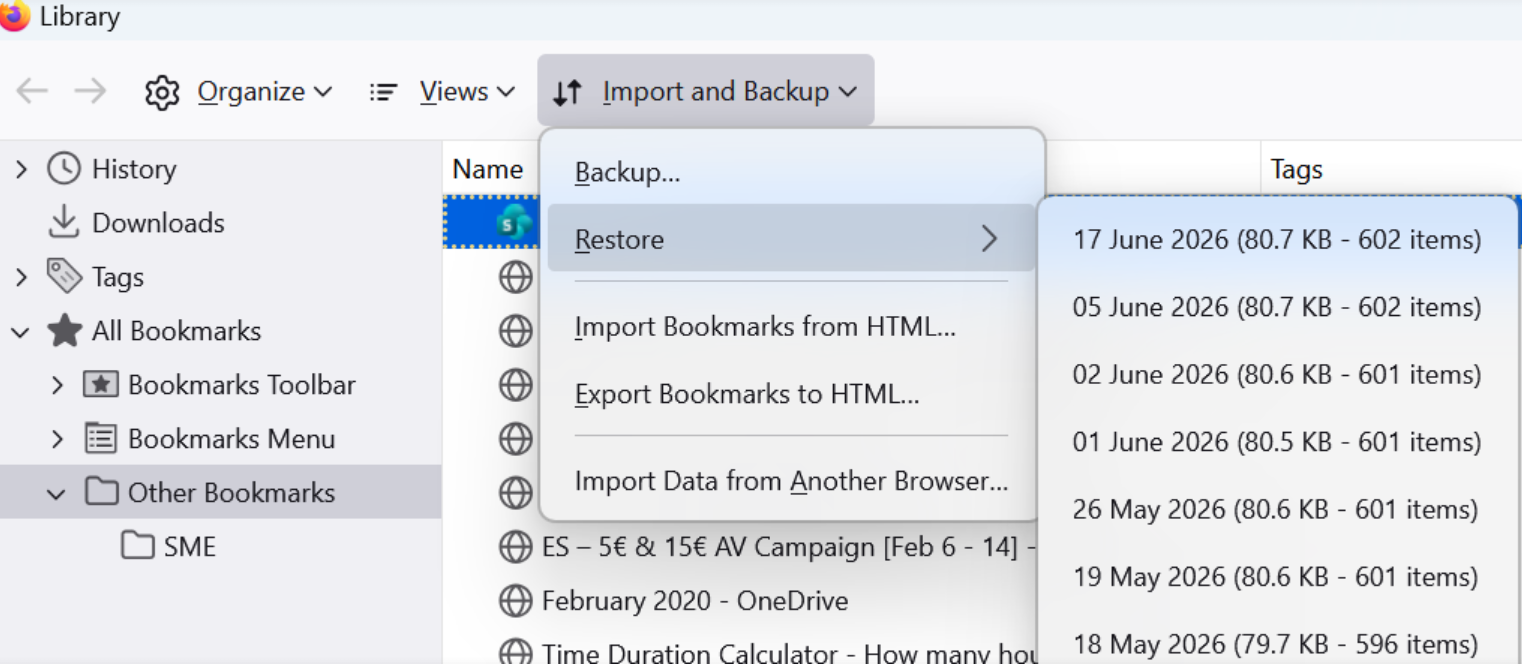

this is horrible. I seem to have lost ALL OF MY BOOKMARKS after updating to 152.0.6 (64-bit). No just hidden, I am greeted with "For quick access, place your bookmarks here on the bookmarks toolbar. Manage bookmarks..." and there ARE NO BOOKMARKS!!
This is a disaster, as an example I had created a whole reference project for a car renovation with catalogued links to youtube videos for all types of activities, this was 2 years of frequent research. ALL GONE WTF
OK So I was able to get my bookmarks back from an archive with the help of ChatGPT 5.6 High. I asked it to summarize the steps, in case anyone else runs into this issue as well:
"The most likely cause was corruption of, or a failed migration of, Firefox’s places.sqlite database during the update. The profile itself had not been deleted: the existing database and automatic .jsonlz4 bookmark backups were still present, but Firefox was no longer loading the bookmarks correctly."
this is what I did to get the bookmarks back:
Recovering Missing Firefox Bookmarks After an Update
1. Do not keep restarting Firefox.
Repeated restarts may overwrite profile data or recovery files. Keep the current session open while checking the profile folders.
2. Check the active Firefox profile folder.
Open:
%APPDATA%\Mozilla\Firefox\Profiles
A typical profile path looks like:
C:\Users\<USERNAME>\AppData\Roaming\Mozilla\Firefox\Profiles\<PROFILE>.default
3. Search the entire drive for the Firefox bookmark database.
Open Command Prompt and run:
dir C:\places.sqlite /s /a
The file places.sqlite contains Firefox bookmarks and browsing history.
4. Search for Firefox bookmark backups.
Run:
dir C:\bookmarks*.jsonlz4 /s /a
Automatic backups are normally stored in:
<PROFILE>\bookmarkbackups
Files typically look like:
bookmarks-2026-07-16_148_<hash>.jsonlz4
The number in the filename is the approximate bookmark count.
5. Copy the bookmark backups to a safe location.
Run these commands separately:
mkdir "C:\FirefoxRecovery"
xcopy "%APPDATA%\Mozilla\Firefox\Profiles\<PROFILE>\bookmarkbackups\*" "C:\FirefoxRecovery\bookmarkbackups\" /E /I /H /Y
Verify the copied files:
dir "C:\FirefoxRecovery\bookmarkbackups"
6. Try restoring the newest backup through Firefox.
Open:
Menu → Bookmarks → Manage bookmarks
Then use:
Import and Backup → Restore → Choose File
Select the newest .jsonlz4 file from:
C:\FirefoxRecovery\bookmarkbackups
7. If “Choose File” does nothing, rebuild the bookmark database.
First copy these instructions somewhere outside Firefox, because the browser must be closed.
8. Close Firefox completely.
Use:
Menu → Exit
Check for remaining processes:
tasklist | findstr /I firefox
If Firefox is still running:
taskkill /IM firefox.exe /F
9. Create a full backup of the Firefox profile.
Run:
robocopy "%APPDATA%\Mozilla\Firefox\Profiles\<PROFILE>" "C:\FirefoxRecovery\full-profile-before-repair" /E /COPY:DAT /R:1 /W:1
Confirm that the Robocopy summary shows:
Failed: 0
10. Rename the current bookmark and favicon databases.
Do not delete them. Rename them so they can be restored later if necessary.
cd /d "%APPDATA%\Mozilla\Firefox\Profiles\<PROFILE>"
ren places.sqlite places.sqlite.before-repair
if exist places.sqlite-shm ren places.sqlite-shm places.sqlite-shm.before-repair if exist places.sqlite-wal ren places.sqlite-wal places.sqlite-wal.before-repair if exist places.sqlite-journal ren places.sqlite-journal places.sqlite-journal.before-repair
if exist favicons.sqlite ren favicons.sqlite favicons.sqlite.before-repair if exist favicons.sqlite-shm ren favicons.sqlite-shm favicons.sqlite-shm.before-repair if exist favicons.sqlite-wal ren favicons.sqlite-wal favicons.sqlite-wal.before-repair if exist favicons.sqlite-journal ren favicons.sqlite-journal favicons.sqlite-journal.before-repair
11. Start Firefox again.
Run:
start "" firefox.exe
Firefox should create a new places.sqlite database and automatically restore bookmarks from the newest file in the bookmarkbackups folder.
12. Verify the recovery.
Check:
- The bookmarks toolbar - Menu → Bookmarks - Manage bookmarks - Bookmark folders and saved links - Whether everything still works after another normal Firefox restart
13. Clean up the recovery files only after confirming everything works.
Close Firefox first, then remove the renamed old databases:
cd /d "%APPDATA%\Mozilla\Firefox\Profiles\<PROFILE>"
if exist "places.sqlite.before-repair" del /F /Q "places.sqlite.before-repair" if exist "places.sqlite-shm.before-repair" del /F /Q "places.sqlite-shm.before-repair" if exist "places.sqlite-wal.before-repair" del /F /Q "places.sqlite-wal.before-repair" if exist "places.sqlite-journal.before-repair" del /F /Q "places.sqlite-journal.before-repair"
if exist "favicons.sqlite.before-repair" del /F /Q "favicons.sqlite.before-repair" if exist "favicons.sqlite-shm.before-repair" del /F /Q "favicons.sqlite-shm.before-repair" if exist "favicons.sqlite-wal.before-repair" del /F /Q "favicons.sqlite-wal.before-repair" if exist "favicons.sqlite-journal.before-repair" del /F /Q "favicons.sqlite-journal.before-repair"
14. Remove the temporary recovery folder.
if exist "C:\FirefoxRecovery" rmdir /S /Q "C:\FirefoxRecovery"
15. Do not delete the active Firefox files.
Keep these in the profile folder:
places.sqlite favicons.sqlite bookmarkbackups
These are part of the working Firefox profile.