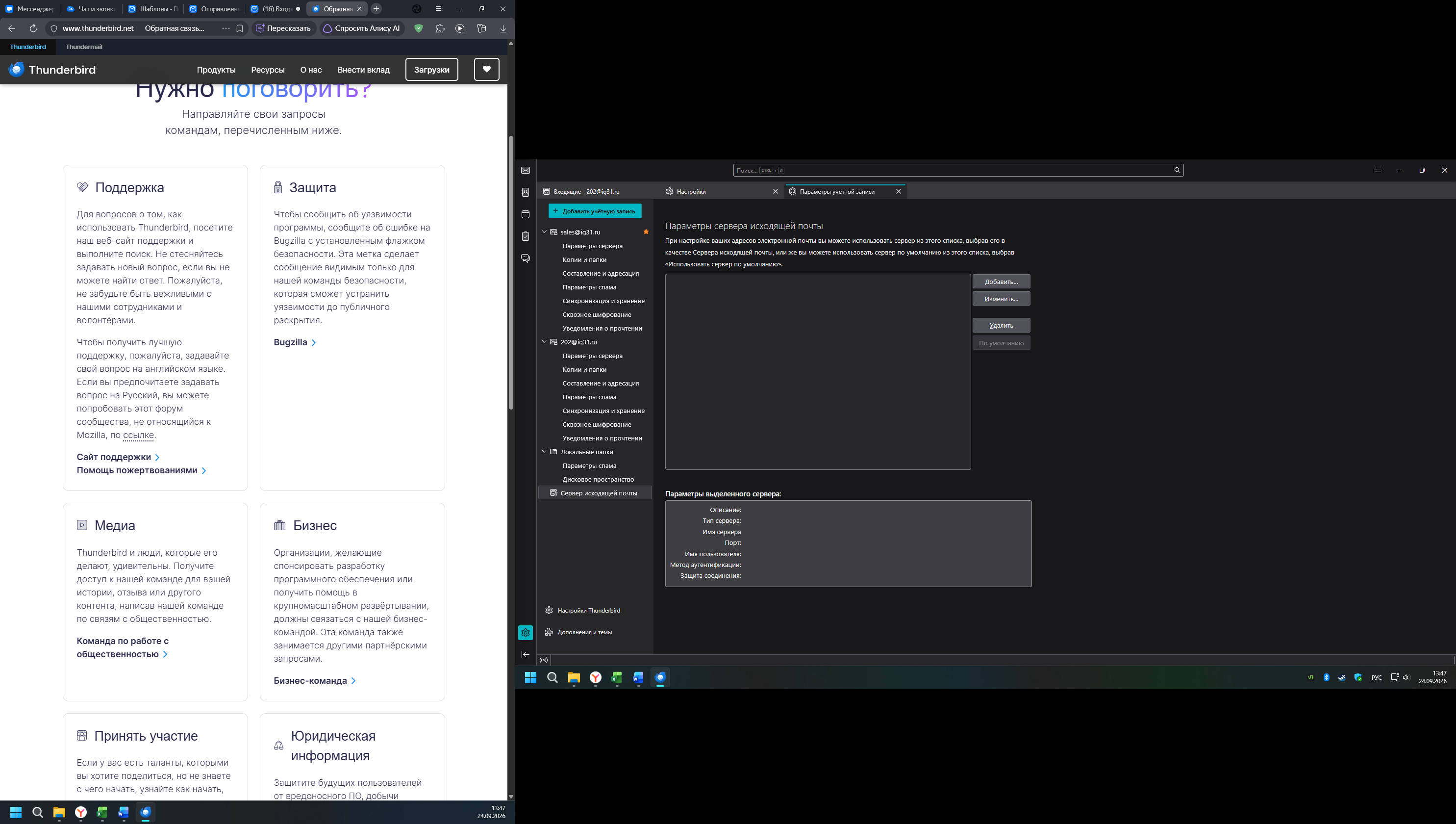
Outgoing mail servers is missing. When attempting to add a server, nothing happens after clicking OK. // Отсутствует список серверов исходящих сообщений. При попытке добавить сервер после заполнения всех полей и нажатия кнопки ОК ничего не происходит.

Отсутствует список серверов исходящих сообщений. При попытке добавить сервер после заполнения всех полей и нажатия кнопки ОК ничего не происходит.
//
The list of outgoing mail servers is missing. When attempting to add a server, nothing happens after filling in all the fields and clicking the OK button.
Diperbarui oleh Wayne Mery pada
Semua Balasan (1)
Issue translated into English using google translate. The list of outgoing mail servers is missing. When attempting to add a server, nothing happens after filling in all the fields and clicking the OK button.
The list of all outgoing smtp servers should be in the 'pref.js' file. If some corruption has occurred or an Anti-Virus interfered at time of loading, then I have an idea for you to try.
Image looks like you are using Windows OS. If you got the download from the Thunderbird website:
Then the profile would be created in the default location.
- Exit Thunderbird
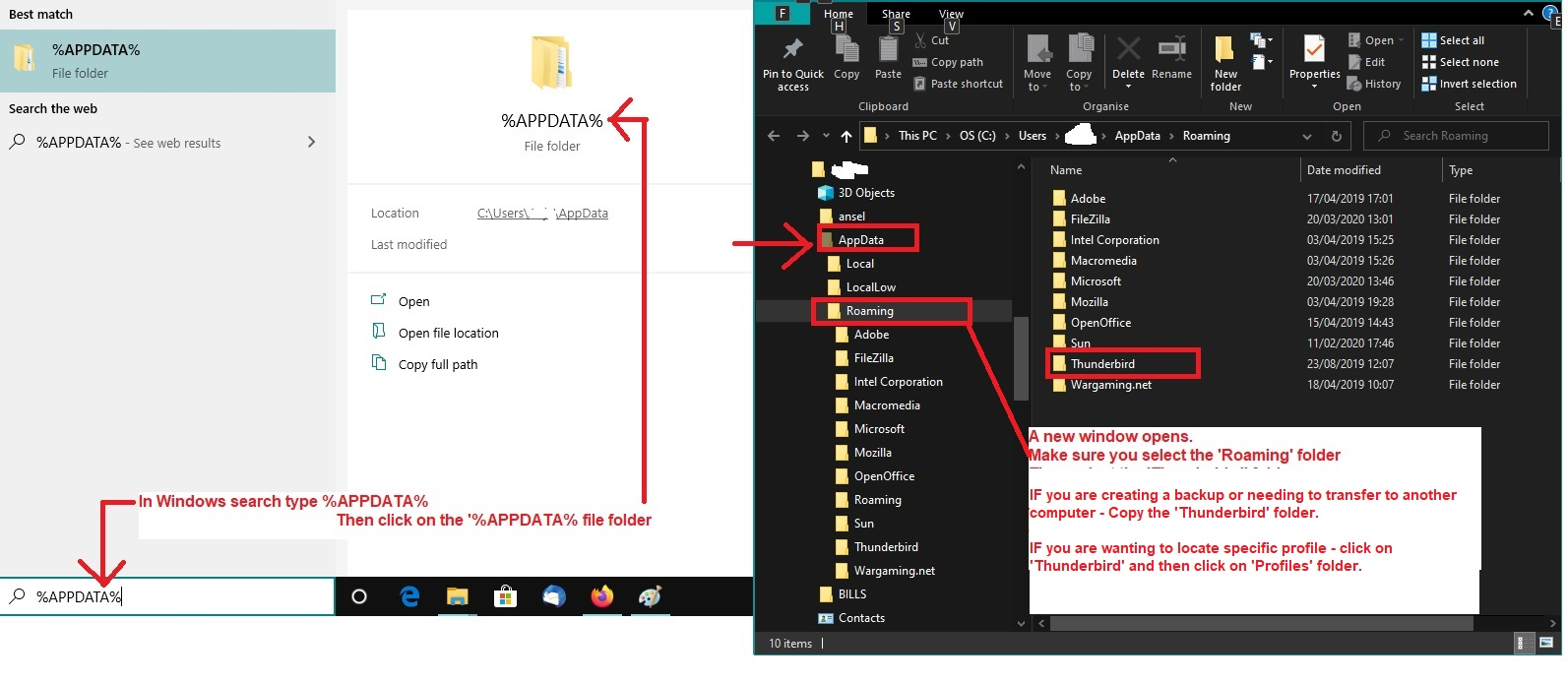
- In windows search type: %Appdata% - see image below as guide
- Select the %Appdata% File Folder
- Select the 'Roaming' folder
- Select the 'Thunderbird' folder
- Select the 'Profiles' folder
- Select the profile name folder
In profile name folder, look for this file: prefs.js That is the file which has all the preferences including account, smtp etc. Thunderbird uses that 'prefs.js' file, so it is the current file in use. Open that 'prefs.js' file using Notepad and check to see if it has all the SMTP data. There should be several lines for mail.smtpserver Example :user_pref("mail.smtpserver.smtp1.username", "email address here");
It is possible the data is missing. Close the file.
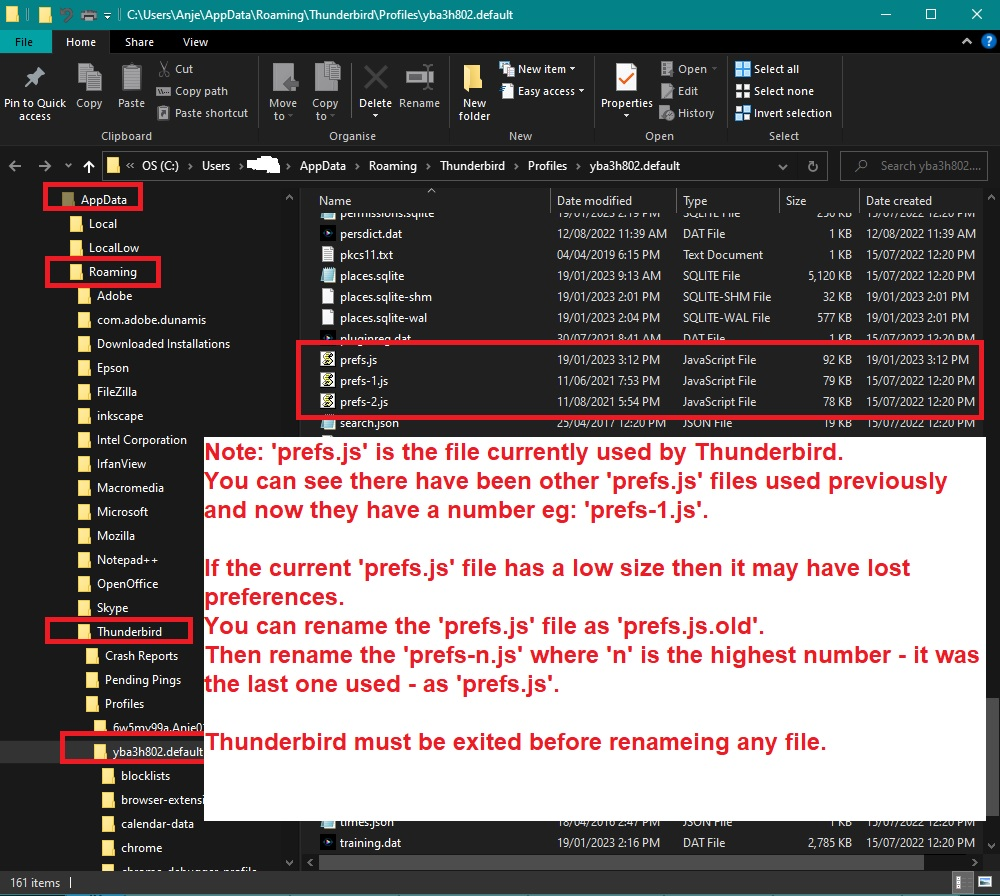
Do you also see more files with same name but with a number eg: prefs-1.js ? I've uploaded an example showing the files you are looking for - see image below. How many 'prefs-n.js' files do you see ? If some have a size = 0 then they can be deleted. These additional numbered files are copies of the 'prefs.js' and get created when there is a problem. It might be that another program interferes - an Anti-Virus program which scans any file that gets opened. It causes a problem of access for Thunderbird.
In Anti-Virus: It would be a good idea to set up an exemption and not allow any Anti-Virus access to scanning any folder or file in the 'Thunderbird' folder that contains profiles.
- If you see loads of 'prefs-n.js where 'n' is a number:
- Rename 'prefs.js' as 'prefs.js.old' OR 'Xprefs.js'
That means you know which one was current at time of problem.
- Look for the 'prefs-n.js' file that has the highest 'n' number and see if it also has the largest file size.
You could upload an image which shows all those 'prefs-n.js' files Make sure it also shows details columns: name, date modified, size If required, You can open that 'prefs-n.js' file using Notepad and check to see if it has all the SMTP data. There should be several lines for mail.smtpserver Example :user_pref("mail.smtpserver.smtp1.username", "email address here");
If you see those lines: Close Notepad Rename: 'prefs-n.js' to say 'prefs.js'
Restart Thunderbird.
Please report back on what you find.
I can then advise you what to do if you have a lot of those 'prefs-n.js' files