Subscribe function inert

I cannot get the Subscribe function to do anything. I would like it to hide, in my Folder List, some of the extraneous folders that are present either as Mozilla defaults or AOL Mail flow-down folders.. From what I read, like a number of folks have simila or nearly similar duplicate Trash/Deleted Items, Sent/Sent Items & two labeled Drafts, albeit one's properties identify it differenet from its Drafts label as Draft (singular) while the other's properties identify it as labeled, Drafts.
For a cleaner Folder List appearance, I wish to hide the unused folders from the Foder List, I have the desired Sent, Drafts & Trash folder desitnations mapped in the TB Server settings, etc. (I assume there is only one avenue for this), thinking the unused foldes would then be available to be hidden. However, deselecting unwanted folders in Subscribe has never done anything, to any folder. When I return to the Subscribe window again, the deselected folders have been reselected.
I've seen a lot of messages here with many different suggesed remedies, but haven't found any one yet that was reported as being successful. Is there one?
Matt
Semua Balasan (6)
A suggestion: highlight the unified DRAFTS folder, rightclick, click properties, then click choose. then, untick the drafts folder not used and see if it disappears.
Thanks david. However, I highlight the Drafts folder (I don't know which one is the Unified folder, but I tried on both), right-click on Properties and there is no Choose window or button to manipulate.
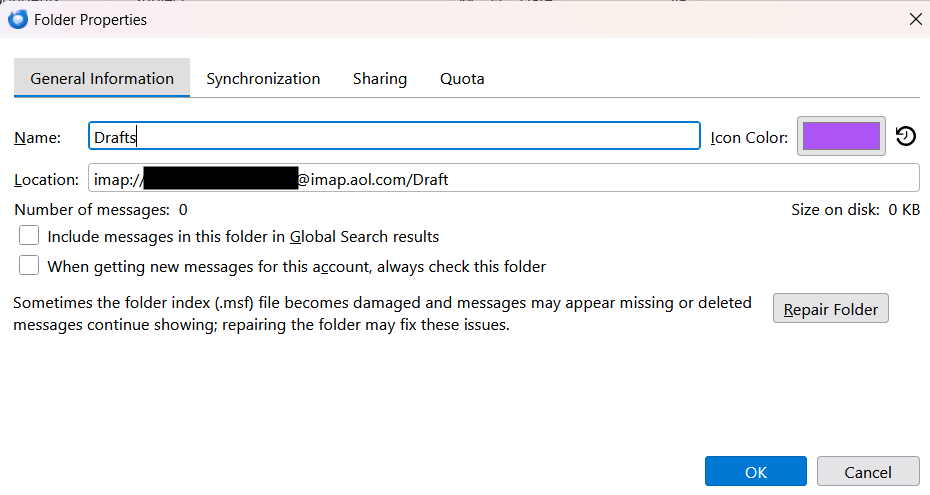
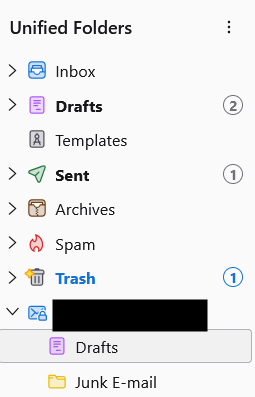
The 1st attached image is my Folder List. The 2nd image is what I get when right-clicking on a folder and selecting Properties.
BTW, Unified Folders was turned off. I turned it on which yielded the same results as above. Turning it on did not alter my Folder List, it just added the "All Folders" tag above my (only) account in the Folder List.
Appreciate your help. Matt
turn on unified folders highlight the draft folder under that heading rightclick and select properties do a screenshot if you do not see the choose button. this may not fix your issue, but worth verifying.
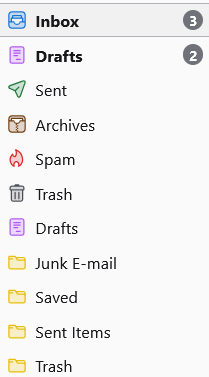
Ok, my apologies. I just now figured how to display the Unified Folders. In the UF, I right-clicked on one of the Draft folders, then Properties. I found the Choose button and clicked it. A window opened and both Draft(s) folders where selected. I deselected one of them and nothing happened. I then reselected the one I deselected and deselected the other; all that did was put the "Drafts (2)" folder below my email account Note: I have 2 draft emails in the Drafts folder so that I would be certain which one of the 2 Draft(s) folders draft emails were deposited.
The attached screen shot is what it looks like after Choose process (the same as it looked prior).
It appears both Draft(s) folders are unable to be deleted as both have icons that are NOT file folder icons, such as seen for the Junk folder. Earlier, I was able to delete folders from the Folder List that had file folder icons. Not sure if that means anything, but it's a data point.
Thanks!
Several things you can try: - log onto account on web and see if both folders appear there. and possibly remove one. - verify which folder is the active one - click to the profile folder when thunderbird is not running and delete the extra folder - while there, click to Mail folder and delete 'smart mailboxes' folder - restart thunderbird and adjust unified folders as needed - that's the best I can suggest. I've had a similar issue myself
Thanks for the reply david.
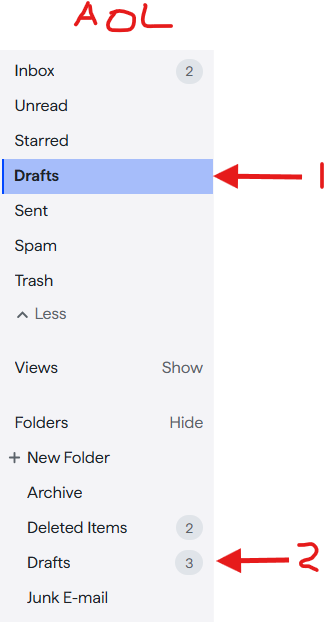
Here's what confusion I found from AOL Mail. In the first attached screen snippet is what the folder list looks like in AOL Mail. Yes, AOL Mail has 2 Drafts folders. I've labeled them as #1 and #2 in the snippet. The AOL Drafts #1 folder cannot be deleted. AOL Drafts #2 can be deleted; however Drafts #2 is where AOL Mail deposits draft emails (there are 3 shown in the attachment).
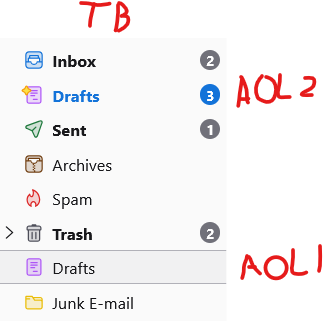
In the 2nd attached snippet is my TB Folder List, showing where the respective AOL Drafts folders are mapped (by TB presumably). Again, you see the 3 draft messages in the TB Drafts folder marked "AOL 2".
I thought of remapping TB Drafts to the AOL 1 Drafts folder in TB but concluded that such a move may not solve anything and might just screw up the AOL Mail side if I tried to delete the AOL #2 Drafts folder in AOL Mail since that's where it wants to put messages. Turns out I can't anyway; the selection afforded me in the TB Settings, for Draft messages, doesn't allow me to choose anything but the folder that is currently receiving draft messages in TB.
I deleted the smart folder in TB profile folder and restarted TB. The Unified Folder List now contains only one Drafts folder with 3 draft messages AND an item with my email address and properties of the errant "Draft" (singular) folder. The errant entry cannot be deleted in UF. My account Folder List still shows the two separte Draft(s) folders; no change there.
I'm about to run out of gas on this. I enjoyed the 14 year old Windows Live Mail app I was using on my previous computer before switching to TB on my new computer. You just opened the IMAP Folder selector (similar to Subscribe) and deselected the folders you didn't want to see. The selector showed you what folders would be visible and those that would not, and that was it (not similar to Subscribe). If you wanted any back, you hit the Restore button (similar to Subscribe Refresh) and you were back to the beginning.
If you have any final suggestions, I would appreciate seeing them. But it appears I'll have to be content with TB as a work in progress.
Thanks Matt