


Why do I get 505 Forbidden Error with one profile?

I went to weatherbug.com & got a 505 Forbidden Error. Cleared cache & cookies & first website page loads put I can't navigate around it. Changing location or days just shows a spinning circle "forever".
I tried another profile & it works properly. I'm on FF 67.0.1
Weatherbug.com was OK a week or so ago. What could be causing the problem?
Thanks
Semua Balasan (4)

http error 505 may well be related to the website exclusively in which case it is not a firefox problem but rather a website glitch.
Hi Mike109, large websites often pull in content from numerous servers, and these additional "third party" connections can be affected by various features, settings, and add-ons. Some of those probably are different between the two profiles.
If a site is generally known to work in Firefox, these are standard suggestions to try when it stops working normally:
Cache and Cookies: When you have a problem with one particular site, a good "first thing to try" is clearing your Firefox cache and deleting your saved cookies for the site. I see you've already done this; excellent instincts! Please scroll down to the next section.
(1) Clear Firefox's Cache
See: How to clear the Firefox cache
If you have a large hard drive, this might take a few minutes.
(2) Remove the site's cookies (save any pending work first). While viewing a page on the site, try either:
- right-click (on Mac Ctrl+click) a blank area of the page and choose View Page Info > Security > "Clear Cookies and Site Data"
- (menu bar) Tools > Page Info > Security > "Clear Cookies and Site Data"
- click the padlock or "i" icon in the address bar, then the ">" button, then More Information, and finally the "Clear Cookies and Site Data" button
In the dialog that opens, you will see one or more matches to the current address so you can remove the site's cookies individually without affecting other sites.
Then try reloading the page. Does that help?
Double-check content blockers: Firefox's Content Blocking feature and extensions that counter ads and tracking may break websites that embed third party content (meaning, from a secondary server).
(A) Do you see a shield icon toward the left end of the address bar, near the lock icon? More info on managing the Tracking Protection feature in this article: Content Blocking.
(B) Extensions such as Adblock Plus, Blur, Disconnect, Ghostery, NoScript, Privacy Badger, uBlock Origin or uMatrix should provide toolbar buttons to manage blocked content in a page. There may or may not be a number on the icon indicating the number of blocked items; you may need to click the button to see what's going on and test whether you need to make an exception for this site.
Testing in Firefox's Safe Mode: In its Safe Mode, Firefox temporarily deactivates extensions, hardware acceleration, and some other advanced features to help you assess whether these are causing the problem.
If Firefox is not running: Hold down the Shift key when starting Firefox. (On Mac, hold down the option/alt key instead of the Shift key.)
If Firefox is running: You can restart Firefox in Safe Mode using either:
- "3-bar" menu button > "?" Help > Restart with Add-ons Disabled
- (menu bar) Help menu > Restart with Add-ons Disabled
and OK the restart.
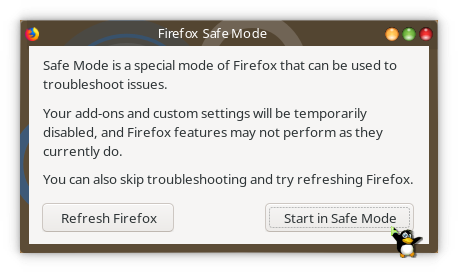
Both scenarios: A small dialog should appear. Click "Start in Safe Mode" (not Refresh).
Any improvement?
A small dialog should appear:
A day ago I cleared all the cookies from the FF profile that was having the problem. I’ll call this profile #1 and it does not have an add blocker, and weatherbug.com started working. My immediate thought was there must have been another cookie that was causing the problem. The weatherbug site still continued to work with the other profile which I‘ll call #2 and it does have an add blocker.
Yesterday using the #2 profile I got the 505 Error. I happened to clear the cache & all the cookies the other day on this profile also, so there wasn’t a lot there. But I did it again & there were only 3 cookies. This allowed the first page of weatherbug to load but I could not navigate. If I changed the location, etc. this brought up a continuously spinning circle.
Meanwhile profile #1 was working as mentioned above. It’s like they reversed from a few days ago.
Later in the evening yesterday profile #2 just started working with weatherbug.com, and profile #1 continued to do so.
I do get a purple shield icon at the left end of the address bar when using either profile. Clicking on it says “Tracking attempts blocked”.
I'd like to presume the issue is with weatherbug, but why would it sometimes not work with one profile?
FWIW my Chromebook has always worked when accessing weatherbug.