


After upgrading Thunderbird my e-mail archive is gone, could you help me restore it?

Hello people, I've just upgraded my Thinderbird because my inbox didn't load on opening the programme. I guess I have made a huge mistake somewhere in the process, because my whole archive has disappeared. I very much hope it still exists somewhere and that I will be able to restore it with your help. Thanking you in advance, Nele Ysebaert, Amsterdam
Wšě wotmołwy (16)
Is this a POP or an IMAP account? Did you create a system Archive folder within this account or was it a generic archive you created in your Local Folders?
It's an IMAP account. And it was a generic archive created in my Local Folders. My addres book is gone too, as are the messages in my sent mails box and part of the messages in my inbox.
The combined losses of archives + Sent + part of Inbox + address book don't ring the bells in my ear... I would rather think of un unwanted creation of a new profile..... or even a corrupt prefs.js file in the Thunderbird profile. Do you remember from which version you upgraded and which version do you use actually?
To get some more information please go to Help > Troubleshooting Information > Profile Folder > Open Folder, then quit Thunderbird. In the profile folder go to the folder Mail, open it and make a screen shot of its contents. Then do another screen shot with the contents of the "Local Folders" folder.
Wot Mapenzi změnjeny
Here's the path to the asked screen shot (No Local Folders 1 found). I coudn't supply you with it otherwise - just too stupid. I hope you can see it!
"C:\Users\neley\Documents\Trouble\Screen shot 18 sept 2026.jpg"
You must not paste the path to your screen shot on the PC since nobody can see your images. When you reply to this message, add your screen shots by clicking on the "Browse..." button beyond the "Add images (optional): line.... etc
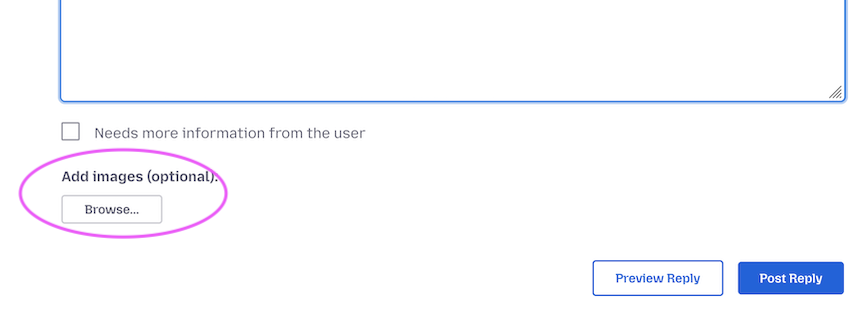
Ah - thank you! I've done it.
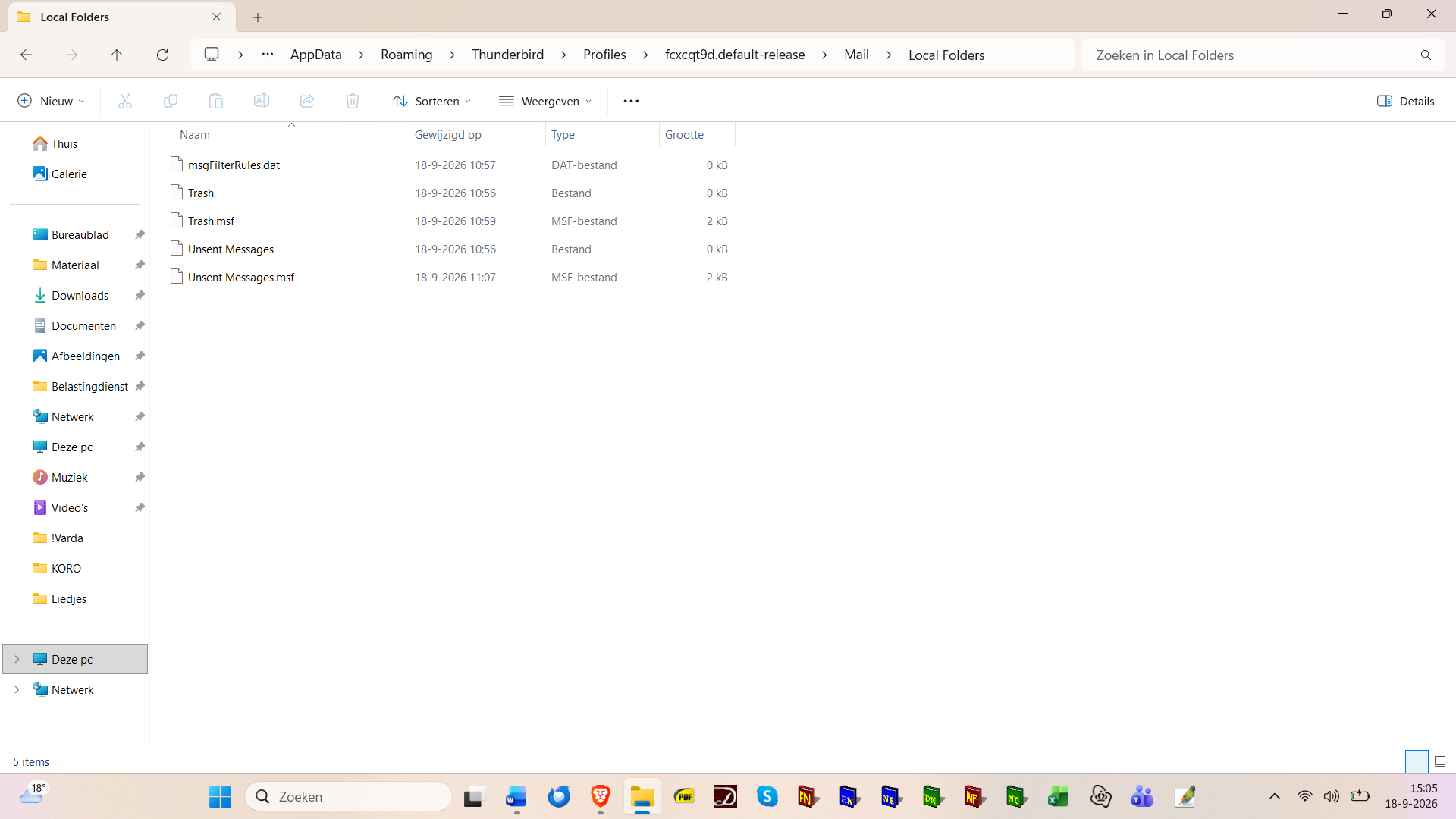
Interesting screen shot since all files in Local Folders have modification dates from today. And since they are all empty they must have been created today. As I already supposed in my first reply, you certainly have created a new Thunderbird profile, deliberately or not. Now please return to the Thunderbird profile folder in the Windows file explorer as indicated in my second reply, then move one layer higher in the folder hierarchy to the folder Profiles and make a screen shot of its contents. Thereafter still move one layer higher to the folder Thunderbird which contains a profiles.ini file: open the latter with a text editor and do a screen shot of its contents.
Here you are - I hope this is what you need. I will be having dinner and to the movies after that, so will read your answer later tonight. Thanks so much for guiding me through this (to me) disastrous problem!!! Cheers, Nele
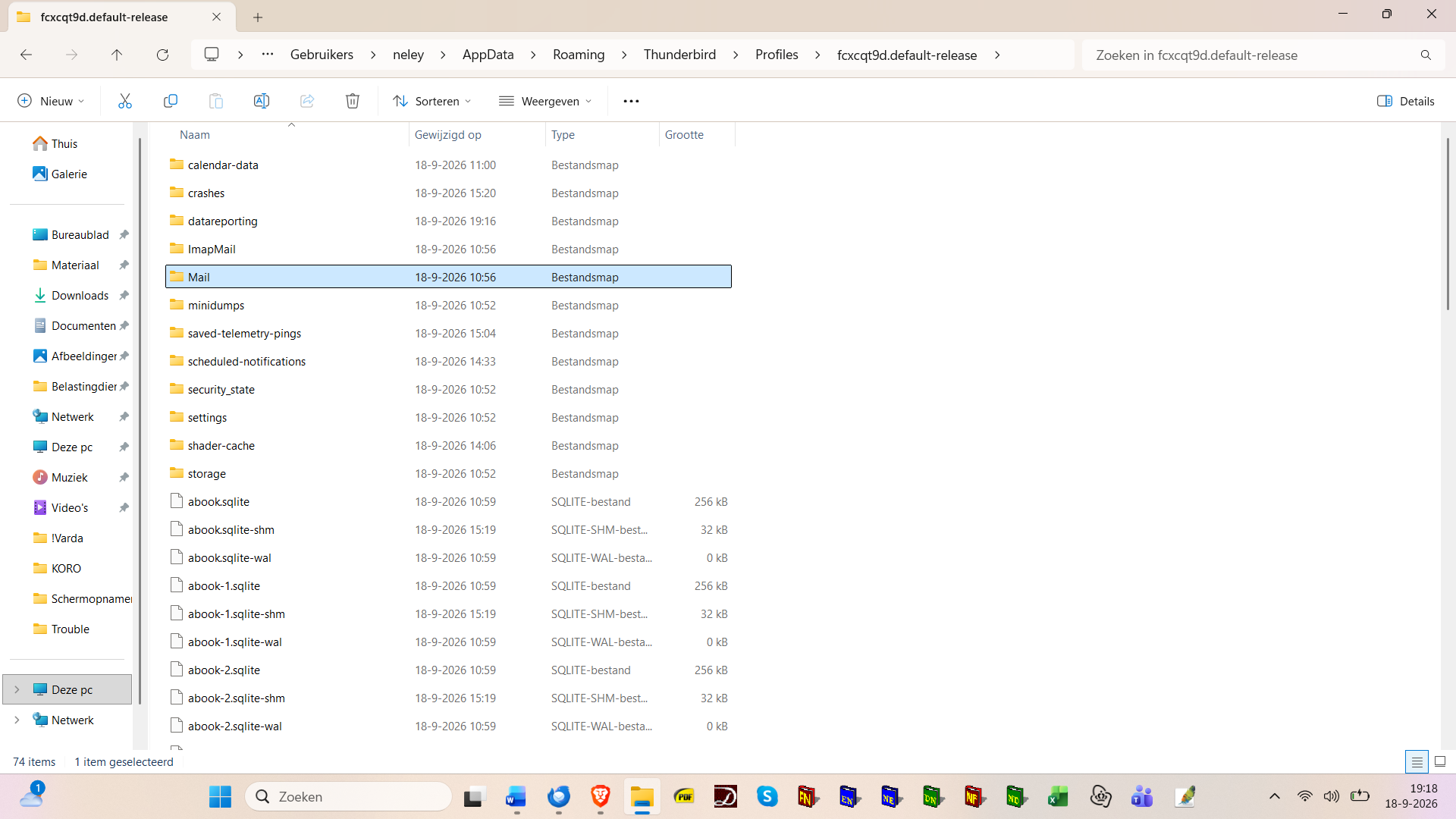
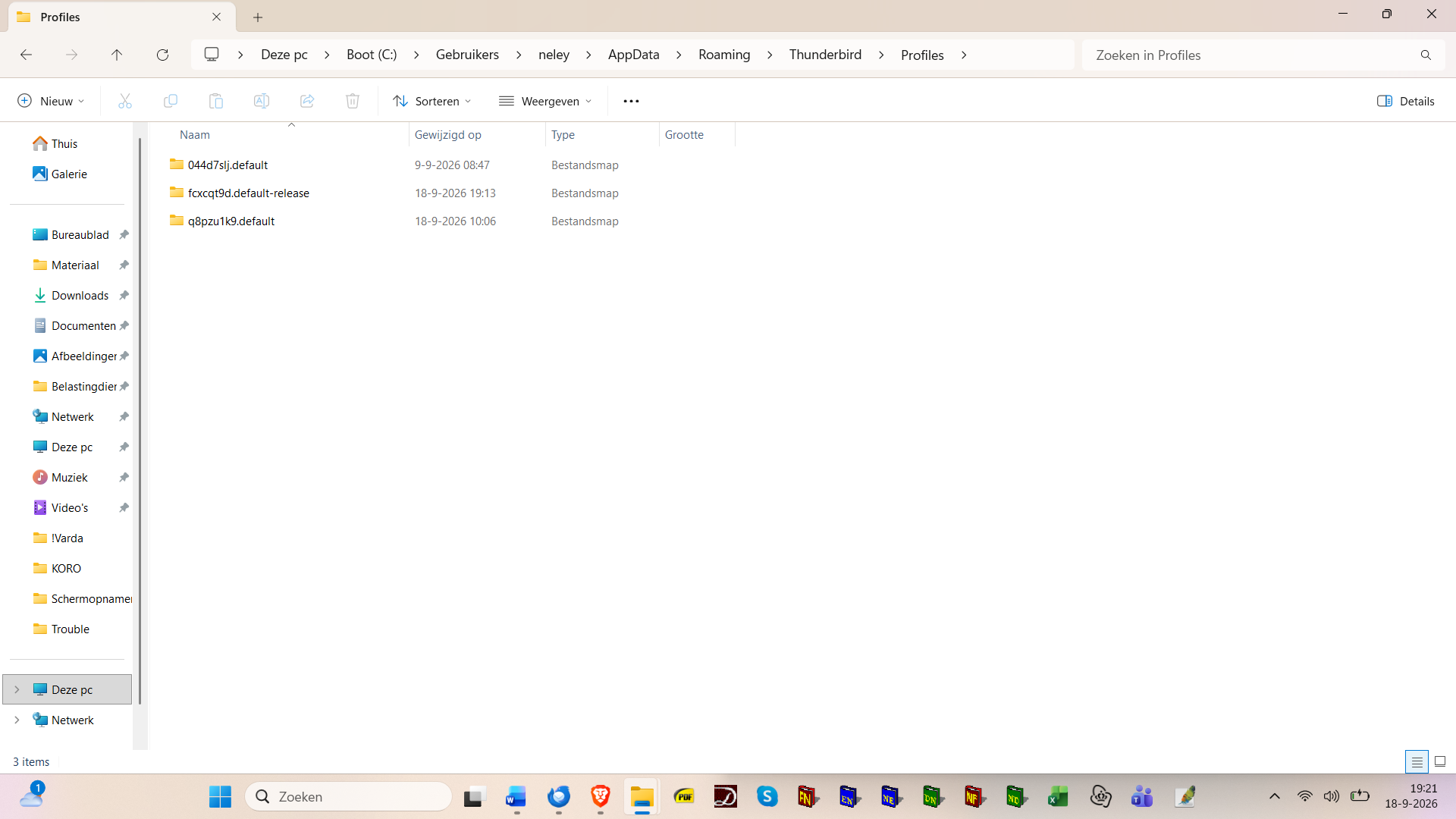
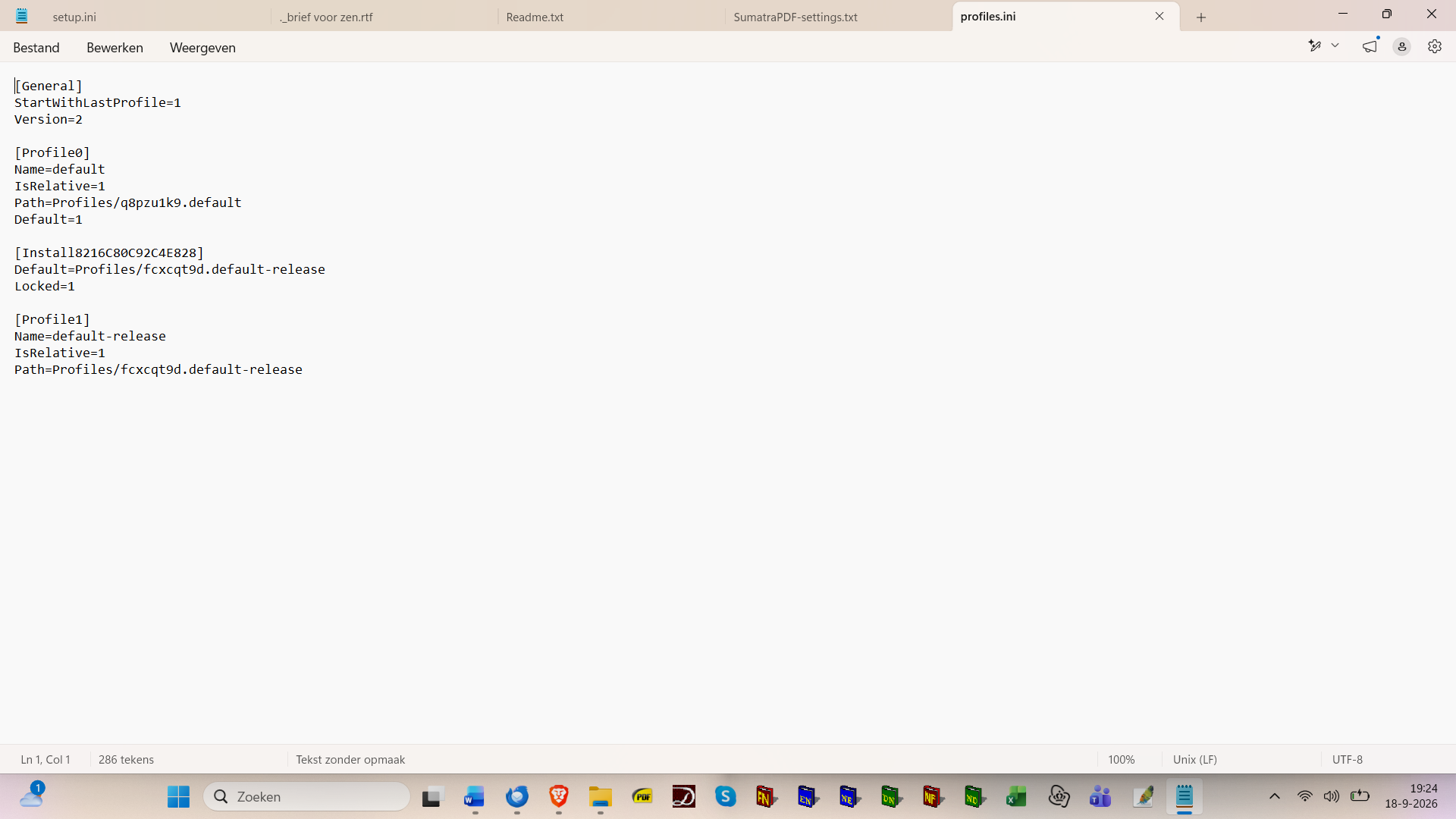
Thank you for the new screen shots. Indeed there are three profile folders in "Profiles, two of which have the same attribute "default". I think that the folder 044d7slj.default is the profile folder containing the data of your old profile, and that the two other profiles have been created recently.
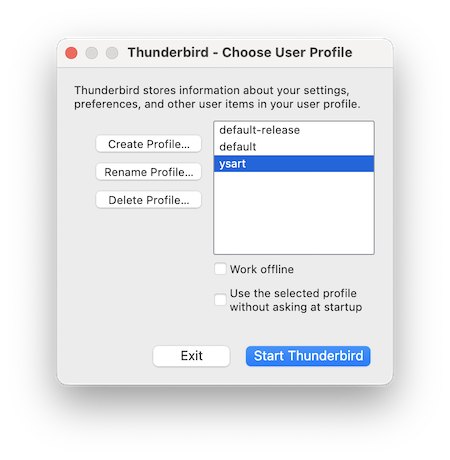
Now we are going to open the Thunderbird profile manager, create a new profile and connect it with your old "default" profile folder: • verify that Thunderbird is not running, press the keys Win + R >> a "Run" dialog will open • type: thunderbird -P in the dialog box and hit OK • the Thunderbird profile manager window will open, click "Create Profile..." which will open the "Create Profile Wizard", then click "Continue" • in the next window type a name for the new profile: instead of "Default User" choose ysart or nele for example (or another name you prefer) • then click the "Choose Folder..." button, navigate to the Profiles folder in ..\.neley\AppData\Roaming\Profiles\ , select folder 044d7slj.default, click "Open" and thereafter "Done" • the Create profile wizard closes and you'll be back in profile manager window (see image) in which your new profile "ysart" is displayed and selected. Click on "Start Thunderbird" and report what happens.
If you cannot follow the steps in my description have a look here https://support.mozilla.org/en-US/kb/profile-manager-create-and-remove-thunderbird-profiles#w_creating-a-profile
Wot Mapenzi změnjeny
I followed your instructions and having clicked on "Start Thunderbird" I see an empty screen. Not even an inbox or sent messages folder and such on the left. The problem doesn't seem to be solved yet... I have downloaded the new version through this link https://www.thunderbird.net/nl/thunderbird/all/ using the desktop download button at the bottom.
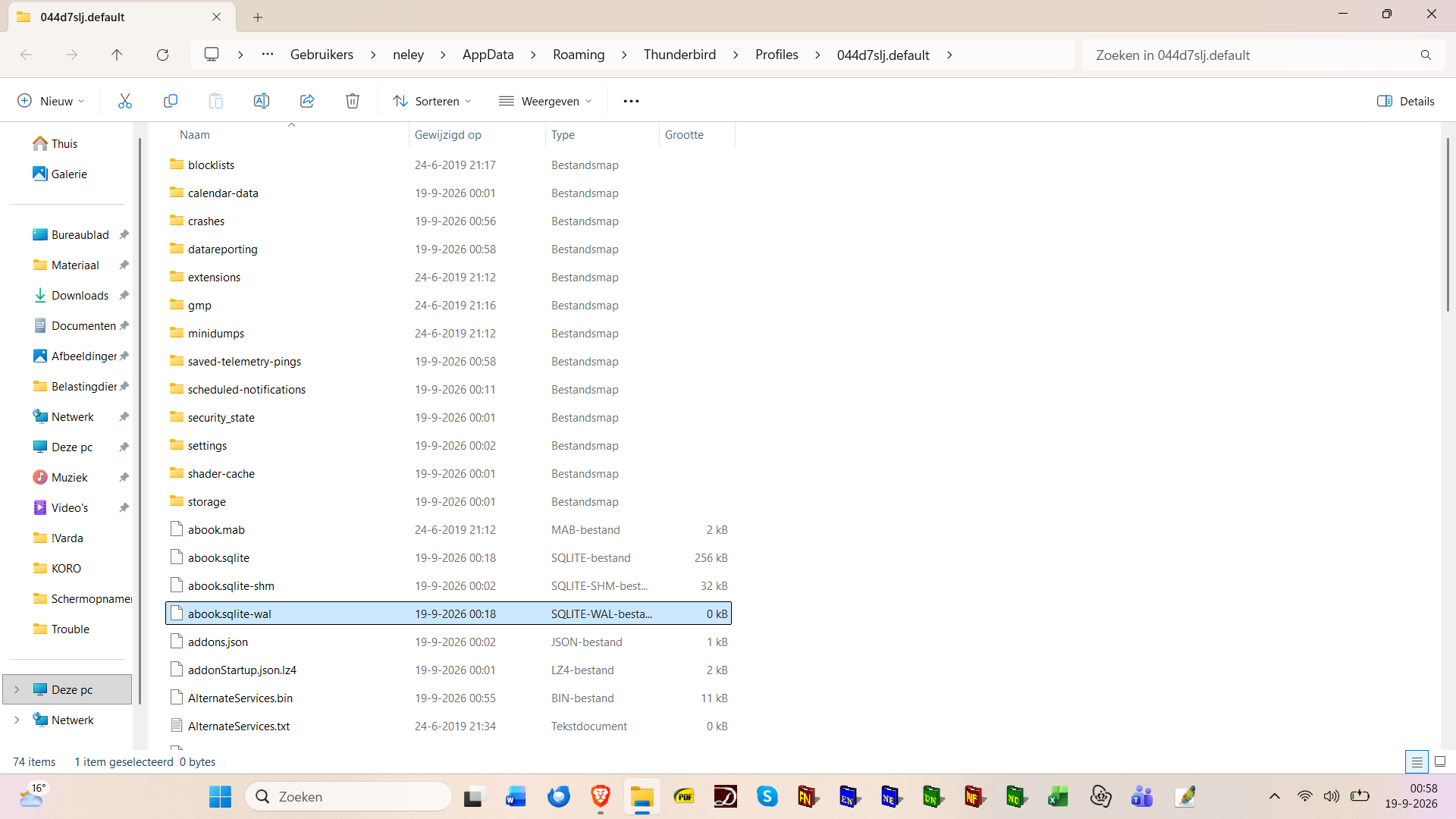
Did you really navigate to the 044d7slj.default folder to connect it with the new profile you created in the profile manager? Please show me a screenshot of the "empty screen". To be sure that folder 044d7slj.default really is the profile folder which contains your old Thunderbird data, go to .... \neley\AppData\Roaming\Profiles\044d7slj.default\ , open the folder, go to Mail > Local Folders and make a screenshot of the contents of Local Folders.
Wot Mapenzi změnjeny
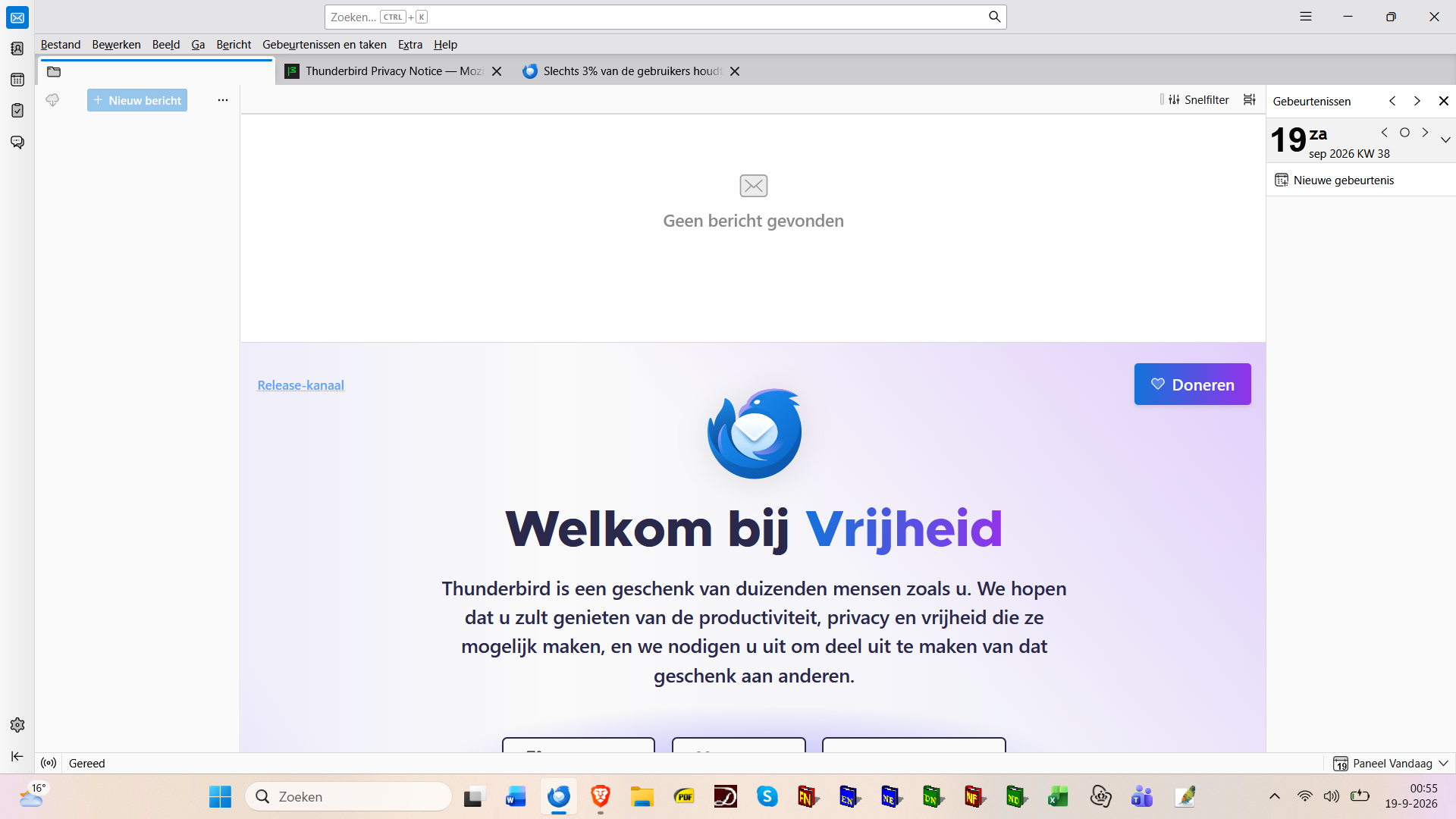
Here's the "empty screen". The folder 044d7slj.default doesn't contain a map folder, as you can see in the screen shot below.
Wot ysart změnjeny
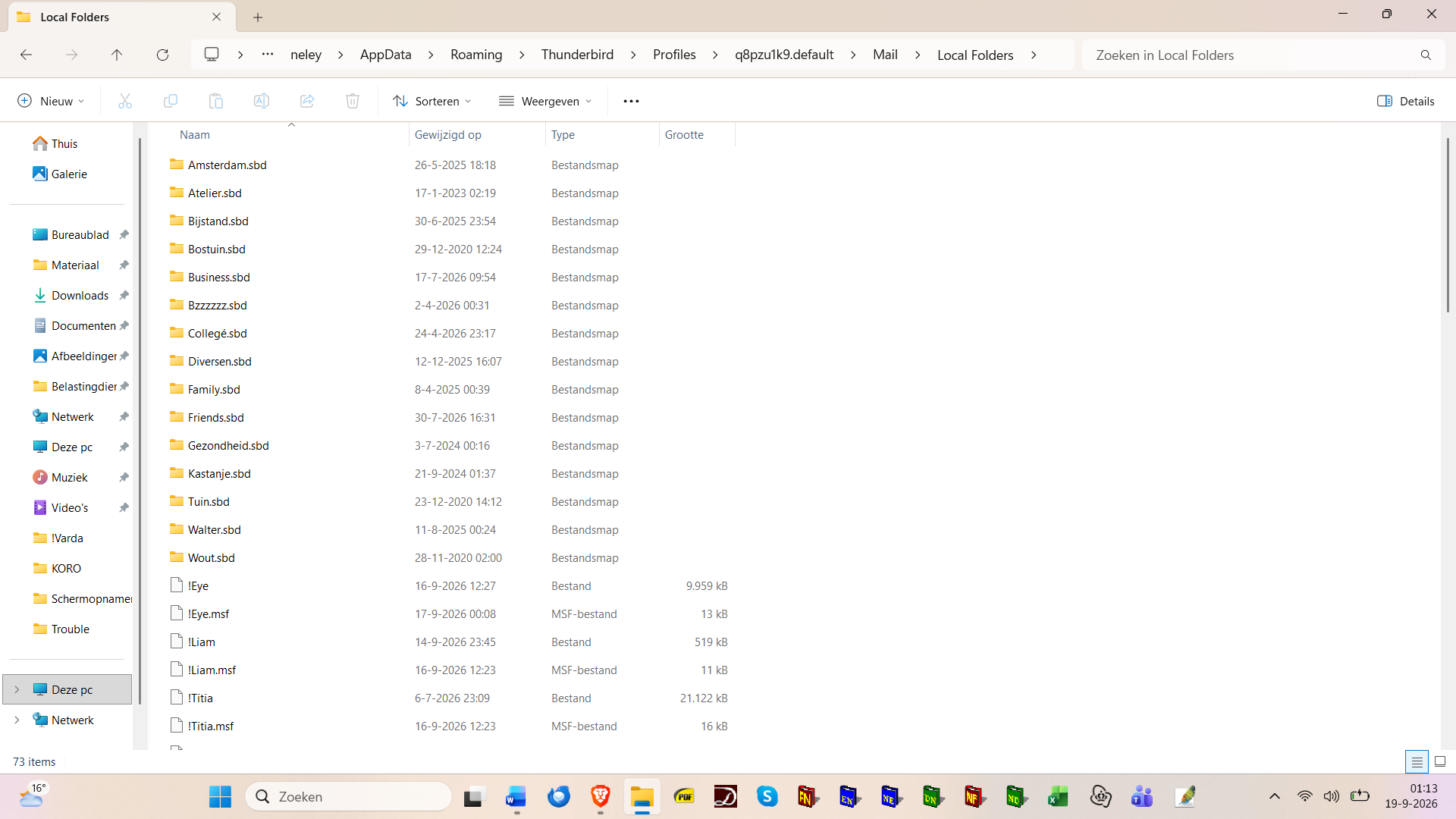
OK, this leaves us a third profile folder to explore. Return to \neley\AppData\Roaming\Thunderbird\Profiles\ , open the q8pzu1k9.default profile folder, go to Mail > Local Folders and do a screen shot of the contents of Local Folders.
Wot Mapenzi změnjeny
That's more like it - although some folders seem to be lacking...
Wot ysart změnjeny
I'm going to bed (1.22 AM here in Amsterdam) and will be looking forward to your next instructions tomorrow. Thanks you for your great support!
OK, this is the good one. Sorry that my initial guess was wrong. This weekend you can re-do the same manipulation as you just have done with the other (wrong) default profile: Open Profile manager, create new profile, give it a name, click on "Choose Folder....", navigate to q8pzu1k9.default in "Profiles",...etc If you are missing some folders in your Local Folders we'll discuss tomorrow. If you run into a problem I'll be present in the forum all weekend.