


Cannot connect Thunderbird to Spectrum

Aloha. I'm helping a friend with setting up a new Windows 11 PC, and cannot get Thunderbird to connect to Spectrum's servers. I spent an hour on the phone with Spectrum support and they just gave up and said it must be an issue with Thunderbird. Here are the details:
- Brand new Dell 24 All-in-One EC24250 - Windows 11 25H2 plus all additional fixes. - All Dell drivers updated. - Thunderbird V155.0 64-bit
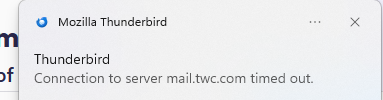
If I click on 'Get Messages' after a while I get: "Connection to server mail.twc.com timed out". I've gone into the config editor and changed mailnews.tcptimeout from 100 to 500 and still get the error.
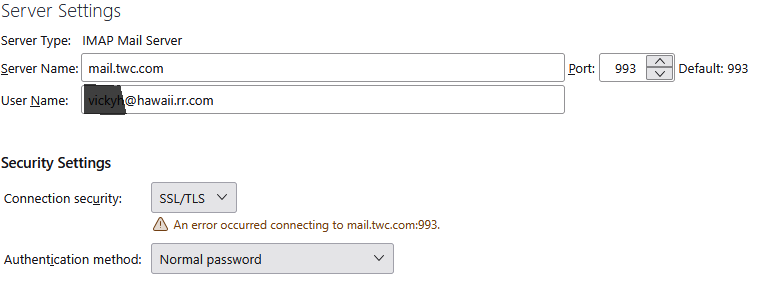
In the Account Settings | Server Settings | Test server connection I get: An error occurred connecting to mail.twc.com:993.
I've tried this with both setting up a brand new account in Thunderbird, and also via copying the 'Thunderbird' folder from %appdata%\roaming from her old machine.
Email configuration (from Spectrum).
IMAP Settings Server name: mail.twc.com Port: 993 user name: abcd@hawaii.rr.com Connection Security: SSL/TLS Authentication method: Normal password
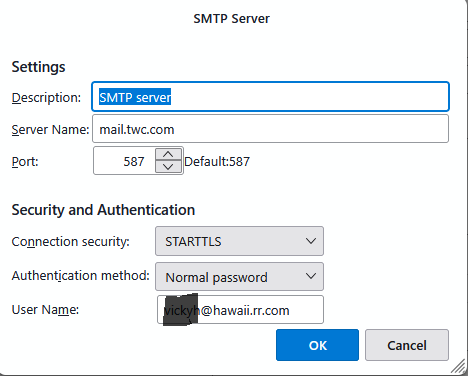
SMTP settings Server Name: mail.twc.com Port 587 Connection Security: STARTTLS Authentication method: Normal password
Can anyone help me troubleshoot this scenario?
Mahalo, Harry Z
Wšě wotmołwy (17)
Forgot to add that I have verified the email address and password by logging into Spectrum's webmail interface.
I have also tried a fresh install of TB on a different computer. Tried both the automatic configuration and the one I received from Spectrum, neither one worked. HELP PLEASE!
It sounds like you are not actually connecting to the server. So first you need to see if there is anything that could be blocking the access.
Q: Did you get a download of Thunderbird from the official website : https://www.thunderbird.net/en-US/thunderbird/all/
or via 'Windows App Store' ?
This info would be useful to know as Windows App Store does not store the Thunderbird profile in the same place as Thunderbird if downloaded from website.
Firewall:
Do not disable Firewall as it may mean the default takes over and it's no use if it's disabled.
Firewall may be controlled by default installed with OS or it might be controlled by an Anti-Virus product you installed.
- Exit Thunderbird
- Access Firewall
- The Thunderbird program must be set up as an 'Allowed' program.
- Please confirm Thunderbird is set up as allowed program in the Firewall settings.
VPN
Please check computer for a VPN.
Many servers do not like a VPN because it hides your IP address and server may think you might be illegally trying to access account.
Many Anti-Virus products now come with a VPN and in some cases it gets auto enabled.
So please check and switch it off.
Anti-Virus: Q: What Anti-Virus are you using ?
If you have installed Avast or AVG - please disable the Mail Shield - it is notorious for causing problems with accessing emails.
I would also recommend you access the Anti-Virus and make an exemption to not scan anything in the 'Thunderbird' folder containing Profiles - this should also mean it would not scan anything within that folder. Imap accounts have files that are in a constant communication with server, opening files every time you download, send, select a folder or email etc etc and this can cause interruption to processes.
Server Settings: It looks like you are using the correct server settings for an imap account.
Can you please upload images that prove the settings you believe to be correct really are correct. I've had people say they are using certain settings but then discover an anomaly.
- 'Account Settings' > 'Server Settings' for the account.
- Post image showing all the right side.
- Obviously, obscure the first part of username = email address.
Also: In Thunderbird
- Help > Troubleshooting Information
- Scroll down to 'Mail and News Accounts' section
- Post image showing everything in that section.
- OR you could copy and paste it into this forum comment text box.
Check to see if there's conflicting data stored in the stored passwords.
- Settings > Privacy & Security
- Scroll down to Passwords section
- click on 'Saved Passwords'
- click on 'Show Passwords'
If a small Windows Security window pops up asking for a password or pin: When you start up computer, it asks you to type password to get into the User Account - that is the password you enter to be able to see stored passwords.
As this is a new Win11 computer, I'm not sure if you are signing in to a Microsoft Account or whether after creating one because you had no choice, you then created a proper computer User Account to use from then onwards so there is no confusion about what data is really stored on the computer and what data is a link to stuff stored automatically on a Microsoft Server.
Once you have access to the stored passwords, you should see only two lines for that spectrum account.
One line is incoming and starts with : imap://account the second is for outgoing and starts with smtp://account The 'User Name' = full email address
If you see more than just those 2 lines for that username eg: maybe two imap:// lines that start with Username, does one of them have an incorrect password and one a correct password ? Remove the one that has incorrect data, so you only have one incoming and one outgoing. Then do the following to edit the stored password - to force an update
- Right click on each line and select 'Edit Password'
- Completely clear all contents and then carefully type in the correct password.
Before you finish - is that User Name correct ? Does it show full correct email address ? If no:
- Right click on each line and select 'Edit User Name'
- Completely clear all contents and then carefully type in the correct full email address - no typos :)
- click on 'Close'
Now Exit Thunderbird - wait a few moments for background processes to update Start Thunderbird.
Aloha @Toad-Hall. Mahalo (thank you) for your responses.
Fresh install of TB downloaded from mozilla.
Antivirus / firewall - I'm using Windows Defender and Malwarebytes. I've turned off Malwarebytes and also added thunderbird.exe to the firewall. Same results
No VPN involved
No saved passwords (I'm assuming because I've never successfully logged on)
User name is correct
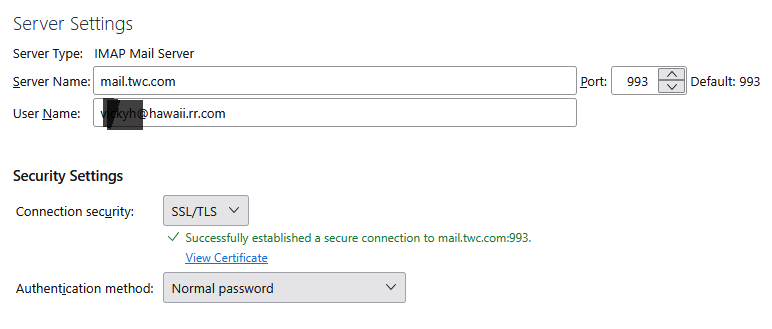
See the attached files for the screen shots you requested. Please note that the IMAP settings file shows a successful connection to the server (this is after clicking 'test server connection). This has only happened one time before in maybe 50 or 60 attempts. Also, there is a Connection Timed out file, this was maybe 20 seconds after the successful connection message was captured. The normal connection failure is also captured.
Again, mahalo (thank you) for your assistance. Harry Z
Also, just to make things more interesting, I tried using Outlook.
"Classic" Outlook cannot connect.
"New" Outlook connects with no problem. Unfortunately, there does not appear to be a way to get detailed connection settings from 'new' Outlook. :-(
Harry Z
Aloha again. I posted a question in an Outlook forum to see if anyone could shed some light on why New Outlook connects, and Classic Outlook does not. A responder there said that it could be due to New Outlook supporting OAUTH2 while Classic Outlook and Thunderbird do not.
There appears to be a way of configuring OAUTH2 support in TB, but the articles I found were for connecting to Microsoft 365 servers. If you think this is a possible solution, can you post a link to directions on how to set up OAUTH2 for a 3rd party email?
Mahalo, Harry Z
harryz said
Aloha again. I posted a question in an Outlook forum to see if anyone could shed some light on why New Outlook connects, and Classic Outlook does not. A responder there said that it could be due to New Outlook supporting OAUTH2 while Classic Outlook and Thunderbird do not. There appears to be a way of configuring OAUTH2 support in TB, but the articles I found were for connecting to Microsoft 365 servers. If you think this is a possible solution, can you post a link to directions on how to set up OAUTH2 for a 3rd party email? Mahalo, Harry Z
Thunderbird does support Oauth2 and it has done so for quite a while - ever since it was demanded by gmail, Oauth2 is available for gmail, yahoo and outlook (microsoft) servers, but in your case it's not relevant because you are connecting to a Spectrum server. You are using 'Authentication Method: Normal Password' which is the correct setting for Spectrum server that include mail.twc.com
harryz said
Aloha @Toad-Hall. Mahalo (thank you) for your responses. Fresh install of TB downloaded from mozilla. Antivirus / firewall - I'm using Windows Defender and Malwarebytes. I've turned off Malwarebytes and also added thunderbird.exe to the firewall. Same results No VPN involved
All good so far.
I asked about Password:
- Settings > Privacy & Security
- Scroll down to Passwords section
- click on 'Saved Passwords'
- click on 'Show Passwords'
But you say:
No saved passwords (I'm assuming because I've never successfully logged on)
OK looks like we may have found the problem.
This is not correct - if no password then you should be getting an error about the password, but a timeout implies something wrong with server settings and a lack of password would be not accepted for a connection.
When you set up account you would have needed to enter a password, the 'remember password' options is usually auto selected. It would have been saved.
If no password was stored then you would be prompted every time any connection is made to the server to enter the correct password. You have not mentioned anything about you not allowing Thunderbird to save a password or repeatedly entering a password.
Q: Are you being asked for a password every time you start Thunderbird or click on 'Get Messages' or attempt to send?
Let's backtrack on this because something is not right with the passwords and I want to be clear on what you are seeing. Please answer all parts so I can understand exactly what is going on.
- Settings > Privacy & Security
- In the 'Passwords' section
- When you click on 'Saved Passwords'
Q: Do you see any entries or is the 'Saved Passwords' area completely blank. Nothing, OR Q: do you see some entries for imap:// and smtp:// and the 'User Name' does mention the imap account name = email address for @hawaii.rr.com email address. But when you click on 'Show Passwords', there are none ?
Thanx for the reply. I am usually not getting prompted for a password when trying to Get Messages. Every once in a while I'll get a password prompt, and I enter the password and check the box to use Password Manager to save it.
The Saved Logins window is blank (see attachment). I also grabbed a screenshot of the Privacy and Security page section for Passwords as there is a checkbox there to "require device signin to fill and manage passwords."
Mahalo, Harry Z
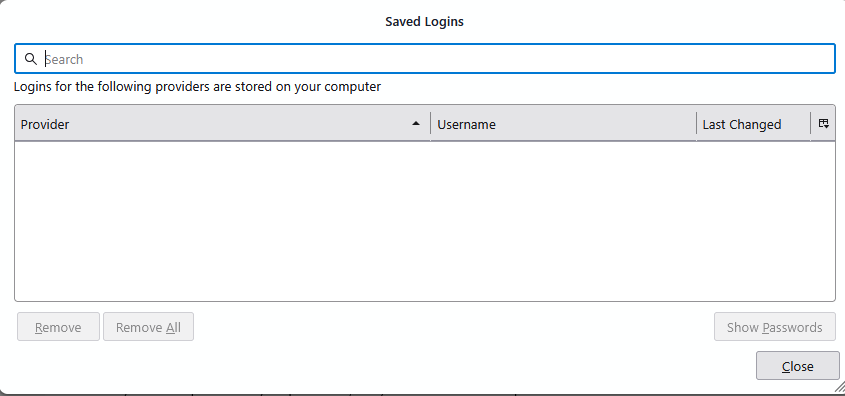
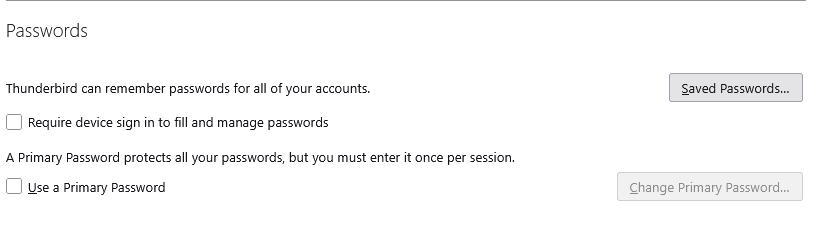
Well I think we have identified the problem.
Either the files that store passwords are corrupted OR you have a program that is cleaning up files so the passwords keep getting removed.
Check first to see if you have a program that is cleaning up files. some programs can clean up cache, passwords, temp files etc Such as 'CCleaner, WiseCleaner and also Anti-Virus products can do it as well. They cause a real nuisance when it comes to email clients. Either uninstall them OR set up an exemption to never scan/cleanup etc anything the 'Thunderbird' profile folder.
Please report back on what you discover.
Once you know you have no programs cleaning up anything in your Thunderbird profile: The next step is to delete certain files - they will get recreated.
Exit Thunderbird - this is important.
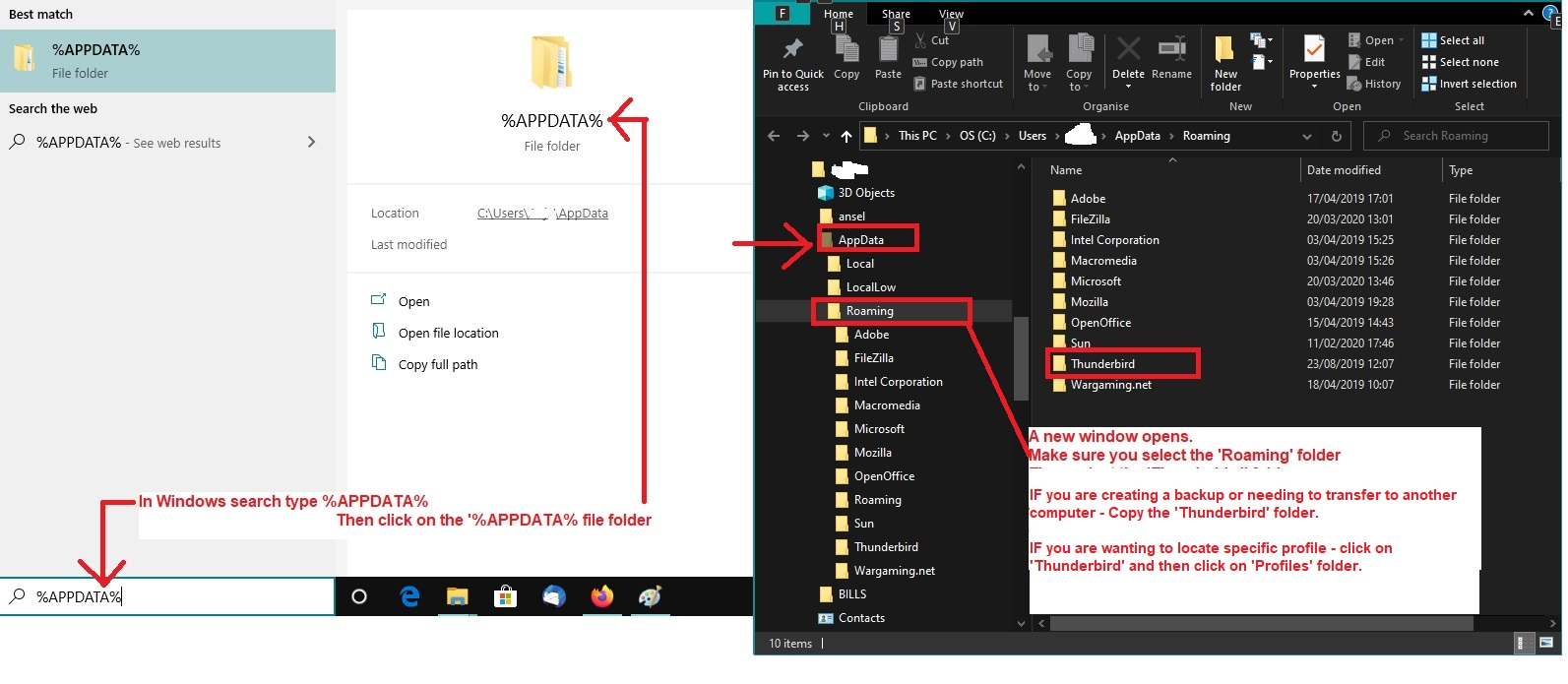
- In windows bottom search type: %Appdata% - see image below as guide
- Select : %Appdata% File Folder
- Select: 'Roaming' folder
- Select 'Thunderbird' folder
- Select 'Profiles' folder
- Select: the profile name folder
Now you should be looking at all the files and folders contained in the profile. I'm not sure if you have some residue of old files, so I'm listing all the files including some obsolete ones which I need you to delete.
- cert8.db (obsolete)
- cert9.db
- key3db (obsolete)
- key4.db
- secmod.db (obsolete)
- logins.json
- logins-backup.json
- pkcs11.txt ------- please tell me if this file was missing
- session.json
- xulstore.json
Then restart Thunderbird. It should ask for password.
- Enter correct password
- select checkbox to remember password.
- click on OK
Did this work ?
Assuming you get access to server and let emails get downloaded first, then attempt to send an email. It may prompt for password, do same as for incoming.
Then check: Settings' > 'Privacy & Security' > 'Saved Passwords' to see if anything is stored. Assuming all is good and saved.
Do whatever you need to do to catch up with any emails, then Exit Thunderbird Wait a few moments for all files, session data etc to get sorted. Then Start Thunderbird.
It should not prompt for password because it should be using the saved ones. Check to see your passwords are still stored.
Please report on results.
re :The Saved Logins window is blank (see attachment). I also grabbed a screenshot of the Privacy and Security page section for Passwords as there is a checkbox there to "require device signin to fill and manage passwords."
That means if you want to see and edit etc your Saved Passwords, do you want an additional layer of security to force a request for password to see those stored passwords. If it is selected then when you click on 'Show Passwords', a Windows Security window pops up asking for a specific password - when you boot up computer and get asked to enter a password in order to log on to your computer User Account desktop - it wants that password.
If a 'Primary Password' is set up, then Thunderbird would ask for that Primary Password. The Primary Password option is designed to stop prying eyes getting access to stored password, it does not stop people from seeing emails etc. It is usually used by people who share the computer with others who also have access to the same computer User Account, so they know that password. The 'Primary Password' should be very unique and never a mail account password nor a computer User Account password. If a Primary Password is forgotten, then it require a reset and that means it removes the Primary Password and also every stored password, because it is a security issue - anyone can follow instructions to clear a Primary Password, so you would not like them to clear it and access stored passwords.
In your case, it has no effect on the issue of not connecting with server. I suspect that issue is to do with a problem of the mail account password. As no passwords were saved, it seems something is wrong and needs fixing in order to rule it out. See previous comment.
Things get curiouser and curiouser....
Before I could try deleting the files you suggested, TB connected to spectrum and downloaded unread email and the folder structure of the inbox (LOTS of folders in the inbox). But the folders were not populated with emails.
I proceeded to do the file deletions as requested, and looking at the messages at the bottom of the window, it looks like I've connected to the IMAP server. I see a saved password for it. But I still see a timed out message and sometimes a message saying the server may have gone down (or something like that, I was unable to capture the notification.)
I am unable to send an email. No saved password, and I am not prompted for one.
Part of me is thinking this is a Spectrum issue. We had a 3 day holiday weekend and now that everyone is back to work they have found an issue and are (hopefully) starting to resolve it. Just a theory that I cannot prove.
I will try again later today and see what happens.
Mahalo, Harry Z
Aloha Toad-Hall. Unfortunately, either my theory is that this is a Spectrum issue is incorrect, or they have not fixed the problem. So, in the meantime let's proceed.
I deleted the files you detailed in a previous post. When I start up TB, in the bottom messages I see: - Looking up mail.twc.com - Connecting to mail.twc.com - Connected to mail.twc.com (sometimes the first two messages repeat a few of times before I get connected) - I occasionally see 'Downloading message x of nnn but if anything is actually downloaded, it's not going the new mail in the inbox - and then after a while I get Connection to mail.twc.com timed out
Is there any way to capture a log of the messages at the bottom of the window (hopefully with timestamps)?
I tried sending an email. This time I got prompted for the password, but I ended up with this:
Sending of the message failed. The message could not be sent because the connection to Outgoing server (SMTP) mail.twc.com timed out. Try again.
I await further instructions.
Mahalo! Harry Z
Aloha Toad-Hall. I found a way to enable a connection log in TB. I logged from clicking on 'Get Message' to the Connection timed out message appeared. Can you please review the log to see if it sheds any light on this situation.
Here's the log file
Mahalo, Harry Z