My THUNDERBIRD email settings (in particular my inbox filters) are not working

I have used Apple Mail, GMail and Outlook; i am hoping that Thunderbird will achieve (relative) zero inbox.
My objective is to create an inbox that observes established rules/filters and directs my emails into the appropriate folders. I was hoping that Thunderbird would achieve this objectives but I have so far been unsuccessful.
I would be happy to screenshare with an appropriate technician in order to resolve this issue as its becoming increasingly frustrating.
Wšě wotmołwy (8)
It will help if you post screenshot of a problem filter and text on what you expect it to do. Thank you
David - I am both surprised and impressed to receive a response to my query, so thankyou!
I’ve set up rules in both Gmail and Thunderbird to automatically file certain emails with certain parameters into certain folders.
This doesn’t seem to be working in either (Apple mail, Gmail or Thunderbird) and there are no no emails in the Thunderbird folders that exist in the Gmail folders (or labels as they’re called) and any new emails coming in, don’t seem to be going into the folders even though they’re they’re being direct I’m using my Gmail account.
My Gmail email address is my primary source of connection. What can I do to fix that?
I'd be happy to screen share with you if that's an option?
Yes, please post a screenshot of the filter, exactly as it is in Thunderbird. Thank you
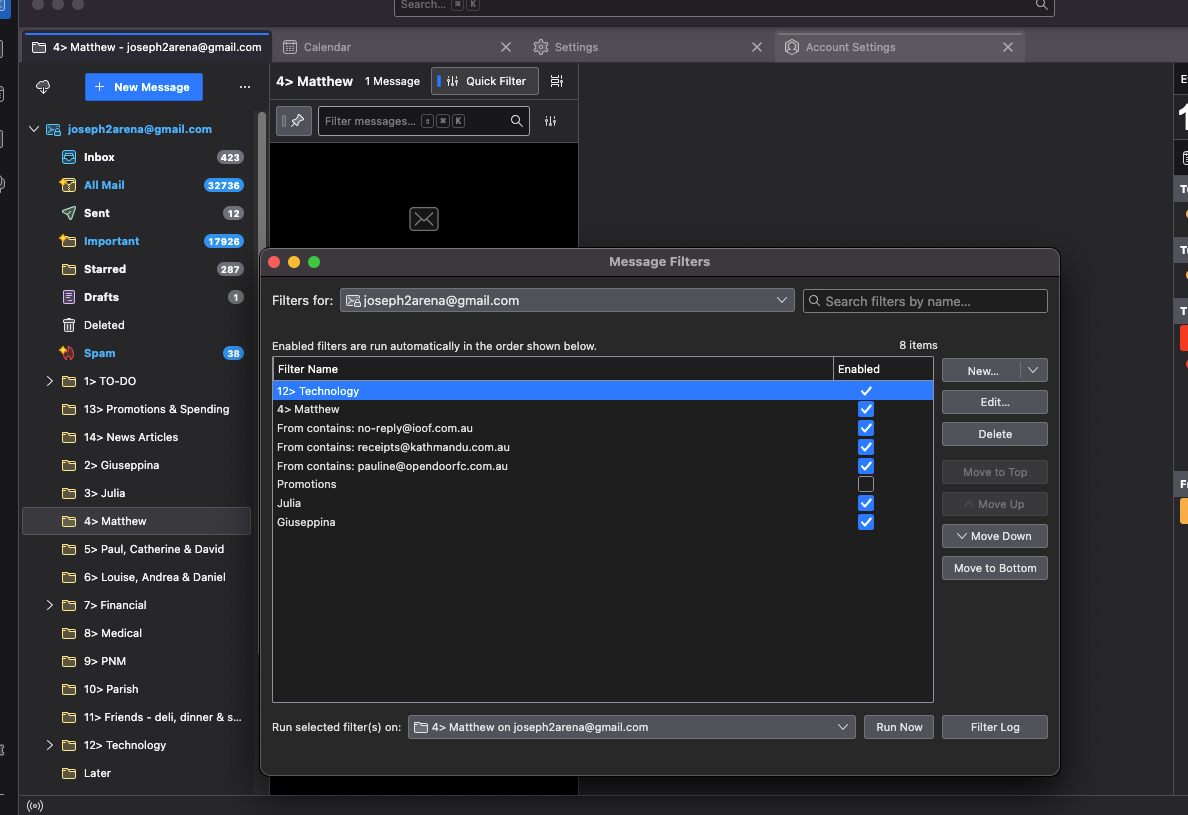
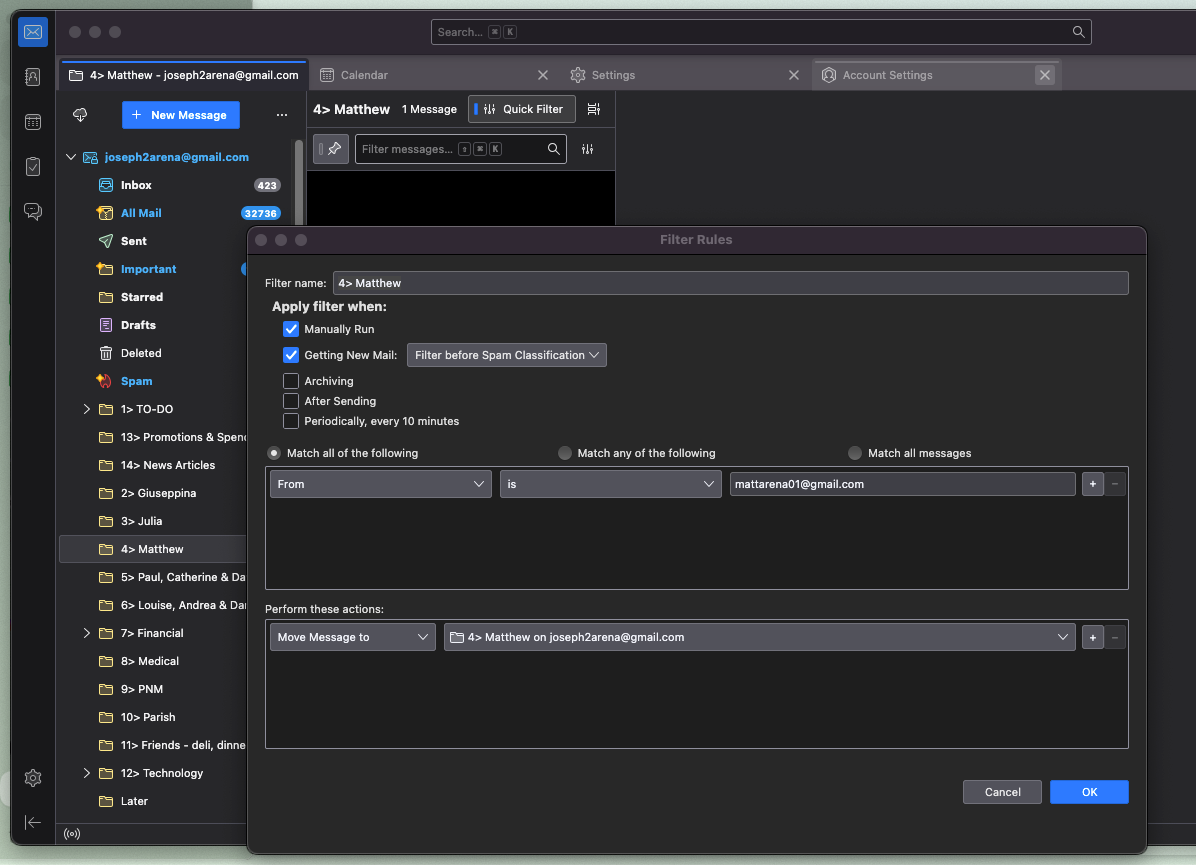
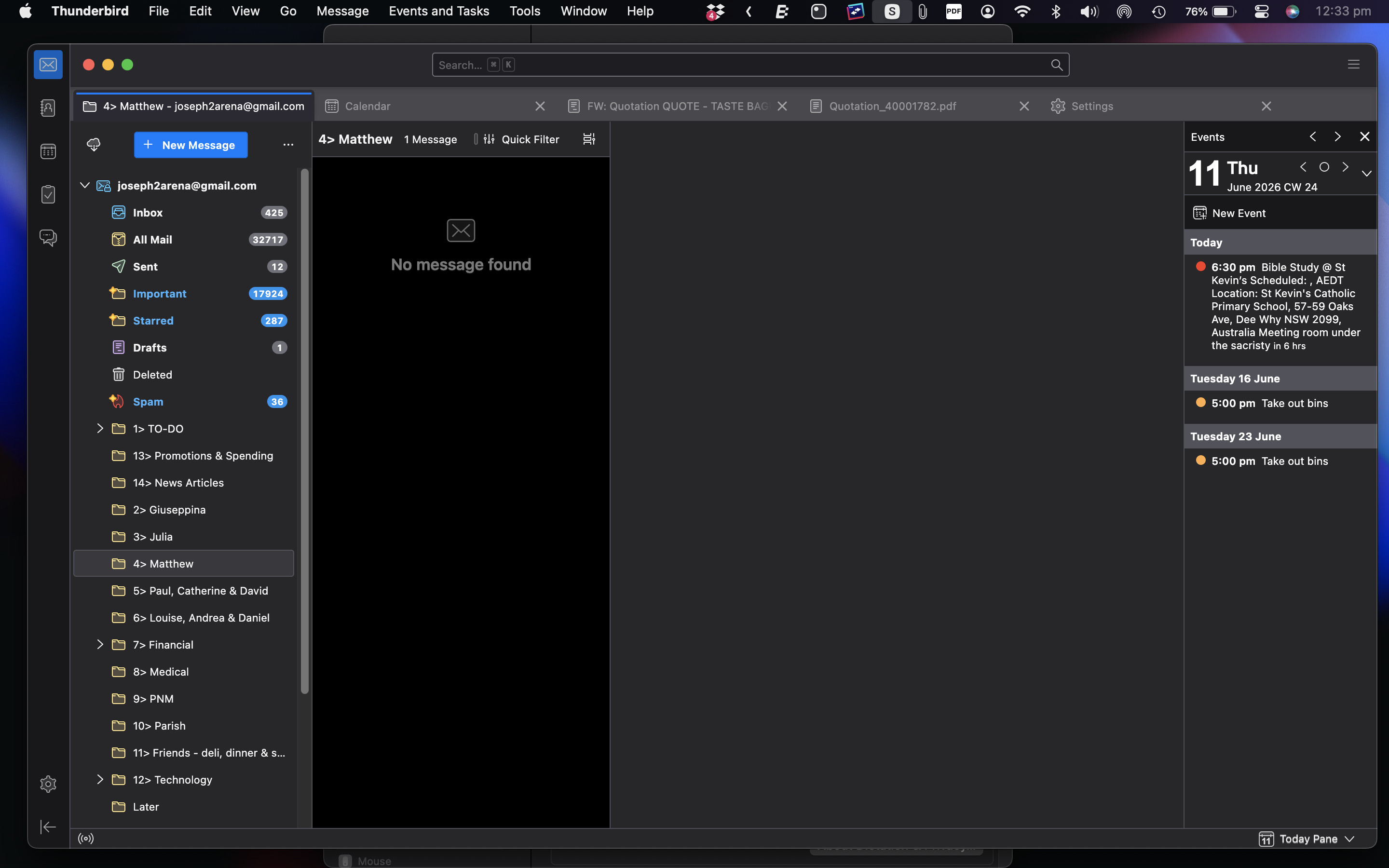
The first screenshot shows the result when trying to filter an email from my son onto the folder/label with his name; Matthew.
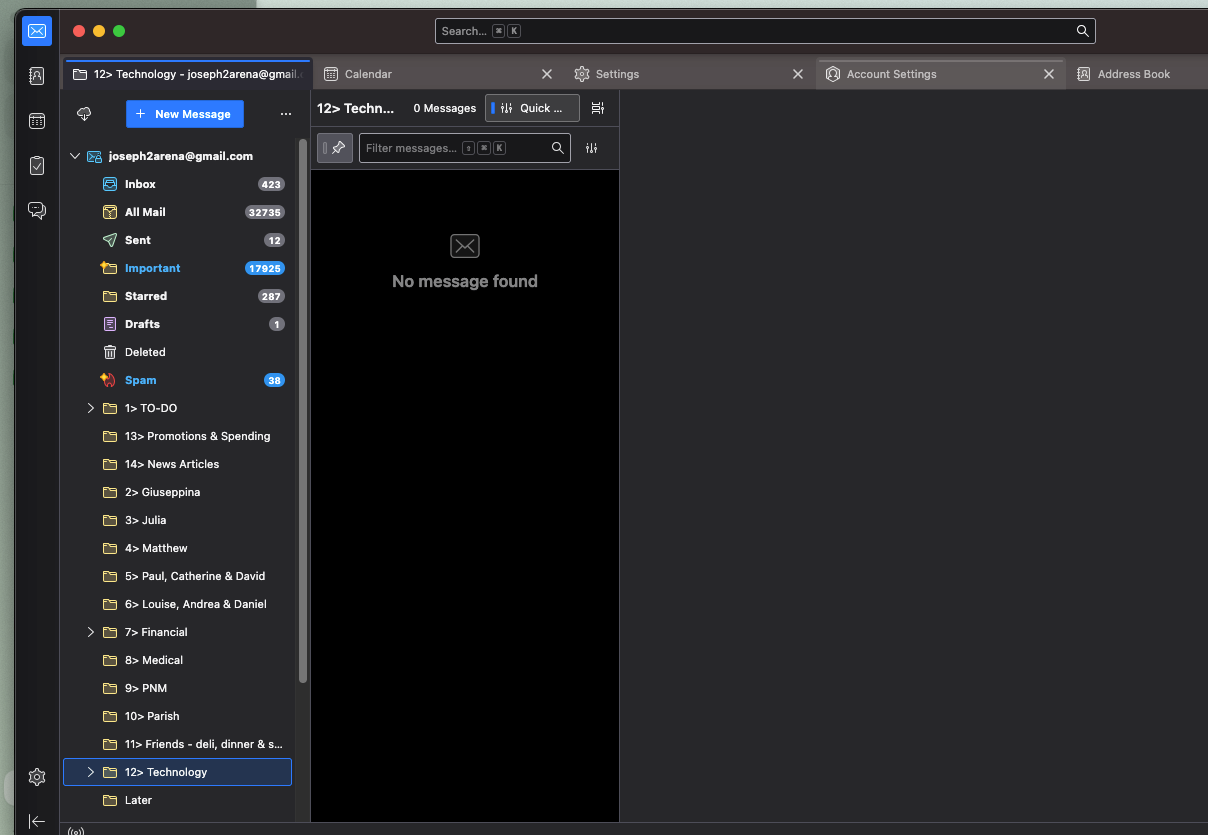
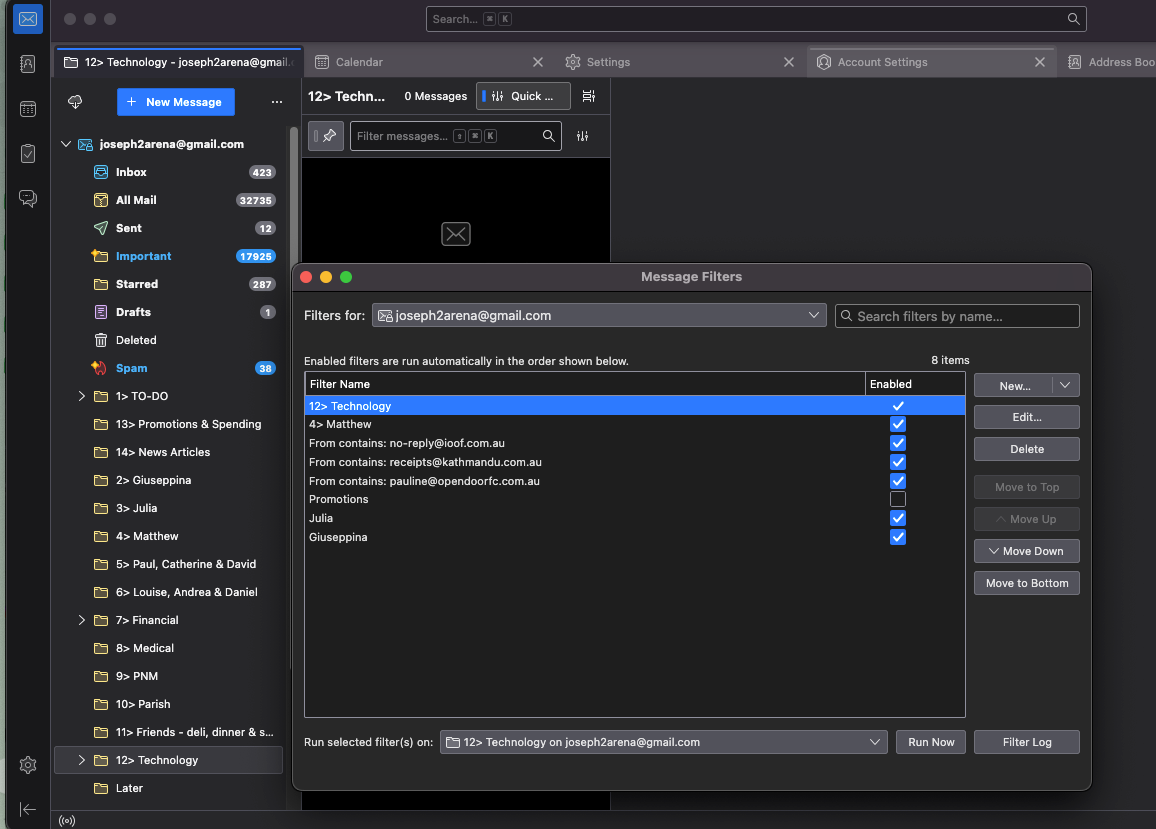
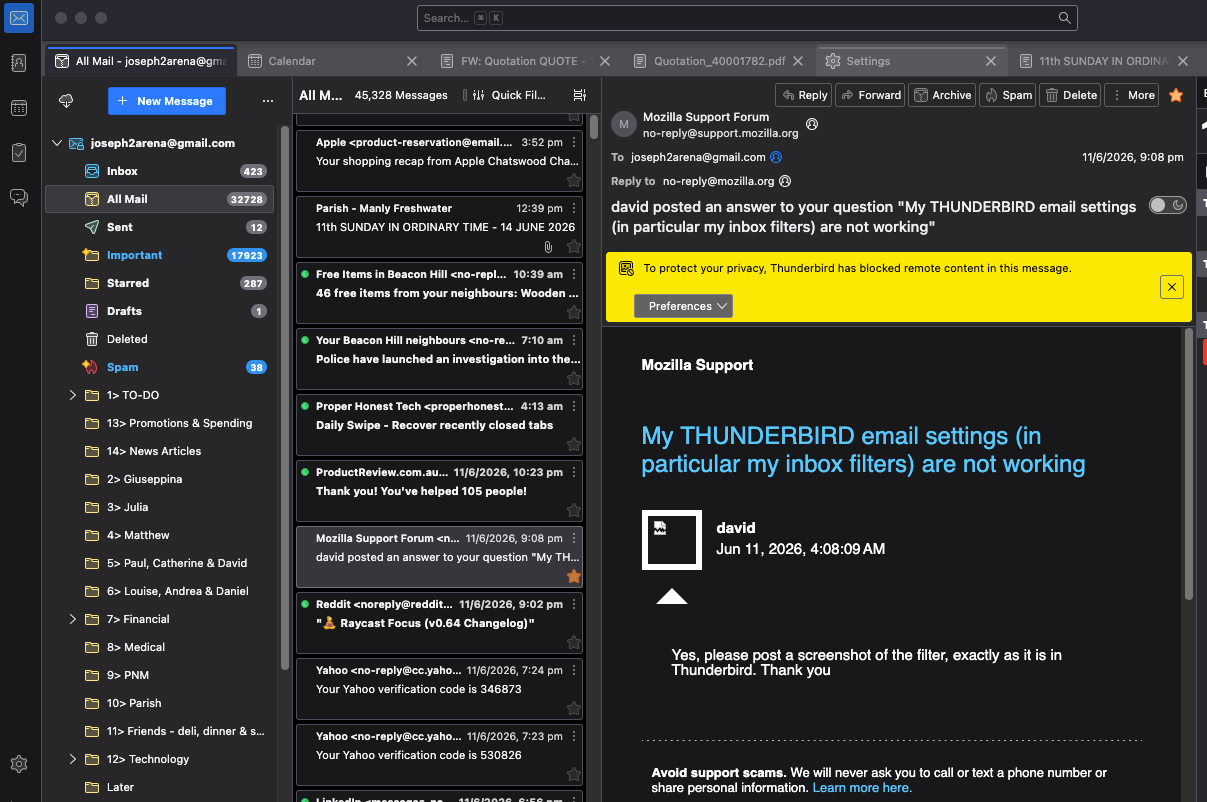
Subsequent screenshots show the failed attempt to move YOUR last response into the folder/label called Technology.
Admittedly I'm not very technical but (frustratingly) nothing is working for me?
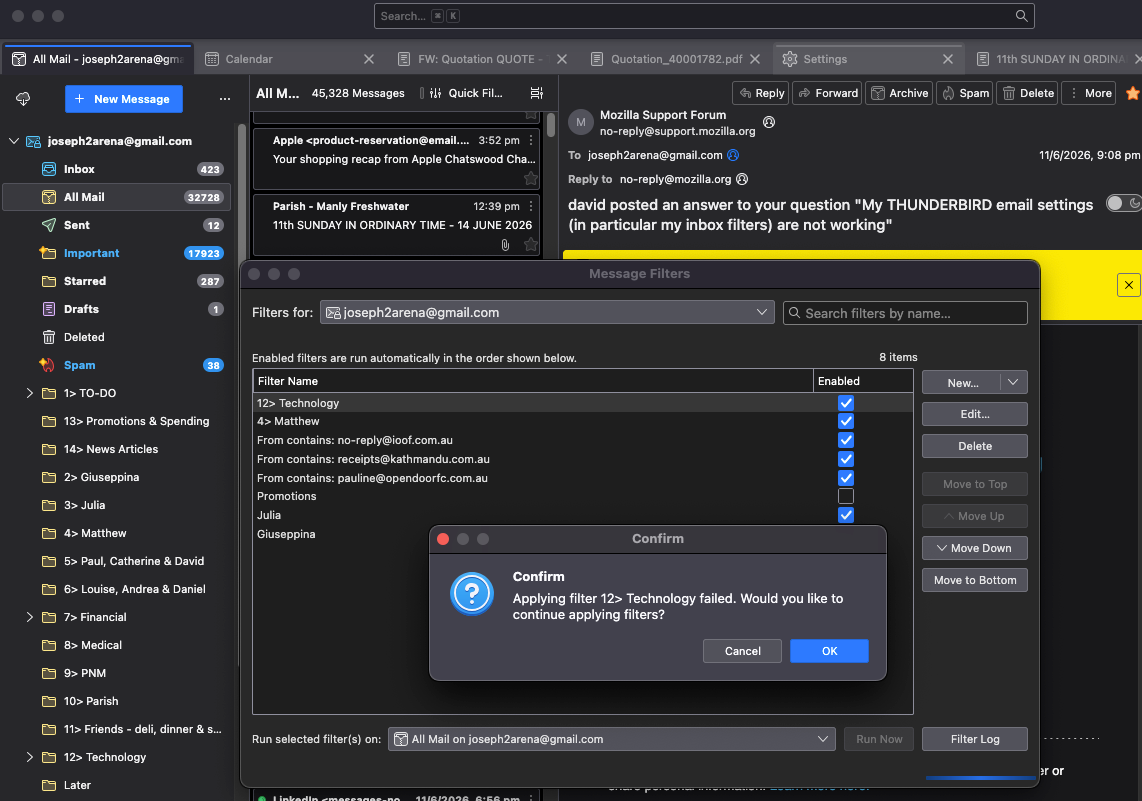
You need to post a screenshot of the filter itself before anyone here can give suggestions. Thanks
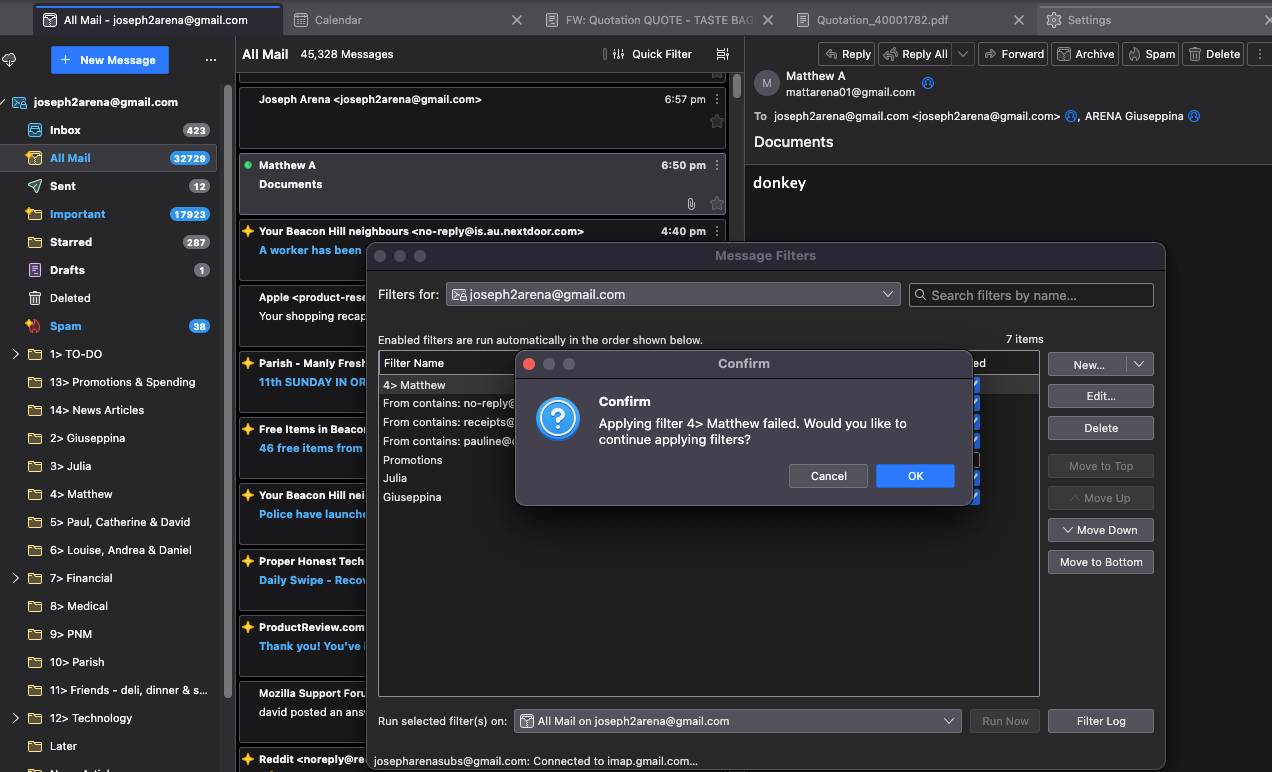
You have posted images that show most of the 'Message Filters' list. You have a filter called '4>Matthew' and another called '12>Technology' Both of those filters have produced an error message basically saying they failed.
David requested you do this: In 'Message Filters' select the filter called '4>Matthew' and click on 'Edit' please post image which shows the actual filter and it's conditions so we can check the logic of the filter. Do the same for the filter called '12>Technology'
However, I believe I know the problem you are running the selected filter on the 'All Mail' folder which is the last thing you should be attempting. Never do anything with the 'All Mail' folder.
Your question is this: My objective is to create an inbox that observes established rules/filters and directs my emails into the appropriate folders.
You are attempting to perform a manual run of the selected filter. I suggest you run the selected filter on the 'Inbox' on gmail account. Also note filters can run automatically on the Inbox upon download, so manual sorting is not necessary on any new incoming mail.
Please Note: Gmail stores all your emails in the 'All Mail' folder - that's incoming, outgoing sent, spam, archived - the lot all in the 'All Mail' folder. Gmail understands that is the most useless method when it comes to practical use, so they invented 'Labels' which are a form of tag that gmail applies to the emails stored in 'All Mail'. The purpose of the Labels is to show virtual identical copies in a format that looks like a set of folders. It also means any email can have more than one label, so can appear in more than on 'Label/Folder'.
Nothing can be filtered on 'All Mail' because the emails have to exist in 'All Mail'. That 'All Mail' folder is the only folder that gmail actually store emails in.
IMAP accounts can synchronise with any Label/folder on server and download a copy of whatever is in that Label Folder. BUT Thunderbird has no concept of 'Labels' so in Thunderbird those emails are downloaded and stored in mbox text files which display as folders that have the same name as gmails labels.
Any imap folder you create eg: a folder called 'Matthew' is just a label as far as gmail is concerned.
So you need to filter emails in INBOX and put those selected into 'Matthew'.
As far as gmail is concerned you have done this. The selected email stored in 'All Mail' will have the 'Inbox' label' removed and the 'Matthew' label applied, so that email gets moved out the Label/folder called Inbox and can get displayed in the label/folder called 'Matthew'.
Never, do anything with an 'All Mail' folder. If email is not in 'All Mail' then it cannot display anywhere in the gmail account as it will not exist.
If you have an Anti-Virus that decides it does not like the 'All Mail' folder and tries to fix it, you stand to lose all your emails from all your folders.
I would strongly advise that you unsubscribe from seeing the 'All Mail' folder because A) it is a complete duplicate of absolutely everything you already have in all other imap folders and B) if you get any corruption on that folder you could lose emails.
You can set up Message Filters to auto run on the Inbox. Then anything downloaded to Inbox will have filters applied. The Message Filters run in the order listed. Message Filters can only auto run on the Inbox. Message Filters can be manually run on a selected folder - except the 'All Mail'
Strongly advise 'Message Filters' are really good at sorting and organising incoming mail into various folders. Message Filters are not the best method for dealing with Spam. Set up Spam Settings and train the Thunderbird adaptive spam filter to learn what is and what is not junk/spam. There are a few occasions when I've had to use it. But it's not ideal and you end up wasting a lot of time on unnecessary spam filters. You should find that the gmail server will also try to locate spam emails and auto put them in the Spam folder.
Please note that gmail auto removes any emails that have been put in the gmail imap Trash folder after 30 days and it also does the same on the imap Spam folder. So if you have unwanted emails in the Trash and suddenly they disappear, it could be the server has removed/deleted them from the 'All Mail' folder, so do not appear anywhere.
Wot Toad-Hall změnjeny
You have provided FANTASTIC summations and instructions - much appreciated.
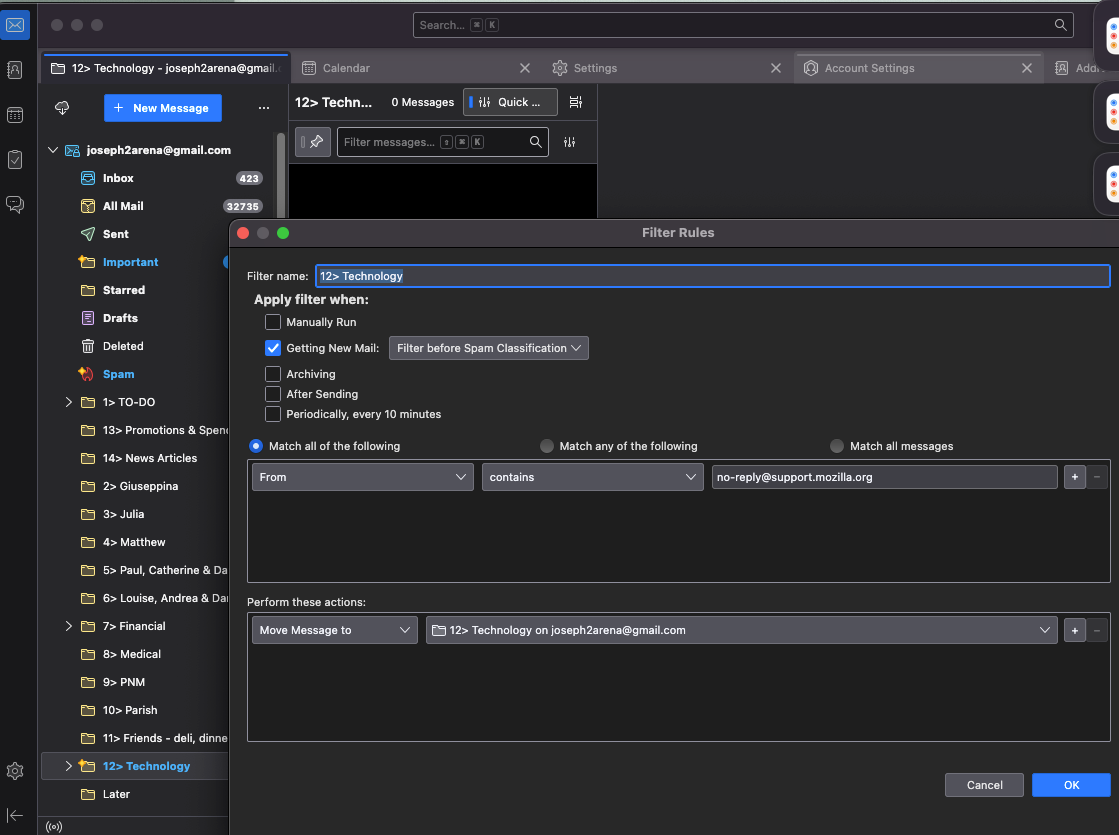
I have attached the filters for two of the labels as well as the outcome for one of the filters (Technology) which still does not appear to have worked despite being set to auto?
Have I done something wrong or failed to follow your instructions properly? Do I need to reset all the filters or simply switch of manual filtering for all and then the magic will take place?
Also, how do I "unsubscribe" to "All Mail" and just rely on the filters working on Inbox only?
Apologies for the back and forwards, like i said I'm not very Technologically "switched on."