


How to show a list of only the Inboxes as in Favoutites in Outlook MS standalone app
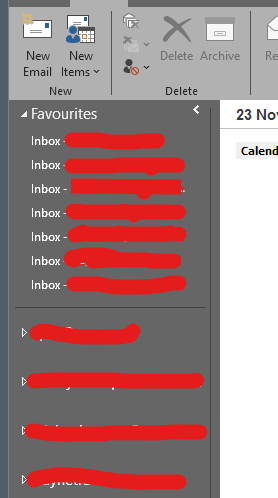
How can I duplicate below in TB / BetterBird ?
We all know and see from left side of TB / BettreBird open app screen is the list of email accounts one has. In Outlook 2016 and onwards one can add just the Inbox of each mail account I have to a list called 'Favourites' and this resides above all the mail accounts and displays as a list of all the 'Inboxes' only. This means I just have to click on each respective inbox an it displays just that....all the mails in the Inbox. Currently I just have the list of account names where, when a mail is received and the corresponding circled number of mails shown I have to open the account to see the drop down then select the Inbox to get to the list of emails.
I am sure I am missing the solution.
Thanks for assistance.
Wšě wotmołwy (2)

The following methods might be helpful:
Method A: Using Favorite Folders:
Step 1: Right-click a folder on the Folder Pane. > Tick "Favorite Folder".
Step 2: (In menu bar) "View" > "Folders" > Tick "Favorite Folders".
---
Method B: Using Unified Folders:
(In menu bar) "View" > "Folders" > Tick "Unified Folders".
Wubrane rozrisanje
Thanks , will give it a go.