


Why can't view Yahoo Japan in Firefox browser?

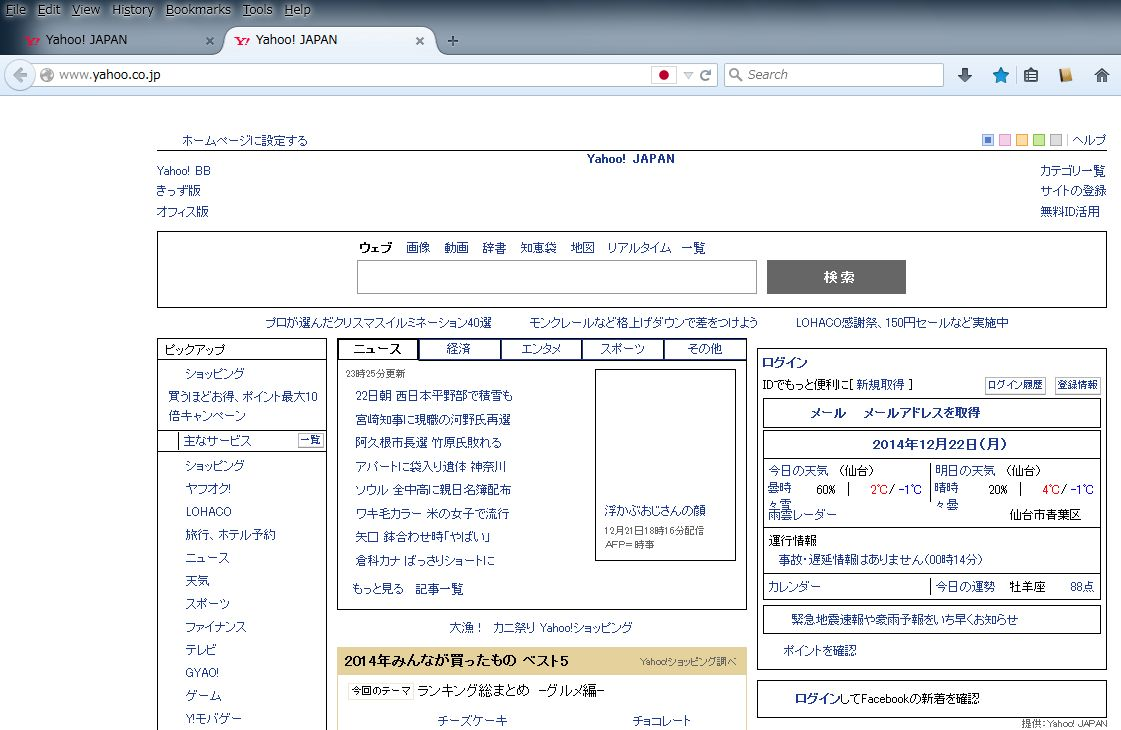
Since today I am unable to view http://www.yahoo.co.jp/ properly in Firefox browser while I can open it in MS Internet Explorer without any problem.
Is there any solution to this problem? Thank you.
Since today I am unable to view http://www.yahoo.co.jp/ properly in Firefox browser while I can open it in MS Internet Explorer without any problem.
Is there any solution to this problem?
Thank you.
כל התגובות (2)

Hi Ari94, many site issues can be caused by corrupt cookies or cache. In order to try to fix these problems, the first step is to clear both cookies and the cache. Note: This will temporarily log you out of all sites you're logged in to. To clear cache and cookies do the following:
- Click the menu button
 , choose History, and then "Clear Recent History...".
- Under "Time range to clear", select "Everything".
- Now, click the arrow next to Details to toggle the Details list active.
- From the details list, check Cache and Cookies and uncheck everything else.
- Now click the "Clear Now" button.
Further information can be found in the Delete browsing, search and download history on Firefox article.
Did this fix your problems? Please report back to us!
Thank you.
ideato said
Hi Ari94, many site issues can be caused by corrupt cookies or cache. In order to try to fix these problems, the first step is to clear both cookies and the cache. Note: This will temporarily log you out of all sites you're logged in to. To clear cache and cookies do the following:Further information can be found in the Delete browsing, search and download history on Firefox article. Did this fix your problems? Please report back to us! Thank you.
- Click the menu button
- Under "Time range to clear", select "Everything".
- Now, click the arrow next to Details to toggle the Details list active.
- From the details list, check Cache and Cookies and uncheck everything else.
- Now click the "Clear Now" button.
Hi, Thank you for the reply. Even after clearing everything problem remain same.