


TBird is automatically deleting messages

Each time I open TBird, I get a message at the bottom left of the screen telling me that TBird has deleted X number of messages. I do not want TBird to ever delete any messages. How do I turn this automatic delete function off?
All Replies (13)
You didn't share much. If IMAP, look at synchronization&storage pane and check retention policy. If POP check the disk space pane. I think one of those may be the issue
I do not know what or where these items are nor do I know how to get to them. Please provide more details: - IMAP - synchronization & storage pane - retention policy - POP - disk space pane
Thank you.
First, since state being unaware of these terms, I suggest reading this URL to understand those terms of IMAP and POP. https://support.mozilla.org/en-US/kb/difference-between-imap-and-pop3
- click the hamburger menu in upper right (three short stacked lines)
- select 'account settings'
- your account appears in left sidebar
- click the 'server settings' pane of the account, The top line will display IMAP or POP
- if the ccount is IMAP, there will be a 'synchronization&storage' link - that shows settings for deleting
- if the account is POP there will a 'disk space' link with settings for deleting
Thank you.
The account is IMAP. There is no " "'synchronization&storage' link" on the settings screen.
see attached screenshpt
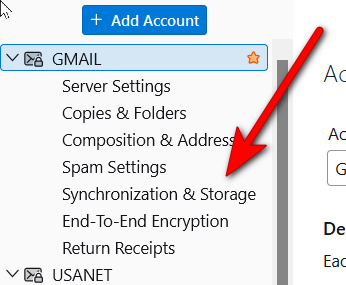
Thank you. When I open Synchronization and Storage: - The screens were already set up as below. I did not make any changes: - "Keep messages in all folders for this account on this computer" is checked. - In "Retention Policy", "Don't delete any messages" is selected and "Always keep starred messages" is checked.
When I opened TB today, I got a message telling that 126 messages were deleted. What can I do to stop my messages from being deleted?
M. Campbell
I am puzzled. Do you have any addons that might be deleting messages? I will see if I can locate someone with better ideas to assist.

If you are seeing the message on the status bar, likely it is Tbird telling you that it has deleted its copy of the messages when synchronizing with the server. Because you're accessing by IMAP, Tbird is trying to mirror what's in your mailbox at your ISP. That's one of the fundamentals of IMAP--make the mailbox in your client software (in this case, Tbird), match what's on the server.
I see that message often when I open the Trash folder in my IMAP account. My ISP purges "deleted" messages older than two weeks, but I rarely open the Trash folder, which only synchronizes when I open it.
I'm assuming this is happening in the inbox for your IMAP account, which suggests to me that something outside of Tbird is manipulating your mailbox.
Do you access your email from another device--another computer, a phone, a tablet, etc.? Or my logging into a web mail program? Could one of those be filing your mail or treating it as spam? Does someone/something else have access to your mailbox on your behalf?
If you can't think of any way that someone or something else should be manipulating your mailbox, I'd recommend you change the password ASAP and update it in Tbird. See if the deletions stop. If so, then one-by-one, update the password in your other devices to see if one of them may be making changes.
An gyara daga Mikey
IMAP account can only show whatever is on the server. All folders in an Imap account synchronise with folders of same name on server.
'What can cause a deletion of emails in an IMAP account:'
Other than user selecting and deleting emails manually.
If you access the webmail account via a browser and delete emails then when Thunderbird accesses server those emails will get deleted in order to match the server.
It is also the same if you access the same account via another device eg: laptop, tablet, phone, another desktop computer and delete emails. So check settings etc in all devices that access the same account.
IF you have another device accessing mail eg: phone and it's set up as POP, then maybe it's been set up to download and delete off server - it would need to have settings 'Leave messages on server'. If the POP account is deleting upon download then those emails are no longer on server, so when IMAP account synchronises - those emails previously seen in IMAP will get deleted.
Did you ever set up to view emails in another email client eg: Outlook ? If yes, please check your computer because it might still be running in the background. If it has anything set up to delete emails then it could be the cause of the problem.
Many servers do remove emails from 'Spam' and 'Trash' periodically. When email has been in eg: Trash for 30 days it gets auto deleted off server. Some servers it's 30 days others 14 and I've also come across some that do 7 days and even 3 days.
Are you talking about an AOL account? If yes, are you accessing via the Yahoo server ?
Please note AOL say: By default, both the Trash and Spam folders empty automatically to keep your account tidy. These settings are set systemically and can't be changed. • Trash deletion frequency - Trash is deleted after 7 days. • Spam deletion frequency - Spam is deleted after 30 days.
How to auto delete emails in Thunderbird - so check these locations: In Thunderbird 'Account Settings'
- 'Server Settings' for the imap account
- look bottom right under 'Message Storage'
have you set up to 'Empty Deleted folder on Exit' ? If yes then anything in 'Trash/Deleted' folder will get emptied automatically on exit.
- 'Spam Settings' for the imap account
- look bottom right under 'Destination and Retention'
Have you selected 'Automatically delete spam mail older than X days' ? If yes, then you might be seeing this auto deletion notification.
- 'Synchronisation & Storage' for the imap account
- Under Disc Space:
- Select 'Don't delete any messages'
It would have useful if you could tell us more about the folder name that emails are being deleted from.
But Check folders:
- Right click on folder and select 'Properties'
- Select 'Retention Policy' tab
- It's usual to select 'Use my account settings'
But do make sure the account settings are not set up to delete anything.
Have you created any Message Filters ? If yes:
- do any of them mention move to folder that is not in the Imap account ?
- Do any mention the word 'delete' in the perform this action ?
You mention you get a message about emails being deleted, but what you do not say is what folder are they being deleted from.
I think it would be very obvious if they were being deleted from eg: Inbox, so I'm surprised you never mentioned it. That makes me wonder if it's the Trash or Spam folder.
Are you by any chance still using CCeaner ? https://www.ccleaner.com/legal/products-policy?srsltid=AfmBOoqrRCFu6i8HU9W-VjWcW2O93fH5TnB1y1TQhV4qvbEKI335rN9-
If yes, then you need to make sure it's not allowed to access your Thunderbird profile name folder and do not allow it to control updates. In other words Exclude the thunderbird profile folder from any access /scan etc.
It can cause havoc. It can delete files you need. You might even find it removing stored passwords, cookies, cache, and anything stored in temp files. CCleaner is well known for being a problem when it comes to email clients.
Windows and CCleaner must not be allowed to perform updates when it comes to Thunderbird as you may get the wrong one. Only allow Thunderbird to perform updates. There are various channels and they get different updates and sometimes Thunderbird deliberately does not update when significant new alterations have occurred, but CCleaner like other Updater programs do not have any comprehension regarding the situation.
I do not understand most of what you wrote but I will try to answer those questions I do understand. Your statement/question is listed first, then my response:
IMAP account can only show whatever is on the server. All folders in an Imap account synchronise with folders of same name on server. - What "server"? Thunderbird? AOL?
If you access the webmail account via a browser and delete emails then when Thunderbird accesses server those emails will get deleted in order to match the server. - As far as I know, I do not "access the webmail account via a browser and delete E-mails", at least not on my desktop computer. I access my E-mails using TB.
IF you have another device accessing mail eg: phone and it's set up as POP, then maybe it's been set up to download and delete off server - it would need to have settings 'Leave messages on server'. If the POP account is deleting upon download then those emails are no longer on server, so when IMAP account synchronises - those emails previously seen in IMAP will get deleted. - I will occasionally access my E-mails on my iPhone NOT using TB, but going directly to AOL. I will sometimes delete E-mails here.
Did you ever set up to view emails in another email client eg: Outlook ? - No
Many servers do remove emails from 'Spam' and 'Trash' periodically. When email has been in eg: Trash for 30 days it gets auto deleted off server. Some servers it's 30 days others 14 and I've also come across some that do 7 days and even 3 days. - The message I get when I open the TB program is that E-mails are deleted from "Inbox".
Are you talking about an AOL account? - Yes.
If yes, are you accessing via the Yahoo server? - I have no idea. How would I know or find out?
Please note AOL say: By default, both the Trash and Spam folders empty automatically to keep your account tidy. These settings are set systemically and can't be changed. • Trash deletion frequency - Trash is deleted after 7 days. • Spam deletion frequency - Spam is deleted after 30 days. - I do not think this applies to my problem. The message I get says E-mails are deleted from "Inbox".
https://help.aol.com/articles/spam-and-trash-folders-are-regularly-deleted-in-aol-mail How to auto delete emails in Thunderbird - so check these locations: In Thunderbird 'Account Settings' 'Server Settings' for the imap account look bottom right under 'Message Storage' have you set up to 'Empty Deleted folder on Exit' ? - No.
'Spam Settings' for the imap account look bottom right under 'Destination and Retention' Have you selected 'Automatically delete spam mail older than X days' ? If yes, then you might be seeing this auto deletion notification. - Yes, I have this set for 120 days. I get the delete message every time I launch TB.
'Synchronisation & Storage' for the imap account Under Disc Space: Select 'Don't delete any messages' - "Disc Space" settings are: - "Synchronize all messages locally regardless of age" is selected. - "Synchronize the most recent XX days" is not selected. - "Don't download messages larger than XX KB" is not selected.
It would have useful if you could tell us more about the folder name that emails are being deleted from. - Inbox
But Check folders: Right click on folder and select 'Properties' Select 'Retention Policy' tab It's usual to select 'Use my account settings' But do make sure the account settings are not set up to delete anything. - "Use my account settings" is selected and the account settings are not set up to delete anything.
Have you created any Message Filters ? - I do not know what that is nor where to find it nor how to set up.
You mention you get a message about emails being deleted, but what you do not say is what folder are they being deleted from. I think it would be very obvious if they were being deleted from eg: Inbox, so I'm surprised you never mentioned it. That makes me wonder if it's the Trash or Spam folder. - See above, E-mails are being deleted from Inbox. And no, it is not obvious to me. I have several thousand emails in my Inbox and I have no idea which ones are being deleted.
Are you by any chance still using CCeaner ? - Yes I use CCleaner. I have looked at the settings and changed anything I can to make sure CCleaner does not delete anything or access TB do anything about automatic updates. I made these changes this morning and this afternoon I got the delete message so whatever I did in CCleaner did not change anything.
Only allow Thunderbird to perform updates. - I really do not know how to do this.
Thanks for your help.
How about I summarize. IMAP is synchronized to the server (that is the AOL mail server) The server is considered the canonical source. So if your provider has a policy that deletes mail then it will reflect in Thunderbird regardless of your Thunderbird settings.
So irrespective of your Thunderbird settings your trash (after 7 days) and spam (after 30 days) folders will routinely have older mail removed by AOL and those deletions will be syncronised to Thunderbird and be reflected in the status bar.
Is there actually an issue here, or simply a lack of understanding of what you have signed up for? I am leaning towards the latter.
MilusC said
I do not understand most of what you wrote but I will try to answer those questions I do understand. Your statement/question is listed first, then my response: IMAP account can only show whatever is on the server. All folders in an Imap account synchronise with folders of same name on server. - What "server"? Thunderbird? AOL?
Thunderbird is your email client - a program running on your computer. Later you said you had emails on AOL. SO AOL is server.
If you access the webmail account via a browser and delete emails then when Thunderbird accesses server those emails will get deleted in order to match the server. - As far as I know, I do not "access the webmail account via a browser and delete E-mails", at least not on my desktop computer. I access my E-mails using TB. IF you have another device accessing mail eg: phone and it's set up as POP, then maybe it's been set up to download and delete off server - it would need to have settings 'Leave messages on server'. If the POP account is deleting upon download then those emails are no longer on server, so when IMAP account synchronises - those emails previously seen in IMAP will get deleted. - I will occasionally access my E-mails on my iPhone NOT using TB, but going directly to AOL. I will sometimes delete E-mails here.
If you use your iPhone then you are either using a mail app on that phone or you are accessing directly onto the webmail account.
If you use a Mail app then if it's a POP account - you need to check to see if the account settings to see if it says 'Leave messages on server'. If it is pop and you have not selected to leave messages on server, then it will download mail and delete off server. If you access AOL server directly and delete emails off server, then in both cases anything you delete off the server will then get deleted in Thunderbird imap account because it can only display whatever is on the server.
Did you ever set up to view emails in another email client eg: Outlook ? - No Many servers do remove emails from 'Spam' and 'Trash' periodically. When email has been in eg: Trash for 30 days it gets auto deleted off server. Some servers it's 30 days others 14 and I've also come across some that do 7 days and even 3 days. - The message I get when I open the TB program is that E-mails are deleted from "Inbox". Are you talking about an AOL account? - Yes. If yes, are you accessing via the Yahoo server? - I have no idea. How would I know or find out?
You check your Account Settings. It will tell you if you are using a AOL server Settings or Yahoo server settings.
Please note AOL say: By default, both the Trash and Spam folders empty automatically to keep your account tidy. These settings are set systemically and can't be changed. • Trash deletion frequency - Trash is deleted after 7 days. • Spam deletion frequency - Spam is deleted after 30 days. - I do not think this applies to my problem. The message I get says E-mails are deleted from "Inbox". https://help.aol.com/articles/spam-and-trash-folders-are-regularly-deleted-in-aol-mail How to auto delete emails in Thunderbird - so check these locations: In Thunderbird 'Account Settings' 'Server Settings' for the imap account look bottom right under 'Message Storage' have you set up to 'Empty Deleted folder on Exit' ? - No. 'Spam Settings' for the imap account look bottom right under 'Destination and Retention' Have you selected 'Automatically delete spam mail older than X days' ? If yes, then you might be seeing this auto deletion notification. - Yes, I have this set for 120 days. I get the delete message every time I launch TB. 'Synchronisation & Storage' for the imap account Under Disc Space: Select 'Don't delete any messages' - "Disc Space" settings are: - "Synchronize all messages locally regardless of age" is selected. - "Synchronize the most recent XX days" is not selected. - "Don't download messages larger than XX KB" is not selected.
That all sounds ok
It would have useful if you could tell us more about the folder name that emails are being deleted from. - Inbox But Check folders: Right click on folder and select 'Properties' Select 'Retention Policy' tab It's usual to select 'Use my account settings' But do make sure the account settings are not set up to delete anything. - "Use my account settings" is selected and the account settings are not set up to delete anything. Have you created any Message Filters ? - I do not know what that is nor where to find it nor how to set up.
No worries. It just means you have no filters causing an issue. Maybe this another topic you might like to ask, but it's not relevant in this question.
You mention you get a message about emails being deleted, but what you do not say is what folder are they being deleted from. I think it would be very obvious if they were being deleted from eg: Inbox, so I'm surprised you never mentioned it. That makes me wonder if it's the Trash or Spam folder. - See above, E-mails are being deleted from Inbox. And no, it is not obvious to me. I have several thousand emails in my Inbox and I have no idea which ones are being deleted.
The ones being deleted will definitely be anything you deleted via your phone.
Are you by any chance still using CCeaner ? - Yes I use CCleaner. I have looked at the settings and changed anything I can to make sure CCleaner does not delete anything or access TB do anything about automatic updates. I made these changes this morning and this afternoon I got the delete message so whatever I did in CCleaner did not change anything. Only allow Thunderbird to perform updates. - I really do not know how to do this. Thanks for your help.
re : updates - I'll answer this in another comment, but I'm signing off for today.

If I understand correctly, you notice that Thunderbird deletes email from your Inbox every time at startup.
If so let's do a little test to see :
1) Assuming that your Thunderbird is up and running
2) Count the number of emails you have in Inbox ( How to : Right Click on Inbox and then click on Properties, then look for "Number of messages : <You should see a number here > ; right below where it show Location ; Apparently you have a lot so it's easier this way )
3) Count the number of emails in Thrash folder ( or Deleted folder ) : using the same method mentioned in step 2 ( or just count them if there are not too many . Take note of what you have in Thrash folder ( or move them to a different folder of your choice so it would be easier for you to compare later on at step 5 )
4) Stop Thunderbird and Restart Thunderbird.
5) Do you still see message : "Thunderbird has deleted X number of messages" If so compare the number of emails of Inbox before (counted at step 2) and Now ( you might have to take into account new emails that just came in - Ideally you should sort your Inbox by Date for troubleshooting purpose) . Look into your Thrash folder to see the difference from what you observe at step 3.
If you actually see less emails in Inbox and more emails in Thrash : look at date of emails newly deleted in Thrash folder.
And tell us what you see.
You could do these tests a couple of times and observe deleted email to try to pin point what Emails were deleted and why.
Remarks : there is nothing in Thunderbird that is natively can be configured to randomly delete emails at startup ( beside some configurations that have been mentioned above in Synchronization and Storage ) and this is what we try to see what emails are deleted to finally attempt to determine the root cause.
An gyara daga Michel T