


Thunderbird won't accept correct password

Thunderbird demands my password for outgoing SMT server when I go to send an email but when I enter it, system won't accept it even though it is the correct password. I have had this problem for some time and it comes and goes. Sometimes I have ebeen able to send without a problem, then it comes back I had a helpful reply from this forum (can't find who posted it - Mick?) tellling me to go into the error console (Ctrl + Shift + J) and delete eveything in that. I tried that. It worked at first, but now when I do it, it has no effect. And the problem now appears to have become permanent, although occasionally after I have been working for some hours, then suddenly I can send without any problem. Problem hasn't budged though for a couple of days now. This is a mysterious and erratic gremlin, which now seems to have taken root. Any suggestions please? Carol
All Replies (6)
Please explain "system won't accept" in fine detail.
Screen shots can be helpful here.
Thank you for your reply Wayne. Not sure what more fine detail I can give you but I'll have a go! When I press Send button to send the message I get a box pop up. I took a screenshot of it but it won't paste into this message. It says at the top ""Password required for outgoing SMTP Servermail.btinternet.com" It then asks me to enter the password in the box and also to tick a box marked "Use password manager to remember this password". I do all that and I then get another box telling me that the password was not recognised, even though it is correct. I couldn't however take a screenshot of that second box, because after failing at the first test attempt, the system suddenly started working and sent my second test email! It's done this before, then after a while it goes back to the situation described above. Have you come across this before? If you need the screen shot please let me know how to attach it to this message. Best wishes Carol
re :. I took a screenshot of it but it won't paste into this message. You do not use paste - when you are typing something in the forum 'post a reply' text box, below you will see 'Add Images' and a 'Browse' button - click on that button. It opens a window where you can locate the screenshot image, select it, click on 'Open' and it gets uploaded.
You can take a screenshot using the 'PrtScr' key on keyboard. If you use Windows OS, screenshots may be auto put in this location: User Name > Pictures > Screenshots
Hi Wayne, Someone has just shown me how to attach image, so screenshot attached below. However although I attached it as instructed, on upload images, it seems to have disappeared.
Best, Carol
Hi again Wayne, Someone else has pointed out ow to attac and image so he screenshot is attached to this post
Best
Carol
Someone
Hi
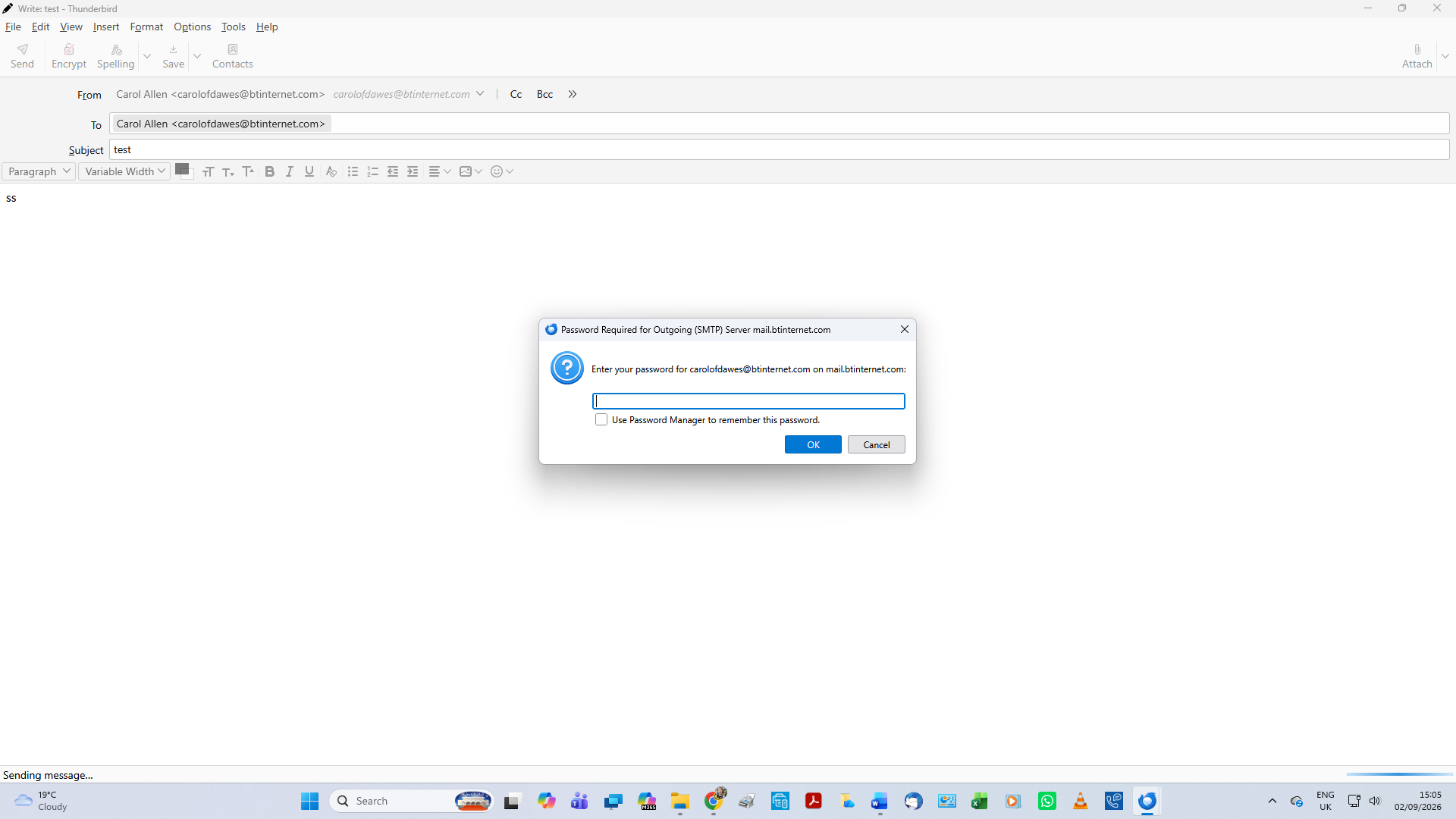
Athraithe ag Carolofdawes ar
Not sure what happened when you were attempting to add image as you seem to have typed a comment and then selected tons of empty lines before typing same comment again. I can only guess that maybe you have been copy pasting your comments or accidentally pleased Enter hundreds of times :)
1.. Password check The first thing you need to be very sure about is the Password. Logon to your BT webmail account via a browser such as Firefox or Microsoft Edge. If you can get access then you know the password is correct.
- Confirm you can logon to the webmail account.
2. Firewall. Secondly make sure your Firewall is not causing any problem. Firewall - it might be controlled by the one installed by Windows OR it might be controlled by an Anti-Virus you installed.
- Access the Firewall and make sure Thunderbird program is set up as an allowed program.
- Confirm Thunderbird is set up as an allowed program.
3. VPN Check your computer for a VPN. Some Anti-Virus program offer them and may have enabled it. Some servers can get a bit awkward when it comes to VPN's as they hide your IP address. So, to make sure it's not effecting you, check computer and switch off VPN if it's enabled.
4. Thunderbird smtp check
You need to check your current outgoing server smtp settings for bt.
Then you need to make sure the bt account is using the correct smtp.
In 'Account Settings' In Left pane scroll down to the very bottom below 'Local Folders' and click on 'Outgoing Server (SMTP)' It will show a list of all your outgoing smtp servers.
- Select the smtp which has 'User name' = the BT email address for problem BT account.
- Click on 'Edit' button
Make sure you have the following:
- 'Description': please type the email address - it should be the same as the User name' - this is important
- Server name: mail.btinternet.com
- Port: 465
- 'User Name': should be the full bt email address with no typos etc
- 'Authentication method': Normal Password
- Connection Security: SSL/TLS
- click on 'OK'
Now to make sure that bt mail account is actually using the correct smtp
- In Left Pane
- Select the name of the bt mail account - usually it's the email address
- Look bottom right for Outgoing Server (SMTP)
This is where the 'Description' field helps - it should say your bt email address If it doesn't or you want to check you have selected correct one: NOTE: DO NOT click on the 'Edit SMTP_Server' button
- Click on the drop down selector 'V' to see list and select the correct one with that accounts email address.
5. Stored Password removal In Thunderbird Remove whatever is currently saved in Stored Passwords.
- 'Settings' > 'Privacy & Security'
- scroll to 'Passwords' section
- Click on 'Saved Passwords'
You should see a smtp line like this:
- smtp://mail.btinternet.com (smtp://mail.btinternet.com)
The User name will be the full bt email address - or it should be ?!
- Please remove any instance of a stored smtp for that bt account. You should only have one but it's possible you have an old one etc.
If you have a POP bt account then you should see a line starting with 'mailbox://' for the bt account If you have an IMAP bt account then you should see a line starting with 'imap://' for the bt account These are for the incoming server and as you are not having a problem with them leave them alone. Do not delete them.
- Click on 'Close'
Finally, Exit Thunderbird, wait a few moments for background processes to complete. Start Thunderbird.
Please allow Thunderbird time to synch with server and also wait until your have received an email. then test sending from the account.
- At prompt enter correct password - please double check you really are entering correct password
- Also select the checkbox to remember password
- Then click on 'OK'
Please Report back on results.
I can assure you I use BT and I'm not having any connection issues with server.