Windows 10 reached EOS (end of support) on October 14, 2025. For more information, see this article.

Rechercher dans l’assistance

Évitez les escroqueries à l’assistance. Nous ne vous demanderons jamais d’appeler ou d’envoyer un SMS à un numéro de téléphone ou de partager des informations personnelles. Veuillez signaler toute activité suspecte en utilisant l’option « Signaler un abus ».

En savoir plus

Keyword for search engines in Firefox 57 and 58 (and what does it mean if they are checked off)?

options supplémentaires

Hello! With Firefox >57 the way search engines are added and managed has changed. New search eninges are added as plugins (i.e. qwant or startpage). Aside from the qwant plugin which defines "q" as the keyword for a search all other keywords in the list are empty and I have found no way in the settings to add a keyword for Google, Startpage and Duckduckgo. All articles discussing this seem to be for pre-57 Firefoxes. So how can I define a keyword for the search engines listed in settings? And what does it mean if they are "checked off" in front of their name (I have found no functional difference)? Thanks for a reply Moriarty

Hello! With Firefox >57 the way search engines are added and managed has changed. New search eninges are added as plugins (i.e. qwant or startpage). Aside from the qwant plugin which defines "q" as the keyword for a search all other keywords in the list are empty and I have found no way in the settings to add a keyword for Google, Startpage and Duckduckgo. All articles discussing this seem to be for pre-57 Firefoxes. So how can I define a keyword for the search engines listed in settings? And what does it mean if they are "checked off" in front of their name (I have found no functional difference)? Thanks for a reply Moriarty

Toutes les réponses (2)

options supplémentaires

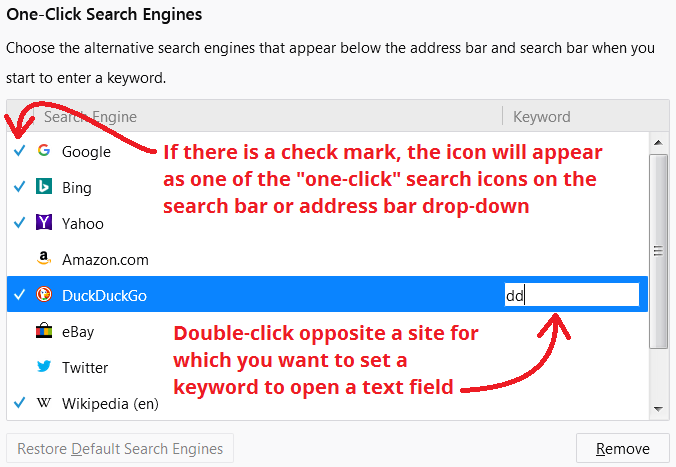
If you shut the keyword off, it won't be used. To add keywords, double click on the field under keyword, that will allow you to make your own keyword for a particular search engine. Does this help you?

options supplémentaires

In case you need a visual to go with that explanation, here's a screenshot I marked up.

<center></center>