


Unable to determine if mbox files input from Google Take Out are all automatically integrated into one email listing

Hello,
I have been using Thunderbird only occasionally for backing up Google emails after which I delete the emails from Google. I am thinking of using Thunderbird permanently but there are things I'm not sure about.
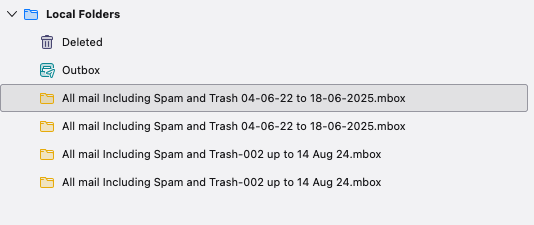
1). Does Thunderbird automatically integrate Google Take Out mbox files automatically into one email list? When I start Thunderbird, I see files that I have uploaded to Thunderbird (on two occasions in the past and these were mbox files from Google Take Out) but these files are empty. (screenshot attached). When I select the "all mail" folder all of the mails saved since 2005 appear to be there.
2). Does Thunderbird save attachments or only the emails themselves?
I would be grateful for some help so that I can optimise my working with Thunderbird.
Best wishes
DanZ
All Replies (3)
Image shows you have a folder which has a .mbox written at the end. Thunderbird does not the extension.mbox for it's files, so you would need to check what is actually stored in the profile in the Local Folders folder. It's possible that extension is causing an issue in the name of the file.
Thunderbird mbox files
If you have an Imap gmail account and subcribe to see the 'All Mail' folder, then you will already have a download of the 'All Mail' contents stored in Thunderbird in an mbox file.
Imap accounts cannot and should not be relied upon as a true independent copy because it synchronises with the server.
However, if you have the settings to download full copies for the 'All Mail' folder:
- In Account Settings > Synchronisation & Storage for the gmail account
- Select 'keep messages in all folders for this account on this computer'
- click on 'Advanced' button and make sure all folders are selected in particular the 'All Mail' folder.
- Select 'Synchronise all messages locally regardless of age'
Then Thunderbird will have downloaded full copies of all emails including their attachments.
You can then do the following to create a backup in the Local Folders' account which is a copy on your computer and it does not synchronise with server.
- Exit Thunderbird
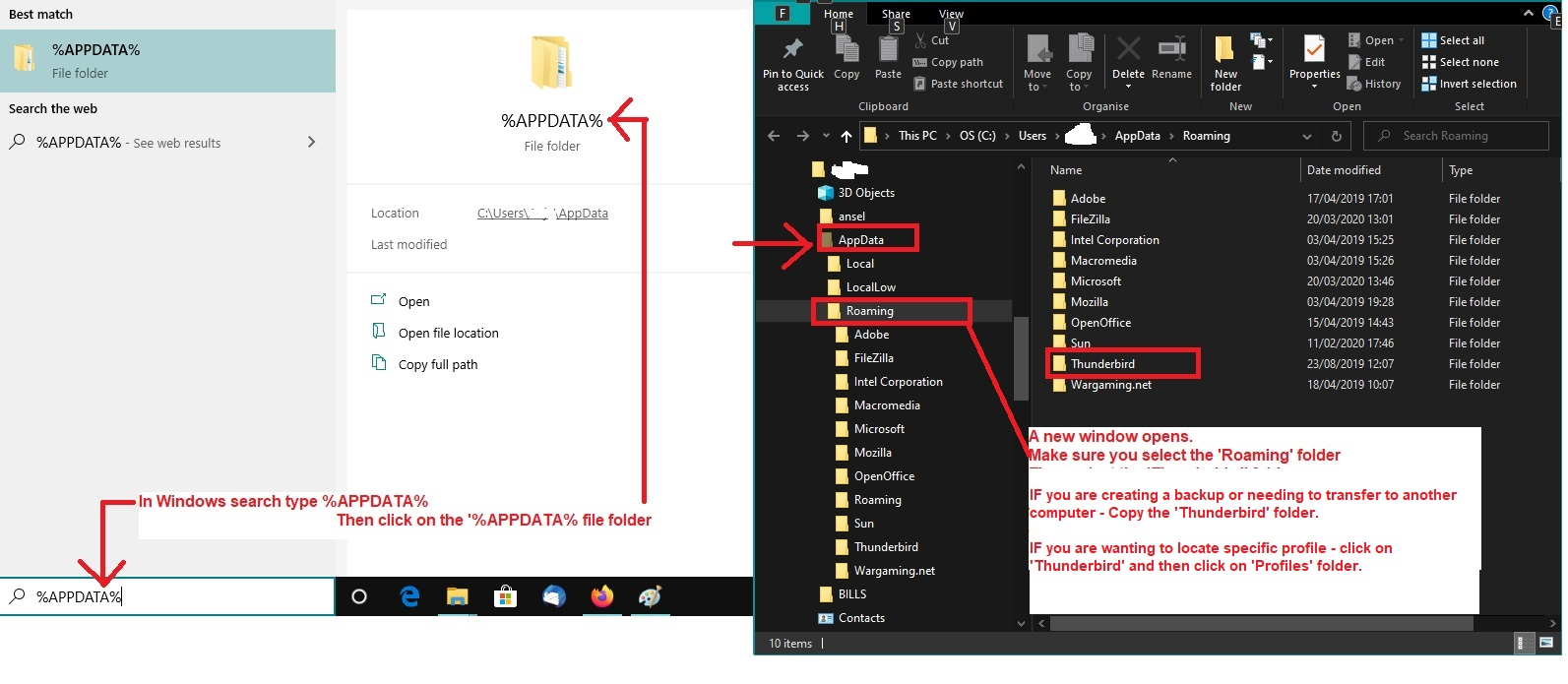
- In windows search type: %Appdata%
- select the %Appdata% file folder
- Select 'Roaming'
- You should see a 'Thunderbird' folder.
Please note if you want a full backup of everything in Thunderbird -profiles, mail accounts, emails, calendar, address books, preferences etc - then make a copy of the 'Thunderbird' folder and paste to store on an external drive as a backup. Otherwise:
- Select 'Thunderbird'
- Select' Profiles'
- Select the profile name folder
- Select 'ImapMail' folder
- Select imap gmail account name folder
- Copy the 'All Mail' file - it will have no extension, but it is an mbox text file. All emails are written to it in the order downloaded one after the other.
- Go back up directory to the 'profile name' folder
- Select 'Mail' folder
- Select 'Local Folders' folder
- paste the 'All Mail' file into the Local Folders folder.
(If you subsequently past more 'All MAil' files then suggest you do not overwrite the original - maybe rename each with a date.)
When you restart Thunderbird you should see a folder called eg: All Mail-May-26
Hi Toad-Hall,
Thank you very much for such a complete reply. There is quite a bit I don't understand very well about the email system but let me study what you have written and try a few things. Then I'll return to you.
My main aim with all this is to reduce the number of emails stored on Google so as soon as I back them up to Thunderbird, I delete the mails from Gmail. I'd like to keep the archived emails on my hard disk and use Thunderbird to search through them from time to time. Eventually I'll keep only recent mails on Gmail and read all the historical emails on Thunderbird. (Maybe your procedure does that but I need to study more)
My take is that if I synchronize Gmail with Thunderbird and I delete message from Gmail they will also be deleted on Thunderbird. But I'm not sure if this is correct.
Working on it!
Danz
re :My take is that if I synchronize Gmail with Thunderbird and I delete message from Gmail they will also be deleted on Thunderbird. But I'm not sure if this is correct.
Yes you are correct, but it should only delete emails from the imap folders. If you have a gmail IMAP mail account in Thunderbird. It will synchronise all imap folders with same folders/labels as seen in gmail webmail account. If you delete emails via the Thunderbird Imap acount and have those emails put into the gmail imap 'Trash' folder then gmail will auto remove those emails from the 'Trash' and the 'All Mail' folder after they have been in Trash fo 30 days. This does allow some time to recover anything you deleted by accident. If you delete emails via the gmail webmail account then you will find those emails will also be deleted from the Imap mail account as it can only display whatever is on the server.
If people who use IMAP want to keep copies on their computer and delete emails off server, they do this: Make sure the Imap account settings are set up to download full copies. Create suitably named folders in the 'Local Folders' account. As emails arrive in Inbox, they choose whether to get a copy or not depending upon whether email is important. To create a copy of email in eg: Inbox:
- Right click on email and select : 'Copy to' to see options
- hover over 'Local Folders' and select the relevant folder in the list.
This means you are getting your own copy that is independent of the server and managing the emails as they arrive. I would suggest you may like like to tag (you can create your own tag and call it 'Copied') any emails in the Imap folder which you have copied because later when you are certain you have good copies in 'Local Folders', you can sort folder by tags and then perform a block delete of those 'Copied' tagged emails.
So in effect you can do it all via the Thunderbird Imap account. Emails put in the imap Trash will get auto deleted in time by gmail saving you time. As you are copying emails in real time so so speak, then it saves you from performing any export etc via gmail webmail account. To create a proper backup you can simply follow previous instructions to get periodic copies of the C://Users/username/Appdata/Roaming/'Thunderbird' folder that holds everything.