


Bookmarks import doesn't show bookmarks on title bar?

I've imported bookmarks to Firefox, however the Bookmarks bar doesn't show on a blank tab (I'll raise another forum post about this). If I manually add the Bookmarks toolbar, it permanently shows only a few Bookmarks, not the original Bookmarks that have been imported?
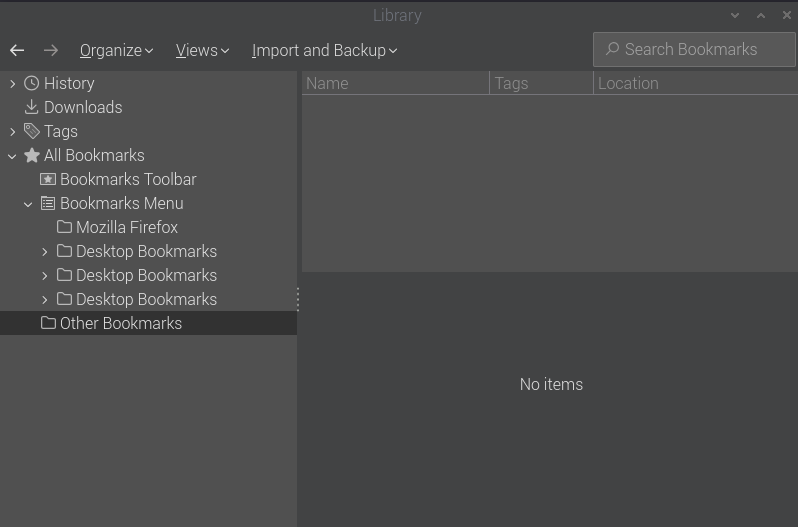
I imported the Bookmarks 3 times as shown on the attached screenshot, but somehow they have been stored by default, in the wrong location. The correct location would be so the Bookmarks appear in the Bookmarks toolbar.
Valitud lahendus
Solved with the following steps: Import Firefox 135.01 (aarch64) -> Menu (hamburger icon top right) -> Bookmarks -> Manage bookmarks -> Library: select Import and Backup -> Import Bookmarks from HTML… -> select bookmarks.html -> select Open -> default storage location in Bookmarks Menu. Move import to bookmarks toolbar Firefox 135.01 (aarch64) -> Menu (hamburger icon top right) -> Bookmarks -> Manage bookmarks -> Library: Bookmarks Menu -> select imported bookmarks folder -> drag and drop in Bookmarks Toolbar.
Loe vastust kontekstis 👍 0All Replies (2)
Refreshing as challenge remains.
Valitud lahendus
Solved with the following steps: Import Firefox 135.01 (aarch64) -> Menu (hamburger icon top right) -> Bookmarks -> Manage bookmarks -> Library: select Import and Backup -> Import Bookmarks from HTML… -> select bookmarks.html -> select Open -> default storage location in Bookmarks Menu. Move import to bookmarks toolbar Firefox 135.01 (aarch64) -> Menu (hamburger icon top right) -> Bookmarks -> Manage bookmarks -> Library: Bookmarks Menu -> select imported bookmarks folder -> drag and drop in Bookmarks Toolbar.