


Looking for someone familiar with Thunderbird 115.18.0 (64-bit) on how it creates personal folders

After a long explanation, I tried to add a file and lost everything. Starting over! After using TB for over 30 years, I accumulated a large number of personal folders to archive files to. Due to confusion on my part about pass words in Proton Mail and their Bridge, I had to reinstall my ProtonMail account into Thunderbird. Because all my personal folders were connected with the old "account" name, I didn't remove it, and the new addition seemed to be working fine.
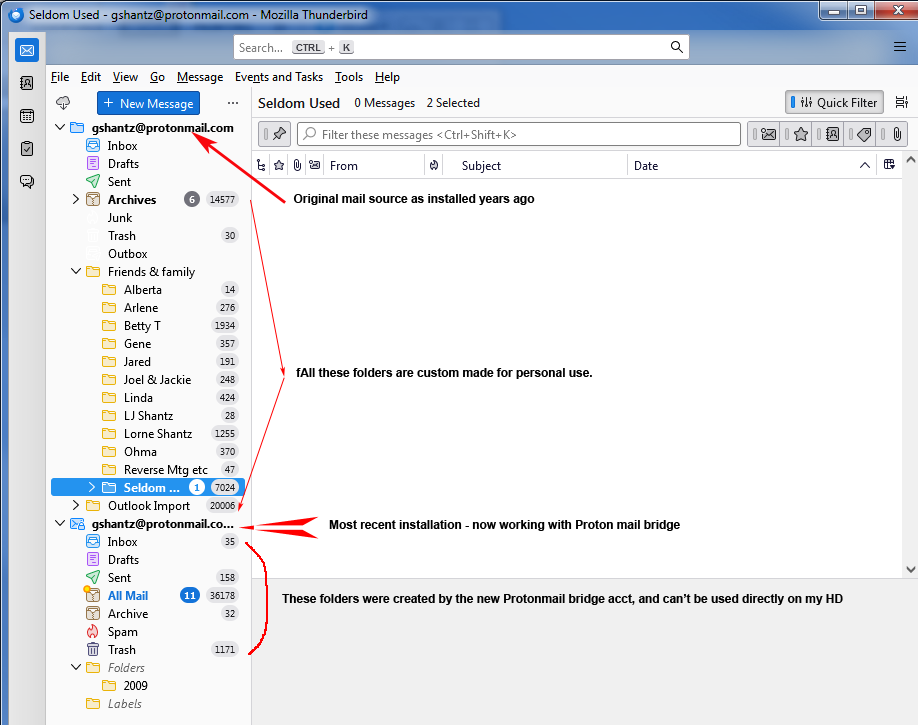
After doing some house cleaning to remove duplicate and obsolete files, I wanted to move the folders attached to the old account name, under the new name. I thought I could carefully move my personal folders from the old account, back under the new Protonmail account. Sadly, that doesn't work like that. What I did find was that the original folders which come under the original "account", were created with an older version of TB, which put them in a folder on my HD. But the new default folders ("inbox", "draft", "sent" etc.) are mirrors of the Protonmail Bridge, which is NOT what I want.
So I need someone that knows how to either place the old folders back under the NEW "account", or how to create new folders that ARE on the HD, and then move the files from one place to the other.
Just to help clarify, here's the location of the old folders as per the "properties" info.
mailbox:///E:/thunderbird data/thunderbird/yetudx3p.default/Mail/Local Folders/Friends & family
You can see the address for this folder is on my Drive E: I can go directly to that address on my drive E and see each of the files.
imap://gshantz%40protonmail.com@127.0.0.1/Folders/2009
This folder is from the NEW account of Protonmail - bridge, and is obviously the web address of Protonmail. It is NOT editable, unlike the above location on my HD E:.
Any help or suggestion would be greatly appreciated, gshantz
Επιλεγμένη λύση
Toad-Hall said
re My though was to just delete them as they are no longer in use. The reason I hadn't already done that, is because I was uncertain how it would affect everything else. re : Outbox That's something I never use, so I won't miss that if it is deleted to. You are talking about default folders in a Thunderbird special account. I would advise that you do not delete any default account folder and that includes the Outbox. Do not attempt to delete the 'Outbox' , a load of code is related to it. You may not tend to use 'Send Later', but in the event of loss of internet connectivity, it gets used automatically. It's a default folder. re :moving the 'Local Folders' below the protonmail account.
- In 'Account Settings'
- In the Left Pane
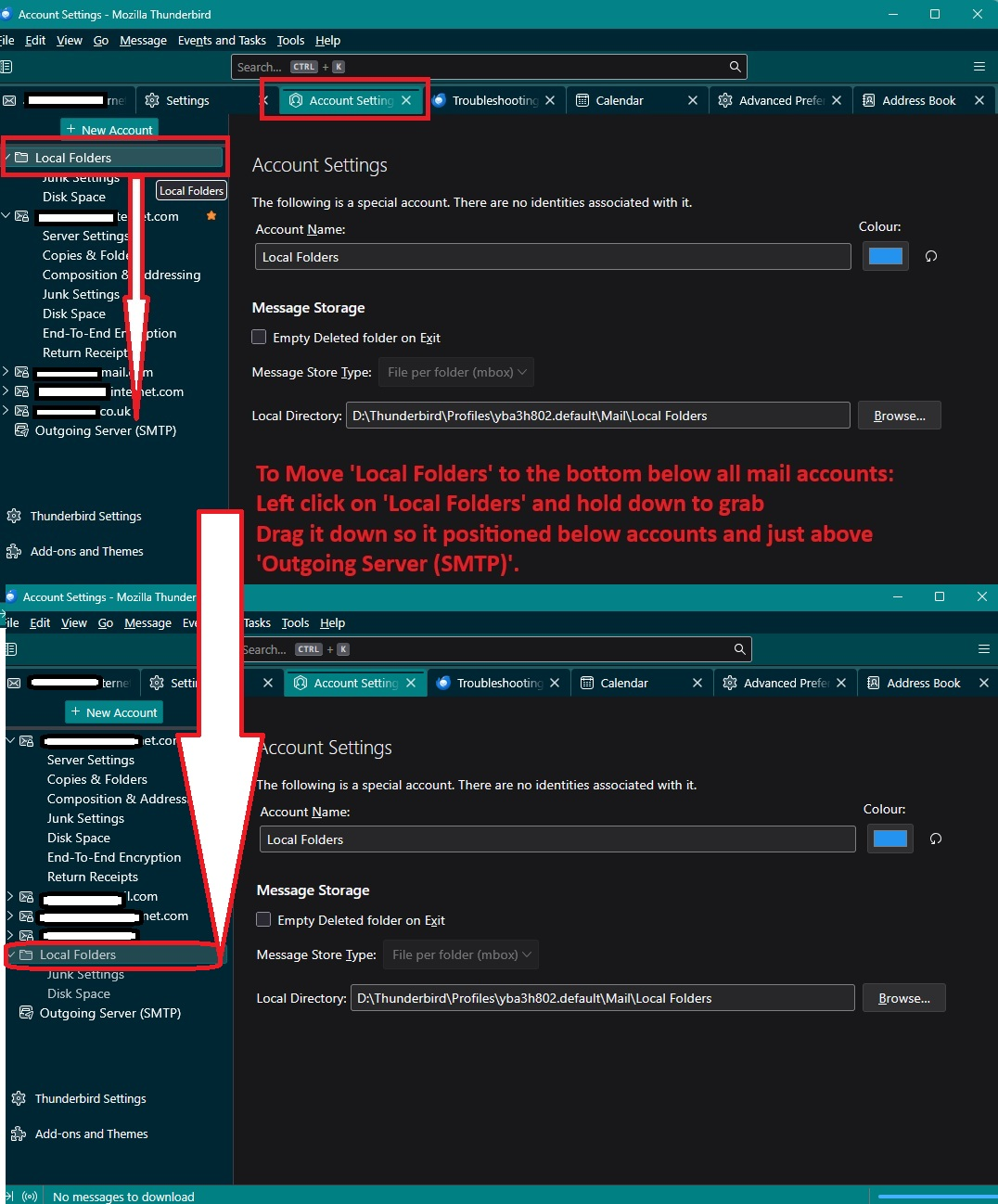
- Left click and hold down the 'Local Folders' account to grab and then drag it down below the protonmail account so it is positioned just above the 'Outgoing Server (SMTP)'
This is exactly what I have been trying to do, and it just doesn't happen. I've tried to either move the "new account" like you said, and also tried to move the "Local Folders" down below the new.Just to be clear - You cannot do this in the left 'Folder Pane' where you see the account name and all the folders. You need to be in 'Account Settings' See image below as a guide. If you cannot see it clearly, in this forum question, click on the thumbnail image and it will enlarge.
Oh man! How simple when you know the answer. Just one little missed step changes everything! You are my life saver. Thanks again. Even though I could have learned to get by with it as it was, now I've learned how to do everything properly. I sure wasn't able to find anything like that in on-line Help sites. I hope someone else may learn from this long dialog. I'm so happy. gshantz
Όλες οι απαντήσεις (6)

There is a "Copy To" function in Thunderbird. You can use it to copy your emails/folders between different accounts.
For example, you can create a backup email account pointing to your HDD using Maildir format. After activating this backup account, you can select your emails/folders and copy them to the backup account. These emails/folders will then be saved to your HDD and can be access via the backup account just like local files.
wxie said
There is a "Copy To" function in Thunderbird. You can use it to copy your emails/folders between different accounts. For example, you can create a backup email account pointing to your HDD using Maildir format. After activating this backup account, you can select your emails/folders and copy them to the backup account. These emails/folders will then be saved to your HDD and can be access via the backup account just like local files.
Well, I messed up on this. I wrote an important reply with a couple more questions, and had trouble getting it to "send". Thought it had gone, but got busy enough that I thought I would get an email indicating any further help. Wrong! I see that it never got sent at all.
One question I had was, since I still have the unused "old account" that stopped working (see the top of the graphic in the previous post) what's the best way to configure it in a way that I can use it for an "alternate" account, even though it shouldn't go or receive anything. If I can do that, I could leave nearly all the previously used "archive" folders (attached to the "old account name". Then all I would have to do is move the "new account" back up to the top of the list of folders.
All those personal folders are still directed to the correlating hard drive folders in the default profile. I trust I haven't waited too long for you to get back to me, Gshantz
re :Just to help clarify, here's the location of the old folders as per the "properties" info. mailbox:///E:/thunderbird data/thunderbird/yetudx3p.default/Mail/Local Folders/Friends & family
OK, so it looks like you moved the 'profile name folder called 'yetudx3p.default' onto the E Drive.
You are talking about the 'Local Folders' account. That is not a Pop account nor an imap account.
The folders in that account listed at the top seem to be unusual - messed up - it has a load of default folders in the 'Archives' folder such as 'Outbox', 'Junk', and 'Trash'. None of them should be in the 'Archives' folder. Move them back out of the 'Archives' folder - you have to drag and drop them into the account name at the top in order to put them in the proper location.
'Outbox' is a folder usually located in 'Local Folders' and it's used by all mail accounts when using 'Send Later'.
So I'm wondering - Did you rename the 'Local Folders' account to say your email address ? I have a suspicion that that account at the top is really your 'Local Folders' account. Do this:
- In 'Account Settings'
- Select the name of that old proton email address account name.
- Look on the right side - what does it say ?
- Does it 'The following is a special account....'
- If yes, then that is your Local Folders' account.
- Where it says 'Account Name' - remove all content and type 'Local Folders'
That will stop all the confusion over account names and it will also match local directory name. So from now onwards I'm calling that top old account 'Local Folders'.
If I'm right and it was the 'Local Folders' account just been misnamed then all of those emails are stored on your computer and they do not synchronise with any server. They are an independent copy of emails on your computer.
I would recommend that you leave all of those folders alone because you can still see all the emails.
Regarding the new account. That is an imap account and it can only display whatever is on he server. So emails are stored on the server and you are getting a mirror like view of the server. You should not consider any imap folder as being a true independent copy on your computer. If the emails are fully downloaded then it can be used to create a backup which you store on an external drive. However, because all imap folders synchronise with server they are not a true independent copy on computer.
If you want to get all those emails stored in all those various folders that are currently in the 'Local Folders' account uploaded back onto the server in order to see them in the imap account, then please note, it will decrease your available quota on the server, so you may end up having to get them back off the server again. You would need to create folders in the imap account in order to receive them. You would then need to highlight a batch of emails, use right click 'Copy To' and select the imap folder you created. Please note uploading emails via imap back onto a server is not a quick exercise. You would need to find out what limitations are set by the server. You may find you can only upload X per hour or daily. Personally, I would not bother unless you use more than one computer in different locations and really need to see all those emails currently in 'Local Folders'.
Perhaps you would like to rearrange the position of the accounts in the Folder Pane. Maybe you would like the new imap protonmail account to be at the top, If yes:
- In 'Account Settings'
- In the Left Pane
- Left click and hold down the name of the new imap protonmail account and drag it up above the 'Local Folders' account/old account.
This will then rearrange the Folder Pane.
Toad-Hall said
re :Just to help clarify, here's the location of the old folders as per the "properties" info. mailbox:///E:/thunderbird data/thunderbird/yetudx3p.default/Mail/Local Folders/Friends & family OK, so it looks like you moved the 'profile name folder called 'yetudx3p.default' onto the E Drive. You are talking about the 'Local Folders' account. That is not a Pop account nor an imap account. That is correct! Actually, it is what used to be my main ProtonMail account until it wasn't! That's why it has all those extra folders for "Inbox", "drafts", and "sent", which are empty and unused now. Move them back out of the 'Archives' folder - you have to drag and drop them into the account name at the top in order to put them in the proper location. My though was to just delete them as they are no longer in use. The reason I hadn't already done that, is because I was uncertain how it would affect everything else. 'Outbox' is a folder usually located in 'Local Folders' and it's used by all mail accounts when using 'Send Later'. That's something I never use, so I won't miss that if it is deleted to. So I'm wondering - Did you rename the 'Local Folders' account to say your email address ? I have a suspicion that that account at the top is really your 'Local Folders' account. No, it became a left-over when I re-installed the ProtonMail account. Just didn't have the remote address, making it the top or control folder for all the "Local Folders". That's why I was afraid to delete it. Do this:What it says is, "Set Up Another Account", until I got to account settings, where it used to say "gshantzprotonmail" until I changed it to "Local Folders".
- In 'Account Settings'
- Select the name of that old proton email address account name.
- Look on the right side - what does it say ?
- Does it 'The following is a special account....'
That will stop all the confusion over account names and it will also match local directory name. So from now onwards I'm calling that top old account 'Local Folders'. "Done" If I'm right and it was the 'Local Folders' account just been misnamed then all of those emails are stored on your computer and they do not synchronise with any server. They are an independent copy of emails on your computer. That's exactly what I want! I would recommend that you leave all of those folders alone because you can still see all the emails. Regarding the new account. That is an imap account and it can only display whatever is on he server. So emails are stored on the server and you are getting a mirror like view of the server. So I've learned. Quite different from my previous perspective. You should not consider any imap folder as being a true independent copy on your computer. If the emails are fully downloaded then it can be used to create a backup which you store on an external drive. However, because all imap folders synchronise with server they are not a true independent copy on computer. In my mind, I had always considered my "Inbox" to be the 1st stop, and from there everything either got deleted or moved to an appropriate folder. I just wasn't aware that it was a mirror image of the server. The only things that stay there are account due warnings etc. to be deleted when they have been taken care of and then deleted. If you want to get all those emails stored in all those various folders that are currently in the 'Local Folders' account uploaded back onto the server in order to see them in the imap account, then please note, it will decrease your available quota on the server, so you may end up having to get them back off the server again. NO, no! I like my archived data on MY computer. I had been using EaseUs Backup to back up all my ThunderBird data every night. I have a large multi-terra byte external drive for all my backups. Perhaps you would like to rearrange the position of the accounts in the Folder Pane. Maybe you would like the new imap protonmail account to be at the top, If yes:
- If yes, then that is your Local Folders' account.
- Where it says 'Account Name' - remove all content and type 'Local Folders'
This is exactly what I have been trying to do, and it just doesn't happen. I've tried to either move the "new account" like you said, and also tried to move the "Local Folders" down below the new. So I think this is the only thing doesn't work for me. Any suggestions will. So far, you've been a huge help either confirming some things or explaining how the imap and folder accounts work. Many thanks. This will then rearrange the Folder Pane.
- In 'Account Settings'
- In the Left Pane
- Left click and hold down the name of the new imap protonmail account and drag it up above the 'Local Folders' account/old account.
Can't thank you enough, gshantz
re My though was to just delete them as they are no longer in use. The reason I hadn't already done that, is because I was uncertain how it would affect everything else.
re : Outbox That's something I never use, so I won't miss that if it is deleted to.
You are talking about default folders in a Thunderbird special account. I would advise that you do not delete any default account folder and that includes the Outbox. Do not attempt to delete the 'Outbox' , a load of code is related to it. You may not tend to use 'Send Later', but in the event of loss of internet connectivity, it gets used automatically. It's a default folder.
re :moving the 'Local Folders' below the protonmail account.
- In 'Account Settings'
- In the Left Pane
- Left click and hold down the 'Local Folders' account to grab and then drag it down below the protonmail account so it is positioned just above the 'Outgoing Server (SMTP)'
This is exactly what I have been trying to do, and it just doesn't happen. I've tried to either move the "new account" like you said, and also tried to move the "Local Folders" down below the new.
Just to be clear - You cannot do this in the left 'Folder Pane' where you see the account name and all the folders. You need to be in 'Account Settings' See image below as a guide. If you cannot see it clearly, in this forum question, click on the thumbnail image and it will enlarge.
Επιλεγμένη λύση
Toad-Hall said
re My though was to just delete them as they are no longer in use. The reason I hadn't already done that, is because I was uncertain how it would affect everything else. re : Outbox That's something I never use, so I won't miss that if it is deleted to. You are talking about default folders in a Thunderbird special account. I would advise that you do not delete any default account folder and that includes the Outbox. Do not attempt to delete the 'Outbox' , a load of code is related to it. You may not tend to use 'Send Later', but in the event of loss of internet connectivity, it gets used automatically. It's a default folder. re :moving the 'Local Folders' below the protonmail account.
- In 'Account Settings'
- In the Left Pane
- Left click and hold down the 'Local Folders' account to grab and then drag it down below the protonmail account so it is positioned just above the 'Outgoing Server (SMTP)'
This is exactly what I have been trying to do, and it just doesn't happen. I've tried to either move the "new account" like you said, and also tried to move the "Local Folders" down below the new.Just to be clear - You cannot do this in the left 'Folder Pane' where you see the account name and all the folders. You need to be in 'Account Settings' See image below as a guide. If you cannot see it clearly, in this forum question, click on the thumbnail image and it will enlarge.
Oh man! How simple when you know the answer. Just one little missed step changes everything! You are my life saver. Thanks again. Even though I could have learned to get by with it as it was, now I've learned how to do everything properly. I sure wasn't able to find anything like that in on-line Help sites. I hope someone else may learn from this long dialog. I'm so happy. gshantz