


In Settings-Privacy-Password the TWC account is not there, asking to enter password when I open Thunderbird

Hello,
I have to add the Password every time I open Thunderbird because I removed the Password myself after I read this:
<<<< ThundaMike Mozilla Staff 7/28/25, 9:15 PM more options Sounds like you are almost there.
Building off what @david said above, try this:
In Thunderbird, go to Settings > Privacy & Security.
Scroll down to the Passwords section and click Saved Passwords….
Find your email account in the list and remove the saved password.
Restart Thunderbird.
When prompted, enter your new password. >>>
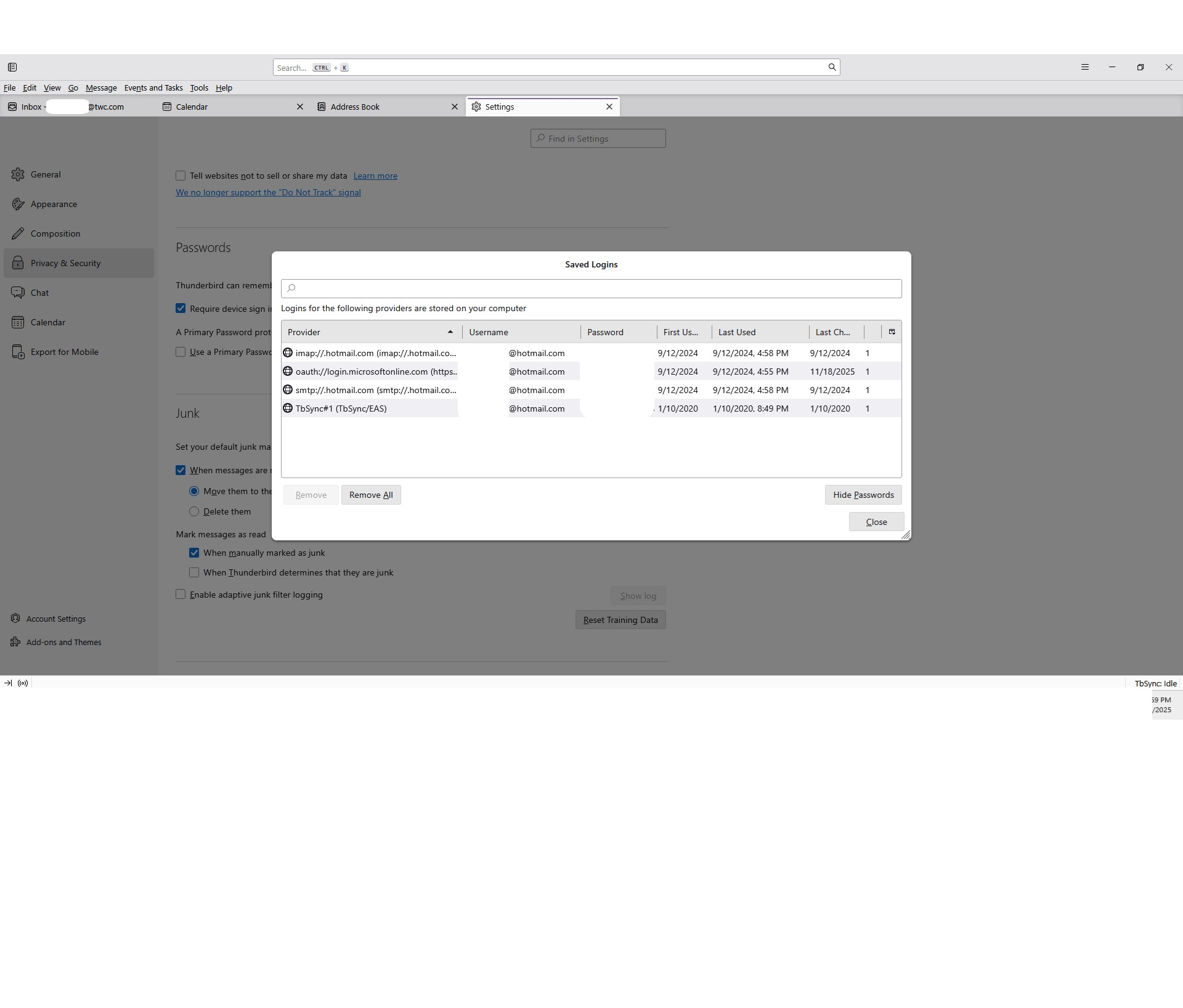
My doing this it removed the .twc password Log In totally in that Settings. I do not see the "my twc.com" in the settings of Tools, Privacy & Security, then Saved Passwords in the list, I only see the Hotmail account settings I have in Thunderbird. Removing it like ThundaMike wrote really removed all the TWC Password and Information.
Can someone help me restoring or re-enter my Mozilla Thunderbird info back into Tools, Privacy & Security, then Saved Passwords so I do not have to type in the Password every time I open Thunderbird.
Thank you so much for your time and efforts I truly appreciate it.
Επιλεγμένη λύση
Bibb said
Thank you Todd for you reply, First I clicked on Tools, Settings, Privacy & Security. Then Passwords, then Saved Passwords, then Show Passwords. I took a Print Screen that page to show you. I'm sending an image of what I see and what is in my settings. I did not get what you wrote "You may then get a 'Windows Security' pop up asking for password." Then you wrote: "Then you see stored passwords. You will have two line - one is for incoming and the other is smtp outgoing." There are no two lines in that page like you wrote, I scrolled down the Setting page and it doesn't show the two lines.
Imap accounts will see these two lines, one for incoming and one for outgoing. Your image shows the incoming line which starts with imap://.hotmail.com Your image shows the outgoing smpt line which starts with smtp://.hotmail.com
If you had a pop account you would not see imap:// line instead it would start with mailbox://..
If an account has been set up on servers that use Oauth authentication such as gmail.com and outlook.com then you will see a line that starts with : oauth://login.... This means that Authentication Method uses Oauth2 and therefore Thunderbird will use that oauth token to gain access to server.
So in the case of a twc on Spectrum server that would dislpay it's own two lines. As you use imap it would start with imap://... there would also be an smtp://...line. Those two lines are missing because they are not saved.
The info I gave was what you should have tried first as deleting them was not necessary, but recreating them should not be difficult, but it seems to be an issue. That is the topic under question.
I went to Account Settings and I see <<< Server Settings IMAP Mail Server. Server Name: mail.twc.com Port 993. Default: 993 Then I see User Name: with my twc email address. Security Settings: Connection SSL/TLS then Authentication Method: Normal password. >>>
The 'server settings' appear correct.
So what you wrote is not what I see in my Settings. I do not know what to do next. PS. I almost did not "Delete Password" but I thought ThundaMike knew what he was writing for fact!!! I was stupid to delete the Password and I am paying for it as you can see!!! Again Thank you for your time and efforts, I truly appreciate it.
There are occasions when removing a saved password works and it really should not be a problem to reinstate it.
You said: I have to add the Password every time I open Thunderbird
As thunderbird has no stored password you will get the prompt.
- Enter Password (there is only one password you can use - the one you set up in Sprectrum webmail account)
- select the checkbox 'Use Password Manager to remember the password'
- click on 'OK'
But I'm not certain what you are seeing. Please post an image of that prompt because it should have a checkbox that you need to select which says something like this: 'Use Password Manager to remember the password' Do you see that checkbox ?
Προβολή απάντησης εντός συζήτησης 👍 0Όλες οι απαντήσεις (8)
re :Removing it like ThundaMike wrote really removed all the TWC Password and Information.
That is precisely what you did. So it's expected to be removed. Not sure why you did that.
I understand you were asked to upate the password by Spectrum. To do that you would logon to the spectrum webmail account via a browser and update the old to a new password.
This is the next stage you should have done - I'm adding it here because if you ever need to do it again then you have information.
In Thunderbird you would update the stored password
- Settings >Privacy & Security
- click on 'Saved Passwords
- Click on 'Show Passwords'
- You may then get a 'Windows Security' pop up asking for password.
- When you start computer, you get asked to logon to a User Account - that is the password you need to enter.
Then you see stored passwords. You will have two line - one is for incoming and the other is smtp outgoing.
- Right click on each line in turn and select 'Edit Password'
- completely clear everything and carefully type in the new password you created in the webmail acocunt
- When both lines have been done -click on 'Close'
- Exit and restart Thunderbird.
re :I have to add the Password every time I open Thunderbird because I removed the Password
You will get a pop to ask for password to the mail account if there is no saved password.
When you see the pop up asking for the mail account password did you do the three steps:
- Enter Password (there is only one password you can use - the one you set up in Sprectrum webmail account)
- select the checkbox 'Remember Password'
- click on 'OK'
Thank you Todd for you reply,
First I clicked on Tools, Settings, Privacy & Security. Then Passwords, then Saved Passwords, then Show Passwords. I took a Print Screen that page to show you. I'm sending an image of what I see and what is in my settings. I did not get what you wrote "You may then get a 'Windows Security' pop up asking for password."
Then you wrote: "Then you see stored passwords. You will have two line - one is for incoming and the other is smtp outgoing." There are no two lines in that page like you wrote, I scrolled down the Setting page and it doesn't show the two lines.
I went to Account Settings and I see <<< Server Settings IMAP Mail Server. Server Name: mail.twc.com Port 993. Default: 993 Then I see User Name: with my twc email address.
Security Settings: Connection SSL/TLS then Authentication Method: Normal password. >>>
So what you wrote is not what I see in my Settings. I do not know what to do next.
PS. I almost did not "Delete Password" but I thought ThundaMike knew what he was writing for fact!!! I was stupid to delete the Password and I am paying for it as you can see!!!
Again Thank you for your time and efforts, I truly appreciate it.
Επιλεγμένη λύση
Bibb said
Thank you Todd for you reply, First I clicked on Tools, Settings, Privacy & Security. Then Passwords, then Saved Passwords, then Show Passwords. I took a Print Screen that page to show you. I'm sending an image of what I see and what is in my settings. I did not get what you wrote "You may then get a 'Windows Security' pop up asking for password." Then you wrote: "Then you see stored passwords. You will have two line - one is for incoming and the other is smtp outgoing." There are no two lines in that page like you wrote, I scrolled down the Setting page and it doesn't show the two lines.
Imap accounts will see these two lines, one for incoming and one for outgoing. Your image shows the incoming line which starts with imap://.hotmail.com Your image shows the outgoing smpt line which starts with smtp://.hotmail.com
If you had a pop account you would not see imap:// line instead it would start with mailbox://..
If an account has been set up on servers that use Oauth authentication such as gmail.com and outlook.com then you will see a line that starts with : oauth://login.... This means that Authentication Method uses Oauth2 and therefore Thunderbird will use that oauth token to gain access to server.
So in the case of a twc on Spectrum server that would dislpay it's own two lines. As you use imap it would start with imap://... there would also be an smtp://...line. Those two lines are missing because they are not saved.
The info I gave was what you should have tried first as deleting them was not necessary, but recreating them should not be difficult, but it seems to be an issue. That is the topic under question.
I went to Account Settings and I see <<< Server Settings IMAP Mail Server. Server Name: mail.twc.com Port 993. Default: 993 Then I see User Name: with my twc email address. Security Settings: Connection SSL/TLS then Authentication Method: Normal password. >>>
The 'server settings' appear correct.
So what you wrote is not what I see in my Settings. I do not know what to do next. PS. I almost did not "Delete Password" but I thought ThundaMike knew what he was writing for fact!!! I was stupid to delete the Password and I am paying for it as you can see!!! Again Thank you for your time and efforts, I truly appreciate it.
There are occasions when removing a saved password works and it really should not be a problem to reinstate it.
You said: I have to add the Password every time I open Thunderbird
As thunderbird has no stored password you will get the prompt.
- Enter Password (there is only one password you can use - the one you set up in Sprectrum webmail account)
- select the checkbox 'Use Password Manager to remember the password'
- click on 'OK'
But I'm not certain what you are seeing. Please post an image of that prompt because it should have a checkbox that you need to select which says something like this: 'Use Password Manager to remember the password' Do you see that checkbox ?
Thank you Toad-Hall,
It is fixed by " Enter Password (there is only one password you can use - the one you set up in Sprectrum webmail account) select the checkbox 'Use Password Manager to remember the password' click on 'OK' "
I tried that last week and it did not work then, and now it did.
Thank you for your time and efforts, I truly appreciate it.
Hello again Toad-Hall,
This evening I had to reply to an email, and, that Reply email came back in my "Inbox", it never was sent to the email address I was replying to. When I clicked the Send button to that email I was replying to, I had to add my Password in order to Send that email. And, that email I clicked to Send as a Reply, it did not go into my Sent Folder, it went into the Local Folders - Sent-instead.
This brought me to this week when you were helping me and I received an email that someone had commented on my Post here and you helped him or her by writing this: <<< Try the following: SMTP
   Server Settings: mail.twc.com
   Port: 587
   Username = full email address
   Authentication Method: Normal Password
   Connection Security: STARTTLS
OR
   Server Settings: mail.twc.com
   Port: 465
   Username = full email address
   Authentication Method: Normal Password
   Connection Security: SSL/TLS
>>>> Now, I did not do anything to my Settings yet and I would like for you to help me fix my problem, again, that I did on my own by deleting my twc password I wrote earlier!
Can you help me continue to fix why I have to add my password to Send email, and that the emails are Sent to the person I Send or Reply it to, and the sent email go into the Sent folder as it should be? I truly appreciate your time and efforts. Thanks so much.
re : and, that Reply email came back in my "Inbox", it never was sent to the email address I was replying to.
That sounds like the server could not deliver the email and so it returned to sender. But you would have had more info in the email that was sent to your Inbox. I would need to see what it said...not content of email sent, but whether there was additional info in that email.
OR maybe you have got yourself auto Cc'd on emails your send or replies set up to use folder of message being replied to.
re :it did not go into my Sent Folder, it went into the Local Folders - Sent-instead.
Maybe you have the settings set up to put the email in that location.
Lets' check the Account Settings for that account to see what's going on.
In Account Settings
- Select 'Copies & Folders' for the problem account
- Select 'Place a copy in'
- Select: 'Other'
- Select: 'Sent folder on the mail account name'
- Uncheck/do not select 'Place replies in the folder of the message being replied to'
- Uncheck/do not select either the 'Cc' or the 'Bcc' these email addresses.
Τροποποιήθηκε στις από τον/την Toad-Hall
Remember I mentioned all passwords have two lines one for incoming and one for outgoing.
If there are no passwords saved, then the first time you get incoming you will get asked for password. That was the new password you had created in webmail account. You entered the password, selected to remember password and clicked on ok. That incoming password should have been saved in the Settings > Privacy & Security - under Saved Passwords.
However, when you sent your first email, it would also ask for that same password. So you would do the same action.
At this point you can then check your 'Saved Passwords' to see if you now have two lines for the account. One incoming and one smtp outgoing.
Thank you Toad-Hall,
The info of Saved Passwords is solved, I see my twc in the list and I did what you sent to fix the Sent folder and the mail was sent to the person I sent it to.
Thank you so very much for your help, time and effort to solve the problem I created in the first place.