


read messages not being displayed but still included in the mailbox count

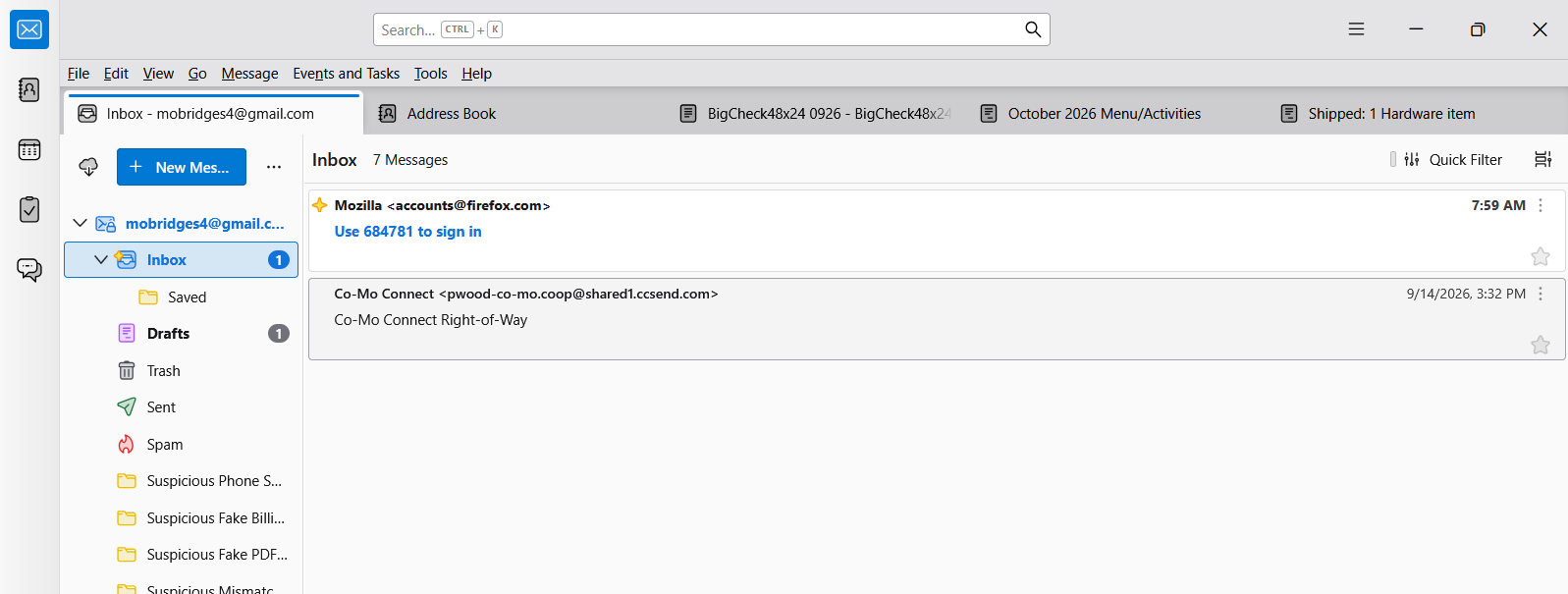
I have set up rules to move messages from the inbox to saved folders. There are some messages which remained in the Inbox and I have read but not moved to saved folders. There are other read messages which remain in the Inbox. The count of messages in the Inbox (and all folders as well) does not match the number of messages displayed. I am attaching a screenshot showing there are 2 messages displayed in my Inbox, but showing a count of 7 messages. I know there is at least one of the "missing" messages which I need to move manually to another folder, but how do I see those "missing" messages?
Ɖɔɖɔɖo si wotia
mobridges4 said
Thank you Toad-Hall. Unfortunately for me I already had View > Threads set to All
that is good - leave it selected.
But if by accident you have set up emails to be ignored, then the count will not change but the ignored emails will not display even if 'All' is selected. 'All' does not include anything you set up as ignored. You need to check, so select 'View' > 'Threads' > 'Ignored Threads' Do more emails now display ?
If yes, then you need to remove the 'ignore thread' setting: Right click on email and you will see the 'Ignored thread' selected - click on it to remove the ignore setting.
All Replies (7)
- On Menu Bar
- View > Threads
- You should have only 'All' selected and use that by default.
If by some chance you have ignored threads then you can make them reappear by also selecting 'Ignored Threads' option. It can be easy to set up an ignored thread just by selecting email and pressing K key. So worth checking.
Info on ignored threads: https://support.mozilla.org/en-US/kb/ignore-threads
Thank you Toad-Hall. Unfortunately for me I already had View > Threads set to All
The Inbox in Folder Pane shows 1 new unread message and it's shown in the 'Cards View'.
On the right of the '+New Message' button is the 3 dot menu icon - click on it and select 'Show total message count'. Does it also say 7 ?
Yes. Only now it, because I've received more messages, it shows 2 Unread - 10 Total but only has 4 messages displayed.
Ɖɔɖɔɖo si wotia
mobridges4 said
Thank you Toad-Hall. Unfortunately for me I already had View > Threads set to All
that is good - leave it selected.
But if by accident you have set up emails to be ignored, then the count will not change but the ignored emails will not display even if 'All' is selected. 'All' does not include anything you set up as ignored. You need to check, so select 'View' > 'Threads' > 'Ignored Threads' Do more emails now display ?
If yes, then you need to remove the 'ignore thread' setting: Right click on email and you will see the 'Ignored thread' selected - click on it to remove the ignore setting.
Thank you very much! I don't know how those messages got set for Ignored, but now I can see everything!
I notice you are using the 'Cards View' setting. Are you happy with that option ? It tends to get used by default with newer installs and some people are not aware that Thunderbird offers another option.
If you want to use a table format with column headers and each email uses one line then change to the 'Table View' option. To try it out: Click on the icon located on the right of 'Quick Filter' button A drop down menu appears - select 'Table View'