Seems impossible to transfer data from Windows 10 140.7.1esr (32 bit) to W11 140.7.1esr (64 bit)

Hello all:
Transferring Thunderbird from the system above to the system noted above. Follow the instructions from here on the Mozilla Support page (copied both "Thunderbird" directories into the Roaming and Local destination directories. When the destination machine installation opens, it is functional (i.e. it picks up all the existing e-mail accounts, downloads new mail, etc...). The problem starts when we get to the local folders.
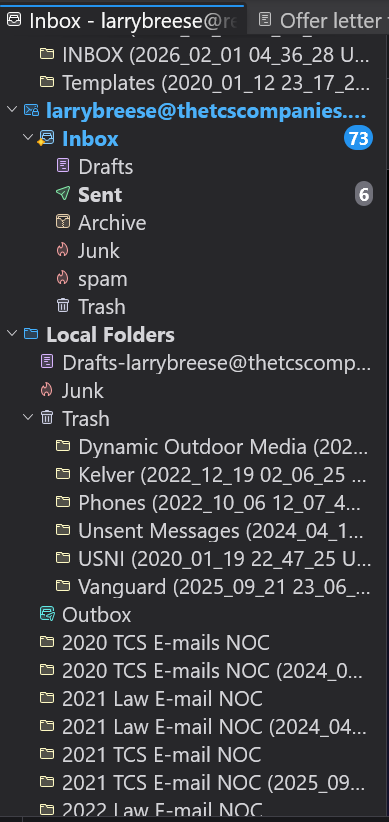
All of these have a date and time appended to them in the destination installation. For example, if the original folder is "Prosperity Bank" the destination folder is labeled "Prosperity Bank (2025_09_21 23_06_33 UTC)" and will not let not populate (shows no messages inside).
As I am typing this, it seems I may have identified the problem (or at least part of it). It seems the destination system install is slowly working its way through the local folders randomly (not in alphabetically order), as it seems to be slowly populating them with the old mail stored therein on the original system. It is going very slowly. Very slowly.
Has anyone else experienced this? Is it normal? Is there any way to quickly eliminate the dates now appended to the local file names? (Visually this is very annoying and I do not want to try modifying the individual folder names yet until I'm sure its populated as much as it will populate.)
Thank you for any assistance.
Larry Reese
All Replies (20)
Update - after some more time, it seems that about a quarter to half of the folders have not populated with any e-mails. Which I do not understand.
Also, the empty folders will not allow me to "delete" them using the command in the drop down menu.
Any help on correcting what I did wrong and getting the Thunderbird install working again would be appreciated. There were about 35 gig of files transferred from the old system to the new system in the Thunderbird "Roaming" directory. The files for the Thunderbird file in the "Local" directory were less than 1% that size. Might this large size of the replacement Roaming files have anything to do with the odd behavior?
Thanks again,
Larry Reese
Those are two distinct Thunderbird versions per the profile per installation.
https://support.mozilla.org/en-US/kb/dedicated-profile-thunderbird-installation You will need to use the allow downgrade option to use your moved 32bit profile in a 64bit version.
Hello Matt:
I read up on the problem you identified, the 32 vs 64 bit installs. I think the best option for me (not highly skilled at command prompt usage to just install the 32 bit version on my destination computer - I would hate to screw something up). I looked everywhere I could for the 140.7.1esr 32-bit in English and could not find it. I found one on the Mozilla site and downloaded that but it was in some language I was completely unfamiliar with.
I found one .exe in in German on a mirror site in Germany but that was no help. Could you point me to an English version of the installer?
Thanks again,
LR
That date and time makes me think the copy comes from some sort of backup. How did you create your copy of Thunderbird's profile to move.
Pick your version and installer https://www.thunderbird.net/en-US/thunderbird/all/ don't just accept the default offering.
The commend line is not really all that important here as your command only needs to be used once and may not actually apply here as I think you have done something odd with the profile you are now using.to get those dates. They are just not right.
I used the method provided by a page on the Thunderbird website, copying the "Thunderbird" folder in the "Roaming" directory and pasting into the new installation on the destination W11 machine. Then, pasting the "Thunderbird" directory from the "Local" directory on the source machine into the "Local" directory on the destination installation. I don't remember exactly where I found that but it was in the help section here on the support forum.
I'm not exactly sure what dates you're talking about? The ones that were added to the local folders displayed in Thunderbird?
What I was trying to find, since you said the 64 vs 32 bit versions were causing the problems, was a 32-bit english version of 140.7.1esr. The one at the download page you linked to is the 64-bit (I believe) and does not give me an option to select 32 bit. I looked in the Thunderbird archive area and found the 32-bit version download, but it was not in english.
Thanks for the link David, that gave me exactly what I was after. Now both machines are running the 140.7.1esr 32-bit (new install on the new machine). I transferred the files/folders located in the instructional post below to the new install:
https://support.mozilla.org/en-US/kb/moving-thunderbird-data-to-a-new-computer
The mail accounts send and receive as they should, but the Local Folders are still a complete mess. The folders are all in there (plus a few new ones). None of them internal folders (can't drill down into them like I can on the old machine). About half the them have the correct number of e-mails in them, the rest are empty. Interestingly, when you check the "Properties" of the folders, a few of the empty ones say "0" e-mails size "0", while the rest say "unknown" e-mails, and "unknown" size. Another issue is that the ones with "unknown" in the properties cannot be deleted (hitting delete does nothing, they remain there, where they were).
I'm sure I did something wrong - all I'm trying to do is move the large number of local folders where some of my old mails organized on to the new machine, and readable.
Can anyone help?
If I have to, I can just keep the old machine around for a year or so in case I need any of that mail, but I'd much rather have it migrate.
Thanks again!
Larry
If the old profile is available, and the local folders are there, they can be easily imported into current profile. let me know and I'll assist.
Yes, the full profile is still active on the old machine. I am still using it as the primary while I get the new one fully tweaked. Please let me know what you think will do the trick. And I appreciate your help greatly.
Best regards,
Larry Reese
Try these steps: - click help>troubleshootinginformation - scroll to 'profile folder' and click 'open folder' - exit thunderbird - you are now in the profile, click to Mail\Local Folders - now, locate your old profile folder on old PC (the above steps work there too to locate profile - now, delete contents of LocalFolders in New PC (other than any new ones that you still need) and paste contents of Local Folders from old PC - restart thunderbird
Hello David,
I tried what you described above. The inserted data from the old machine seemed very small (only a few kilobytes).
There was no change I could discern on the Local Folders on the new machines. Still no directory trees available, many folders with no or only a few e-mails when 100s should be there, etc.... Still cannot delete directories or empty trash folder in the Local Folders. I've uploaded a few photos to illustrate the difference between the two directories (no directory trees, etc...).
Is very frustrating. Will probably just need to delete it all and just keep the old system around for a year or two in case I need those e-mails. Any ideas on what could have gone wrong? What would be the best way to just delete ALL the displayed Local Folders on the new machine installation - so there is just a clean slate and I can start over and be able delete folders and e-mails again?
It's really soured me on Mozilla to be honest. Used it for years and never had any problems. Thank you to all who have tried to assist.
Larry Reese
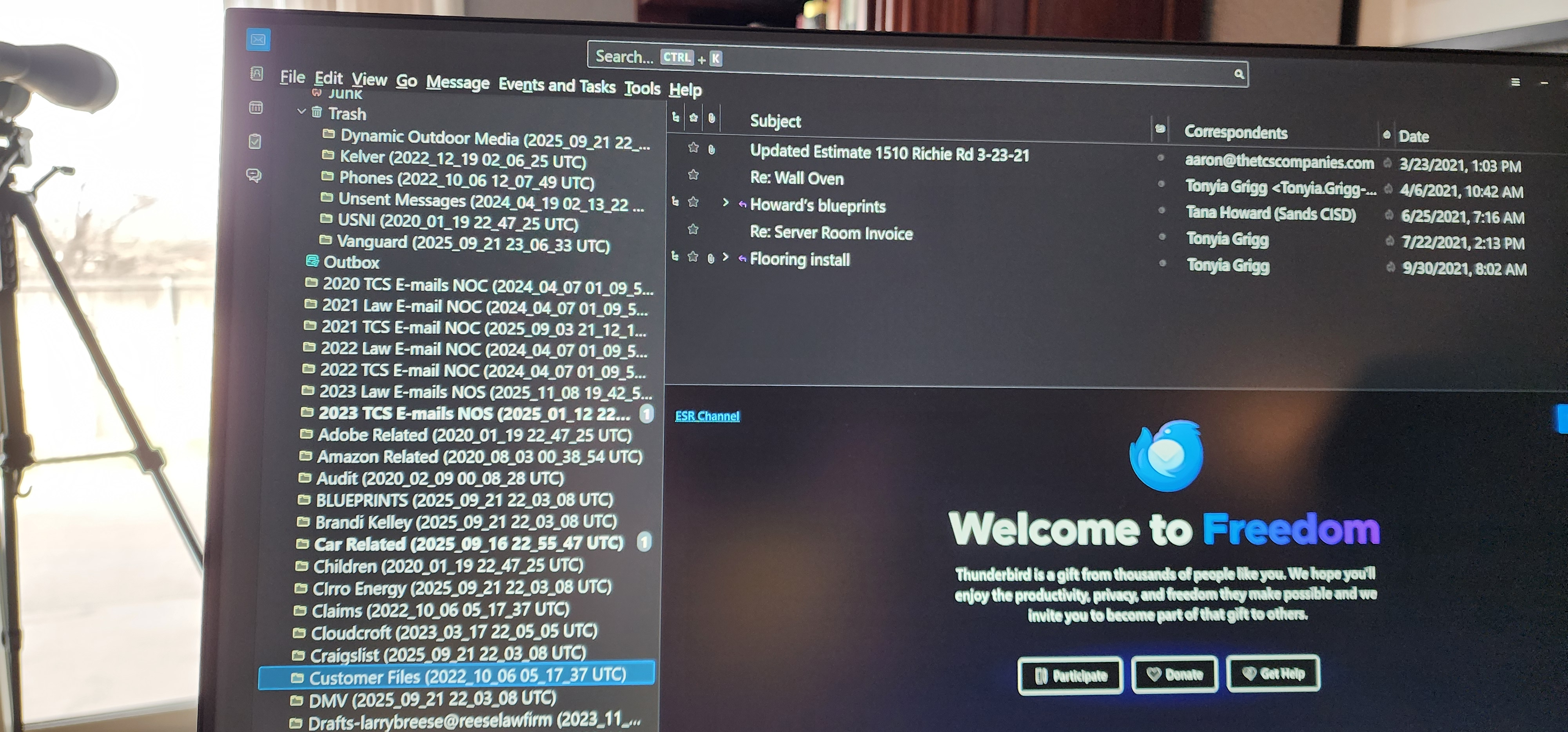
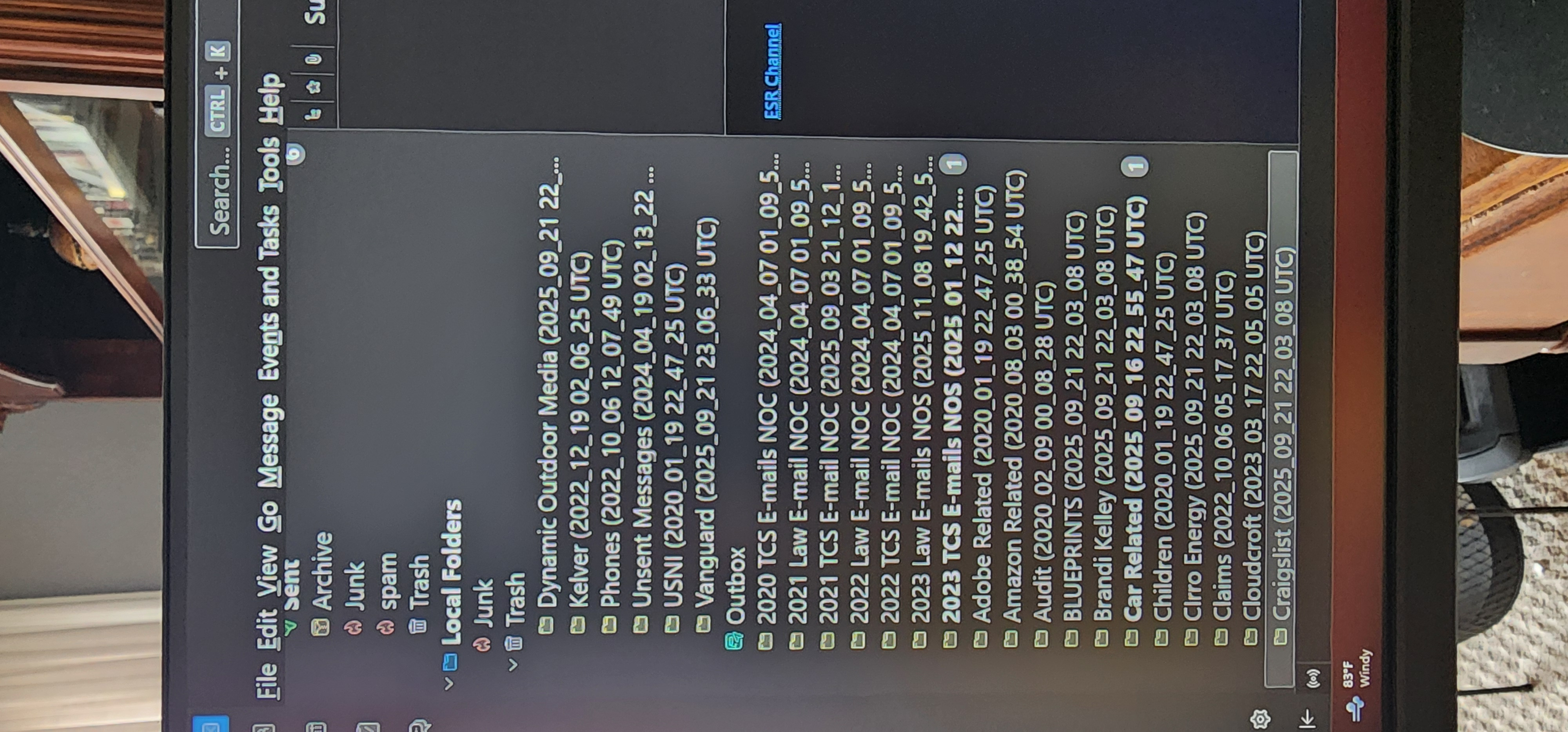
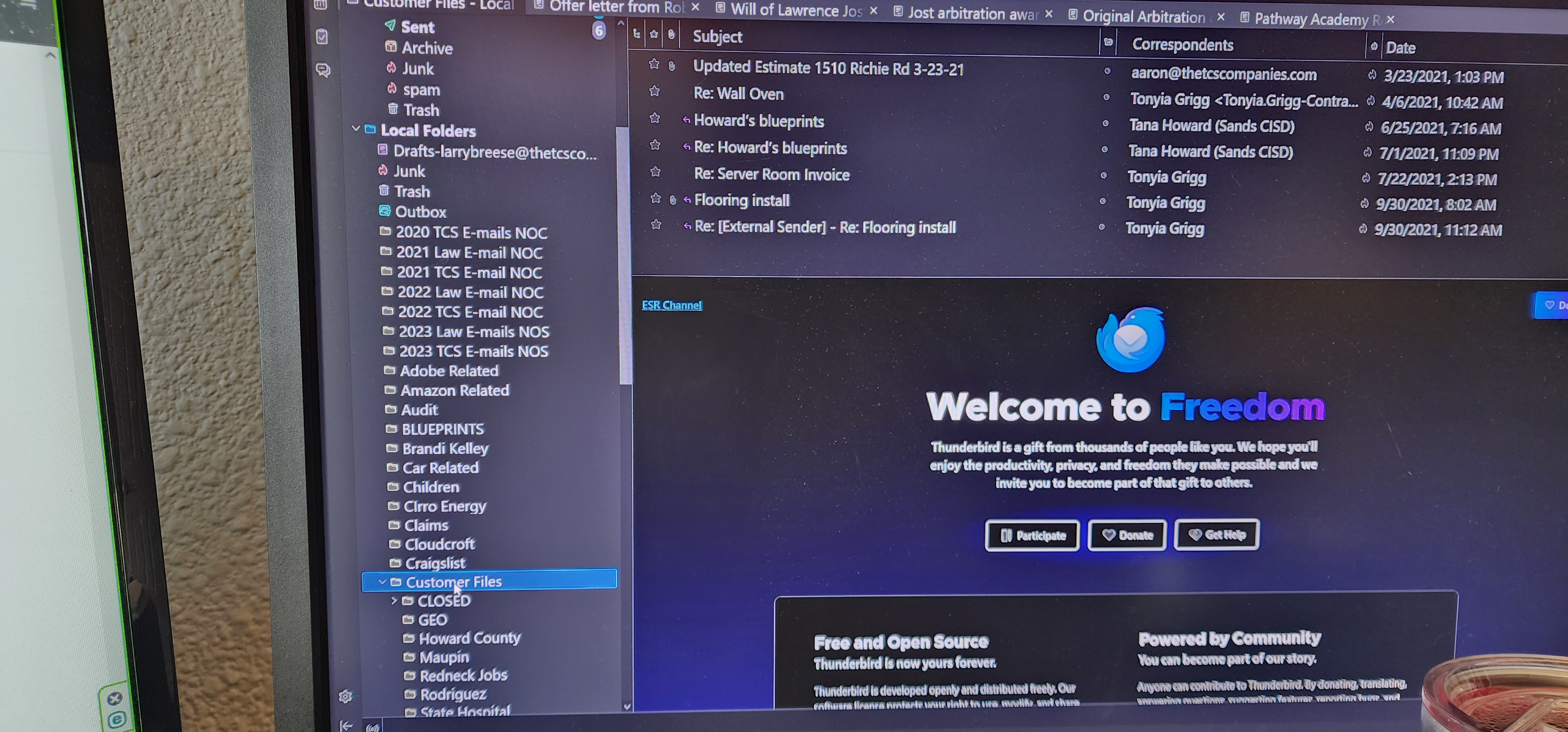
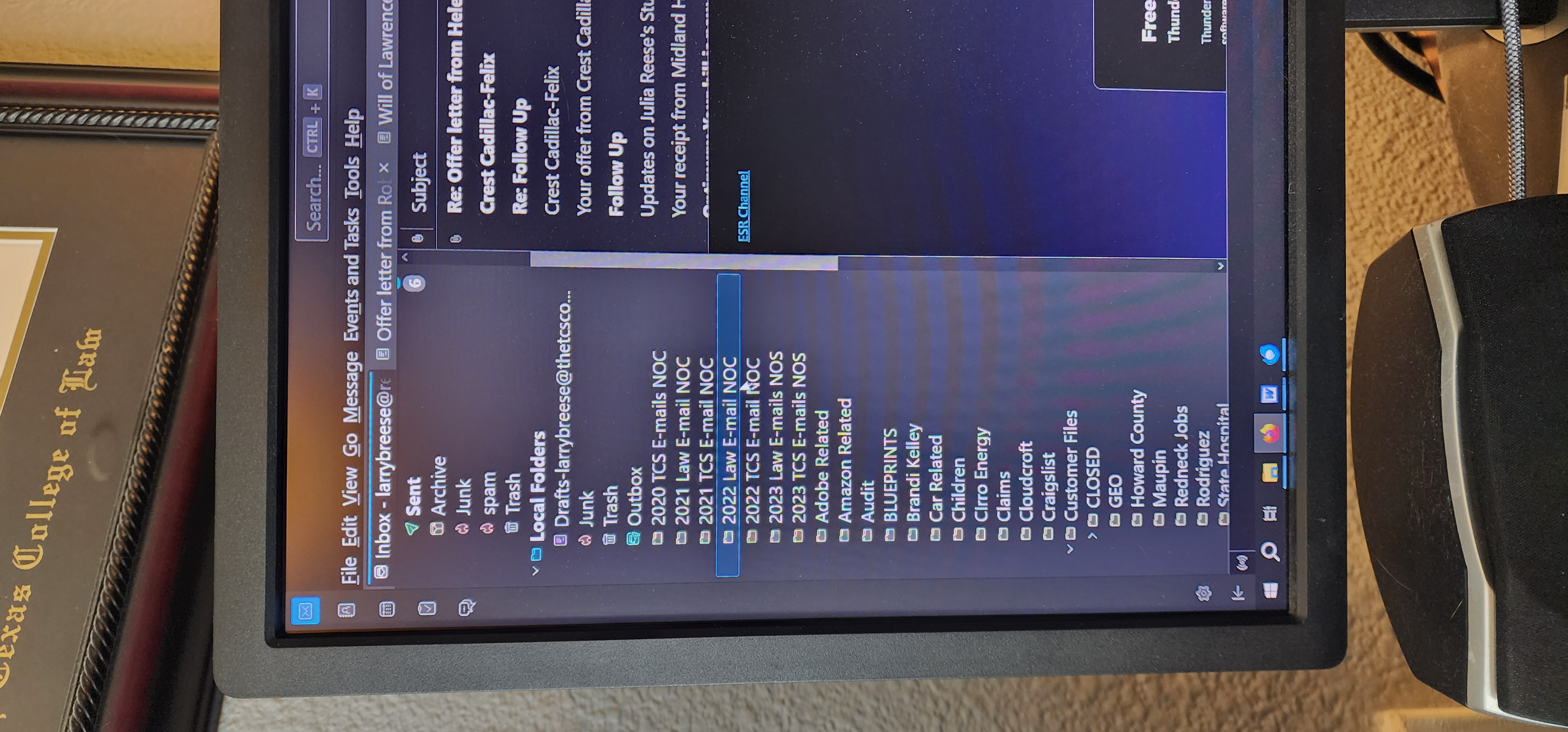
There is not a problem with thunderbird; the issue was the transfer, and that is where we are attempting to help. My suggestion is to show a screen shot of the old profile from within windows file explorer. that will show what is really there. Also, if you know the exact profile from the old pc, this works:
- start thunderbird on old PC
- click tools>export and then click 'open profile folder'
- exit thunderbird
- copy profile content to external media
- install thunderbird on new pc, downloaded from thunderbird.net, if not already done
- in receiving PC, click help>troubleshootinginformation
- scroll to 'profile folder' and click 'open folder'
- exit thunderbird
- now, paste contents of exported profile, overlaying contents of profile.
- if there is a compatibilitie.ini file, delete it
- restart thunderbird
Hey there David,
I did exactly what you said. There was 7.8 gig or so of data/files in that transfer. There was no "compatibiliti.ini" file that I could see, but there was a "compatibility" file. I left that alone since the spelling was different.
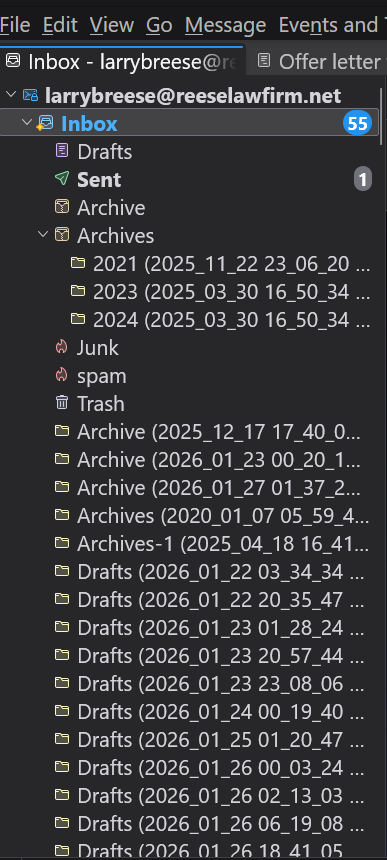
In short, it didn't work. In the lawfirm.net e-mail at the top of the "inbox" window, it added something like a hundred folders, right after the trash (which is the last one on the source install on the old computer), labelled archives, drafts, junk, trash, all followed by a many different dates.
The next e-mail inbox, the TCS Companies, does not have any new folders in it.
Then in the Local Folders, everything remains unchanged. Lots of the folders are there, but no directory trees, like they have in the source install, and many of the folders are still empty.
I did notice something though - I checked both installs again to make sure they were exactly the same. The new machine must have updated. It now says it is 140.7.2esr 32bit, while the old machine says it is 140.7.1esr 32-bit (and asks if I want to update to the 140.7.2esr).
Should I update the old machine to the 7.2esr, then try what you said again? I did not realize my new install was set up to auto update - I did not command it to do so.
Any additional thoughts? Should I just scrap the whole install?
Thanks for trying to help.
LR
I would try again. Delete the compatibility file. I misspell sometimes This time, delete all content in receiving profile prior to pasting in the replacement. The minor difference in releases shouldn't be an issue. This is a bit for bit replacement and should be identical to the old PC.
Hello again David,
I redid the swap as suggested (and I'd actually deleted everything in the folder last time, before pasting it in - I just forgot to mention that). I then deleted the compatibility file and opened Thunderbird.
The screwed up 100+ folders with dates added to the live e-mail interfaces disappeared, but the in the local folders, the situation is still messed up. The local folders trash still has 6 folders in it, and when I tell it to empty trash nothing happens.
The local folders below the outbox (under the trash folder) still have no directories (not all of them should, but the ones that should still don't have it available), and the same ones are empty, or missing large numbers of e-mails.
So looks like deleting the compatibility file fixed those live e-mail interface issues, but something else is still messing with the local folders. I don't get how that's possible if we're doing a complete replacement. Any ideas?
Also, for the sake of completeness, I did NOT update the old machine to the 140.7.2esr 32-bit release since you said you thought that would not make much of a difference.
Sat here looking at the Local Folders on the new machine and comparing it to the old, and it looks like to me that something in local folders is not getting replaced. On the old machine, there is a "draft" folder (looks like a paper with writing on it), 0 messages, 0KB size. That is not in the new machine local folders.
On the old machines, after that, is junk, trash (empty), outbox, then the folders start. On the new machine there is junk, trash (with 6 folders in it, that can't be emptied), then outbox, then the folders begin (without trees). So if the Trash in the new machine still has the same junk in it, whatever we are replacing is not over-riding whereever the program is pulling Local Files from. Does that make sense. Is there some way the new install could be looking somewhere else for the folders under the Outbox?
Ok, so I went into the Local folder on the old machine (appdata- local - thunderbird - profiles) and copied all the files in the primary profile folder. Then I removed all the existing files in that same location in the new machine and copied the materials from the old machine into that primary profile folder. Restarted the new install and everything was still the same. The live e-mail accounts correct, but everything in the Local Folders section messed up and unchanged. The same un-emptied folders in the trash folder that can't be deleted, missing directory trees, etc.... I don't get it (but I'm not a software guy). I'm thinking the only thing to try at this point is to remove Thunderbird on the new machine and do a completely new install of the program on the new machine, then swap both the local and roaming profile data in and see if that cleans it up. What do you think?
Thanks again!
Can you do a screenshot of the old profile's Local Folders and the new Local Folders? From your response, I infer that all is good except for local folders. Seeing how it was on old and compared to new may show why the copy isn't 100%.
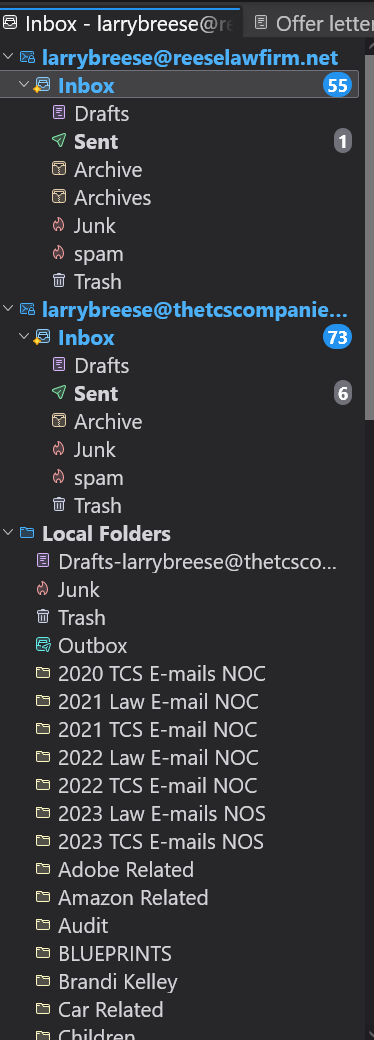
It's exactly the same now as it was in the photos I posted on the 17th. From my perspective, assuming the orientation is the same for you, the photo on the far right is the old machine. It shows the Local Folders header, then the first thing is the Drafts-larrybreese@thetcscompanies.com "folder."
The second photo from the left is the Local Folders on the new machine. Shows that there is no Draft's-larrybreese... in it, and then shows the 6 items in the trash bin that won't delete, etc...
The total number of folders in each Locals Folder is very long (i've got a lot of cases and businesses to keep track of) so I can't show the whole Local Folders on either machine in one photo.
Does that help?
At this point, I think you need to compare the profiles from within windows file explorer, not thunderbird. the two profiles should be identical. Maybe someone else will see this thread and comment. I also suggest in the future, use a screenshot utility, not a camera. A free one is at https://www.reasyze.com/ called Sniptool.
Thanks for pointing out Sniptool. Useful and intuitive.
Update on the problem with the installation.
1. I completely wiped Thunderbird off the new machine (including manually deleting some of the "left over" files after the uninstall, and reinstalled it.
2. I used the information in this article https://support.mozilla.org/en-US/kb/moving-thunderbird-data-to-a-new-computer to transplant the indicated folders/files from the old install to the new install.
3. I remembered that 6 years ago when Thunderbird was installed on the old machine, that I set the local folders for the 2 e-mail addresses up with storage areas "local folders" directly on the C: drive, outside of the Thunderbird directory. I copied and move both of these folders to the new machine.
4. Current state - on the new machine, the two e-mail addresses work (syncing, mirroring each other, etc...) - no problems there. However, there are some problems.
        A.  Under the Lawfirm (blue bold text) e-mail address, there are 3 dated directories in "Archives" which are not in the old machine.  For example:  2021 (2025_11_22_23_06_20 UTC).  When these are clicked on an Error message appears - "Unable to open the summary file for (the named folder).  Perhaps there was an error on the disk, or the full path is too long."
       B.  Below the Reeselawfirm Trash folder (not in it) there are ~100+ archive, drafts, junk, sent, spam, templates, and trash folders, each with a date/time as part of the folder name.  For example:  Archive  (2025_12_17_17_40_02 UTC) .  These all give the same error message as in A above.
       C.  Then, where that long list of folders ends, a similar list of folders one step up the directory tree appears.  This one consisting of 1 Archives folder, 1 Drafts, ~36 INBOX, and one Templates folders.  For example:  Archives (2020_01_12_23_17_29 UTC).  All these give error messages as above in A if clicked on.
       D.  After that, the second e-mail address section appears.  There is nothing wrong with this one in any way that I can see.  Below that, is the Local Folders section.  See section 5 below.
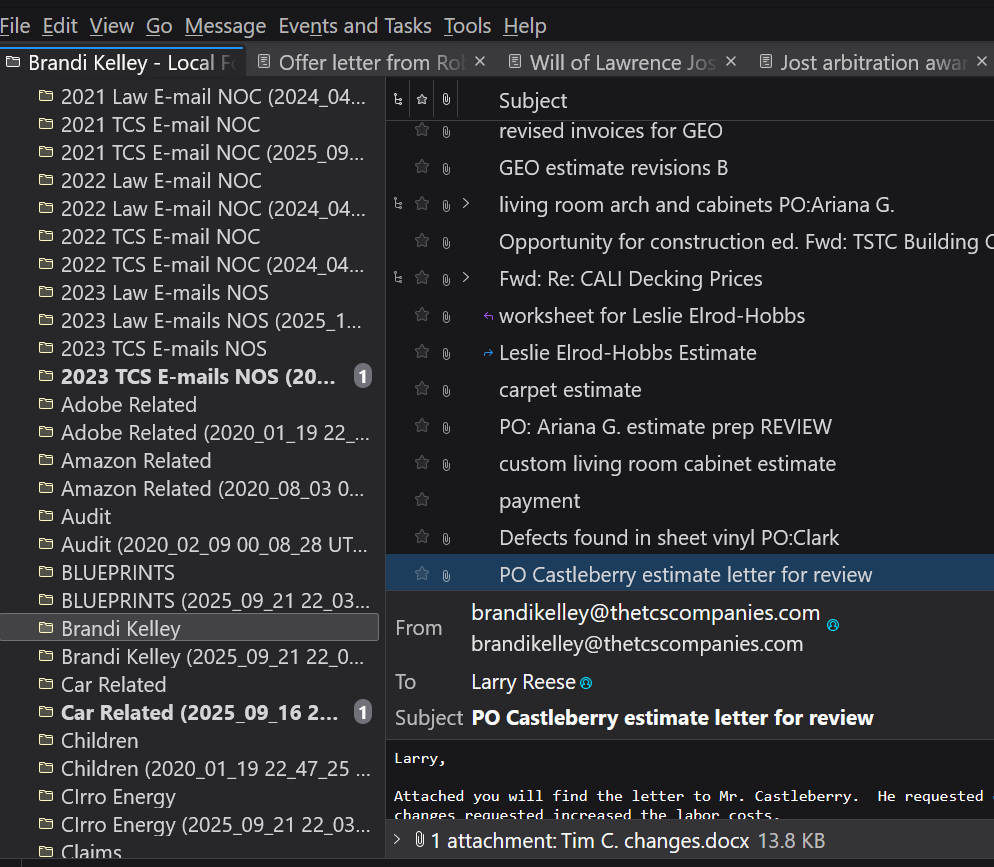
5. On the new machine, the user created files below the Local Folders header includes all the folders that should be there, and all the e-mails in each folder mirror that of the old install - so success! Now for the bad news - interspersed with the valid file folders are file folders with identical names, but with a date attached. For example: BLUEPRINTS and BLUEPRINTS (2025_09_21_22_03_08 UTC). The non-date folder is fully functional, has directory trees (if the original on the old machine does) and mirrors the old install completely. The additional "dated" folder is, as before, sometimes full of e-mails, often wholly or partially empty, has no directory levels (if the original does), and while it can now be deleted and moves into the Trash folder, the Trash folder still can not be emptied.
DESIRES: On the new machine -
1. How to get rid of the folders with dates that do not mirror the Old Machine install. 2. How to empty the trash folders in the Local Folders section.
Image files below contain information in their names.
Thank you all again. If we can get this worked out I would very much like to pay you for your time.
Larry Reese