Ova tema je arhivirana.
Pitajte drugo pitanje ako vam je potrebna pomoć.

Arhivirano
Am unable to find a "reload" button for Firefox under Windows 7.

Where is the Reload button?
Where is the Reload button?
All Replies (1)
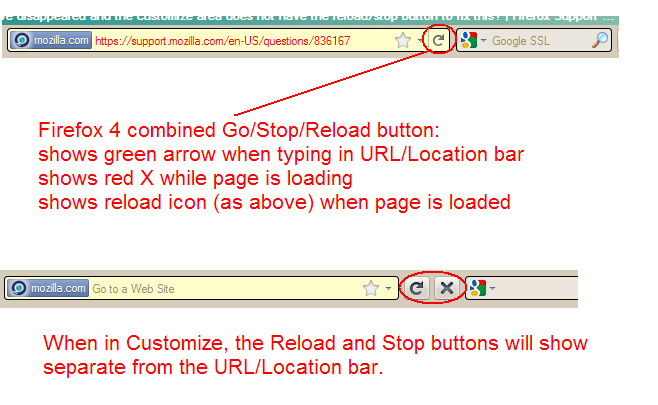
Firefox 4.0 has a combined Reload/Stop button that is positioned at the far right of the location bar. (see image attached at bottom of this reply)
In Firefox 4.0 you can move the Stop/Reload button out of the location bar and put them wherever you want on the toolbar. You can also make them appear as separate buttons on the toolbar.
- Open the "View > Toolbars > Customize" window to move them out of the location bar.
- Swap the two buttons or move them to their previous position at the left of the location bar.
- If the order is "Reload - Stop" to get a combined "Reload/Stop" button.
- Swap the order to "Stop - Reload" or separate them otherwise to get two distinct buttons.
You need to update the following. The Plugin version(s) shown below was/were submitted with your question and is/are out of date. You should update to avoid known security issues with the version(s) you have installed. Click on "More system info..." to the right of your question to see what was included with your question.
- Adobe PDF Plug-In For Firefox and Netscape
- Next Generation Java Plug-in 1.6.0_24 for Mozilla browsers
- Check your plugin versions on either of the following links':
- http://www.mozilla.com/en-US/plugincheck/
- https://www-trunk.stage.mozilla.com/en-US/plugincheck/
- Note: plugin check page does not have information on all plugin versions
- There are plugin specific testing links available from this page:
- Update Adobe Reader (PDF plugin):
- From within your existing Adobe Reader (if you have it already installed):
- Open the Adobe Reader program from your Programs list
- Click Help > Check for Updates
- Follow the prompts for updating
- If this method works for you, skip the "Download complete installer" section below and proceed to "After the installation" below
- Download complete installer (if you do NOT have Adobe Reader installed):
- SAVE the installer to your hard drive (save to your Desktop so that you can find it after the download). Exit/Close Firefox. Run the installer you just downloaded.
- Use either of the links below:
- https://support.mozilla.com/en-US/kb/Using+the+Adobe+Reader+plugin+with+Firefox (click on "Installing and updating Adobe Reader")
- Also see Download link': http://get.adobe.com/reader/otherversions/
- After the installation, start Firefox and check your version again.
- From within your existing Adobe Reader (if you have it already installed):
- Update the Java plugin to the latest version.
- Download site: http://www.oracle.com/technetwork/java/javase/downloads/index.html (Java Platform: Download JRE)
- Be sure to un-check the Yahoo Toolbar option during the install if you do not want it installed.
- Also see "Manual Update" in this article to update from the Java Control Panel in Windows Control Panel: http://support.mozilla.com/en-US/kb/Using+the+Java+plugin+with+Firefox#Updates
- Removing old versions (if needed): http://www.java.com/en/download/faq/remove_olderversions.xml
- Remove multiple Java Console extensions (if needed): http://kb.mozillazine.org/Firefox_:_FAQs_:_Install_Java#Multiple_Java_Console_extensions
- Java Test: http://www.java.com/en/download/help/testvm.xml
- Download site: http://www.oracle.com/technetwork/java/javase/downloads/index.html (Java Platform: Download JRE)