


After new installation use old profile

After new installation I want to use my profile of the former installation. In principle I followed the procedure of the article "An einem anderen Ort wiederherstellen". After that when starting thunderbird it always asks me to create a new account.
Does anyone know what is missing?
All Replies (14)

After new installation I want to use my profile of the former installation.
Why did you re-install Thunderbird in the first place?
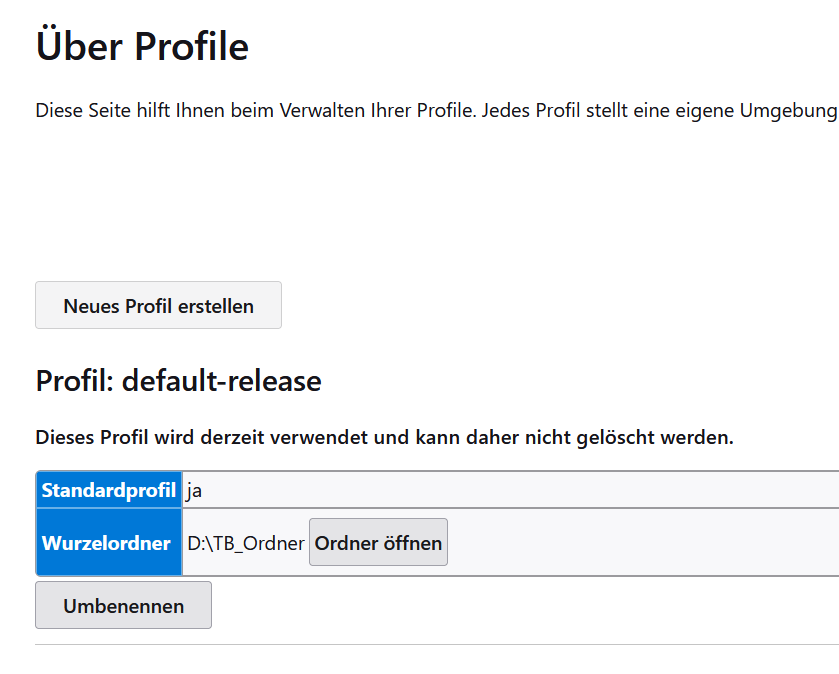
At the top right of the Thunderbird window, click the menu button ≡, then select Help > Troubleshooting Information. Locate the line 'Profiles' at the bottom of the "Application Basics" information and click the about:profiles link. This will open a new tab showing the about:profiles information. Please post a screenshot. https://support.mozilla.org/kb/how-do-i-create-screenshot-my-problem
Do you see your old profile? If so, you can click the 'Launch Profile' button to load it.
Yes, I can see it and open it. The reason for the new installation is: PC with two partitions with windows installations, one of them crashed (of course the one with the TB on it. I thought, it will be a quick solution to install TB now on the second system..
PC with two partitions with windows installations, one of them crashed (of course the one with the TB on it. I thought, it will be a quick solution to install TB now on the second system.
I don't understand this. Windows requires a C: drive. Where is your C: drive? Thunderbird expects the profile information at C:\Users\<your_user_id>\AppData\Roaming\Thunderbird. Please post the contents of your profiles.ini file.
In principle I followed the procedure of the article "An einem anderen Ort wiederherstellen".
What article? Please post a link. Also, please explain in detail the steps you did, including full path information.
PC has two harddiscs, 1 with two partitions (2xwindows), 1 for Data. The profile is on D (data) no problem to link the profile to another disk. Now one of the windows crashes and I installed TB now on the second windows system.
What I did: 1. Install TB 2. Add a new profile and link it to the profile on D. TB does it not recognize, it always prompt for entering an email account.
Second try: 1. Install TB again (before deleting all profiles) 2. Copy all data from the profile on D to the default profile of TB, overwriting all existing data. Same result: TB prompts for an email account.
https://support.mozilla.org/en-US/kb/profiles-where-thunderbird-stores-user-data#w_moving-a-profile
Please post the contents of your profiles.ini file.
Again, what is the contents of your profiles.ini file. That is the one on the second windows system, where you installed Thunderbird.
2. Add a new profile and link it to the profile on D.
How did you create the new profile, and how did you "link it to the profile on D"?
1. Profile.ini =
[General] StartWithLastProfile=1 Version=2
[Profile0] Name=default-release IsRelative=0 Path=D:\TB_Ordner
[Profile1] Name=default IsRelative=0 Path=D:\TB_Ordner Default=1
2. I created the profile with the thunderbird profile-manager
fbolz said
What I did: 1. Install TB 2. Add a new profile and link it to the profile on D. TB does it not recognize, it always prompt for entering an email account.
Your screen shot from 10/11/26 shows only one profile named "default-release" in TB_Ordner.... Please show a new screen shot of the actual contents of the "About Profiles" page, unless its contents is still the same as from 10/11/26
Also open the "default-release" profile folder, search for the prefs.js file and retrieve its size in kB.
Izmjenjeno od strane Mapenzi
2. I created the profile with the thunderbird profile-manager
I'd still have to guess what that means. The following is what I'd expect is what you did, but I may be wrong.
- Start the Profile Manager. Click on the "Create Profile..." button.
- In the dialog that opens, enter a descriptive name for the profile.
- Click on the "Choose Folder..." button. A "Browse for Folder" dialog will open.
- Select the profile folder on your D: drive and click OK.
- Review the path shown in the "Completing the Create Profile Wizard" dialog to make sure it is correct, then click "Finish" to create the new profile.
So you don't literally create a new profile, but link an existing profile to a new entry in profiles.ini with a new profile name.
Is this what you did? If not, you may inadvertently have created an actual new profile, and overwriting the data of the existing one in the process. But I'm guessing here.
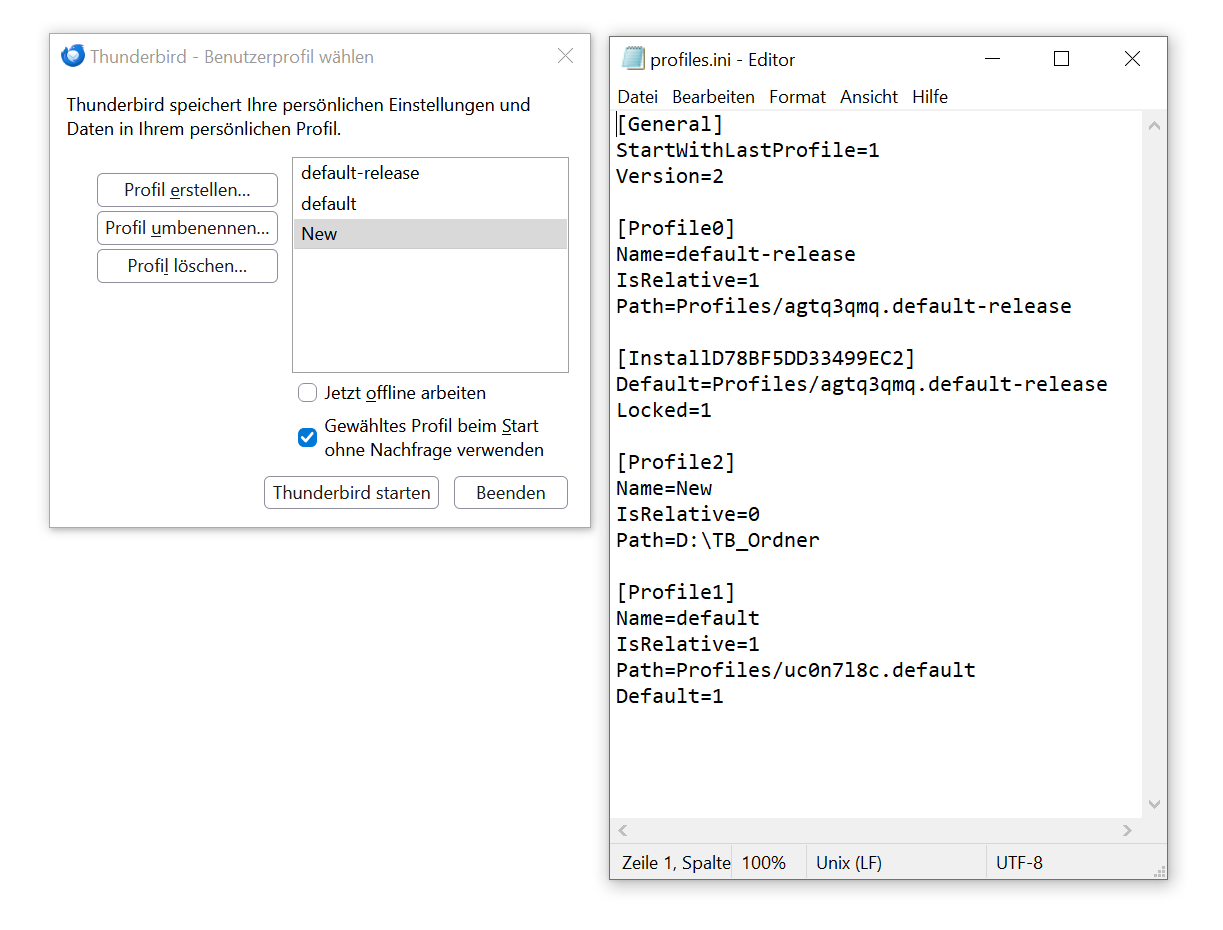
Your profiles.ini file looks odd. There are two profiles with different names pointing to the same profile folder. This is not what's supposed to happen. Also, as per your screenshot, Thunderbird only knows of one profile "default-release". But this isn't the profile marked as the default profile in your profiles.ini.
I just repeated the procedure: -Deinstalled TB -Deleted in AppData/Roaming/TB -folder "profiles", file "profiles.ini" and file "installs.ini" -Installed TB -Start TB profilemanager -Created a new profile -Manager & profile.ini you can see in the image
To me it looks fine, but anyway TB starts and prompts for adding an email-address
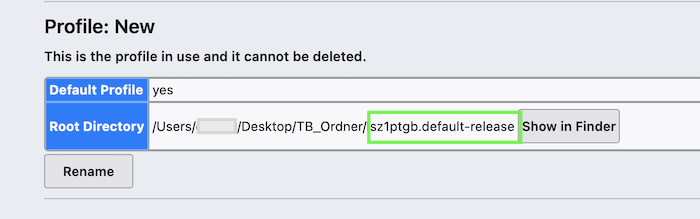
According to your screen shots there is no profile folder in the TB_Ordner directory! So I guess that Thunderbird wants to create a new profile. I simulated your situation by copying a profile folder in a TB_Ordner on my Desktop. Then in the profile manager creating a new profile and linking it to the profile folder in TB_Ordner on my Desktop. See my screen shot of about profiles
In the profile manager I created a new profile and this new profile I linked to the D-Folder. The image shows how the TB_Ordner on D looks like .
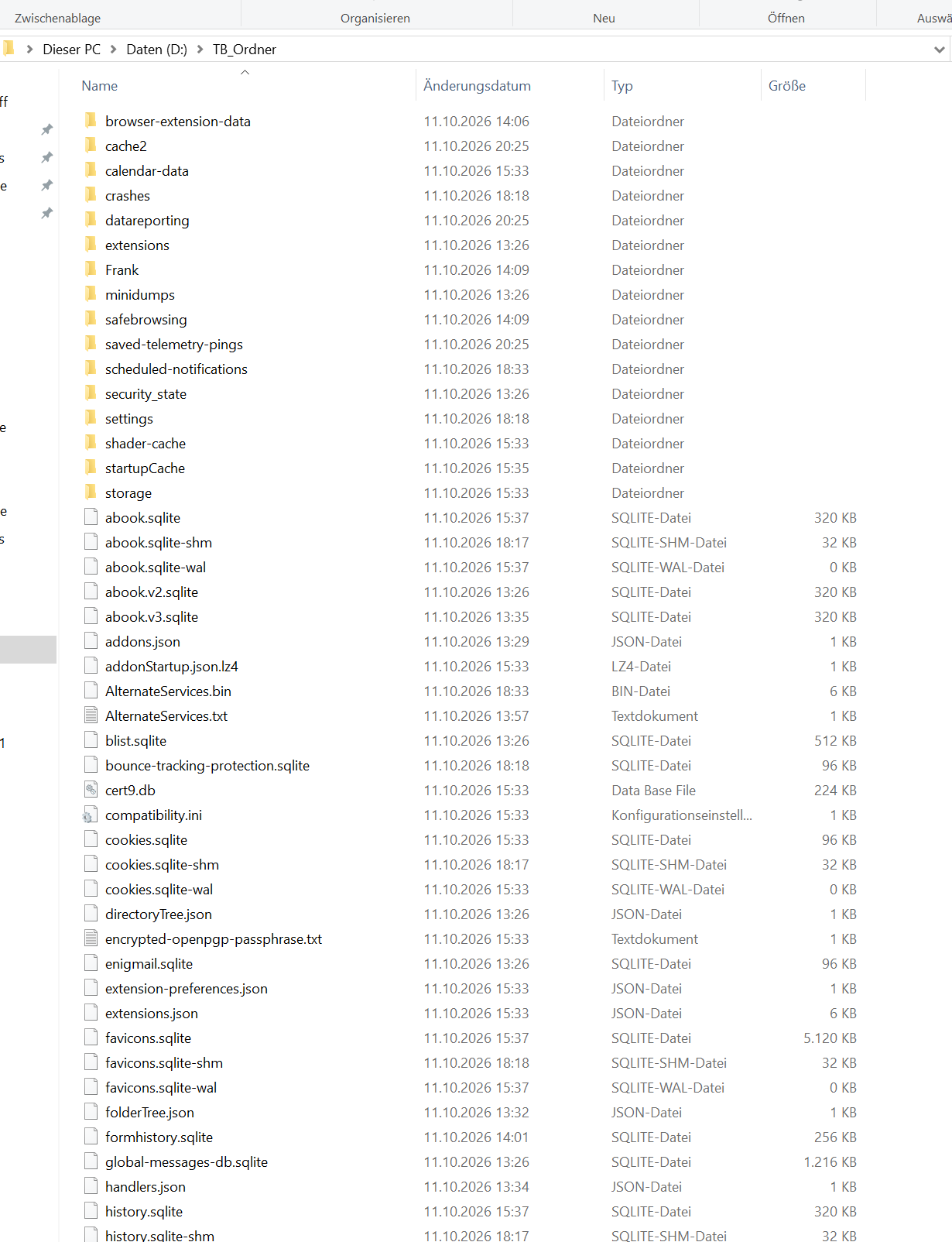
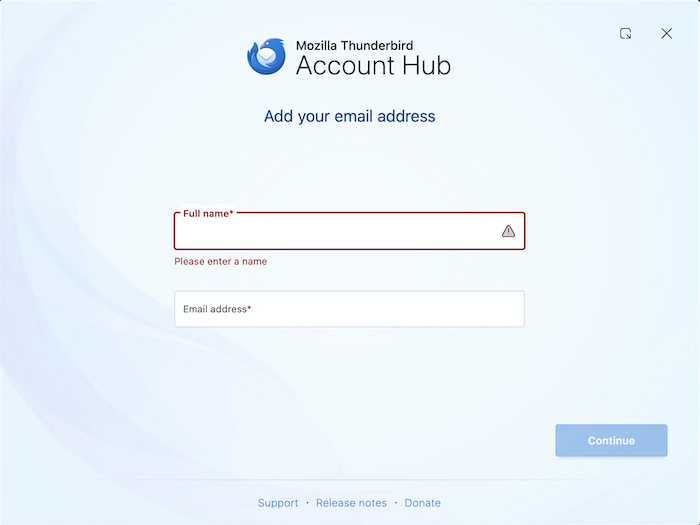
OK, the TB_Ordner itself is the profile folder but as far as I can see it doesn't contain neither a "Mail" folder nor an "ImapMail" folder in the case this profile would contain an IMAP account. Please go further down in your TB_Ordner folder and look up the size of the prefs.js file: if it is 6 to 7 kB I am certain that this is a virgin profile. If you open Thunderbird in a virgin profile it will always display the Account Hub in the start page and prompt to add your email address
Hi Mapenzi, thank you for the tip. I don't know when, why and how it happened, but inside the profile folder "TB_Ordner" was another profile folder "Frank", which contains the "Mail" folder and all the other files (see image). My next task will be to separate them again to have a clean profile folder. Thank you for your help.
I saw this folder "Frank" and wondered how it could arrive in a pristine profile folder, but I couldn't imagine that this was another Thunderbird profile folder in an unusual location. This is the reason why I never rename profile folders the way you did, like Frank or Horst or Alain etc. If you had renamed it "default-release.Frank" I would have seen that this is a profile folder which had been moved in another profile folder (an error which is not so rare). Renaming the profile itself Frank or Horst or Alain is OK, so you will see these profile names in the profile manager. But it's better to keep the profile folder names a way that it will always be recognizable as a profile folder for you and for a helper. Know what I mean?