


MOZILLA THUNDERBIRD

TO WHOM IT MAY CONCERN
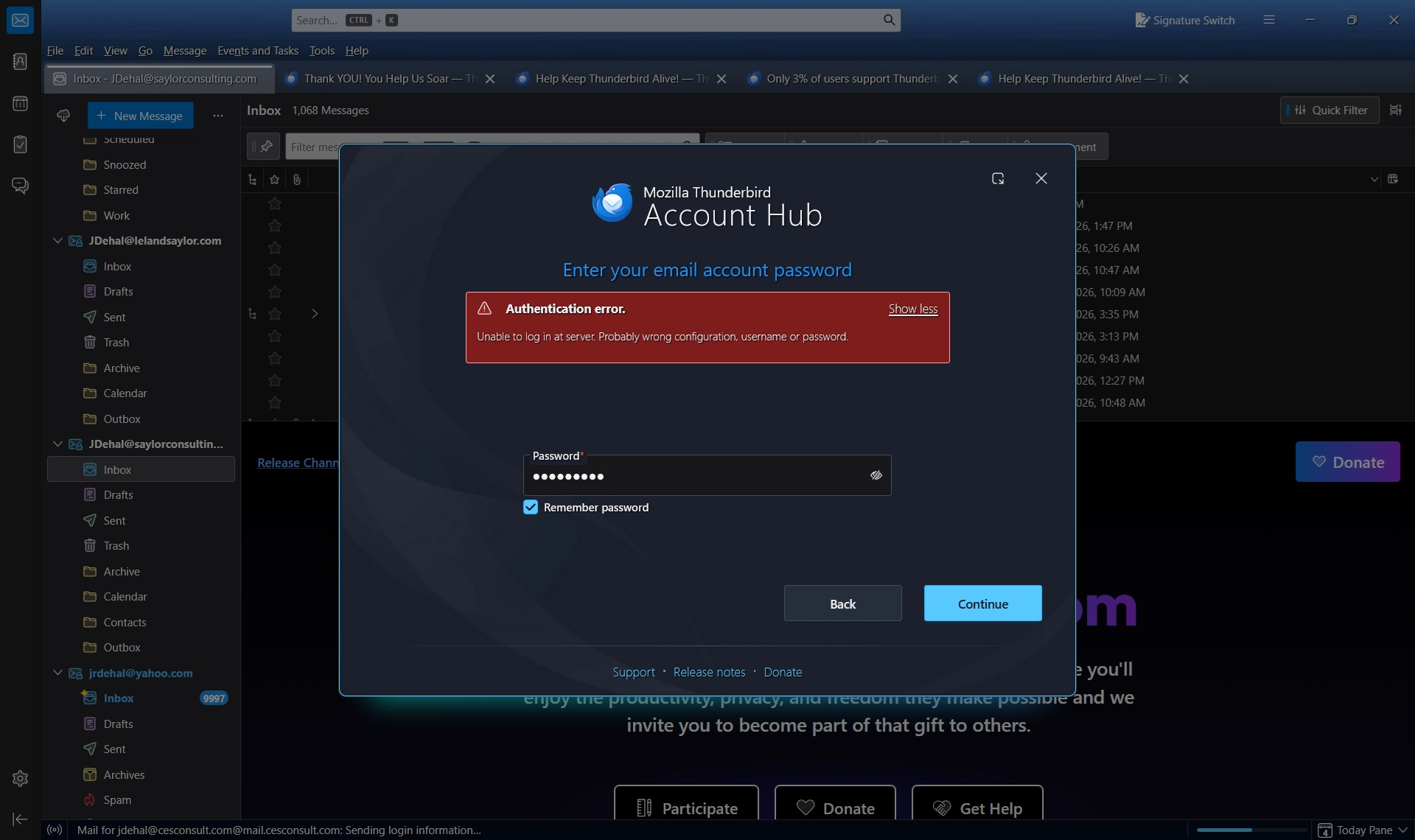
I cannot add my work email, jdehal@cesconsult.com, to Thunderbird. I receive the error message enclosed. My password and username is correctly being entered, I have done this several times but receive the same error message.
Please help !
Sincerely, Jay Dehal
Izabrano rješenje
Problem solved. For anyone else encountering this issue, manually configure the settings using IMAP. The following are the settings per Microsoft: Username: Your email address
Password: Your Microsoft account password. If your password is not being recognized, or if you want to add your Outlook.com account to a smart device like a home security camera, you may need an app password. Learn how to add your Outlook.com account to another mail app or smart device.
IMAP (Incoming) server: outlook.office365.com
IMAP port: 993
IMAP encryption: SSL/TLS
Authentication Method: OAuth2/Modern Auth
IMAP (Outgoing) server name: outlook.office365.com
IMAP port: 587
IMAP encryption: STARTTLS or SSL/TLS
Authentication Method: OAuth2/Modern Auth
Pročitajte ovaj odgovor sa objašnjenjem 👍 0All Replies (9)
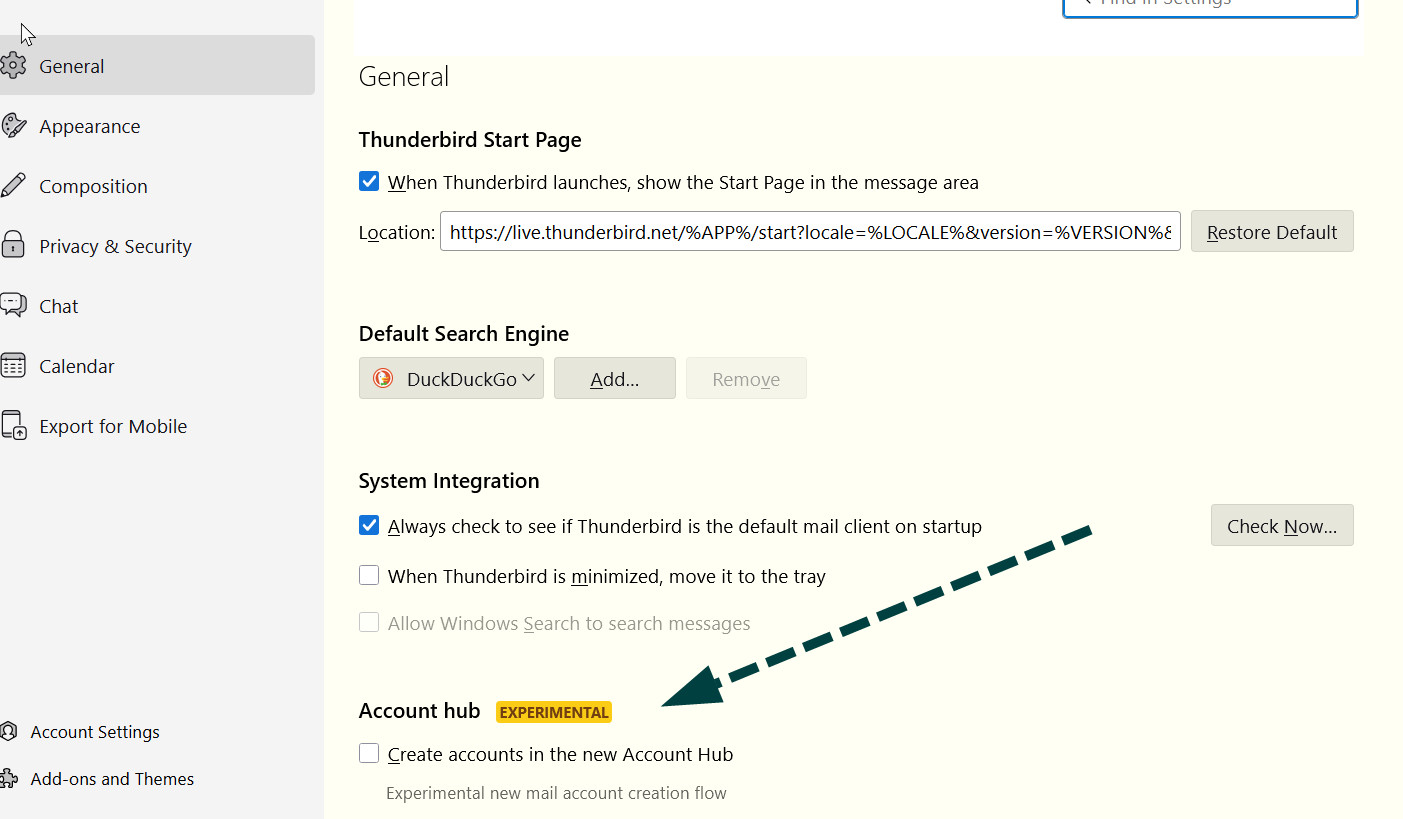
Try this: - click to settings>general and UNtick the account hub, and then start over the install. see attached screenshot.
Hello David,
Thank you for your prompt response, much appreciated.
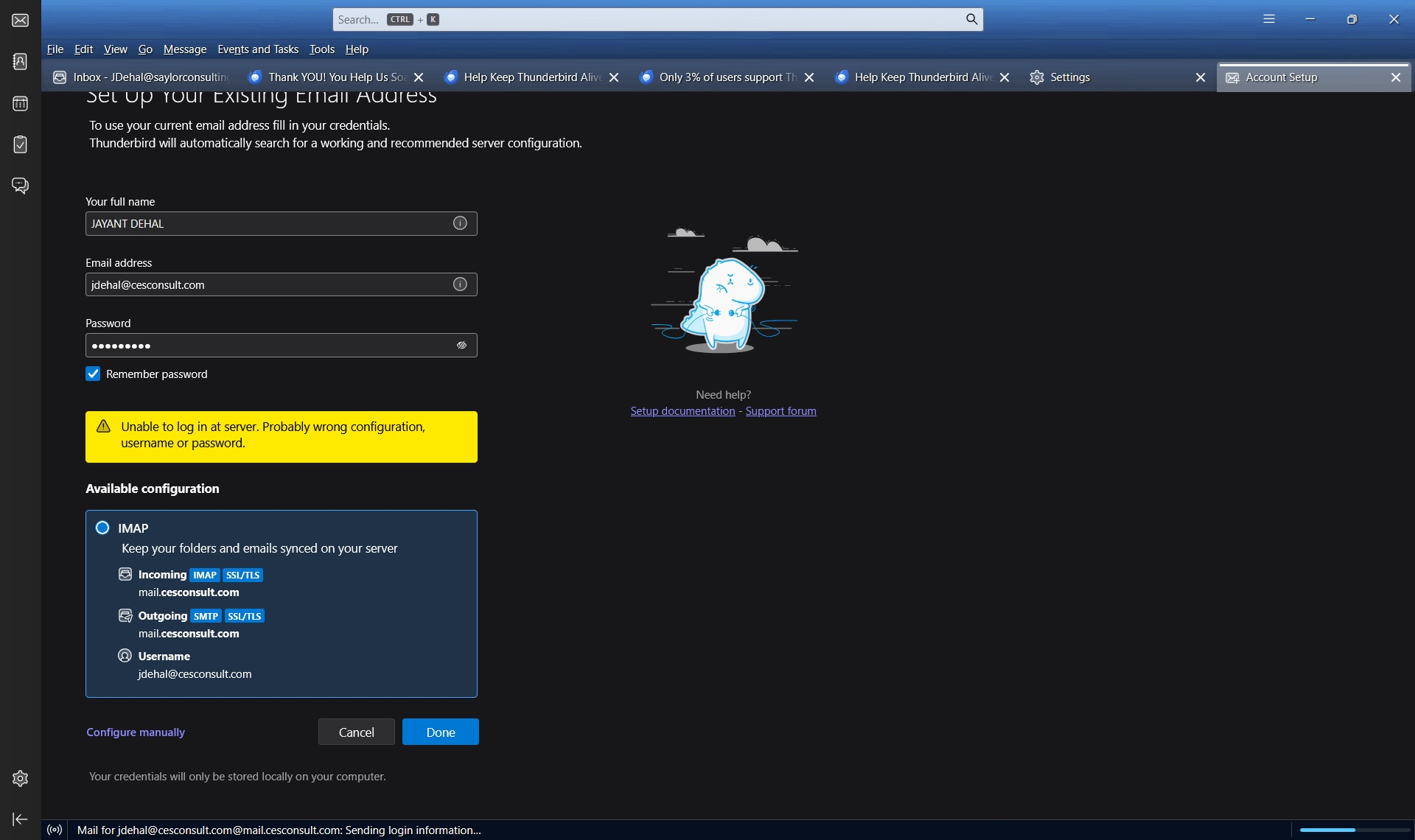
I tried your suggestion but received the same error message enclosed.

Thunderbird's Account Hub feature is still labeled as "experimental". It usually picks correct settings for most major email hosts, but not necessarily for less common ones. The feature can be turned off in Tools | Settings | General | Account Hub. Disabling those options will let you manually enter the email provider's technical information.
The first thing you need to do is gather the correct settings. These can be gotten from your system administrators or the help web page. You will need to know:
- incoming server protocol (IMAP or POP3) - incoming server name - incoming server port - incoming server security type (SSL/TLS, STARTTLS, or none) - incoming server authentication method (usually "normal password")
- outgoing (SMTP) server name
- outgoing (SMTP) server port
- outgoing (SMTP) server port
- outgoing (SMTP) server security type (SSL/TLS, STARTTLS, or none)
- outgoing (SMTP) server authentication method (usually "normal password")
Plus your user ID and password.
Now, after disabling Account Hub, when you start the Add Account process you will have to opportunity to manually configure the server settings.
Hello Lin,
That is what David suggested and I tried David's suggestion but it did not work. For me to do the manual configuration, I will need to know more about the server. This is a work email so I am not sure whether it's Microsoft Exchange or Office 365 Cloud.
jrdehal said
Hello Lin, That is what David suggested and I tried David's suggestion but it did not work. For me to do the manual configuration, I will need to know more about the server. This is a work email so I am not sure whether it's Microsoft Exchange or Office 365 Cloud.
Right. That's why you need to talk to them to get the correct settings. Most common commercial email hosting services like Gmail, Yahoo, Comcast, etc. will have the settings published on a public help site, but, I'm guessing, not for a private business.
When you enter a domain address @cesconsult.com in the setup wizard, it 'guesses' a server address which is almost always the generic mail.<domain> and incorrect. Your domain is hosted on MS servers, so it is either configured as standard IMAP/SMTP or Exchange. Consult your sys. admin to find out the details.
Odabrano rješenje
Problem solved. For anyone else encountering this issue, manually configure the settings using IMAP. The following are the settings per Microsoft: Username: Your email address
Password: Your Microsoft account password. If your password is not being recognized, or if you want to add your Outlook.com account to a smart device like a home security camera, you may need an app password. Learn how to add your Outlook.com account to another mail app or smart device.
IMAP (Incoming) server: outlook.office365.com
IMAP port: 993
IMAP encryption: SSL/TLS
Authentication Method: OAuth2/Modern Auth
IMAP (Outgoing) server name: outlook.office365.com
IMAP port: 587
IMAP encryption: STARTTLS or SSL/TLS
Authentication Method: OAuth2/Modern Auth