


Firefox 86.0.1 and ublock
After Firefox 86.0.1 updated ublock stopped working on private browsing. It works on opening up as a normal browser. I uninstalled 86.0.1 and rolled back to 86.0 and now private browsing is not blocking ads. Again it is working on normal browser.
I have set firefox to default to opening in private browsing mode and the breaking of ad blockers is not very helpful.
I would like to know how to fix the issue.
Best Regards,
Ramkumar
Izabrano rješenje
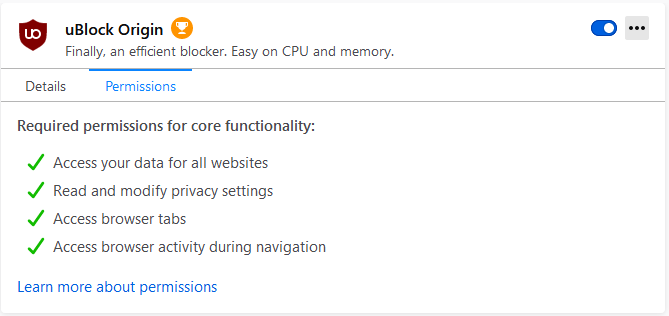
When you open add-ons, the usual pane to open is labelled 'Extensions' in the left panel. The uBlock add-on should appear as shown in this screenshot. The purple icon shows that the add-on can be used in private windows. If it doesn't, click on the add-on name, stay in 'Details' and scroll down until you see "Run in Private Windows" then select 'Allow'.
Pročitajte ovaj odgovor sa objašnjenjem 👍 0All Replies (3)
Check if uBlock is allowed to work in the private mode.
I looked at the manage add-ons and there is no check box for running in private window.

Odabrano rješenje
When you open add-ons, the usual pane to open is labelled 'Extensions' in the left panel. The uBlock add-on should appear as shown in this screenshot. The purple icon shows that the add-on can be used in private windows. If it doesn't, click on the add-on name, stay in 'Details' and scroll down until you see "Run in Private Windows" then select 'Allow'.
