


Opens with outbox

Hey dears,
my thunderbird on my Android opens everytime with the outbox of one of my mail accounts... I closed the app, logged out/in, nothing changed. It doesn't matter which mail I open before I close the app. Every time it starts with the outbox (there is nothing in the outbox). How to fix this?
Thank you :)

الحل المُختار
Hi
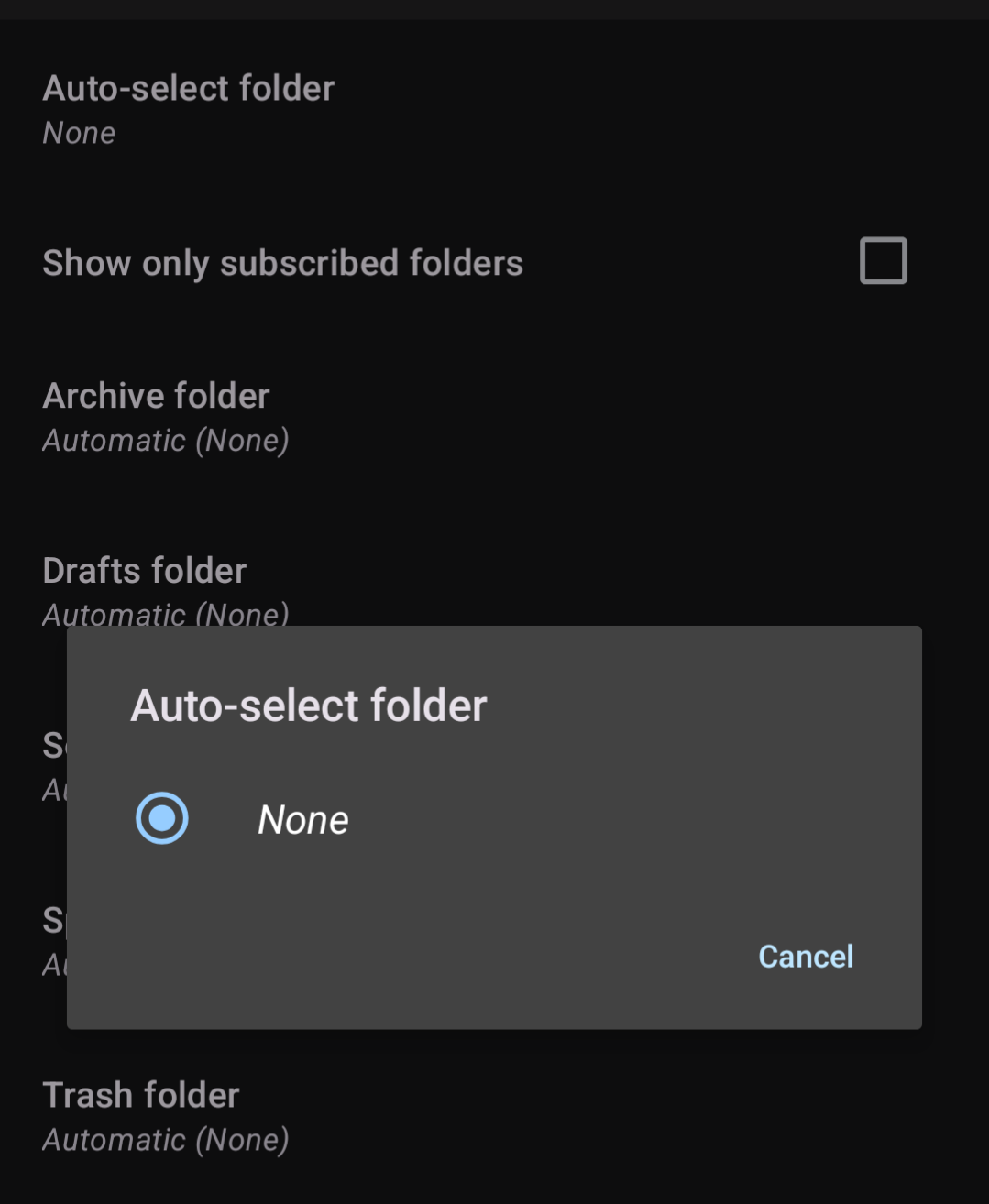
Your screen shot shows none of the special folders (archive, draft, trash etc.) have IMAP folders names assigned. I suspect the account setup is incomplete and has never signed into the server. The app gets a list of imap folders when it first signs into the server.
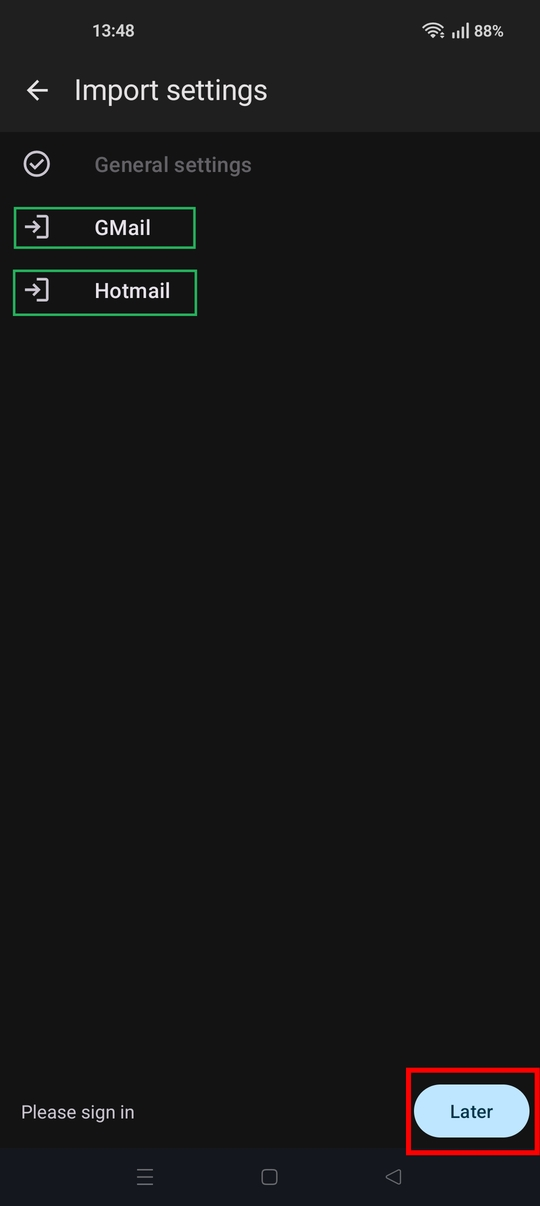
Did you by an chance import accounts from Thunderbird desktop and press the "later" button, skipping account sign-in. See screen shot.
Until sign-in is completed, an account will display only an outbox folder. This could be one reason why outbox is being selected and no other folders are displayed in the auto-select folder list.
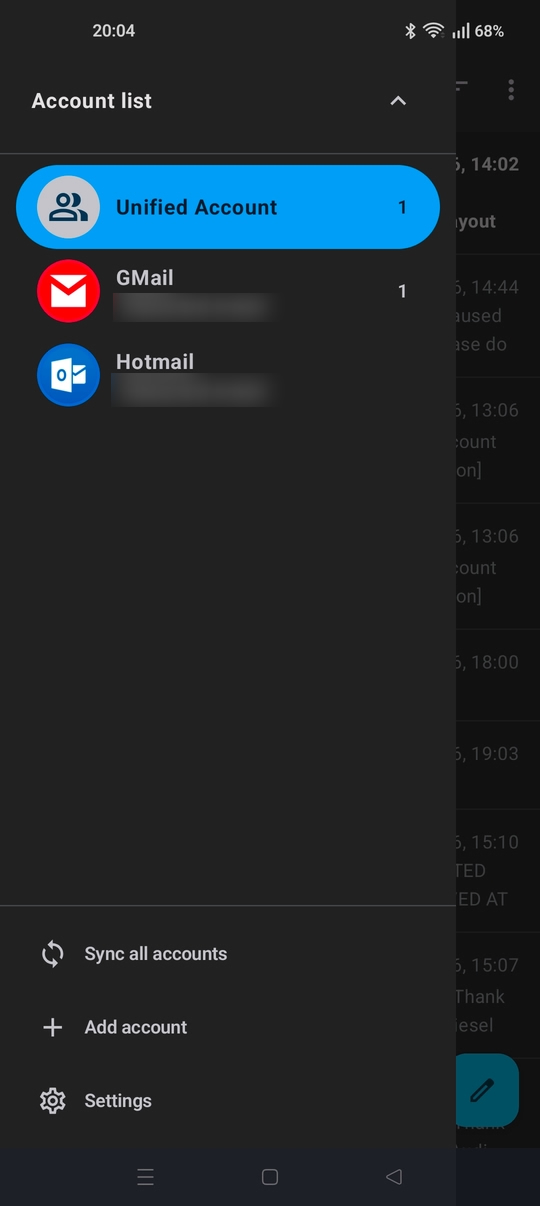
Could you confirm this by checking if the normal list of imap folders such as Inbox, Sent Mail, Draft, Spam & Trash are listed in the account.
If your unfamiliar,
- Tap the ≡ menu button at the top left of screen.
- Press the down arrow.
- Tap the account name associated with the outbox.
Do you see only outbox?
If confirmed, you can either complete the account sign-in steps or remove it from the app.
To complete the sign-in steps ...
- Navigate to settings > account name > fetching mail > incoming server.
- Enter the password if empty
- Tap next.
- If prompted to sign-in to your provider, press the sign in button and complete the steps.
- Navigate to settings > account name > sending mail > outgoing server.
- Press next.
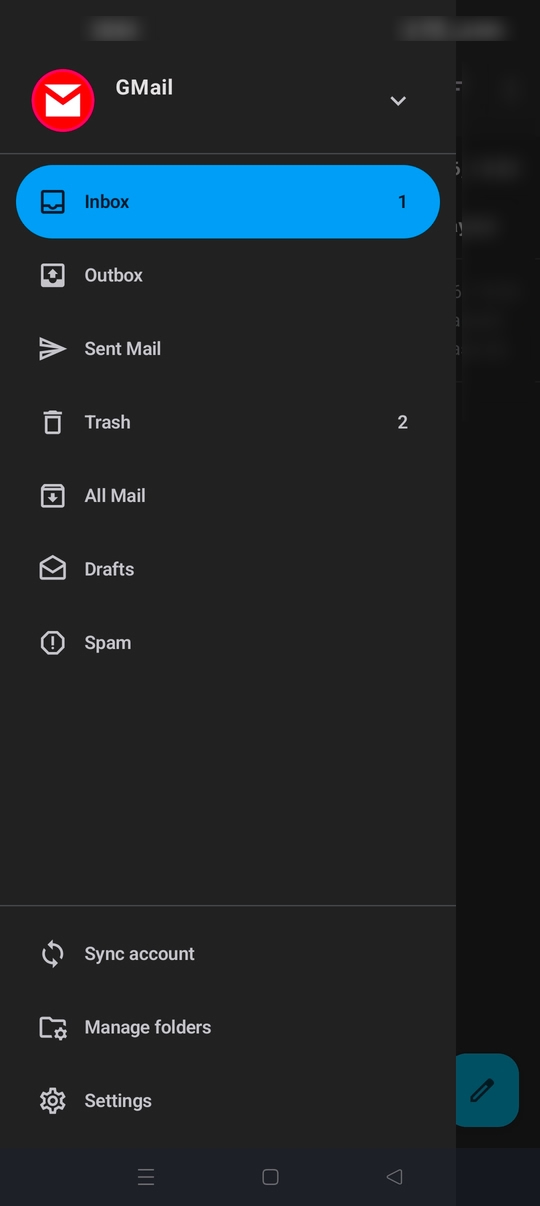
Once successfully completed, the account should then display a list of all folders. See example screen shot.
To remove an account ...
- Navigate to settings > account name.
- Tap the three dot menu ፧ at the top left of screen.
- Tap remove account.
All Replies (4)
Have a look at the folder setting for the account and check if outbox is selected as the auto-select folder. This setting opens a specified folder by default each time the account is selected.
Settings > account name > folders: Auto-select folder. The typical value is none, or inbox.
Is the account with said outbox the first account in the list. With Unified Inbox disabled, the first account is selected by default when the app opens.
Modified by Platform34
Hey and thank you. I tried to change the settings, but there is no option to choose. Now I chose "Unified Inbox" and when I open finally the outbox is not the first that is shown! Unified Inbox is okay for me but it would be better if there is just one specific inbox. Thanks :)
الحل المُختار
Hi
Your screen shot shows none of the special folders (archive, draft, trash etc.) have IMAP folders names assigned. I suspect the account setup is incomplete and has never signed into the server. The app gets a list of imap folders when it first signs into the server.
Did you by an chance import accounts from Thunderbird desktop and press the "later" button, skipping account sign-in. See screen shot.
Until sign-in is completed, an account will display only an outbox folder. This could be one reason why outbox is being selected and no other folders are displayed in the auto-select folder list.
Could you confirm this by checking if the normal list of imap folders such as Inbox, Sent Mail, Draft, Spam & Trash are listed in the account.
If your unfamiliar,
- Tap the ≡ menu button at the top left of screen.
- Press the down arrow.
- Tap the account name associated with the outbox.
Do you see only outbox?
If confirmed, you can either complete the account sign-in steps or remove it from the app.
To complete the sign-in steps ...
- Navigate to settings > account name > fetching mail > incoming server.
- Enter the password if empty
- Tap next.
- If prompted to sign-in to your provider, press the sign in button and complete the steps.
- Navigate to settings > account name > sending mail > outgoing server.
- Press next.
Once successfully completed, the account should then display a list of all folders. See example screen shot.
To remove an account ...
- Navigate to settings > account name.
- Tap the three dot menu ፧ at the top left of screen.
- Tap remove account.
Thank you so much! It worked! Now I can choose a folder that is shown at the start. Perfect 😃