


Open Profile folder/directory in Linux Zorin.

I want to copy my windows Thunderbird profile to Linux but my Profile Directory will not open when I press open directory. I downloaded Thunderbird from the Zorin app store, and it may be a flatpak or something – it won’t tell me now because I have already installed it – but I believe that could be a reason for the directory not opening. Is there a non-PC-literate way of finding out and fixing this?
All Replies (22)

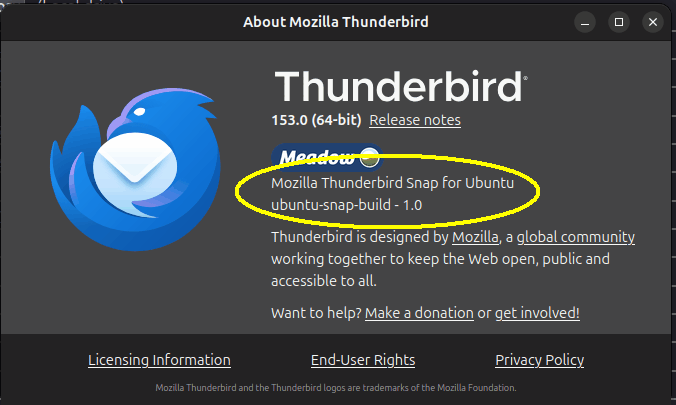
My Ubuntu Linux machine has Thunderbird installed from the Snap store. Thunderbird's "About" screen shows that it's a Snap (see attached image).
~/snap/thunderbird/common/.thunderbird
I don't know if a Flatpack version shows something similar.
I don't have anything that uses Flatpack, but as I understand it, Flatpack probably doesn't have permission to browse user files, which may be why the Open Directory button doesn't work as expected. But I read that the default Profile location for Thunderbird Flatpack MIGHT be found here (though I see some variation in that answer):
~/.var/app/org.mozilla.Thunderbird/.thunderbird/
The .var directory may be hidden, so be sure to set your file browser to show hidden files.
If you copy your Windows Thunderbird profile here, you should be able to add it by the "normal" methods, which we can discuss if you want.
Modified by Lin
Sorry Lin,
I have no idea where I should type ~/.var/app/org.mozilla.Thunderbird/.thunderbird/
I'm not very PC literate (except a bit on Windows). STeve
Copy and paste that bit into the address bar of your file browser. Keep in mind that I'm flying blind here since I have no systems that use Flatpack, and there seems to be some variation in the default profile location for Thunderbird Flatpack installations. But if yours is like the ones I found in the 'Net, that will take you to the Profiles folder.
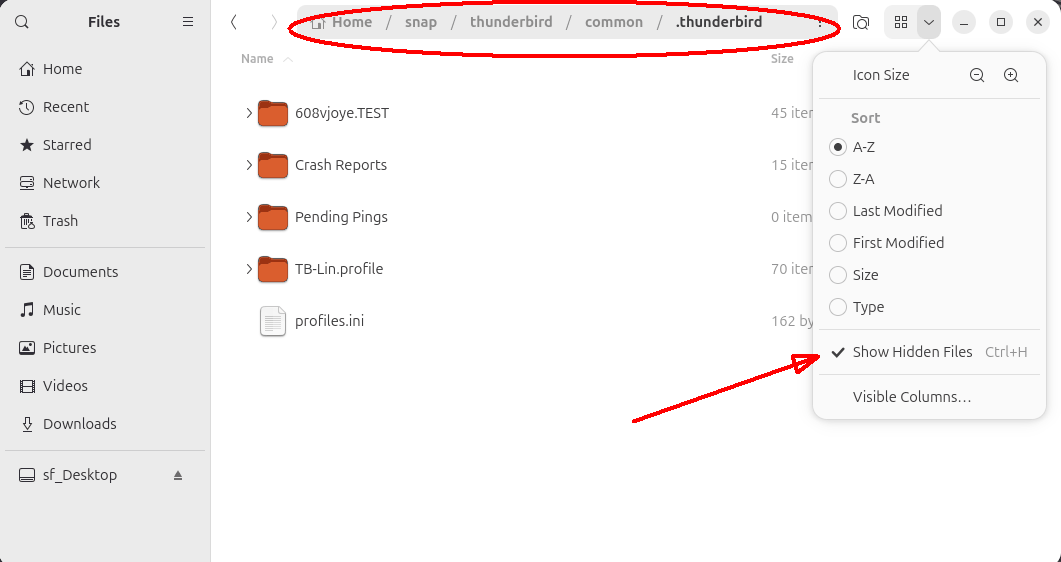
If you can enable the display of hidden files, you could navigate there from your Home directory with your file browser (called "Files" in Ubuntu.) Here's how it looks, where the "show hidden" switch is, and the address bar. I imagine Zorin's looks similar.
I pasted "~/.var/app/org.mozilla.Thunderbird/.thunderbird/" into a Firefox browser (as I can't find an address bar in Brave, which comes with Zorin). I got File not found "/home/steve/.var/app/org.mozilla.Thunderbird/.thunderbird. It either doesn’t exist or the path is incorrect." Did I do it right?
Brave would be your web browser, not your local file browser. That might or might not find the right folder, but it's not really meant for that, and you can't manipulate/copy/cut/paste files with a web browser. You really need to use the system's file browser, whatever it's called - it's the Zorin equivalent of Windows File Explorer.
I'm not sure how much I can really help you right now, since I don't have a system like yours to try stuff out on. Flying blind, like I said. I may try setting up a Zorin machine but that could take a day or few.
Many thanks anyway Lin.
Hello
A similar subject https://forums.mozfr.org/viewtopic.php?p=949505#p949505
Install Thunderbird on Linux https://support.mozilla.org/en-US/kb/installing-thunderbird-linux
As for me, System Thunderbird installation, that's my installation
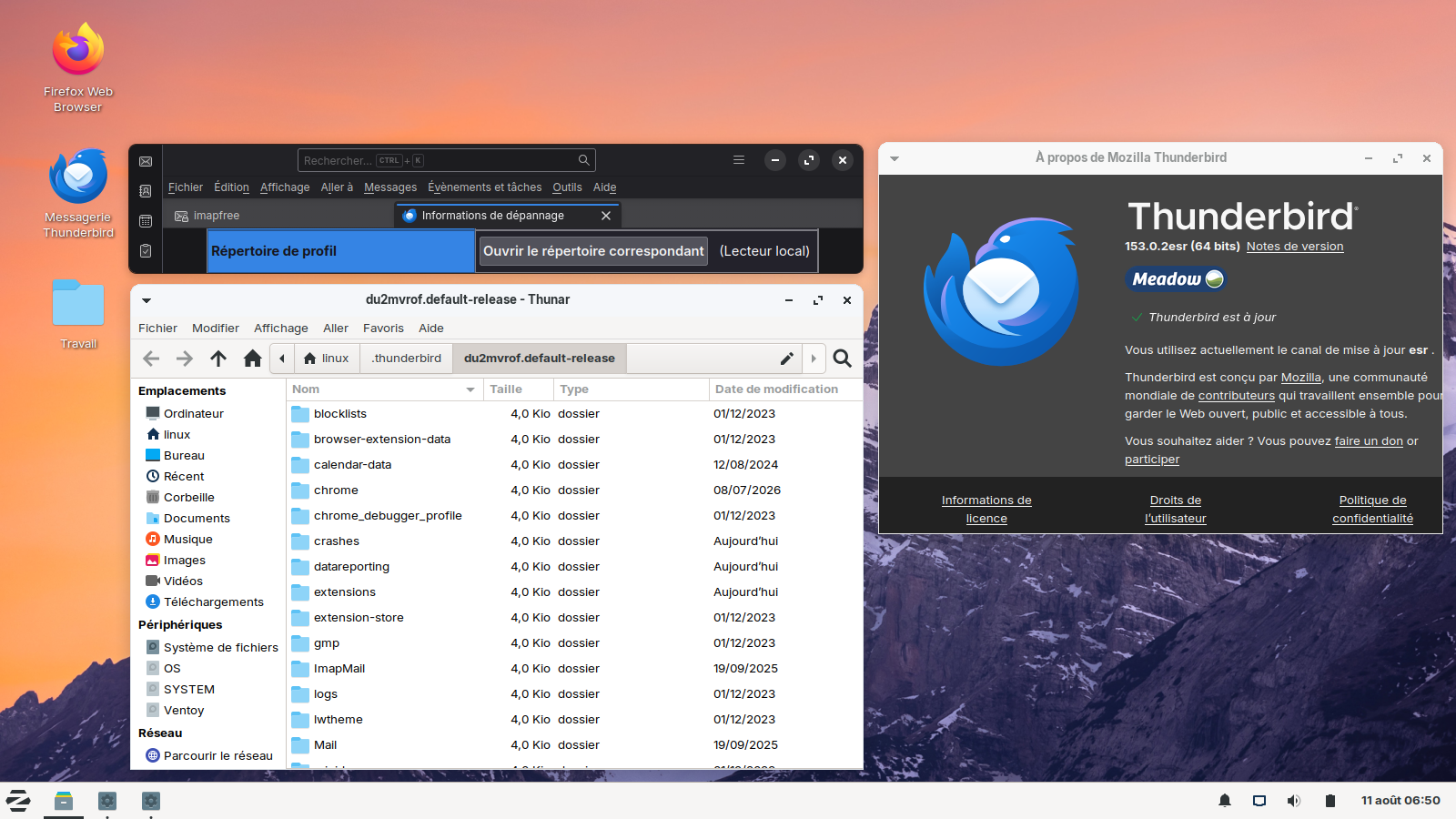
OK, I installed Zorin as a Virtualbox virtual machine, so now I have a system that uses Flatpack. Flatpack sandboxes parts of their apps, which makes them a little difficult to deal with. Turns out that the default folder that contains Thunderbird profiles is
/home/(your user ID)/.var/app/org.mozilla.thunderbird/.thunderbird/
a.k.a "~/.var/app/org.mozilla.thunderbird/.thunderbird/"
If you copy your Thunderbird profile from your Windows machine to this location in Zorin, you will be able to open it in Thunderbird in Zorin. A couple of caveats...
- If the Thunderbird versions are different there are a couple of hoops to jump through. So, what version is on Windows and what is on Zorin?
- The method of making your newly-copied-to-Zorin profile the default one is a little complicated, so report back here when you are ready and we will coach you through that.
Thank's very helpful of you Lin.
It is Windows 10 to Zorin 18 (I think, it was new about 6 months ago), I’m not sure how to find out the version. Also, I’m not sure about where to paste the profile to (~/.var/app/org.mozilla.thunderbird/.thunderbird/). Will I post it into the files folder??
Sorry, I’m so not quite so stupid with Windows, but this file system baffles me.
Oh, the Thunderbird version on Windows is 153.0.3 (64 bit)
The Thunderbird version on Zorin is 153.0.3 also, but without the 64 bit.
OK, we got the Thunderbird version on the Windows machine. Now I need the version of the Zorin machine. You can find out the same way, by going to Help | About (see attached image). That will also confirm if it's a Flatpack installation or not
If they are different version it will take some special handling. Let us know.
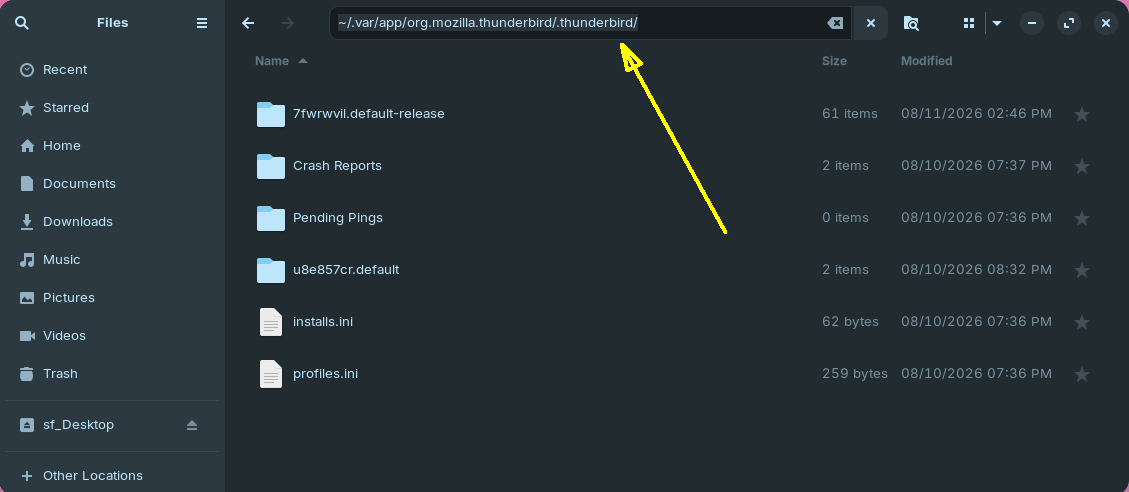
Here's an article about transferring a Profile from one computer to the other. Ignore the parts about finding the location on the target (Zorin) machine, since we already know it. To get to that folder in Zorin, start the Files browser (aka "Nautilus") and paste "~/.var/app/org.mozilla.thunderbird/.thunderbird/" (no quotes) into the address bar and press enter (see second image). That will take you to the location where you place the Profile folder that you copied from the Windows machine.
Let us know when you are at this stage and we'll move on from there.
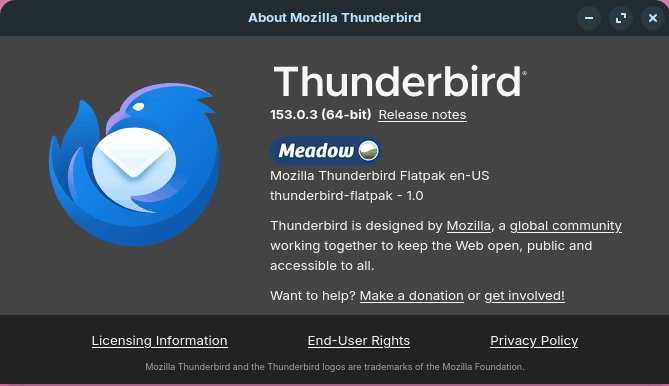
They are both the same version (153.0.3).
OK. So, i installed Nautilus, pressed open and the PC's fan got excited but nothing opened. Nothing has happened pressing the open button since. I think I've done it wrong.
It's good that both Thunderbird versions are the same. That will avoid any compatibility problems.
Maybe this will help - see attached animation. It starts where you have already copied your Thunderbird profile from the Windows machine and temporarily placed it on the Zorin desktop.
- It then shows starting the Nautilus file browser (which should have been installed by default),
- then type or copy&paste the location "~/.var/app/org.mozilla.thunderbird/.thunderbird/" into the address bar and press Enter or click the arrow to its right. That will take you to the directory where Thunderbird stores its profiles.
- I've gone onto the next step, which is where you copy or move your former Window's Tbird profile into that directory.
Once you get that far we'll move on the the next steps.
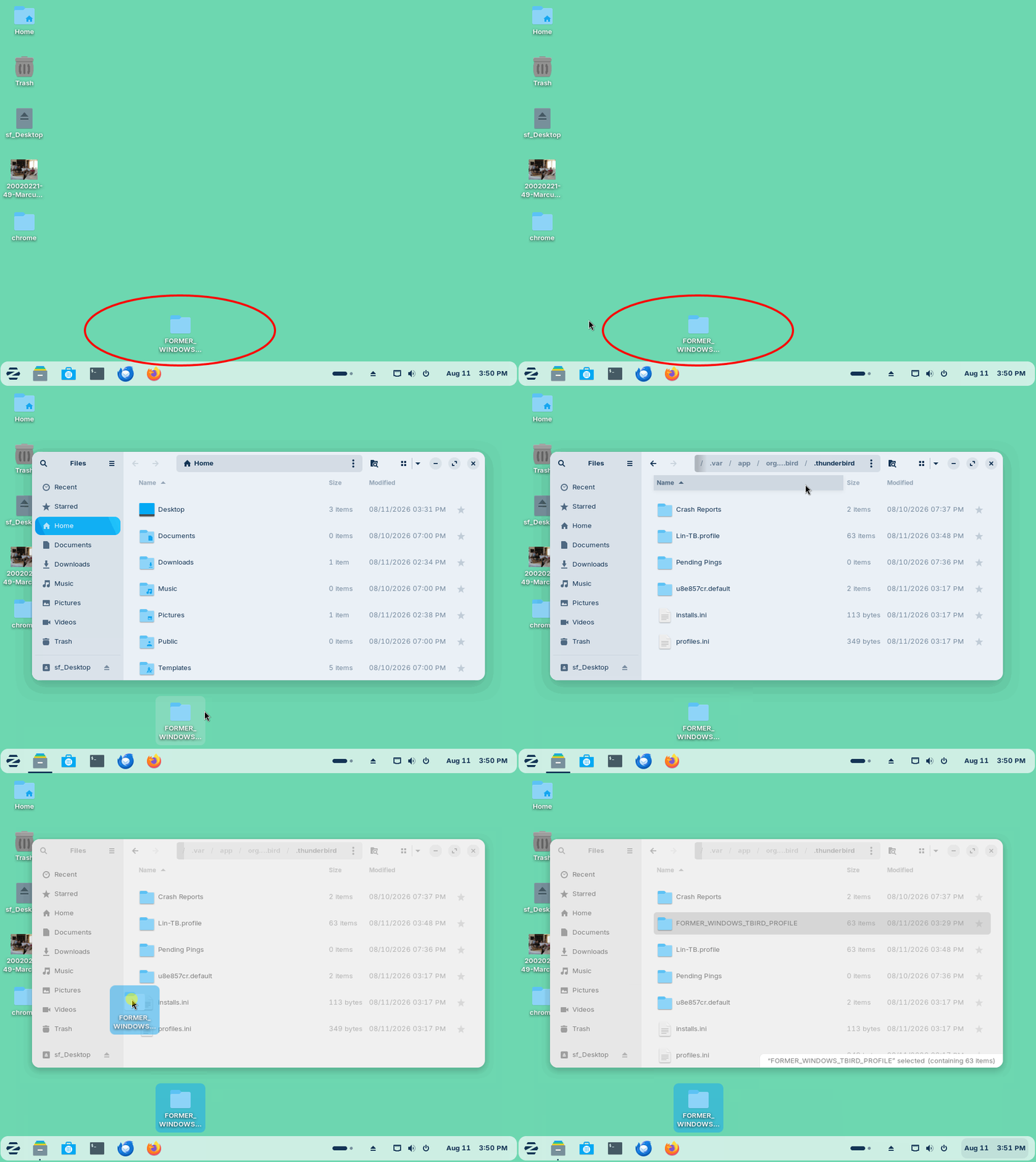
I looked in Software and installed Nautilus (which won't open), so I guess that's not the right app.
When I installed Nautilus from Software, it was a scripts manager. Is this the correct app?
Nautilus, the file browser, is the little file cabinet icon in the Dashboard that I show in the animation. It's Zorin's equivalent of Windows File Explorer. It should have been installed by default. I have no idea what the "scripts manager" is, but it wouldn't be relevant in what we're doing.
I followed the animation and I have my old (Windows) profile in the folder according to the animation. (I'll uninstall the Nautilus script manager.)
Just so we're starting off on the right foot...
- You're in the "~/.var/app/org.mozilla.thunderbird/.thunderbird/" (also known as "/home/lsprague/.var/app/org.mozilla.thunderbird/.thunderbird" folder. You will see a few other folders, including your "former Windows profile" (profile names are arbitrary - they can be named anything), and most importantly, there will be a file named "profiles.ini".
- Start Thunderbird. If it's the first time you have started it you may be prompted to set up an account. You don't need to do this, so decline the invitation.
- If the menu bar is hidden, press Alt to reveal it, and choose <Help | Troubleshooting Information>. Scroll down to where you find Profiles - and click on "about:profiles" to bring up the About Profiles screen.
- Press the "Create New Profile" - this starts the Create Profile Wizard. Click Next to begin...
- It's important that you do this part in order:
a) Enter you new profile name - this can be anything you want, like your real name or whatever.
b) click "Choose folder..." Inconveniently, you will have to navigate back to the "~/.var/app/org.mozilla.thunderbird/.thunderbird" folder. If you have the Files browser set to show hidden files, you will see the .var folder and can navigate from there. When you reach your destination, select your FORMER_WINDOWS_PROFILE and click the Select button.
c) this takes you back the the previous dialog box. Confirm that "Your user settings (...) will be stored in:" is the "former Windows profile you just selected. If that looks good, click Finish
- You will now be back at the About Profiles screen. When you scroll down you will see your newly-added profile, and it will say, "Default Profile: yes".
- Now scroll back up and click the "Restart Normally" button. Thunderbird will restart using your new/old Windows profile, and you should be back in business.
I will attach an animation of the process if it's not too big...
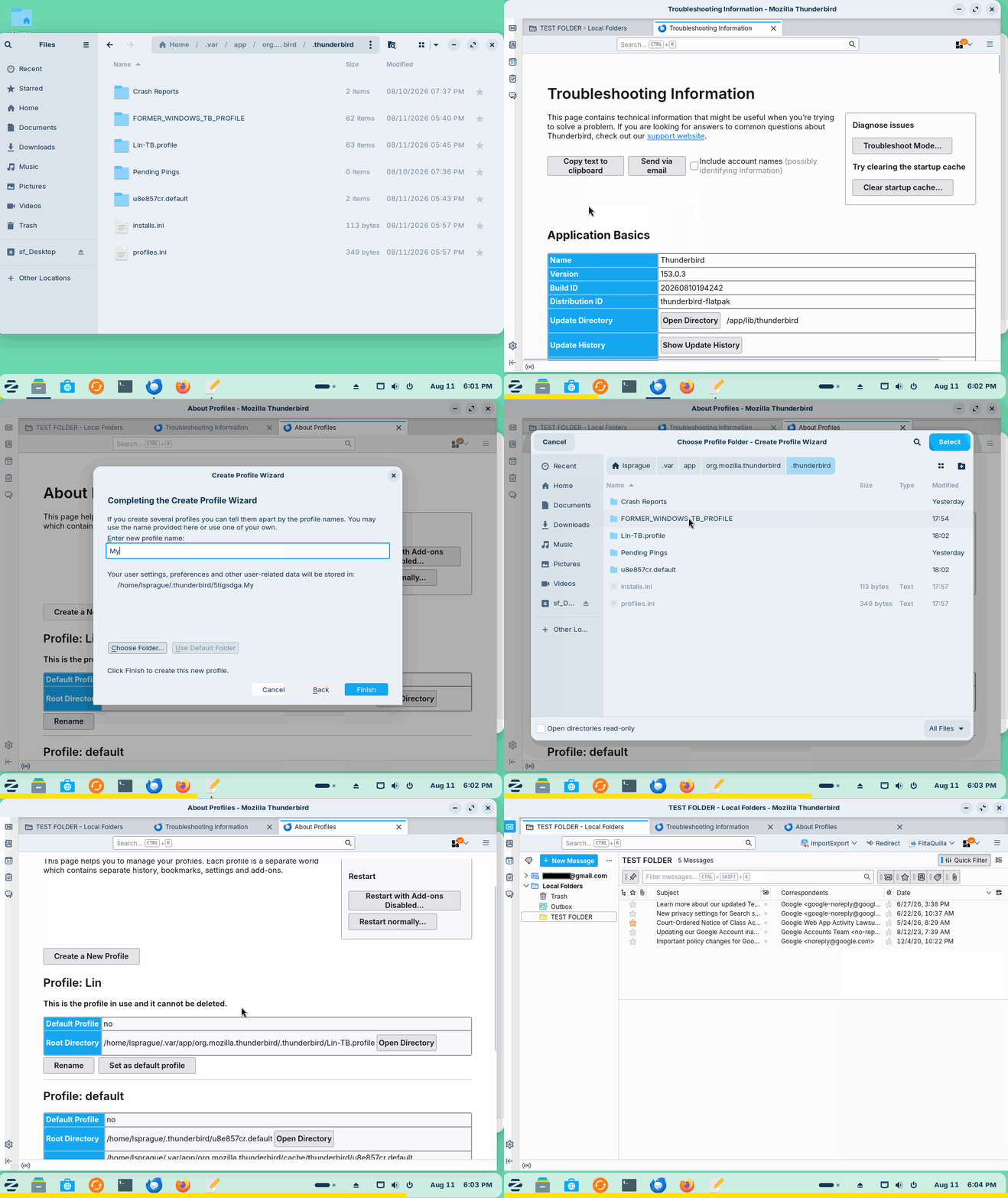
I have folders: Onssinvq default-release 7gyhuygld default Old Profile Crash reports Pending pings
and files: Installs.ini and profiles,ini