


Signature Position Settings

I am using Thunderbird 148.0.1 on Windows11. I want to move the signature block to above quoted text, but the setting does not seem to be there. I have followed the instructions on the Mozilla help site: "When you are replying to messages, by default your signature will appear beneath the quoted text at the end of the message. To change this behavior, select Tools > Account Settings > <account name> > Composition & Addressing. Change the reply style to "Start my reply above the quote". Next, change the setting for "and place my signature" to "below my reply (above the quote)". This setting can be configured for each account and for each identity."
But they do not match what I am seeing on the screen. There is no selection for signature position, I assume a version change caused this. Any advice?
Modified by Steve Garth
الحل المُختار
See attached screenshot.
Read this answer in context 👍 1All Replies (5)
- go to 'account settings' pane - click the account in left sidebar - now click the 'composition&address' pane for the account - note the check box to specify whether sig goes after original content or before
Please post screenshot of what you are seeing, since you state it does not contain the above. thank you
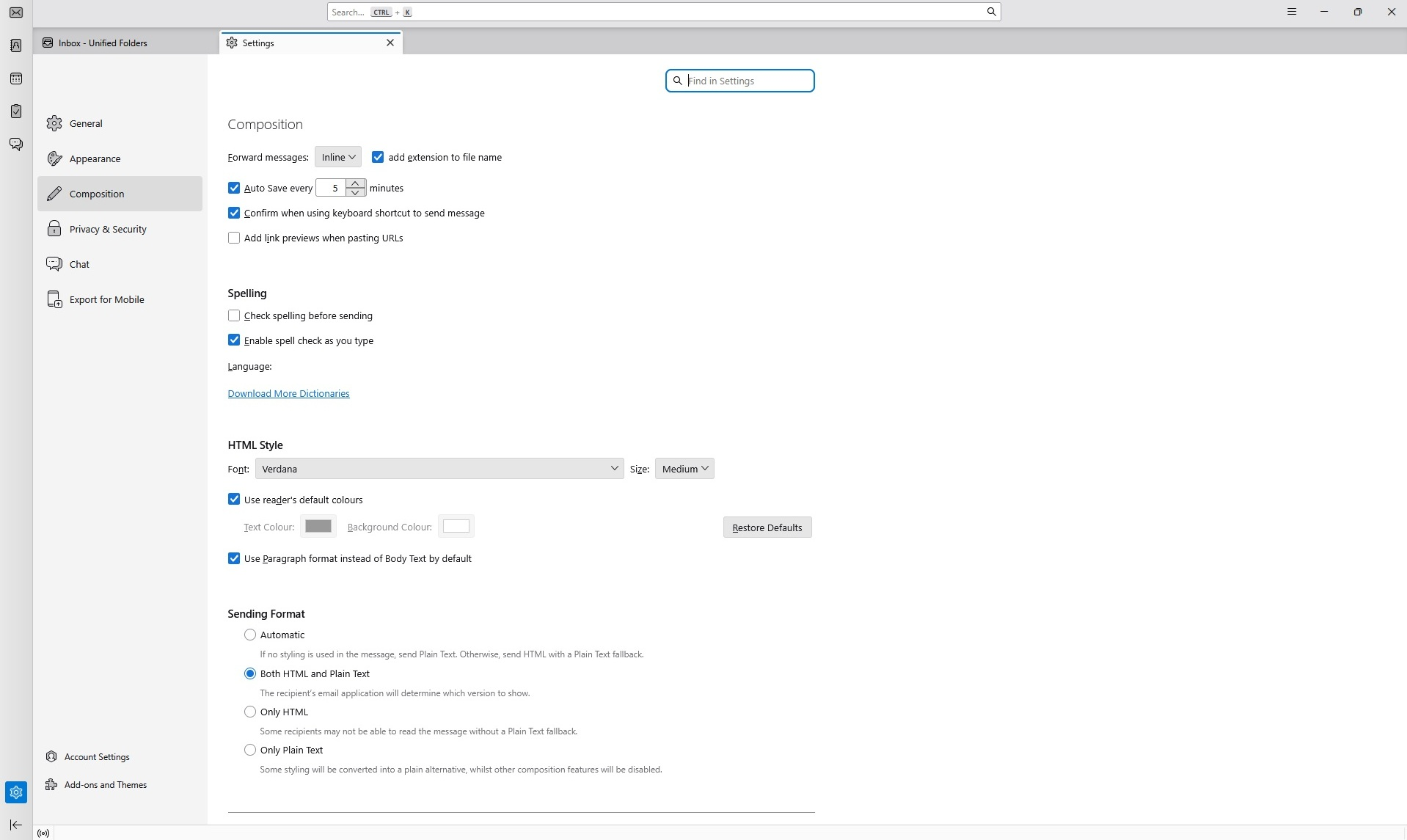
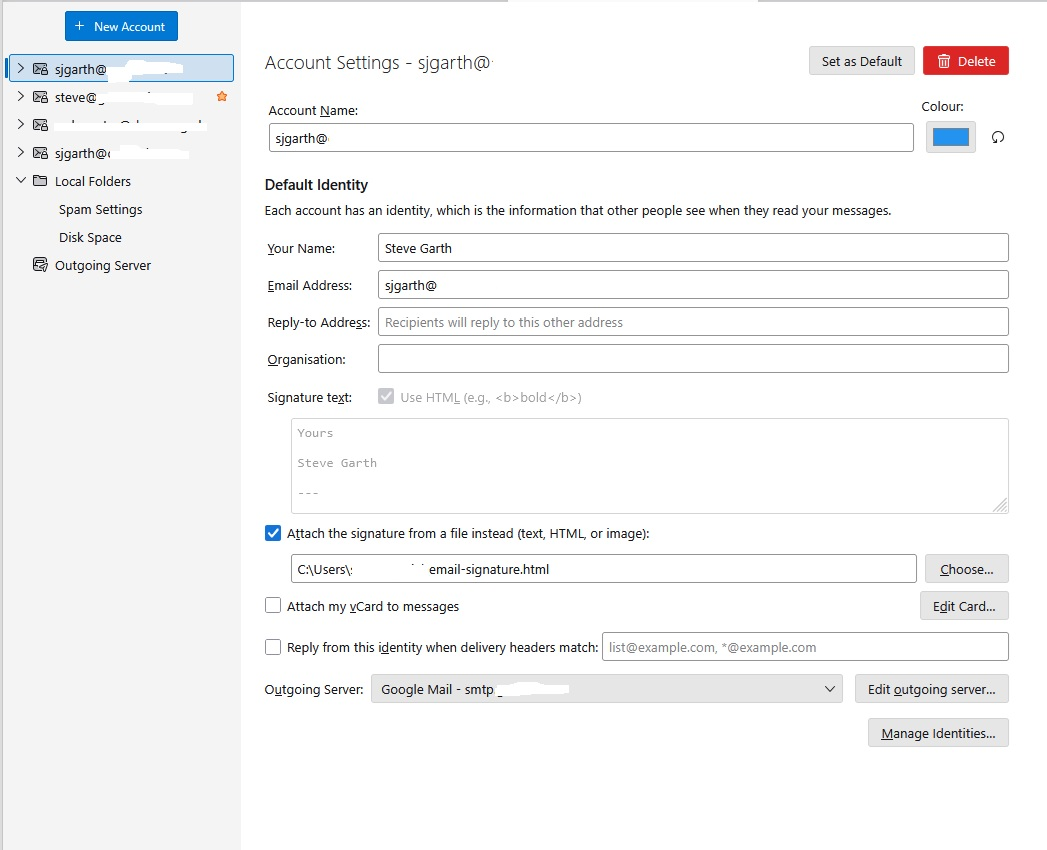
Hi, Thanks for your response. I went to the settings button, bottom left, then account settings, bottom left then to the actual account. There is a 'Composition' page in 'Settings' but it is only for overarching settings, not account specific. The Account Settings screen does not have any selector for another screen called 'Composition & Address'. Although this is for using a file as signature, there is no difference if I create a signature on this screen. Screen shots of Settings and Account Settings screens. This is for version 148.0.1
Modified by Steve Garth
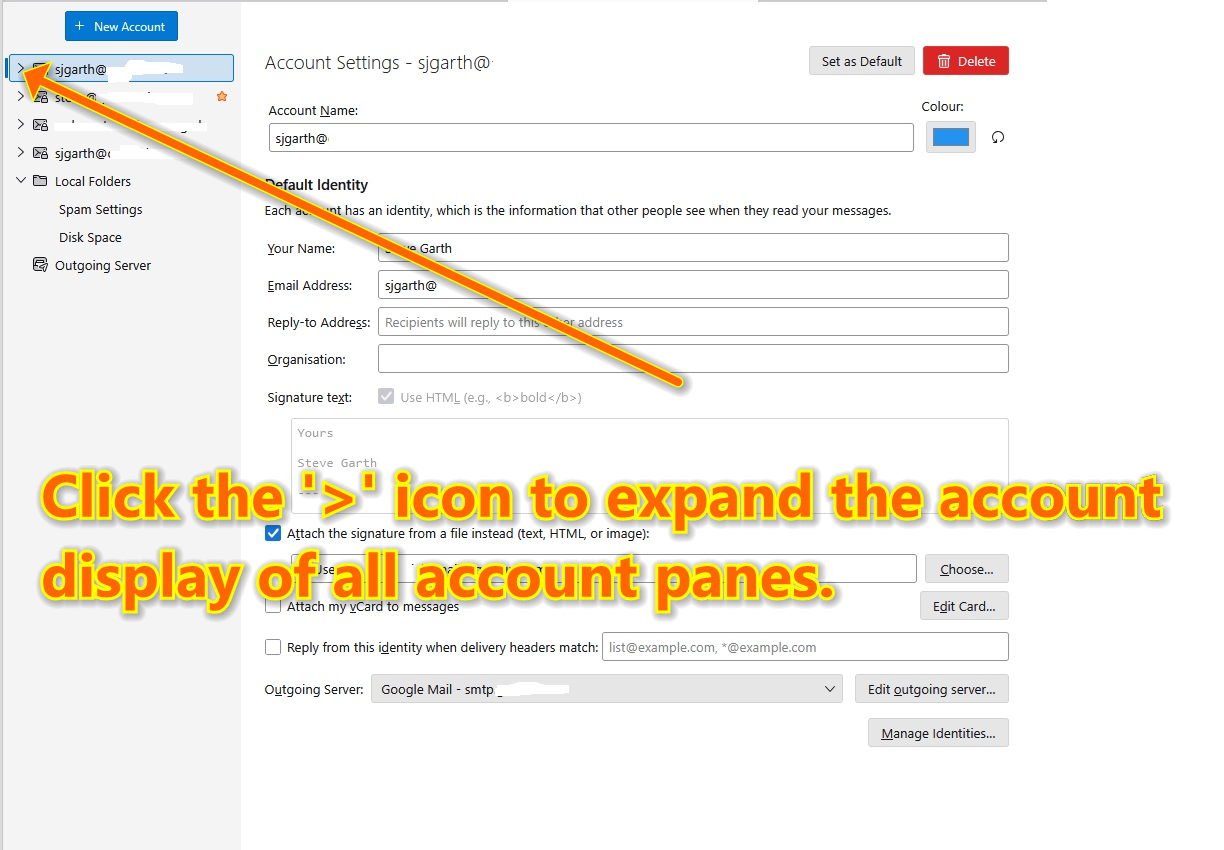
Doh! There I was thinking I knew my way around a computer! I never thought to click on that! Thanks for showing me how much I have to learn. All that said, maybe they should mention that little fact in the instructions? Job done, changes made. Thank you so much.
You are welcome. That little '>' usually means a hidden set of options. Thanks for the smile. :)