


Firefox Lockwise has some serious credential safety issues. I can see all of the saved passwords without even entering master password (even the bank ones)
open Firefox >> go to login and passwords section >> you will see new lockwise view.
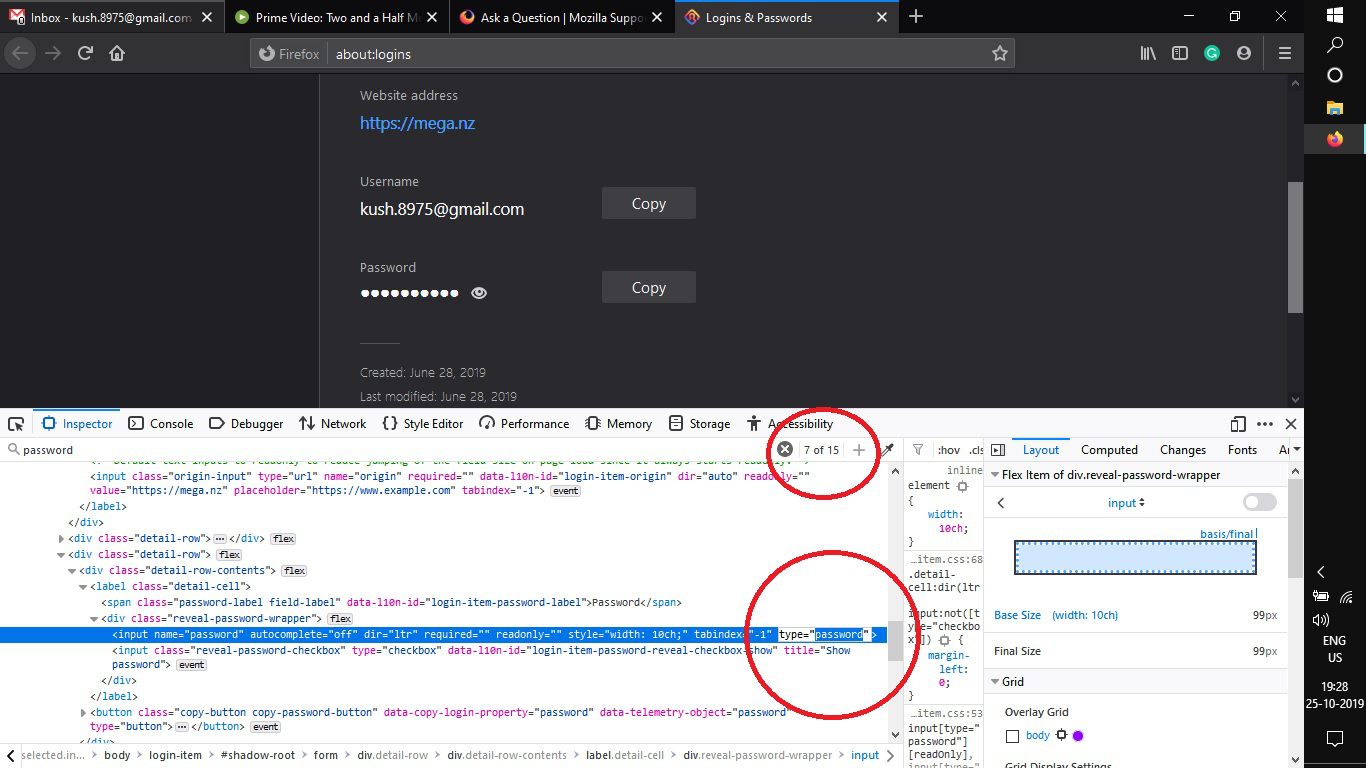
In this view you will get all of your saved passwords with asterisk '****' (banks, email IDs etc). Now don't enter the master password even if you are prompted to do so. select any site for which you want to look up the password for. then open inspect element and search for password field( there will appear 15 searches. go to seventh search) change the type "password" to "text"
here you have cracked the saved password without even entering master password.
Hence it is the biggest blunder of firefox
All Replies (2)
Hi Kaushik, this is a good point. In order to re-secure the page you either would need to wait for a long time-out or exit Firefox.
I added a reference to your question in a pending bug report:
https://bugzilla.mozilla.org/show_bug.cgi?id=1580929#c2
More info on Bugzilla: https://bugzilla.mozilla.org/page.cgi?id=etiquette.html
Hi Kaushik, here is a temporary workaround to re-secure the page when you are not going to be physically present to keep an eye on your Firefox:
Click any "Show password" button (eye icon) on the page and Cancel the Master Password dialog.
Now when you reload (or close and re-open) the page, no logins will be listed and you will be prompted for the Master Password again.