


Importing zip files of emails from Google Cloud Storage into Thunderbird

Hi all! I'm trying to get away from a Google Workspace account, but I need to import my old emails. At the suggestion of my host Hover, I've followed these instructions:
https://support.google.com/a/answer/14339894?sjid=15634570323802523034-NC
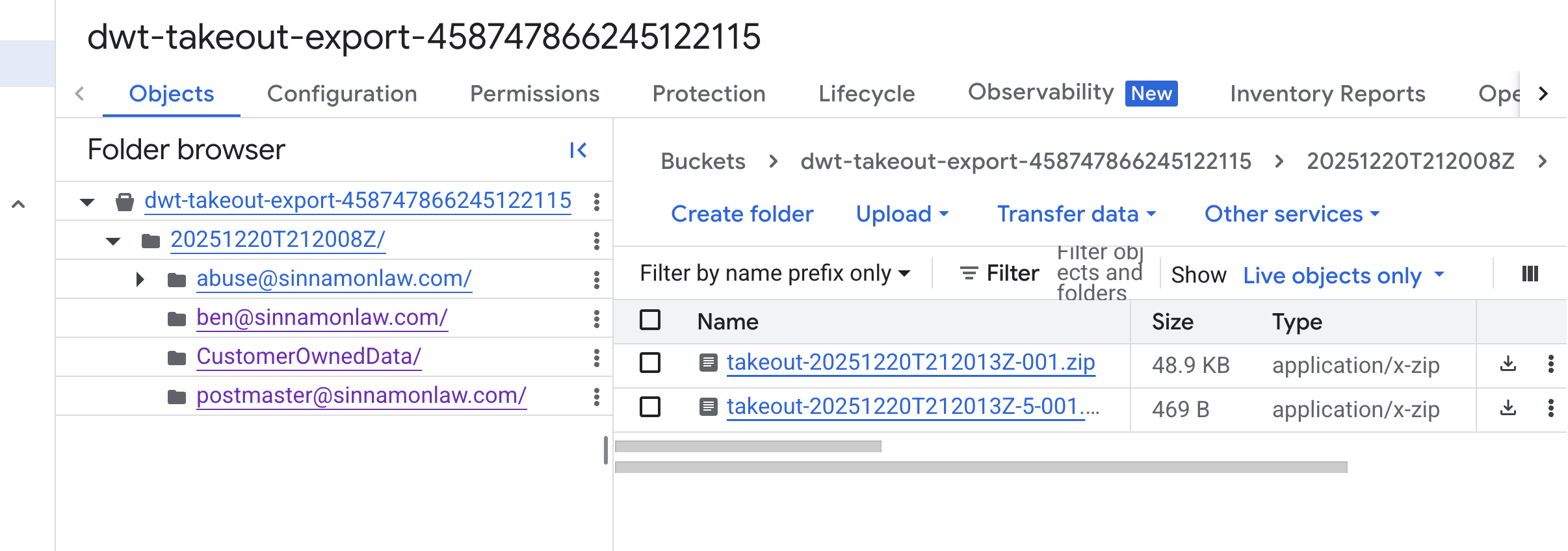
and created a bunch of ZIP files in Google Cloud Storage, as shown in the attached screenshot.
1) In the Thunderbird Import tool, I select "import from a file" in Step 1, and then "Import Backed-up Profile (.zip)" in Step 2 - is that correct?
2) In step 3 is to choose a file to import. How do I know which file to select?
3) then in step 4, do I unselect everything except mail messages? That's mostly what is important.
Thank you thank you!
Ọ̀nà àbáyọ tí a yàn
It worked! Thank you! You guys rule!
Ka ìdáhùn ni ìṣètò kíkà 👍 0All Replies (6)
Use this tool to import mbox files after you unzip the files. https://addons.thunderbird.net/en-US/thunderbird/addon/importexporttools-ng/?src=ss
Thunderbird does not know how to import a random zip file, which is what you have there, it knows about zip files it creates in it's export guise only. I would suggest you unzip everything you got from google and then import. Note it looks to me like your instructions have essentially exported the all mail folder. None of he individual labels will be included in that file is my guess. So each email address will import a a folder with the email address in the name and everything in the account under that one folder. Google by default do not create a separate zip for each label, so you might find your takeout to be in rather indigestible chunks.
Thanks Matt. I downloaded all the zip files, unzipped them, which resulted in (among other things) a folder called "All mail Including Spam and Trash.mbox", 1.88 GB, file type: Microsoft Outlook Mailbox.
Then I added on the Import Tool. In Step 1 I selected "Import from a File", in step 2 I selected "Import Backed Up Profile", in Step 3 I select "Choose a ZIP file", and when I go to choose the "All mail..." folder, it's greyed out.
Please advise if you can, I'd appreciate it. Bit out of my depth here as I'm sure you can tell. Thanks.

Hi Ben,
Thanks for starting a new discussion.
I believe that Google provides an option in its "take out" function for exporting an mbox file for each gmail label. You want that option. You do not want to import the all mail folder. So I suggest that you re-do the take out process and get a file for each label.
After that, as Matt wrote, you do not want to use the import function in Thunderbird. So no "import from a file" or "import backed up profile" or "choose a ZIP file" or file type=Outlook. Here's what you want to do instead:
Unzip the take out file. You should see an mbox file for each gmail label.
The easiest way to get mbox files into Thunderbird is by copying them in the file system. You want to put them in the "Local folders" directory of your profile. Close Thunderbird, copy the files, re-start Thunderbird. To find where your profile is on disk, Help (menu) > Troubleshooting information > "Profile folder" in the first table > "Show in [...]"
I have seen this procedure fail because Thunderbird did not recognize the imported files. Make sure that the files do not have an extension. If Thunderbird does not recognize them, you can use the add-on ImportExportToolsNG to import the mbox files.
Please ask when you have more questions.
I do not use gmail and I have not used take out, but I believe that all the information that I have shared is accurate.
EDIT: Oh, I read more carefully and see that you may already have all the files that you need. Is there a zip file for every label?
Ti ṣàtúnṣe nípa Rick
I pasted the folder into the profile folder, where it shows up with the .mbox extension. Then I closed Thunderbird and opened it again, without seeing any change. Is there another step to open that folder up in Thunderbird? When I click on it in Finder it says there's no application to open it, so I can't look at the files themselves for whether they have extensions.
sinnamon.ben said
I pasted the folder into the profile folder, where it shows up with the .mbox extension. Then I closed Thunderbird and opened it again, without seeing any change. Is there another step to open that folder up in Thunderbird? When I click on it in Finder it says there's no application to open it, so I can't look at the files themselves for whether they have extensions.
You want to paste files into the "Local folders" directory of your profile. "Local folders" is in the "Mail" directory. Remember, you must also make sure that these files have no extension. If there is an mbox extension, remove it. Then re-start Thunderbird.
You don't have to look around for an extension. Just look at the file name. "mbox" is an extension. If your files from take out have "mbox" after the dot in the file name, remove the dot and "mbox".
Then pick one of those files, copy it into Mail/Local Folders in your profile, and re-start Thunderbird. You should see the folder in the Local folders account in the folder pane.
If you don't see it, Plan B.