


My photo files

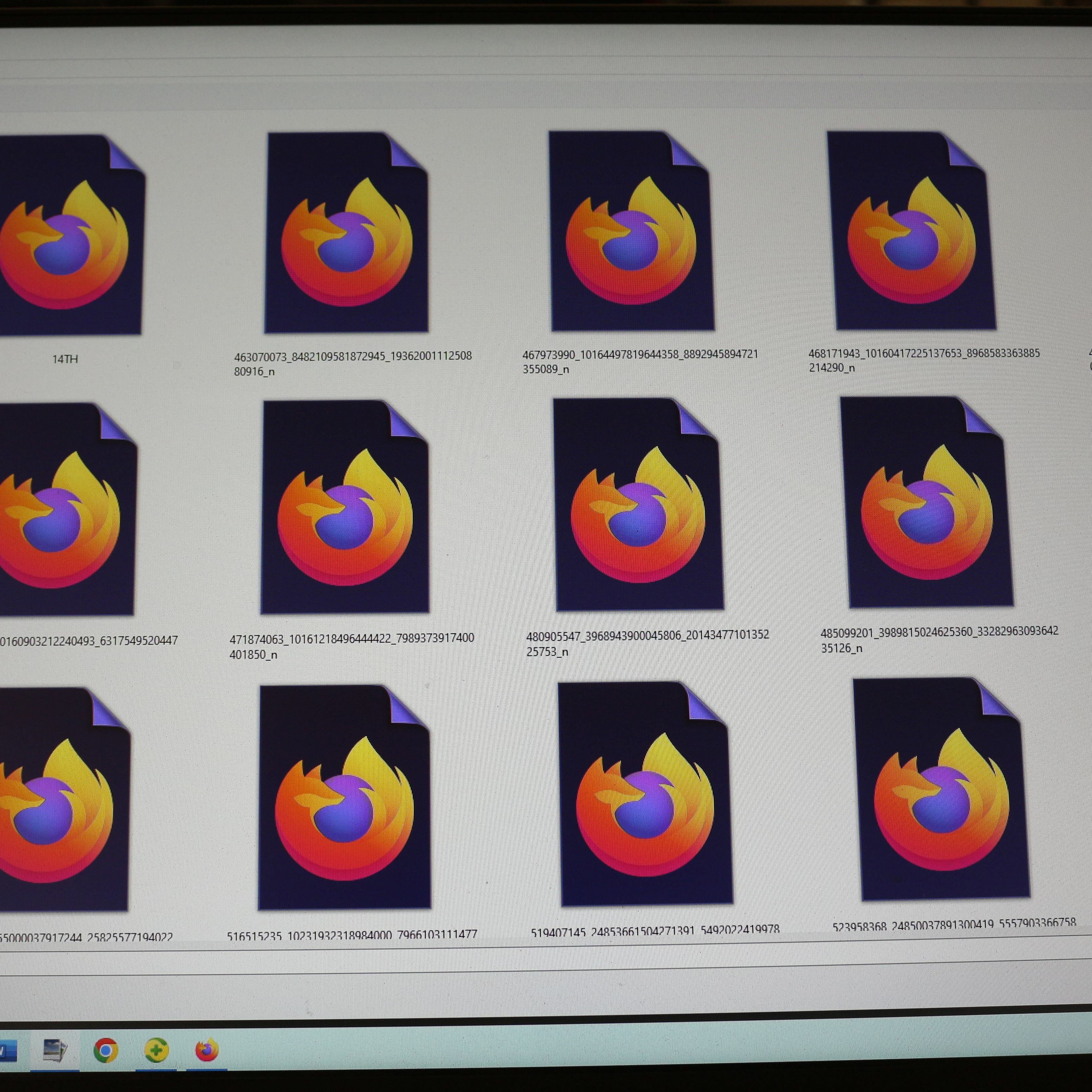
Since one of your updates, all of my photo files now have your logo on them and I can see any of the thousands of photos I have What the hell did you put in your update? JUST STOP SENDING UPDATES EVERY DAMN TIME I TURN AROUND.
Обране рішення
To re-associate those files with your preferred image viewer/editor, try this:
- right-click one of the files, then click Open With
- at the bottom of the list, click Choose another app
- click your preferred program, then at the bottom of the panel, click Always
Success? (I'm looking at this on Windows 11, so the wording might be a bit different on Windows 10 if you still have it.)
Also, in case it's useful, you can set Windows to show the file extension (for example, .jpg, .png), so you can see what kinds of files have mistakenly been assigned to open in Firefox. This article has the steps:
Читати цю відповідь у контексті 👍 0Усі відповіді (2)
Вибране рішення
To re-associate those files with your preferred image viewer/editor, try this:
- right-click one of the files, then click Open With
- at the bottom of the list, click Choose another app
- click your preferred program, then at the bottom of the panel, click Always
Success? (I'm looking at this on Windows 11, so the wording might be a bit different on Windows 10 if you still have it.)
Also, in case it's useful, you can set Windows to show the file extension (for example, .jpg, .png), so you can see what kinds of files have mistakenly been assigned to open in Firefox. This article has the steps:
window 10 guys...not windows 11