


How to change font color in Thunderbird Calendar events?
Thunderbird is difficult to maintain consistent operation.
Periodically, the font color changes without warning, and your settings options is very limited and or 'WELL' hidden.
Making it virtually impossible to find out how to change various screen graphical settings, such as 'font color' or 'font size', etc.
This is not the first time my font color has changed, and I can't find out how to reset the font color in the Calendar editor for any particular calendar event, either creating and or editing a change to the calendar event.
So please, provide me with an instruction on how to change the font color in ANY calendar event, via your Calendar editor.
My Calendar editor in the comments block is set currently with a black background and 'black' font color. So I cannot read a darn thing in the comments block. FYI, when currently using the mail editor, I have a white background with black text, working OK. But NOT the calendar editor.
After all these years, you would of thought Mozilla, either Firefox or Tbird, would have provided a good help dialogue on screen to inform users on how to do things like this. You either have done so and kept it a trade secret, and or have NOT improved upon your terrible user guide instructions.
Thanks in advance.
การตอบกลับทั้งหมด (3)
royski45 said
My Calendar editor in the comments block is set currently with a black background and 'black' font color. So I cannot read a darn thing in the comments block.
If I understand your problem description you are using the dark theme in your Thunderbird installation. I'm not familiar with using the dark theme, but I just activated it whilst editing an event and eventually was confronted to the same issue. A black background and no possibility to choose the font color since there is no color picker in the editor. IMHO this must be a bug and I am surprised that I didn't read about it in any Mozilla forum.
Actually there is a way to change the background color in the New Event (or Edit Event) window from black to some lighter color on which black fonts are clearly visible. I used a CSS code in my userCrome.css file in the Thunderbird profile folder to get a lavender background (see attached picture). If you are interested I'll give you all details for the code and the way to create a userCrome.css
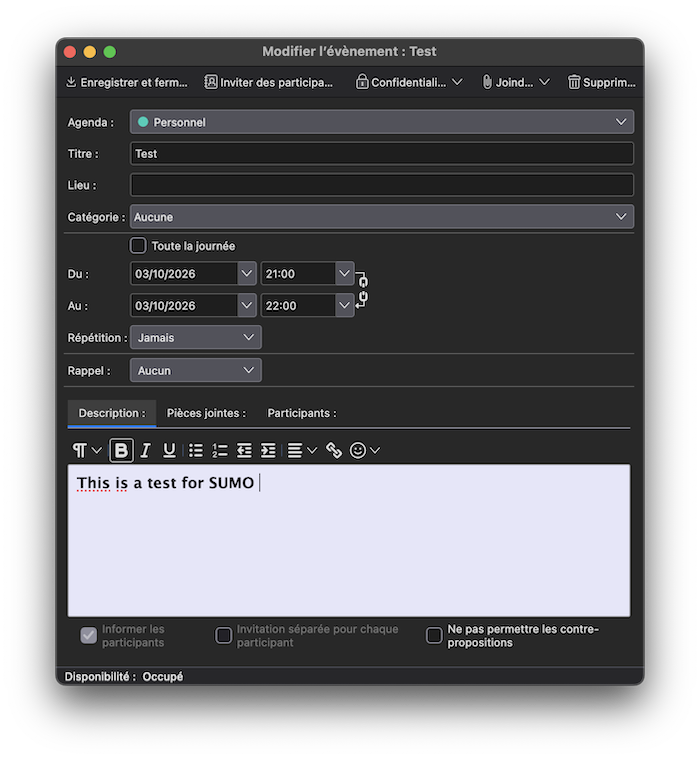
เปลี่ยนแปลงโดย Mapenzi เมื่อ
Yes, any help that you can provide would be appreciated with many thanks. Looking for your reply.
OK, please follow these instructions:
• in Thunderbird go to Settings > General > scroll to bottom and click "Config Editor...", search for toolkit.legacyUserProfileCustomizations.stylesheets and toggle its value from false to true • open a text editor and copy + paste the following CSS code in the editor
#item-description {
 background-color: #E6E6FA !important;
}
• name the file userChrome.css , save it to your Desktop and remove the .txt suffixe your OS will add
• create a folder, name it chrome and move the userChrome.css file in folder chrome
• in Thunderbird go to Help >Troubleshooting Information > Profile Folder > Open Folder...., then exit Thunderbird
• move the folder chrome in the profile folder and restart Thunderbird
Instead of the "lavender" background color you can choose the color you prefer here https://cloford.com/resources/colours/500col.htm Just replace #E6E6FA (lavender) with the hexadecimal code of the color of your choice.