


Local Folders>Inbox preview doesn't show for most messages

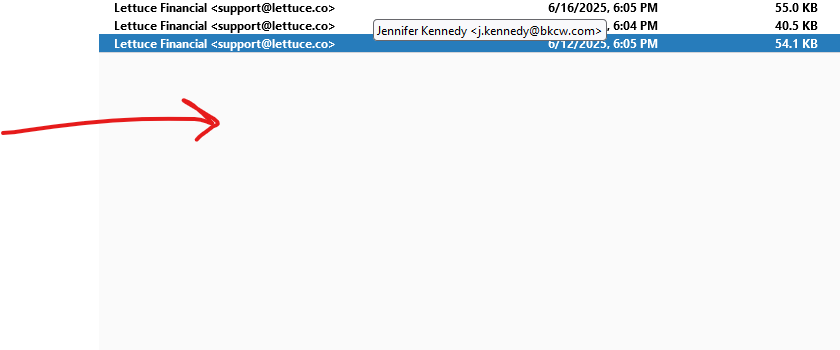
The other day previews of messages quit working in Local Folders>Inbox. New messages will show the preview, but not any of the older messages. The preview area is just blank. I drew an arrow to the preview area.
ప్రత్యుత్తరాలన్నీ (7)
Thunderbird has three ways to read email. A tab, a windows and a reading or message pane all are functionally identical. It is just a matter of user choice which you use. I am assuming you are talking about the latter
The reading or message pane is toggled on and off via F8
I can't see the messages in any of these manners. I tried turning the messaging pane on and off, and nothing helps. I double clicked the message to open it up, and nothing shows up. Everything was fine until a few days ago, and now all the old messages in Local Folders/Inbox are showing the email.
I would guess your antivirus has gone rogue and the indexes are pointing to non existent massages. Try this to fix your broken index. https://support.mozilla.org/en-US/kb/rebuilding-global-database
I have tried this four times and it still doesn't work. There is only one folder that won't show the messages (Local Folders>Inbox). Every other folder shows all the messages without any problems. From March 13th onward, it works fine. I can read the message, click links in the message, etc. It's from March 12th backwards that doesn't work. It had worked fine until about a week or so ago.

It could be that the the folder index has become corrupt, which can "decouple" the indexed header info from the message itself. Two things I would try:
1) Make a new folder and copy (not move) the messages from your flaky folder into it. Do they display properly in the new folder?
2) Right-click on the folder name, choose "Properties", then click the Repair button. Have me messages returned?
I have seen this in the past, mostly the work of Norton antivirus where it quarantined all old mail prior to a set data because it had discovered a "threat" in the file that holds the email. In both cases Norton was months late with it's discovery, but it happily deleted years of email to save the person. However when that occurs the displayed message list has all of those mails removed after a repair, you appear to be saying you right click your local folders inbox, select properties and repair and these email still show in the list of email in the account after a repair
Lets try a truly radical surgery. Go to the help menu and select troubleshooting information.
Locate the show button for the profile folder
Shut down Thunderbird. It can not be running for this next part. In the file explorer/manager that opens open the mail folder then the "local folders" folder In there you should see an inbox file (no file extension). Right click the file and select properties. When was the file created? Repeat that process on the inbox, but instead of accessing the properties select copy. Navigate to your desktop and right click on it and select paste. That will make a backup of what is in that file (the inbox emails) so if things go badly awry that file cane be copied back. You should also see an inbox.msf file. This is the display list that Thunderbird shows you you list of mail with. Right click it and select rename (I just noticed my Windows 11 has decided it is power rename but regardless of the entry in the menu we just want to rename the file) Choose a new name. Something simple like oldIndex. Once you have that restart Thunderbird and report your results. Along with the creation date on the inbox file.
The renamed file will force Thunderbird to fully reread all of the email in the inbox store and rebuild the list of mail it shows you.
Just so we are not flying blind, Open the backup you created on your desktop with Notepad. It might take an age to open depending on how large the file is. I have had to wait many minutes when the files are over a gigabyte in size. What is the date shown on the first line of the file? That is the date of the earliest email stored in that file. If it is only a few weeks ago we are chasing our tails here trying to make Thunderbird display something that is no longer there. but what you see will provide proof of the age of the email in the store without going to a lot of data integrity testing.
What is the size of that inbox file?
Lin—I tried and it didn't return the information. It was still blank.
Matt—It shows the date as "From - Mon Jan 1 00:00:00 1965", This seems problematic as my emails weren't around before 2000, let alone 1965. The file is 15,980,088 KB.
I couldn't get it to actually get the right messages in the Inbox folder. It kept changing to other folders and showing those messages, instead of the ones that it should have. I tried restoring the files from backup, knowing that I would be possibly losing a day or twos messages.
This is frustrating because it was working perfectly well until I told it to install the update.