


All bookmarks disappeared. I found my json backup files. How can I import this file into Mz, now that it has created a new, dysfunctional 'profile' ??

The newest Fx update created its own dysfunctional 'profile', which omits ALL my extensive, carefully created bookmarks! I found my backup bookmarks .json file, but cannot find any way to get Fx to import that file. HOW can this be done? I have lost the entire afternoon with this stupid problem, when I have an enormous amount of important work to finish. Why does Fx not retain (e.g.) bookmarks when IT makes 'new' profiles ????????? This is the first complaint I've had about Fx. Otherwise it's been fabulous. K.R. Westphal
All Replies (2)
If Firefox starts up after an update without your bookmarks and other settings, check whether your data is available in a different profile:
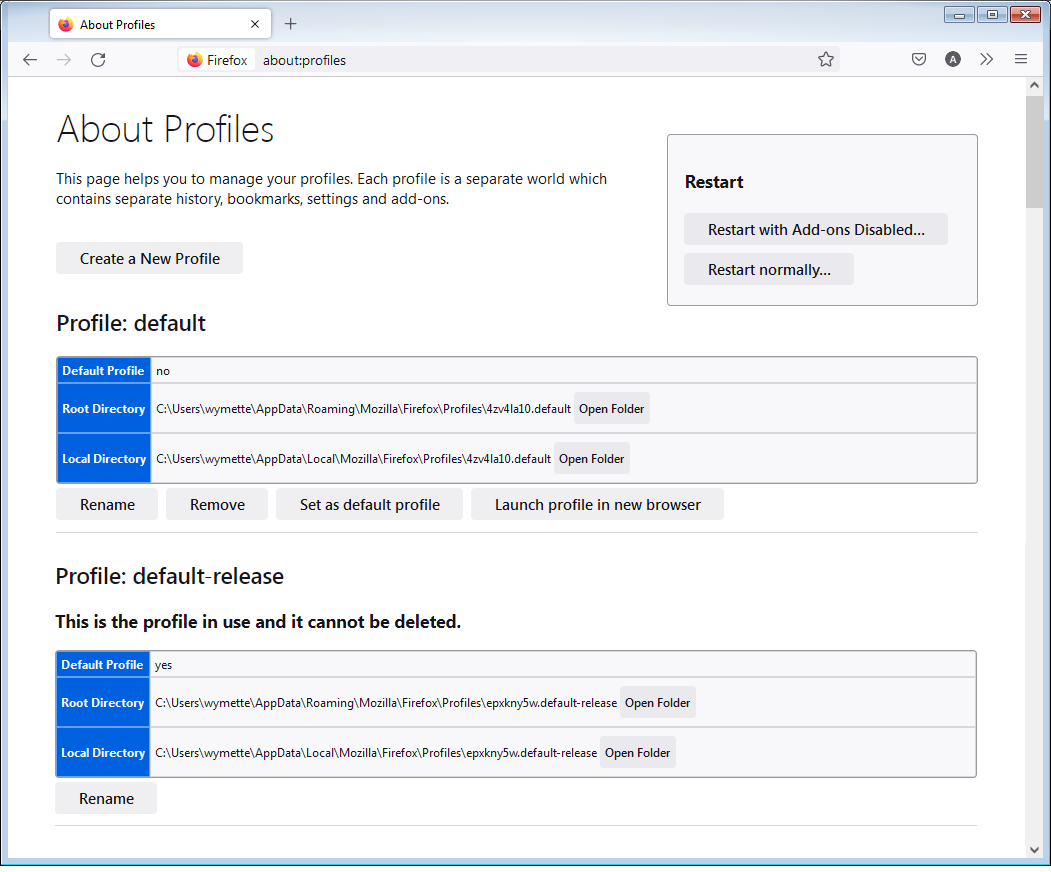
Inside Firefox, type or paste about:profiles in the address bar and press Enter/Return to load it. The About Profiles page will open. This page should list at least one profile and could list many.
The profile that Firefox is currently using will show:
This is the profile in use and it cannot be deleted.
Please do not delete anything here; don't use any Remove buttons.
Do you have another profile named default or default-longnumber listed on this page? If so, you can check whether it is the one you were using recently by clicking its Launch profile in new browser button.
If it isn't what you want, simply close that new window.
If it IS what you want, click the Set as default profile button for that profile on the about:profiles page. Firefox will use it automatically at the next startup.
For more information see Recover user data missing after Firefox update or reinstall.
Note: If your bookmarks are not available in another Firefox profile, see Recover lost or missing Bookmarks for other solutions.
I'm afraid if the only available profile is the empty one, you're trying to reload bookmarks file from an empty profile with zero content. So let's look around first.
When you open about:profiles — can you list what it shows, ideally attach a screenshot?
Which profiles does it have listed available there? Say "default", and "defalut–release" like below?
When you click on "Open Folder" button on the first "Root Directory" line, and navigate one folder up in file explorer — which is the Firefox Profiles directory — how does the file and folder list layout look like there, how many folders and with what names are saved there?