


After the lastest update all of the folders I've created and emails within them are missing

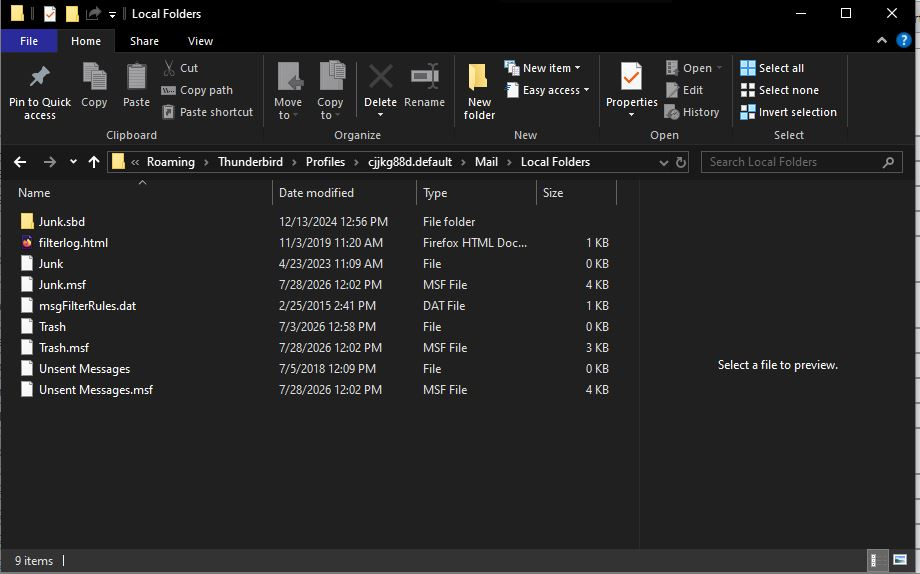
Thunderbird just updated and the next time I opened it all of the folders I created and the emails I'm storing within them are missing. I found my profile as directed. I'm not sure if I have a backup of it. I've included the screenshot as you ask for. I know that those folders and emails are there as I was playing around with the the 3 lines > View and when I moved between the different choices I saw my folders/emails are all in there.
Any assistance you can provide is appreciated!
All Replies (18)
Thunderbird just updated and the next time I opened it all of the folders I created and the emails I'm storing within them are missing.
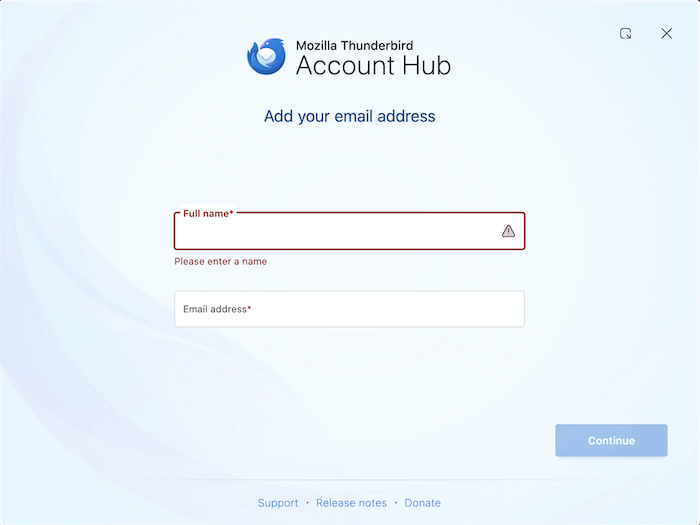
Please show a screen shot of the actual start page when you launch Thunderbird. Does it look like in my attached picture?
Thanks for your prompt reply and for helping me!
No I don't open to a screen like that. It goes to a normal email page. I don't think I ever saw a screen like that (maybe when I first installed it but that was about 15 years ago).
BTW, I have 2 different email addresses, the 2nd one is where I had all of my folders. I didn't create any "Local Folders". So "Local Folders" has and never had anything in it.
Here's a screenshot of my opening screen. I blurred it for privacy.
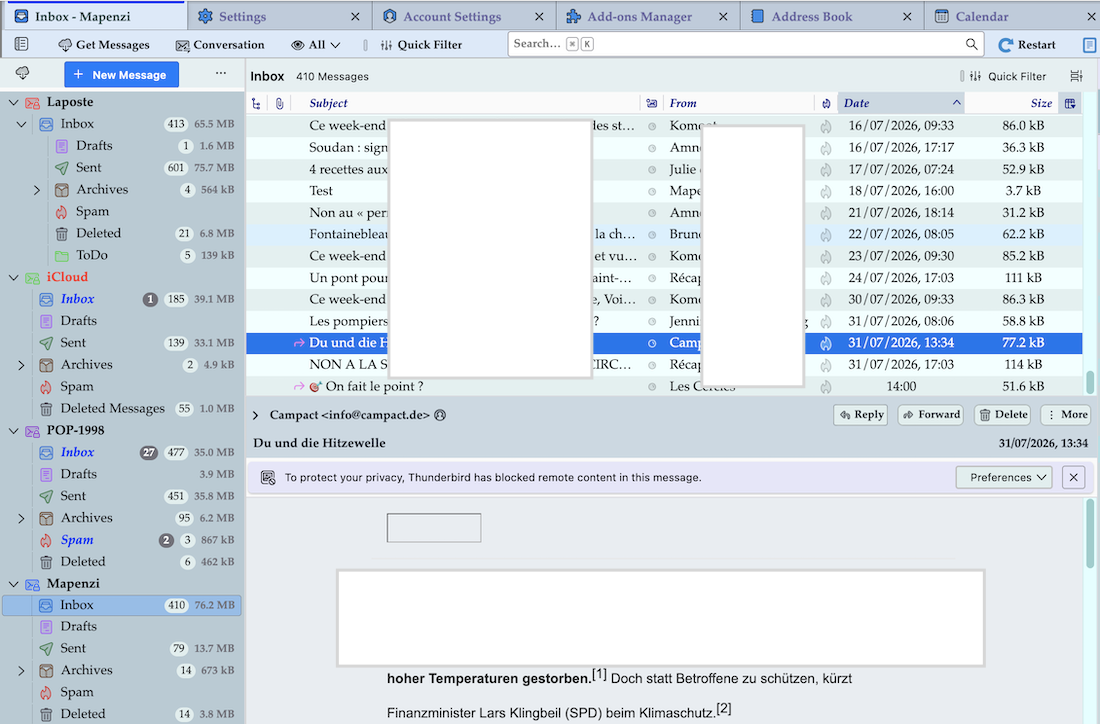
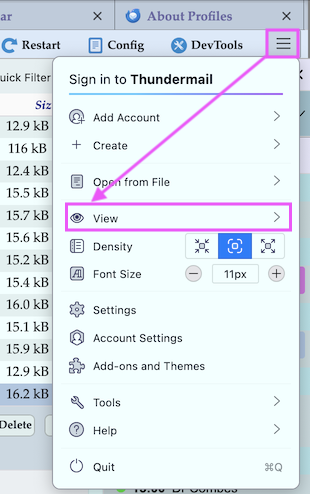
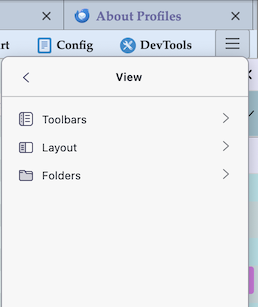
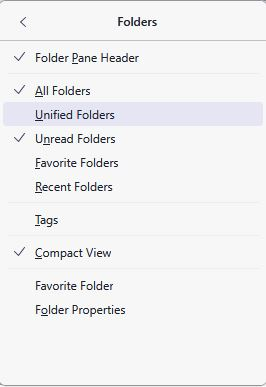
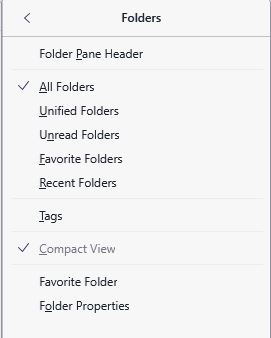
Unfortunately your screen shot is too much blurred and unusable. There are other means to anonymise screen shots or parts of them. Since you wrote " I was playing around with the the 3 lines > View" I think that your issue has something to do with the App menu button ≡ > View in your Thunderbird main window (first image) Can you remember what you did in the following "View" popup box (second image)? Most users do not remember the suite of their actions, so we might still need an anonymised screen shot, somewhat like in my third image.

Right click on your 2nd email ( where I believe folders are missing ), and then click on subscribe.
Verify if all your folders are there and if they are not checked, then check them..
Mapenzi,
I was able to use the VIEW popup settings to get my folders back with those exact settings choices in the graphic! However, they are not right below the 2nd email address which is where I want them to be.
It looks like there's something you can do with each folder to move its position UP or DOWN. Is that correct?
Thanks again for your help!
Phyllis said
It looks like there's something you can do with each folder to move its position UP or DOWN. Is that correct?
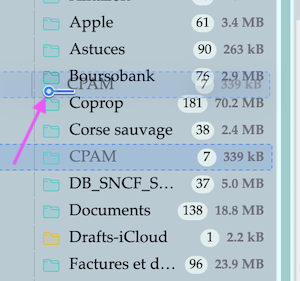
Yes, since several version you can move any Thunderbird system folder or any user-created generic folder up and down in the folder pane, without installing an add-on. Just select a folder with your mouse pointer, drag it carefully up or down and drop it in the chosen position between two folders. Be careful to not drop it ON another folder unless this is your goal...
While moving a folder its actual position is indicated by a tiny blue key symbol (image)
I was about to move my folders into the position where I wanted them until I noticed something odd.
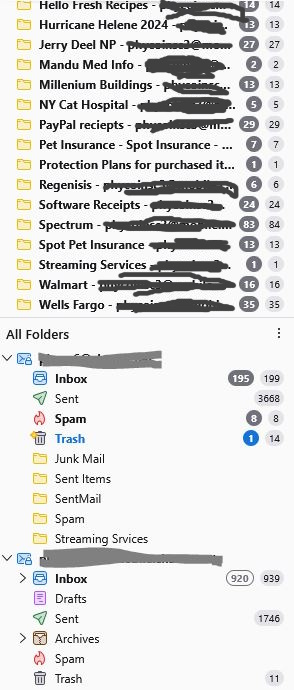
I have 2 different email addresses and each one of them has 2 INBOXES now that I changed my screen to the COMPACT VIEW. The first email address has matching QUANTITIES of emails within each INBOX and it's fine!
The second email address also has 2 INBOXES. One of the INBOXES has about 500 emails in it. The other INBOX has about 950 emails in it.
That's a lot of emails to go through to verify their contents. I did scroll through to the very first and very last emails in both INBOXES and they were identical.
Do you have any suggestions about what to do? I'm really getting close to a solution!
Thank you again!
I am sorry but I am not familiar with "Compact View" in the folder pane since I never used it. And I wonder why suddenly each of your two accounts would have two Inbox folders. On your last screen shot with the "All Folders" view I can see only one Inbox folder in each account.
(Assuming the reporter is not referring to Compact Density)
Compact View hides parent folders for certain folder modes in the folder pane, such as Favorites.
Thank you, Wayne!
Mapenzi
I wish you had experience using COMPACT VIEW.
I think I've solved this by setting the VIEW to this combination: ALL FOLDERS UNREAD FOLDERS COMPACT VIEW When I do this *everything that was missing* becomes visible. FWIW, the folders that were missing now have been named as follows: FOLDER NAME / EMAIL ADDRES 2 / # UNREAD MESSAGES # TOTAL MESSAGES
True enough, I do have 2 inboxes for each of my 2 email addresses. One of them has the same quantity of emails within it. The second email inbox has about twice the number of emails within it. When I scroll through both of these inboxes they seem to have the same emails in them (same first and last emails).
I need to get back to my regular life when I wasn't trying to troubleshoot software. I am going to use the 2nd email INBOX with the larger amount of emails within just to be on the safe side.
I know you'd probably like to have a screenshot of all of this but I'd have to go line by line to obscure soooo many emails and it's tedious and takes so much of my time.
Thanks for your time and assistance!
Mapenzi, if you think there is a reportable bug here, please create one?
Mapenzi and Wayne!
I spoke too soon.
When I moved a folder up to be in the position I wanted it to be in (as it had been before the update) 1. I didn't get those blue handles you mentioned 2. That long folder name that I described above went away and so did everything that was in the folder.
Is there any chance I can restore my profile file?
I have no idea if this is a bug
Thanks again
Phyllis said
Mapenzi I wish you had experience using COMPACT VIEW.
No, this is no longer the problem. Since Wayne's reply I know what it means and in the meantime I have tested it in my Thunderbird installation. Compact view is no black magic and it is not the problem in your case.
Phyllis said
I know you'd probably like to have a screenshot of all of this but I'd have to go line by line to obscure soooo many emails and it's tedious and takes so much of my time.
The problem is that I really don't know what exactly is displayed in your folder pane (the one on the left in the main window). If you display "All Folders" AND "Unread Folders" it is no surprise that you will see two Inbox folders for each account in the folder pane because in general an Inbox will contain unread messages most of the time. So it will be displayed all the time in "All Folders" and most of the time in "Unread Folders", too. And there is no need to anonymize screen shots by obscuring line by line. Did you see my screen shot of my main window? I obscured the Subject and the From lines en bloc which takes a few seconds,.....
Wayne Mery said
Mapenzi, if you think there is a reportable bug here, please create one?
Sorry, Wayne. I won't create a bug report for a problem which I do not understand entirely because of lack of information, mainly appropriate screen shots. And furthermore a problem which I cannot reproduce in my own Thunderbird profile.
I'm not sure there's a bug either. That's why I used the word "If". :)
Mapenzi,
I think we are getting different results. I set ALL FOLDERS and it results in the LEFT Panel. Please note that NONE of my folders that I created are visible and I cannot choose UNREAD FOLDERS view in this mode. When I choose UNREAD FOLDERS then COMPACT VIEW is then available to use. For context, this extra view with my "lost" folders exists directly below my first post's left panel....it's an extension of it.
Thanks for the "lesson" on how to obscure my private info.
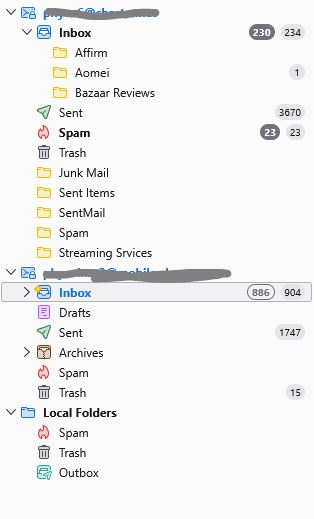
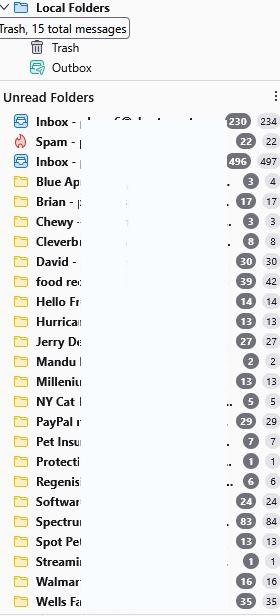
I still do not understand why your yellow unread folders do not appear in the "All Folders" view mode. Those folders cannot exist without an account in which they have been created previously. Obviously you did not create them in Local Folders, so they must belong to one of your accounts or both. Are these accounts POP or IMAP accounts? I propose that you choose "All Folders", disable "Unread Folders" and "Compact View", then verify whether your missing "yellow" folders will be displayed in the folder pane as sub-folders in your accounts.