


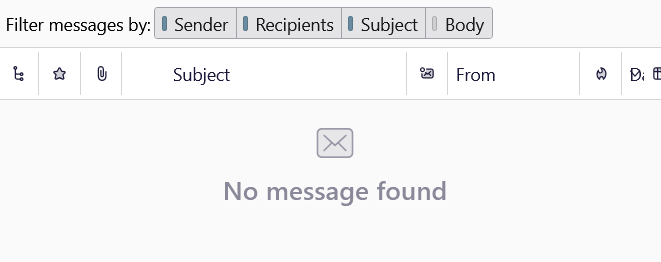
No message found

Whenever I try to search my various emails for some text, at least 40% of the time it shows me the attached message. I'm on Version 149.0.1 but it's been happening ever since I installed Thunderbird (maybe 4 or 5 months ago?) My first move is to check that I haven't mis-spelled the word I'm looking for (which I usually haven't) and I definitely know that the word is valid for one or more emails. So why does this message keep appearing?
Previously I'd been running an old 32-bit version of Thunderbird (which I don't have installed any more) but I don't remember ever seeing this with the older version.
Všetky odpovede (9)
Disable your Quick Filter bar and you'll be able to see the messages in your thread pane...
Oops... I've been trying to post a screenshot but it won't let me for some reason. I'll try again later.
Upravil(a) johne53 dňa
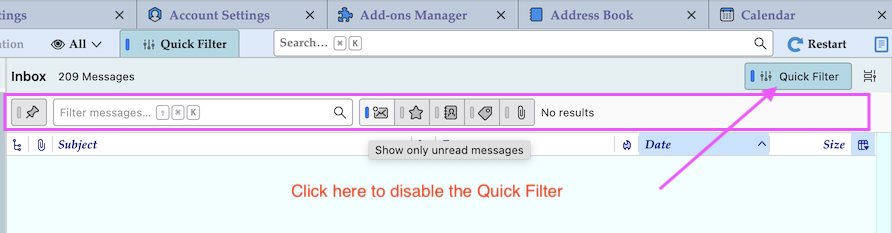
Apologies - after disabling my Quick Filter I was still seeing a very similar message but after closing Thunderbird and re-launching, it's now working as expected (I'll add to this thread if either of the messages returns...)
Thanks for your help @Mapenzi
I can't quite remember the correct term but when displaying emails it's possible to have each one displayed individually and there's also a feature whereby incoming emails can be grouped together (which makes it easier to follow a conversion). Even after disabling my Quick Filter I'm still seeing "No Message Found" whenever the email is contained within one of those groups. Can someone please remind me how to turn it off?
[Edit...] A similar issue (when using 'Open Message in Conversation') is that it'll only display my Sent emails. If I try to display incoming emails, either nothing happens here - or I still see "No message found" . Is there something I need to do here to fix that?
Upravil(a) johne53 dňa
Using the "View" > Sort By menu you can display messages of a folder in different ways: as "Threaded", "Unthreaded" or "Grouped by sort". The default sort setting in Thunderbird is 'threaded'. After opening Settings > Appearance you can also customise window layout, message list, table view options and sorting & threading.... you can propagate threading and sorting settings to all existing folders or certain accounts, folders, etc only. There is no general setting to display messages in a conversation; you have to do this manually via R-click on a message > Open Message in Conversation. The conversation will be displayed in a new tab which lists received and sent messages with the same subject. I cannot reproduce your issue and I have no explanation for it. Maybe the .msf files (message summary files) of certain of your folders are damaged. So try R-click on the problem folder > Properties > Repair Folder. If this doesn't solve your "No message found" problem restart Thunderbird via Help > Troubleshoot Mode ... https://support.mozilla.org/en-US/kb/troubleshoot-mode-thunderbird
Thanks again @Mapenzi - changing to Unthreaded mode makes no difference to my "Open message in Conversation" issue (i.e. it still either does nothing at all if I try it with my incoming messages or else it shows me "No message found".). Likewise, after selecting 'Properties->Repair Folder' made no difference either. However... restarting Thunderbird in Troubleshoot mode now always shows a list of messages for "Open message in Conversation" (even if I try it from my incoming mails folder). But... the list still only shows emails that I've sent. There are never any incoming mails in the list :-(
Having said that - the problem only seems to be affecting one particular email account. Email folders for an alternative account are working as expected. It's definitely a bit of a mystery.
" Having said that - the problem only seems to be affecting one particular email account. Email folders for an alternative account are working as expected. "
Okay I've made a bit of progress with this... in 'Settings' I'd selected 'Unthreaded' mode and 'All existing folders' and at first it looked like it had worked. But I later realised that incoming emails for that account were still in 'Threaded' mode (even though Settings was showing me 'Unthread')
So I went through the same process again but this time I selected 'Choose' and selected the troublesome email account's 'Inbox' . And after that it works as expected.