


Lost profiles after Windows 11 upgrade

I have lost access to my profile, including address book and email (which I keep off-line). My installs & profile files:
%APPDATA% = C:\Users\micha\AppData\Roaming
%APPDATA%\Thunderbird\installs.ini [C1263DE4EAE8A7E6] IsRelative=0 Default=D:/Users/micha/AppData/Roaming/Thunderbird/Profiles/hp2fnj5i.default Locked=1
%APP_DATA%\Thunderbird\profile.ini [InstallC1263DE4EAE8A7E6] IsRelative=0 Default=D:/Users/micha/AppData/Roaming/Thunderbird/Profiles/hp2fnj5i.default Locked=1
[Profile1] Name=Michael Grazebrook IsRelative=0 Path=D:/Users/micha/AppData/Roaming/Thunderbird/Profiles/hp2fnj5i.default Default=1
[Profile0] Name=default-release IsRelative=0 Path=D:/Users/micha/AppData/Roaming/Thunderbird/Profiles/hp2fnj5i.default-release
[General] StartWithLastProfile=1 Version=2
The actual location of the profile is the same path except on the D: drive.
I can't find any documentation for installs.ini so I guessed at the correct content. So my main question is how do I get my email back but I'd also like to know where to find documentation for installs.ini
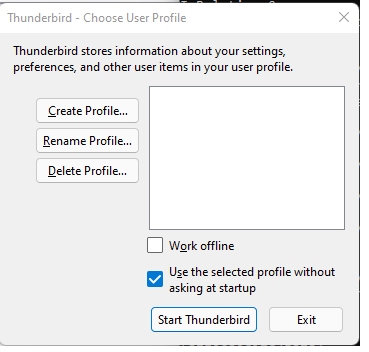
These config files are my best attempt and they don't work. Thunderbird boots with an empty list of profiles (see image)
Soluție aleasă
Try this: start Profile Manager, Create Profile..., name it, Choose folder..., Browse... and select the folder that has your data, e.g. hp2fnj5i.default.
Citește răspunsul în context 👍 1Toate răspunsurile (3)
PS: This is partly my fault. Previously I'd worked around the problem of needing the email to be on the D: drive not C: by linking the folder from C: to D:. The Windows 11 migration seems to have destroyed the link.
Soluție aleasă
Try this: start Profile Manager, Create Profile..., name it, Choose folder..., Browse... and select the folder that has your data, e.g. hp2fnj5i.default.
Thank you. That worked.