


How to run Multiple instances with Same Administrator profile?

i am opening Firefox with command line by passing parameters from a remote system to my machine, which in result need to open multiple instances of Firefox , with their respective parameter sets. individually every parameters are accepting and good to go but once i am opening a second instance while opening first it gives error of "Firefox is already running but is not responding.The old firefox must be closed to open a new window" On clicking Close Firefox , 1st session get closed and shifts on second session. OS is Windows server 2012 See attachments
Toate răspunsurile (3)
See Attachments
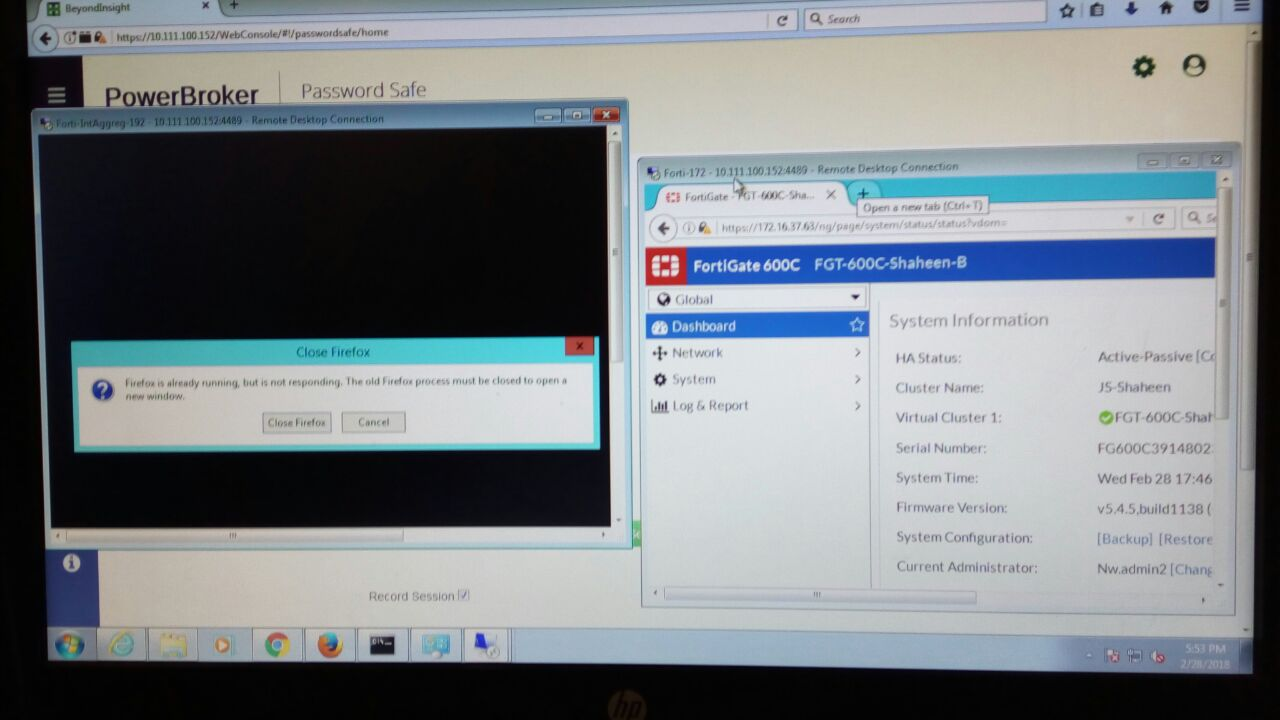
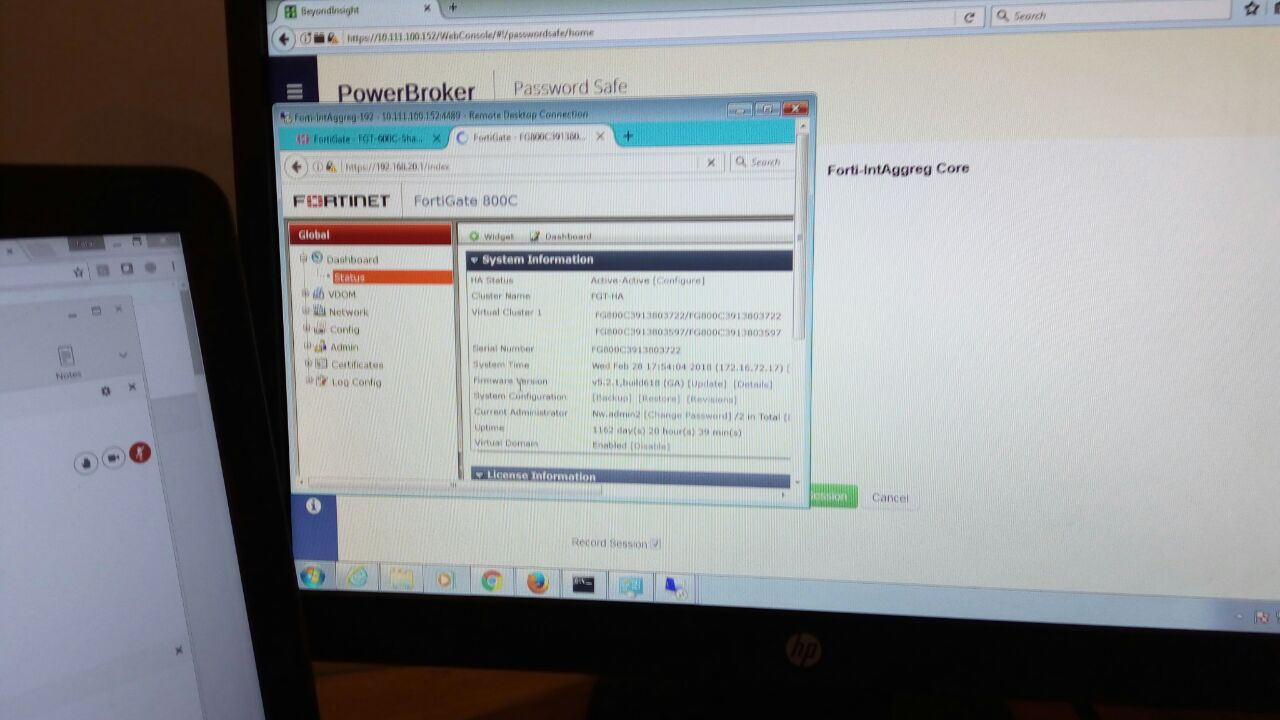
I don't know about what you mean by "passing parameters from a remote system to my machine" or what that might entail. Screenshots are too blurred to read for me.
You can launch multiple Firefox Profiles by using the '-no-remote command line switch for the 2nd and subsequent Firefox Profile that is opened.
https://developer.mozilla.org/en-US/docs/Mozilla/Command_Line_Options#User_Profile scroll don to see -no-remote
As far as your screenshots, how about posting images that are in focus? See this support article to learn how to do screenshots thru the keyboard & Paint in Windows or maybe using the "Sniping Tool" in Vista and later. And how to use Firefox Screenshots. General screenshots - How do I create a screenshot of my problem? By using Firefox Screenshots
It is best to use a compressed image type like PNG or JPG to save the screenshot and make sure that you do not exceed a maximum file size of 1 MB.
Then use the Browse .... button below the Post a Reply text box to upload the screenshot.
You would have to use separate profiles for each instance if you won't or can't open a new window in the same Firefox instance.